Redhat Developers  Logo
  • AI

    Get started with AI

    • Red Hat AI
      Accelerate the development and deployment of enterprise AI solutions.
    • AI learning hub
      Explore learning materials and tools, organized by task.
    • AI interactive demos
      Click through scenarios with Red Hat AI, including training LLMs and more.
    • AI/ML learning paths
      Expand your OpenShift AI knowledge using these learning resources.
    • AI quickstarts
      Focused AI use cases designed for fast deployment on Red Hat AI platforms.
    • No-cost AI training
      Foundational Red Hat AI training.

    Featured resources

    • OpenShift AI learning
    • Open source AI for developers
    • AI product application development
    • Open source-powered AI/ML for hybrid cloud
    • AI and Node.js cheat sheet

    Red Hat AI Factory with NVIDIA

    • Red Hat AI Factory with NVIDIA is a co-engineered, enterprise-grade AI solution for building, deploying, and managing AI at scale across hybrid cloud environments.
    • Explore the solution
  • Learn

    Self-guided

    • Documentation
      Find answers, get step-by-step guidance, and learn how to use Red Hat products.
    • Learning paths
      Explore curated walkthroughs for common development tasks.
    • Guided learning
      Receive custom learning paths powered by our AI assistant.
    • See all learning

    Hands-on

    • Developer Sandbox
      Spin up Red Hat's products and technologies without setup or configuration.
    • Interactive labs
      Learn by doing in these hands-on, browser-based experiences.
    • Interactive demos
      Click through product features in these guided tours.

    Browse by topic

    • AI/ML
    • Automation
    • Java
    • Kubernetes
    • Linux
    • See all topics

    Training & certifications

    • Courses and exams
    • Certifications
    • Skills assessments
    • Red Hat Academy
    • Learning subscription
    • Explore training
  • Build

    Get started

    • Red Hat build of Podman Desktop
      A downloadable, local development hub to experiment with our products and builds.
    • Developer Sandbox
      Spin up Red Hat's products and technologies without setup or configuration.

    Download products

    • Access product downloads to start building and testing right away.
    • Red Hat Enterprise Linux
    • Red Hat AI
    • Red Hat OpenShift
    • Red Hat Ansible Automation Platform
    • See all products

    Featured

    • Red Hat build of OpenJDK
    • Red Hat JBoss Enterprise Application Platform
    • Red Hat OpenShift Dev Spaces
    • Red Hat Developer Toolset

    References

    • E-books
    • Documentation
    • Cheat sheets
    • Architecture center
  • Community

    Get involved

    • Events
    • Live AI events
    • Red Hat Summit
    • Red Hat Accelerators
    • Community discussions

    Follow along

    • Articles & blogs
    • Developer newsletter
    • Videos
    • Github

    Get help

    • Customer service
    • Customer support
    • Regional contacts
    • Find a partner

    Join the Red Hat Developer program

    • Download Red Hat products and project builds, access support documentation, learning content, and more.
    • Explore the benefits

Observability Front and Center with the Cryostat OpenShift Console Plugin

March 20, 2025
Andrew Azores
Related topics:
Developer toolsJavaJava microservicesKubernetesMicroservicesObservabilityOperators
Related products:
Red Hat build of CryostatRed Hat build of OpenJDK

    Foreword

    Cryostat 4.0 has been released, and it’s an especially noteworthy one: this marks Cryostat’s graduation from Tech Preview to Generally Available as a supported product. With this comes some under-the-hood architectural enhancements for performance and security, as well as some significant new features.


    Introduction

    In this article we will examine one of the two most visible new features of Cryostat 4.0: its new OpenShift Console Plugin. The other major new feature, Agent Autoconfiguration, was previously covered on this blog.

    When you install the Red Hat Build of Cryostat Operator on an OpenShift 4.15+ cluster, the Operator will also set up a Dynamic Plugin in your OpenShift Web Console. This plugin makes it even quicker and easier to access Cryostat functionality by exposing it directly within the Console UI.


    Getting Started

    First, ensure that your OpenShift cluster is running version 4.15+. The Cryostat Operator can be installed on clusters back to OpenShift version 4.12, but the Console Plugin is only compatible with 4.15+. If you install the Operator on a version from 4.12-4.14 then all other Cryostat functionality will be available but you will not have access to the Console Plugin.

    Open your Console, log in as an admin user, and go to the Administrator Perspective. From there, expand the Operators tab in the navigation panel, then go to OperatorHub. Search for Cryostat and install the Red Hat Build of Cryostat Operator 4.0. It may take some time for this operation to complete. Once it does, the Console will display a notification prompting you to refresh the page to view changes to the Console. After refreshing the page you will notice a new Cryostat tab at the bottom of the navigation panel. If you do not see the notification you can simply refresh the page after some time, until the Cryostat tab does appear.
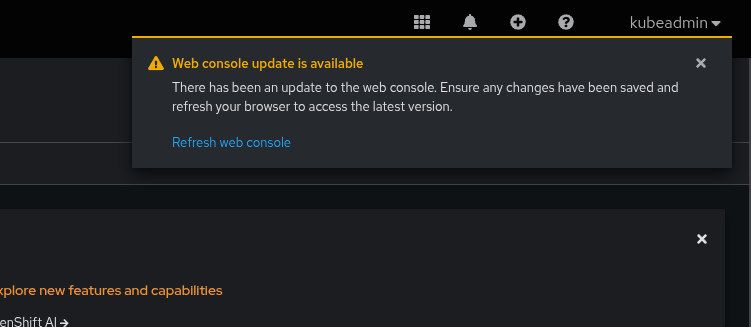
    OpenShift Web Console notification after Cryostat plugin installation

    From the Operators tab, under Installed Operators, click the Cryostat item in the  “Provided APIs” column for the Cryostat Operator. This will bring you to a form for creating a Cryostat Custom Resource instance. Without diving into too much detail, this Custom Resource is used to tell the Operator how to configure the Cryostat instance(s) you would like to install within the cluster. The Cryostat Console Plugin allows you to communicate with each of these instances from one centralized UI, rather than needing to visit each Cryostat’s UI separately. Go ahead and create a Cryostat Custom Resource. In this example we have a Project named cryostat1 where the Cryostat instance will be installed, and a Project named apps1 where our workload application is installed.
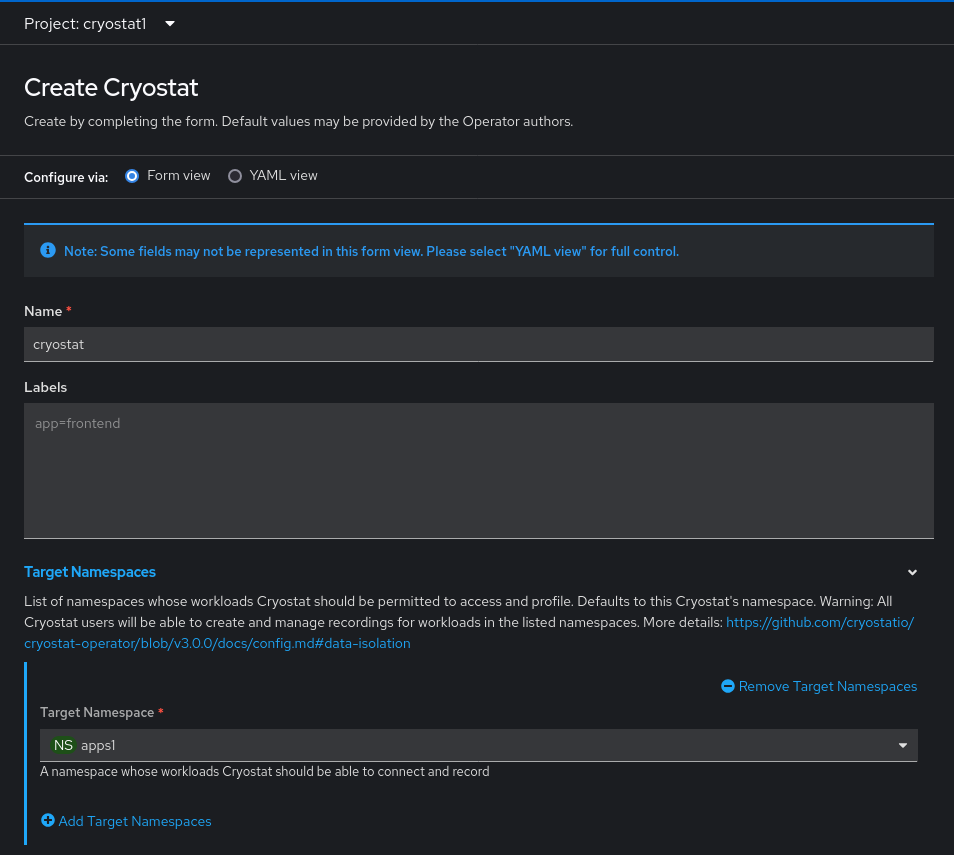
    Cryostat 4.0 Custom Resource creation form


    Using the Console Plugin

    Once we have everything created and at least one Cryostat instance ready, we can check out the new Cryostat Console Plugin UI. Here we see a familiar Project Context Selector bar at the top of the view, and beside that a Cryostat instance selector. We can select “All Projects” in the Project selector so that every Cryostat instance is available for selection, or we can narrow our selection to a single Project to see only the Cryostat instances within that Project. This way we can quickly and accurately move between Cryostat instances. Let’s select the cryostat1 Project and the cryostat instance within it which we just created.

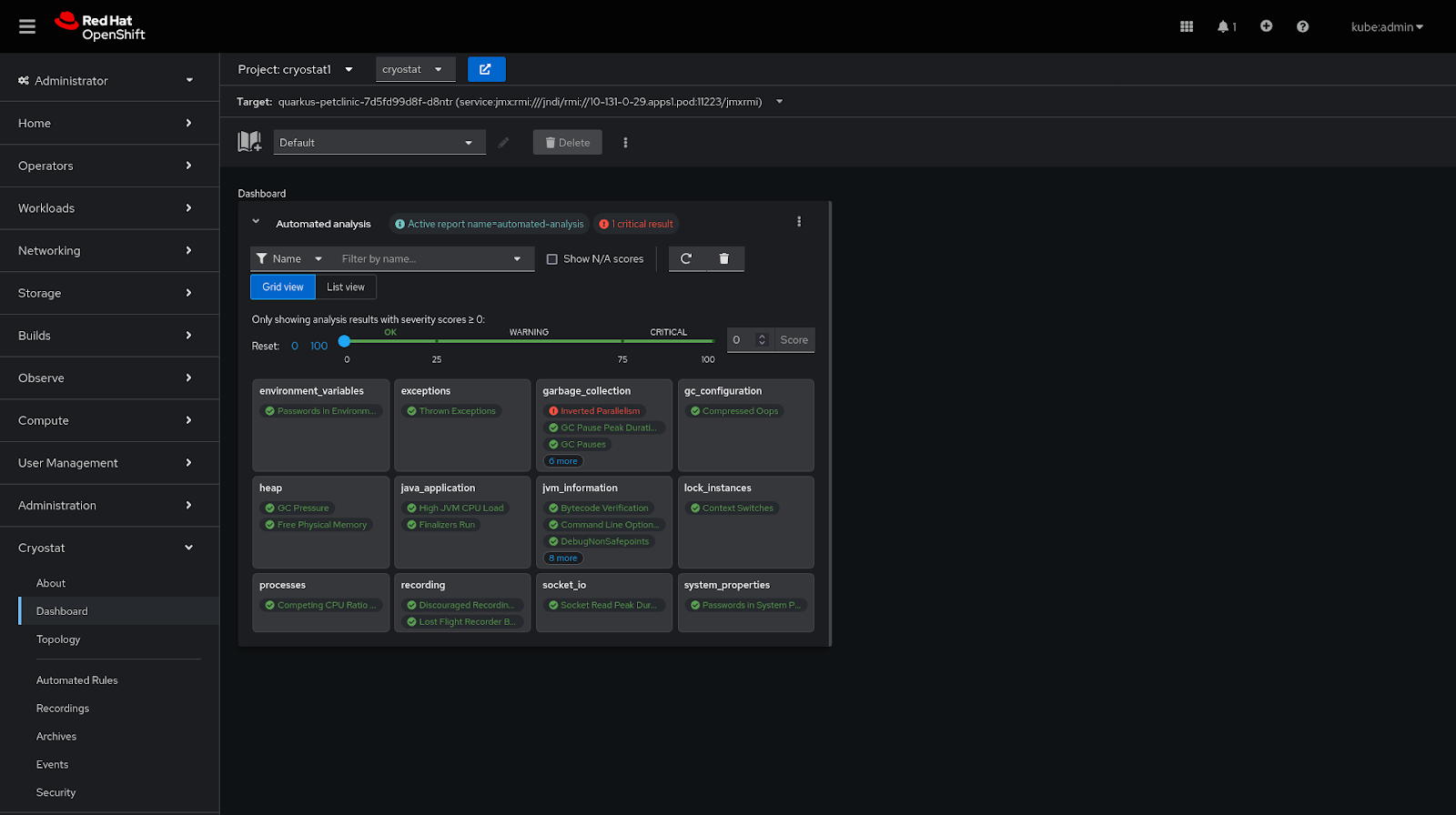
    Now, the sub-tabs within the Cryostat Plugin UI can be used in much the same way that we would use the standalone Cryostat Web UI. For more information about Cryostat features, check out its Red Hat Product Page or the upstream documentation website. The Topology view, for example, can show us all of the target applications that our selected Cryostat instance is aware of. The Recordings and Events views can give us information about the JDK Flight Recorder events and recordings present in any of those target applications, and the Automated Rules view can be used to set up rules for the Cryostat instance to capture data from target applications as they are discovered. The Dashboard can be used to quickly evaluate the performance of your applications, including automated analysis of Flight Recorder data to highlight potential issues.
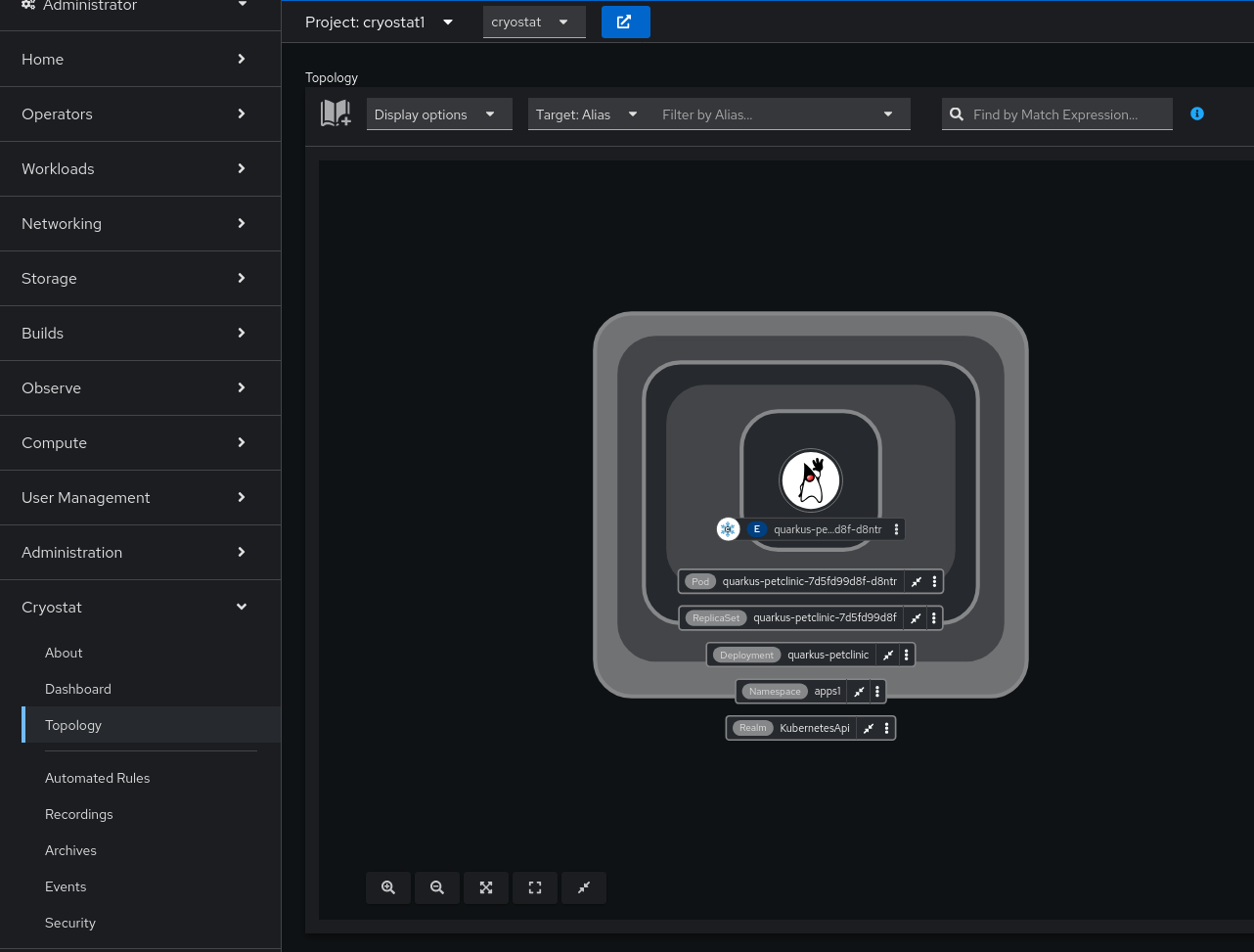
    Cryostat 4.0 Topology View
    Cryostat 4.0 Automated Analysis Card

    There are only a few differences between the Cryostat Plugin UI and the standalone Cryostat Web UI. There is a button on the project selector bar that opens the standalone Cryostat Web UI in a new tab, which you can use in any of the following cases:

    1. File uploads are only possible in the standalone Cryostat Web UI. If you have a JFR file that you’d like to upload into the Cryostat archives, or an Automated Rules JSON definition file to create, or a .jfc Custom Event Template to define, you will need to open the Cryostat Web UI to do so.
    2. Advanced settings are only available in the standalone Cryostat Web UI. This includes settings for tailoring which notifications appear, or setting defaults for the Automated Analysis dashboard card, or setting the dark/light theme.
    3. The Cryostat Plugin UI does not have its own notification drawer and does not integrate into the Console notification drawer. Cryostat Plugin UI notifications will appear as popups and will time out or can be manually cleared, but cannot be reviewed after they have disappeared.


    Conclusion

    The new Cryostat OpenShift Console Plugin 4.0 gives you direct, convenient access to all of your Cryostat instances within a single UI, with no additional authentication/authorization step, so that you can spend less time gathering and finding your JDK application observability metrics and more time analyzing and responding to them. For more information about what kind of information you can obtain and analyses you can perform using Cryostat, check out its Red Hat Product Page or the upstream documentation website.

    Disclaimer: Please note the content in this blog post has not been thoroughly reviewed by the Red Hat Developer editorial team. Any opinions expressed in this post are the author's own and do not necessarily reflect the policies or positions of Red Hat.

    Recent Posts

    • Every layer counts: Defense in depth for AI agents with Red Hat AI

    • Fun in the RUN instruction: Why container builds with distroless images can surprise you

    • Trusted software factory: Building trust in the agentic AI era

    • Build a zero trust AI pipeline with OpenShift and RHEL CVMs

    • Red Hat Hardened Images: Top 5 benefits for software developers

    Red Hat Developers logo LinkedIn YouTube Twitter Facebook

    Platforms

    • Red Hat AI
    • Red Hat Enterprise Linux
    • Red Hat OpenShift
    • Red Hat Ansible Automation Platform
    • See all products

    Build

    • Developer Sandbox
    • Developer tools
    • Interactive tutorials
    • API catalog

    Quicklinks

    • Learning resources
    • E-books
    • Cheat sheets
    • Blog
    • Events
    • Newsletter

    Communicate

    • About us
    • Contact sales
    • Find a partner
    • Report a website issue
    • Site status dashboard
    • Report a security problem

    RED HAT DEVELOPER

    Build here. Go anywhere.

    We serve the builders. The problem solvers who create careers with code.

    Join us if you’re a developer, software engineer, web designer, front-end designer, UX designer, computer scientist, architect, tester, product manager, project manager or team lead.

    Sign me up

    Red Hat legal and privacy links

    • About Red Hat
    • Jobs
    • Events
    • Locations
    • Contact Red Hat
    • Red Hat Blog
    • Inclusion at Red Hat
    • Cool Stuff Store
    • Red Hat Summit
    © 2026 Red Hat

    Red Hat legal and privacy links

    • Privacy statement
    • Terms of use
    • All policies and guidelines
    • Digital accessibility

    Chat Support

    Please log in with your Red Hat account to access chat support.