Redhat Developers  Logo
  • AI

    Get started with AI

    • Red Hat AI
      Accelerate the development and deployment of enterprise AI solutions.
    • AI learning hub
      Explore learning materials and tools, organized by task.
    • AI interactive demos
      Click through scenarios with Red Hat AI, including training LLMs and more.
    • AI/ML learning paths
      Expand your OpenShift AI knowledge using these learning resources.
    • AI quickstarts
      Focused AI use cases designed for fast deployment on Red Hat AI platforms.
    • No-cost AI training
      Foundational Red Hat AI training.

    Featured resources

    • OpenShift AI learning
    • Open source AI for developers
    • AI product application development
    • Open source-powered AI/ML for hybrid cloud
    • AI and Node.js cheat sheet

    Red Hat AI Factory with NVIDIA

    • Red Hat AI Factory with NVIDIA is a co-engineered, enterprise-grade AI solution for building, deploying, and managing AI at scale across hybrid cloud environments.
    • Explore the solution
  • Learn

    Self-guided

    • Documentation
      Find answers, get step-by-step guidance, and learn how to use Red Hat products.
    • Learning paths
      Explore curated walkthroughs for common development tasks.
    • Guided learning
      Receive custom learning paths powered by our AI assistant.
    • See all learning

    Hands-on

    • Developer Sandbox
      Spin up Red Hat's products and technologies without setup or configuration.
    • Interactive labs
      Learn by doing in these hands-on, browser-based experiences.
    • Interactive demos
      Click through product features in these guided tours.

    Browse by topic

    • AI/ML
    • Automation
    • Java
    • Kubernetes
    • Linux
    • See all topics

    Training & certifications

    • Courses and exams
    • Certifications
    • Skills assessments
    • Red Hat Academy
    • Learning subscription
    • Explore training
  • Build

    Get started

    • Red Hat build of Podman Desktop
      A downloadable, local development hub to experiment with our products and builds.
    • Developer Sandbox
      Spin up Red Hat's products and technologies without setup or configuration.

    Download products

    • Access product downloads to start building and testing right away.
    • Red Hat Enterprise Linux
    • Red Hat AI
    • Red Hat OpenShift
    • Red Hat Ansible Automation Platform
    • See all products

    Featured

    • Red Hat build of OpenJDK
    • Red Hat JBoss Enterprise Application Platform
    • Red Hat OpenShift Dev Spaces
    • Red Hat Developer Toolset

    References

    • E-books
    • Documentation
    • Cheat sheets
    • Architecture center
  • Community

    Get involved

    • Events
    • Live AI events
    • Red Hat Summit
    • Red Hat Accelerators
    • Community discussions

    Follow along

    • Articles & blogs
    • Developer newsletter
    • Videos
    • Github

    Get help

    • Customer service
    • Customer support
    • Regional contacts
    • Find a partner

    Join the Red Hat Developer program

    • Download Red Hat products and project builds, access support documentation, learning content, and more.
    • Explore the benefits

Docker Authentication with Keycloak

October 31, 2017
Josh Cain
Related topics:
Containers

    Need to lock down your Docker registry?  Keycloak has you covered.

    As of version 3.2.0, Keycloak has the ability to act as an "authorization service" for Docker authentication. This means that the Keycloak IDP server can perform identity validation and token issuance when a Docker registry requires authentication. Administrators may now leverage the same user base, audit controls, and configuration mechanisms in Keycloak to extend their SSO ecosystem past OpenID Connect and SAML to cover Docker registries. The chart below illustrates how this flow works:
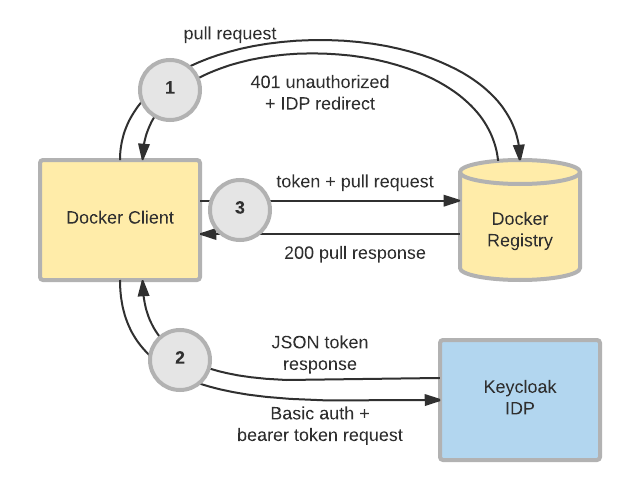
    Docker Authentication Flow

    This article will walk through how to set up a local Keycloak IDP and Docker registry to demonstrate the Docker authentication capability. Note that the configuration used in this tutorial is for demonstration purposes only, and should never be run in a production environment. Also, be advised that Docker authentication remains a community-supported feature. It is not covered by a support subscription.

    Configure the Keycloak Client and a Docker Registry

    Begin by spinning up a Keycloak instance.  Note that the docker feature must be explicitly enabled:

    docker run -p 8080:8080 -e KEYCLOAK_USER=admin -e KEYCLOAK_PASSWORD=password jboss/keycloak -Dkeycloak.profile.feature.docker=enabled -b 0.0.0.0

    Once the container boots up, open your web browser and head to the Keycloak admin console. For the sake of this demonstration, we're going to use the master realm. However, in most real-world use cases, Docker registries will be configured against the primary realm or realms. Create a client for a Docker registry with the following steps. Don't worry about having a registry container or server handy yet; we'll get to that part in a bit.

    • Browse to the admin console at http://localhost:8080/auth/admin/master/console/and login with the credentials specified in the above command.
    • Choose Clients from the menu on the left side, and click the Create button.
    • Enter a meaningful name for ClientID, choose docker-v2 as the Client Protocol, and click Save.
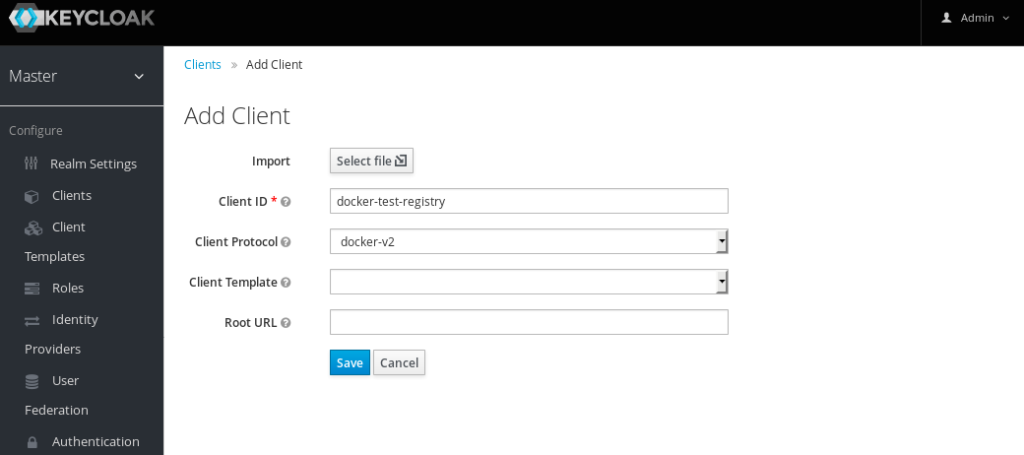
    Add Docker Client

    A message will pop up indicating that the client was successfully created. At this point, the IDP is ready to interact with a Docker registry, so let's spin one up. Thankfully, Docker Compose can automate the process of creating and configuring a Docker registry to interact with our IDP.

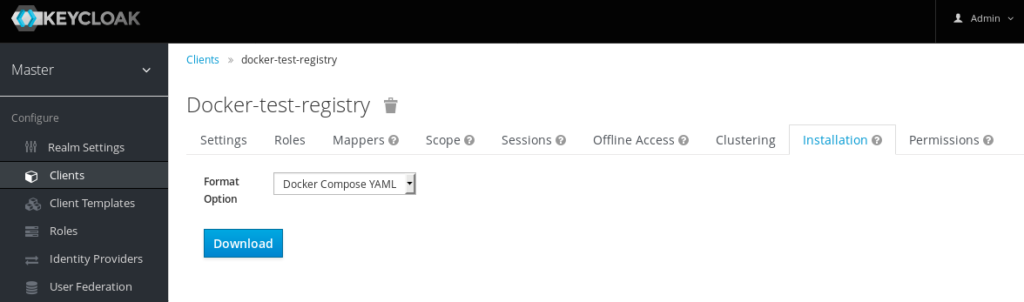
    • Navigate to the Installation tab
    • Choose Docker Compose YAML as the Format Option
    • Click Download.

    Docker Compose Download

    Save the .zip to the desired location, and then unzip the archive. After unzipping, the resulting directory should look like this:

    keycloak-docker-compose-yaml
    ├── certs
    │   ├── localhost.crt
    │   ├── localhost.key
    │   └── localhost_trust_chain.pem
    ├── data
    ├── docker-compose.yaml
    └── README.md

    From the keycloak-docker-compose-yaml directory, simply execute the following command to spin up a local registry:

    docker-compose up

    Test Authentication

    Now that both the Keycloak IDP and the Docker registry have been configured and stood up locally, we can demonstrate authentication using the local Docker client. First, validate that the registry is protected by authentication:

    # docker pull localhost:5000/busybox
    Using default tag: latest
    Error response from daemon: Get https://localhost:5000/v2/busybox/manifests/latest: unauthorized: Invalid username or password.


    Note that the pull was unsuccessful because our client has not been authorized to access the registry. Now, log in with the same credentials previously used to gain access to the Keycloak console and observe a different message:

    # docker login -u admin localhost:5000
    Password: 
    Login Succeeded
    
    # docker pull localhost:5000/busybox
    Using default tag: latest
    Error response from daemon: manifest for localhost:5000/busybox:latest not found

    Observe that a new error message is presented - namely that the manifest could not be found.  This is due to the container and data volume start with an empty registry. Simply tagging and uploading an image will resolve this error message:

    # docker pull busybox
    Using default tag: latest
    latest: Pulling from library/busybox
    03b1be98f3f9: Pull complete 
    Digest: sha256:3e8fa85ddfef1af9ca85a5cfb714148956984e02f00bec3f7f49d3925a91e0e7
    Status: Downloaded newer image for busybox:latest 
    
    # docker tag busybox:latest localhost:5000/busybox:latest
    
    # docker push localhost:5000/busybox:latest
    The push refers to a repository [localhost:5000/busybox]
    6a749002dd6a: Pushed 
    latest: digest: sha256:030fcb92e1487b18c974784dcc110a93147c9fc402188370fbfd17efabffc6af size: 527
    
    # docker pull localhost:5000/busybox
    Using default tag: latest
    latest: Pulling from busybox
    Digest: sha256:030fcb92e1487b18c974784dcc110a93147c9fc402188370fbfd17efabffc6af
    Status: Image is up to date for localhost:5000/busybox:latest

    The docker client can now perform operations against the registry, as it has authenticated against the Keycloak IDP Server.

    For more information on how to use Keycloak with Docker, see the relevant sections in the server administration guide and the securing applications guide.


    Whether you are new to Containers or have experience, downloading this cheat sheet can assist you when encountering tasks you haven’t done lately.

    Last updated: October 26, 2017

    Recent Posts

    • Every layer counts: Defense in depth for AI agents with Red Hat AI

    • Fun in the RUN instruction: Why container builds with distroless images can surprise you

    • Trusted software factory: Building trust in the agentic AI era

    • Build a zero trust AI pipeline with OpenShift and RHEL CVMs

    • Red Hat Hardened Images: Top 5 benefits for software developers

    Red Hat Developers logo LinkedIn YouTube Twitter Facebook

    Platforms

    • Red Hat AI
    • Red Hat Enterprise Linux
    • Red Hat OpenShift
    • Red Hat Ansible Automation Platform
    • See all products

    Build

    • Developer Sandbox
    • Developer tools
    • Interactive tutorials
    • API catalog

    Quicklinks

    • Learning resources
    • E-books
    • Cheat sheets
    • Blog
    • Events
    • Newsletter

    Communicate

    • About us
    • Contact sales
    • Find a partner
    • Report a website issue
    • Site status dashboard
    • Report a security problem

    RED HAT DEVELOPER

    Build here. Go anywhere.

    We serve the builders. The problem solvers who create careers with code.

    Join us if you’re a developer, software engineer, web designer, front-end designer, UX designer, computer scientist, architect, tester, product manager, project manager or team lead.

    Sign me up

    Red Hat legal and privacy links

    • About Red Hat
    • Jobs
    • Events
    • Locations
    • Contact Red Hat
    • Red Hat Blog
    • Inclusion at Red Hat
    • Cool Stuff Store
    • Red Hat Summit
    © 2026 Red Hat

    Red Hat legal and privacy links

    • Privacy statement
    • Terms of use
    • All policies and guidelines
    • Digital accessibility

    Chat Support

    Please log in with your Red Hat account to access chat support.