Modern integrated development environments (IDEs) have evolved beyond simple code editors into intelligent platforms powered by AI assistants. These assistants can answer questions, generate code, and help debug issues. But they often lack deep expertise in specialized platforms like Red Hat OpenShift. This is where Model Context Protocol (MCP) comes into play. MCP is an open standard that allows AI assistants to connect with external tools, extending their capabilities far beyond their base knowledge and providing them access to specialized and real-time information.
In this article, we'll walk through a proof of concept that connects an MCP server for Red Hat OpenShift Lightspeed to your preferred IDE. OpenShift Lightspeed, Red Hat's AI assistant, is purpose-built for OpenShift, grounded in official documentation, and capable of interacting with your cluster. By exposing OpenShift Lightspeed through an MCP server, we bring that expertise directly into your development workflow, allowing you to ask OpenShift questions, generate configurations, and even query cluster resources without leaving your editor.
Prepare your environment
For this article, you must have the following prerequisites:
- A code editor with an AI assistant that supports MCP (e.g., Claude Code, Cursor, VS Code with GitHub Copilot, etc.).
- Access to a running OpenShift cluster.
- The OpenShift Lightspeed operator installed and connected to a supported LLM provider.
- To query live cluster resources, enable the Cluster Interaction feature in the OLSConfig custom resource (optional).
For reference, my environment uses Cursor as the IDE and an OpenShift 4.20 cluster with OpenShift Lightspeed 1.0.8, configured to communicate with a GPT-4 model hosted on Azure OpenAI.
Additionally, you'll need to clone the MCP server repository to your local machine. This repository contains all the logic and dependencies required to run the OpenShift Lightspeed MCP server:
git clone https://github.com/thoraxe/ols-mcp.gitMake note of the full path to this directory, because you'll need it later to configure your IDE.
Exposing the OpenShift Lightspeed service
In our running cluster, we need to expose the OpenShift Lightspeed service to access it from outside the cluster. Apply the following YAML to create a secure route pointing to the lightspeed-app-server service. We use Reencrypt TLS termination to ensure traffic remains encrypted outside and inside the cluster.
apiVersion: route.openshift.io/v1
kind: Route
metadata:
  name: ols-route
  namespace: openshift-lightspeed
spec:
  to:
    name: lightspeed-app-server
    weight: 100
    kind: Service
  port:
    targetPort: https
  tls:
    termination: reencrypt
  wildcardPolicy: None
Once applied, you'll get a URL that exposes the OpenShift Lightspeed API, such as https://ols-route-openshift-lightspeed.apps.mycluster.example.com. Keep this handy for the MCP configuration.
You'll also need an authentication token. Retrieve it by running the following command:
oc whoami -tThe output will look something like sha256~NW5MJOynIEABEj_7pSna....
With both the route URL and the authentication token ready, OpenShift Lightspeed is now accessible from outside the cluster. Let's move on to configuring the IDE.
Configure your IDE to use the MCP
While the process for configuring MCP servers varies slightly between IDEs, the general approach is similar. I'll show you the steps we need to follow in Cursor as an example.
Open Cursor and select any project you want to use. You'll see the AI assistant interface on the right side of your screen.
To enable the MCP server, go to Cursor Settings > Tools & MCP > New MCP Server. This will take you to the mcp.json file used in Cursor to configure the MCP servers available to the IDE. If you haven't configured any before, you'll see an empty server list.
Add the following configuration, adjusting the parameters to match your environment:
{
  "mcpServers": {
    "openshift-lightspeed": {
      "command": "uv",
      "args": ["--directory", "/path/to/your/folder/ols-mcp", "run", "python", "-m", "ols_mcp.server"],
      "env": {
        "OLS_API_URL": "https://ols-route-openshift-lightspeed.apps.mycluster.example.com",
        "OLS_API_TOKEN": "sha256~NW5MJOynIEABEj_7pSna...",
        "OLS_TIMEOUT": "30.0",
        "OLS_VERIFY_SSL": "true"
      }
    }
  }
}
Let's break down the key parameters:
- args: The absolute path to the cloned ols-mcp repository. This tells uv where to find the project and execute the MCP server.
- OLS_API_URL: The route URL we created earlier to expose OpenShift Lightspeed. Replace this with your own route.
- OLS_API_TOKEN: The bearer token obtained from the cluster. This authenticates requests to the OpenShift Lightspeed API.
- OLS_TIMEOUT: How long (in seconds) to wait for a response before timing out. Increase this if you're on a slow network or expect complex queries.
- OLS_VERIFY_SSL: Set to
trueto verify SSL certificates.
Save the file and verify the MCP server is running correctly. In Cursor, open the terminal panel at the bottom of the window. Switch to the Output tab and select MCP: user-openshift-lightspeed from the dropdown menu. Figure 1 displays the server's initialization logs.

If the connection is successful, you should see a message indicating that one tool has been discovered: openshift-lightspeed. This confirms the MCP server is running and ready to receive queries from the AI assistant.
Interacting with OpenShift Lightspeed via MCP
Now, we can start using the AI chat interface to interact with our OpenShift Lightspeed instance. Be sure to enable the Agent mode to allow the model calling tools. The default model in Cursor is Claude.
We can start asking a simple OpenShift question:
How do I create a route for the lightspeed-app-server service?The AI assistant will likely ask for permission to use the openshift-lightspeed tool. Once you approve it, you will see a response. Here's what OpenShift Lightspeed returned (Figure 2):
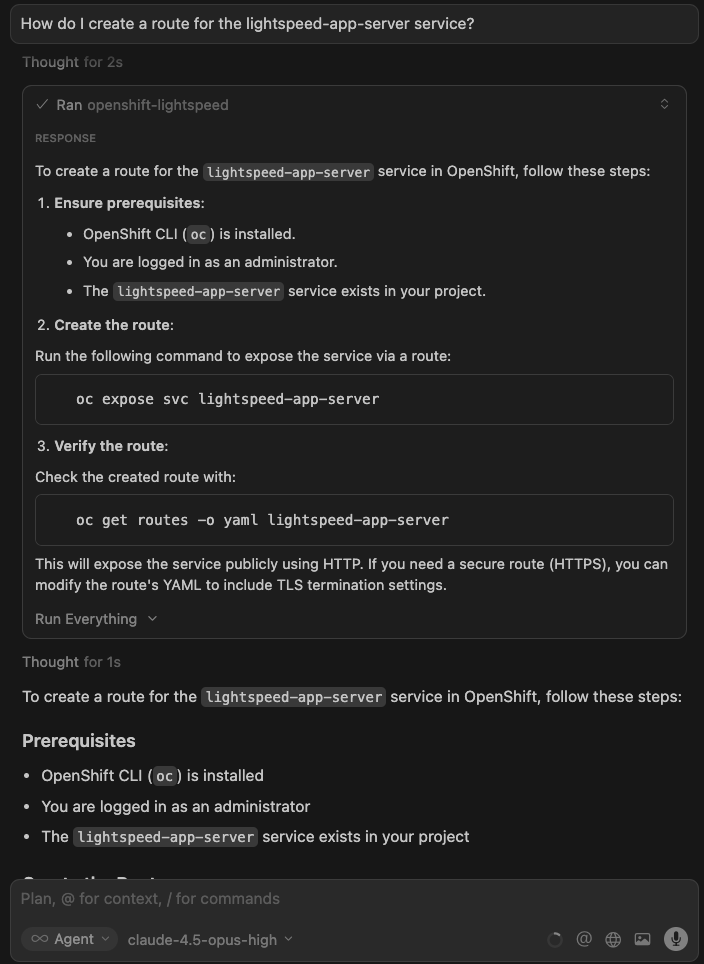
In the meantime, the following has happened behind the scenes. It's worth noting that this workflow involves two AI models working in sequence.
- The IDE's model (Claude, in Cursor's case) receives your question and decides whether to use the
openshift-lightspeedtool. It may even rephrase or refine your question before forwarding it to the MCP server. - Your question is sent to the OpenShift Lightspeed service via the MCP server.
- OpenShift Lightspeed retrieves relevant sections from the official OpenShift documentation using Retrieval-Augmented Generation (RAG).
- The retrieved documentation, along with your question, is sent to the LLM configured in OpenShift Lightspeed (in our case, GPT-4).
- The model generates a response grounded in official OpenShift documentation.
- The response travels back through the MCP server to your IDE AI assistant, where Claude may reformat or summarize it before presenting it to you.
This two-model architecture combines the strengths of both: your IDE's assistant handles the conversation flow and tool orchestration, while OpenShift Lightspeed provides OpenShift-specific expertise backed by official documentation, reducing hallucinations and providing accurate, up-to-date guidance.
Now let's take it a step further, querying live cluster resources. This requires you to enable the Cluster Interaction feature in your OpenShift Lightspeed instance.
Let's ask about the pods running in the cluster:
Show me the pods running in the openshift-lightspeed namespaceFigure 3 displays the response:
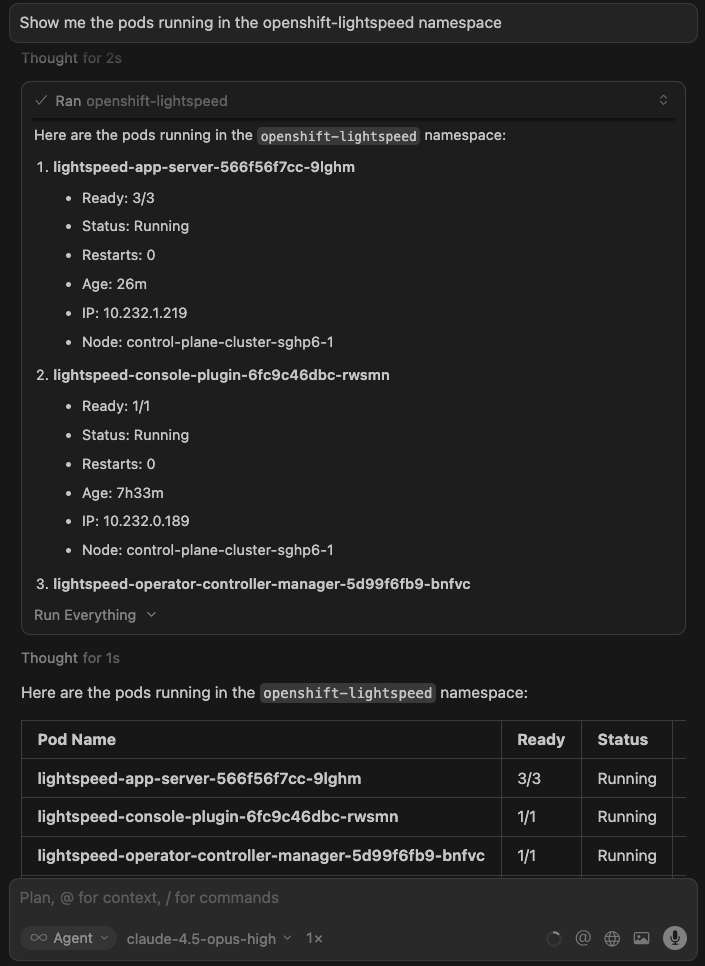
As before, the IDE's model decides to call the openshift-lightspeed tool. But this time, something extra happens inside OpenShift Lightspeed. When the Cluster Interaction is enabled, OpenShift Lightspeed has access to a Kubernetes MCP server running within the cluster. The model configured in our OpenShift Lightspeed instance will call the necessary tools from that MCP server to retrieve information about the requested cluster resources. The collected data is then sent to GPT-4 to compose a response, which is sent back to our IDE.
Combining MCP servers
One of the most powerful aspects of MCP is the ability to combine multiple servers in a single workflow. For example, you could add the GitHub MCP server alongside OpenShift Lightspeed to enable a complete GitOps pipeline directly from your IDE.
Imagine this scenario: As an application developer, you ask the AI assistant to generate a deployment manifest for your application. OpenShift Lightspeed provides the YAML based on best practices and official documentation. Then, in the same conversation, you ask the assistant to push that manifest to your GitOps repository. The GitHub MCP server handles the commit and push. Finally, if Red Hat OpenShift GitOps is configured in the cluster, it automatically detects and synchronizes the change, deploying the application without ever leaving your IDE.
But that was just an example. The MCP ecosystem is growing rapidly, and they are developing new servers every day. By combining them with OpenShift Lightspeed, you can build powerful workflows and find new ways to optimize your OpenShift operations.
Final thoughts
This article explored a proof of concept. Please be aware that the described feature and configuration are not currently supported. The OpenShift Lightspeed team is actively seeking your feedback. Is this something you would like to see officially supported? Contact us at openshift-lightspeed-contact-requests@redhat.com. We’d love to hear your thoughts.
Last updated: April 29, 2026
