Redhat Developers  Logo
  • Products

    Platforms

    • Red Hat Enterprise Linux
      Red Hat Enterprise Linux Icon
    • Red Hat AI
      Red Hat AI
    • Red Hat OpenShift
      Openshift icon
    • Red Hat Ansible Automation Platform
      Ansible icon
    • See all Red Hat products

    Featured

    • Red Hat build of OpenJDK
    • Red Hat Developer Hub
    • Red Hat JBoss Enterprise Application Platform
    • Red Hat OpenShift Dev Spaces
    • Red Hat OpenShift Local
    • Red Hat Developer Sandbox

      Try Red Hat products and technologies without setup or configuration fees for 30 days with this shared Red Hat OpenShift and Kubernetes cluster.
    • Try at no cost
  • Technologies

    Featured

    • AI/ML
      AI/ML Icon
    • Linux
      Linux Icon
    • Kubernetes
      Cloud icon
    • Automation
      Automation Icon showing arrows moving in a circle around a gear
    • See all technologies
    • Programming languages & frameworks

      • Java
      • Python
      • JavaScript
    • System design & architecture

      • Red Hat architecture and design patterns
      • Microservices
      • Event-Driven Architecture
      • Databases
    • Developer experience

      • Productivity
      • Tools
      • GitOps
    • Automated data processing

      • AI/ML
      • Data science
      • Apache Kafka on Kubernetes
    • Platform engineering

      • DevOps
      • DevSecOps
      • Red Hat Ansible Automation Platform for applications and services
    • Secure development & architectures

      • Security
      • Secure coding
  • Learn

    Featured

    • Kubernetes & cloud native
      Openshift icon
    • Linux
      Rhel icon
    • Automation
      Ansible cloud icon
    • AI/ML
      AI/ML Icon
    • See all learning resources

    E-books

    • GitOps cookbook
    • Podman in action
    • Kubernetes operators
    • The path to GitOps
    • See all e-books

    Cheat sheets

    • Linux commands
    • Bash commands
    • Git
    • systemd commands
    • See all cheat sheets

    Documentation

    • Product documentation
    • API catalog
    • Legacy documentation
  • Developer Sandbox

    Developer Sandbox

    • Access Red Hat’s products and technologies without setup or configuration, and start developing quicker than ever before with our new, no-cost sandbox environments.
    • Explore the Developer Sandbox

    Featured Developer Sandbox activities

    • Get started with your Developer Sandbox
    • OpenShift virtualization and application modernization using the Developer Sandbox
    • Explore all Developer Sandbox activities

    Ready to start developing apps?

    • Try at no cost
  • Blog
  • Events
  • Videos

Transform Kiali with OpenShift Lightspeed and Kubernetes MCP

January 29, 2026
Alberto Gutierrez
Related topics:
Artificial intelligenceKubernetesObservabilityService mesh
Related products:
Red Hat OpenShift Container PlatformRed Hat OpenShift LightspeedRed Hat OpenShift Service Mesh

    In our previous article about the Kiali toolset, we explored how Kiali acts as the "eyes" of your service mesh, providing unparalleled visibility into traffic topology, health, and metrics. We showed you how to manually inspect the graph, validate Istio configurations, and troubleshoot mTLS issues. But what if you didn't have to manually hunt for errors? What if you could just ask your cluster what’s wrong?

    In this article, we will take a leap forward by installing the Kiali Model Context Protocol (Kubernetes MCP) server in Red Hat OpenShift Lightspeed. This integration allows the OpenShift Lightspeed AI assistant to interface directly with Kiali, giving the AI visibility into your service mesh to assist with troubleshooting and configuration.

    Set up OpenShift Lightspeed

    Before we dive into the installation, ensure you have the following prerequisites:

    1. OpenShift cluster (Version 4.15+ recommended).
    2. Red Hat OpenShift Service Mesh installed and running.
    3. Kiali (or the OpenShift Service Mesh console) deployed and accessible.
    4. OpenShift Lightspeed operator installed on your cluster.

    For an enterprise-grade experience, you can integrate this toolset directly into OpenShift Lightspeed. This allows any user on the cluster to utilize Kiali's capabilities through the OpenShift Lightspeed chat interface.

    Since OpenShift Lightspeed runs inside the cluster, we need to deploy the MCP server as a service rather than running it locally on your laptop.

    Step 1: Create a ConfigMap for Kiali configuration

    Created a mcp-osl-config.toml in a known location (e.g., ~/mcp-osl-config.toml).

    toolsets = ["core","kiali"]
    read_only = true
    [toolset_configs.kiali]
    url = "https://kiali-istio-system.apps-crc.testing/"
    insecure = true

    Then, upload your TOML configuration to the cluster.

    oc create configmap kubernetes-mcp-config \
      --from-file=~/mcp-osl-config.toml=./mcp-osl-config.toml \
      -n istio-system

    Step 2: Deploy the MCP server

    Create a deployment that runs the server. This exposes the MCP over HTTP so OpenShift Lightspeed can connect to it.

    apiVersion: apps/v1
    
    kind: Deployment
    
    metadata:
    
      name: kubernetes-mcp-server
    
      namespace: istio-system
    
    spec:
    
      replicas: 1
    
      selector:
    
        matchLabels:
    
          app: kubernetes-mcp-server
    
      template:
    
        metadata:
    
          labels:
    
            app: kubernetes-mcp-server
    
        spec:
    
          serviceAccountName: kubernetes-mcp-server
    
          automountServiceAccountToken: true
    
          containers:
    
            - name: mcp-server
    
              image: quay.io/containers/kubernetes_mcp_server:latest # Check for latest version
    
              args:
    
                - "--port=8080"
    
                - "--config=/etc/mcp/mcp-viewer-config.toml"
    
              ports:
    
                - containerPort: 8080
    
              volumeMounts:
    
                - name: config-vol
    
                  mountPath: /etc/mcp
    
          volumes:
    
            - name: config-vol
    
              configMap:
    
                name: kubernetes-mcp-config
    
    ---
    
    apiVersion: v1
    
    kind: Service
    
    metadata:
    
      name: kubernetes-mcp-server
    
      namespace: istio-system
    
    spec:
    
      selector:
    
        app: kubernetes-mcp-server
    
      ports:
    
        - port: 8080
    
          targetPort: 8080

    Step 3: Register the tool with OpenShift Lightspeed

    Once the MCP server is running, OpenShift Lightspeed needs to know it exists. Depending on your version, you may need to configure the OlsConfig (OpenShift Lightspeed config) to whitelist the new tool endpoint or enable the service mesh plug-in as follows:

    1. Navigate to the Lightspeed Operator settings in the OpenShift console.
    2. Look for Tool Definitions or MCP Servers.
    3. Add the service URL of your new deployment (e.g., http://kubernetes-mcp-server-istio-system.apps-crc.testing/mcp).

    You can also modify the YAML directly (Figure 1).
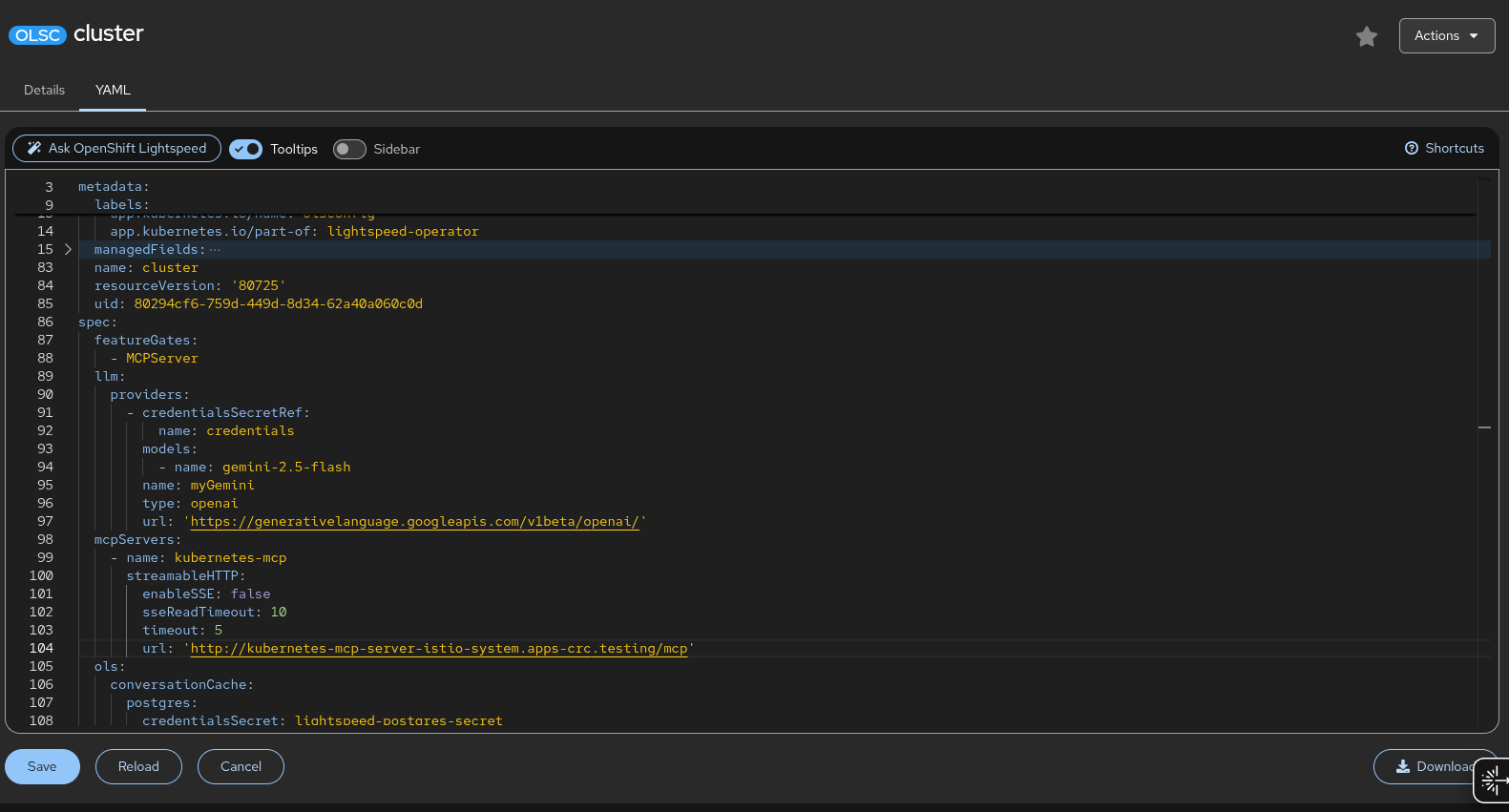
    This shows the Kiali toolset OpenShift Lightspeed configuration settings.
    Figure 1: This shows the OpenShift Lightspeed configuration settings for the Kiali toolset.

    Step 4: Chat with your mesh

    Now for the magic! Open the OpenShift Lightspeed chat window in the console and try this prompt (Figure 2):

    User: "Analyze the traffic flow for the 'payments' service."

    OpenShift Lightspeed: "I checked Kiali, and the 'payments' service is receiving traffic from 'checkout' but is experiencing a 15% error rate on the v2 workload..."
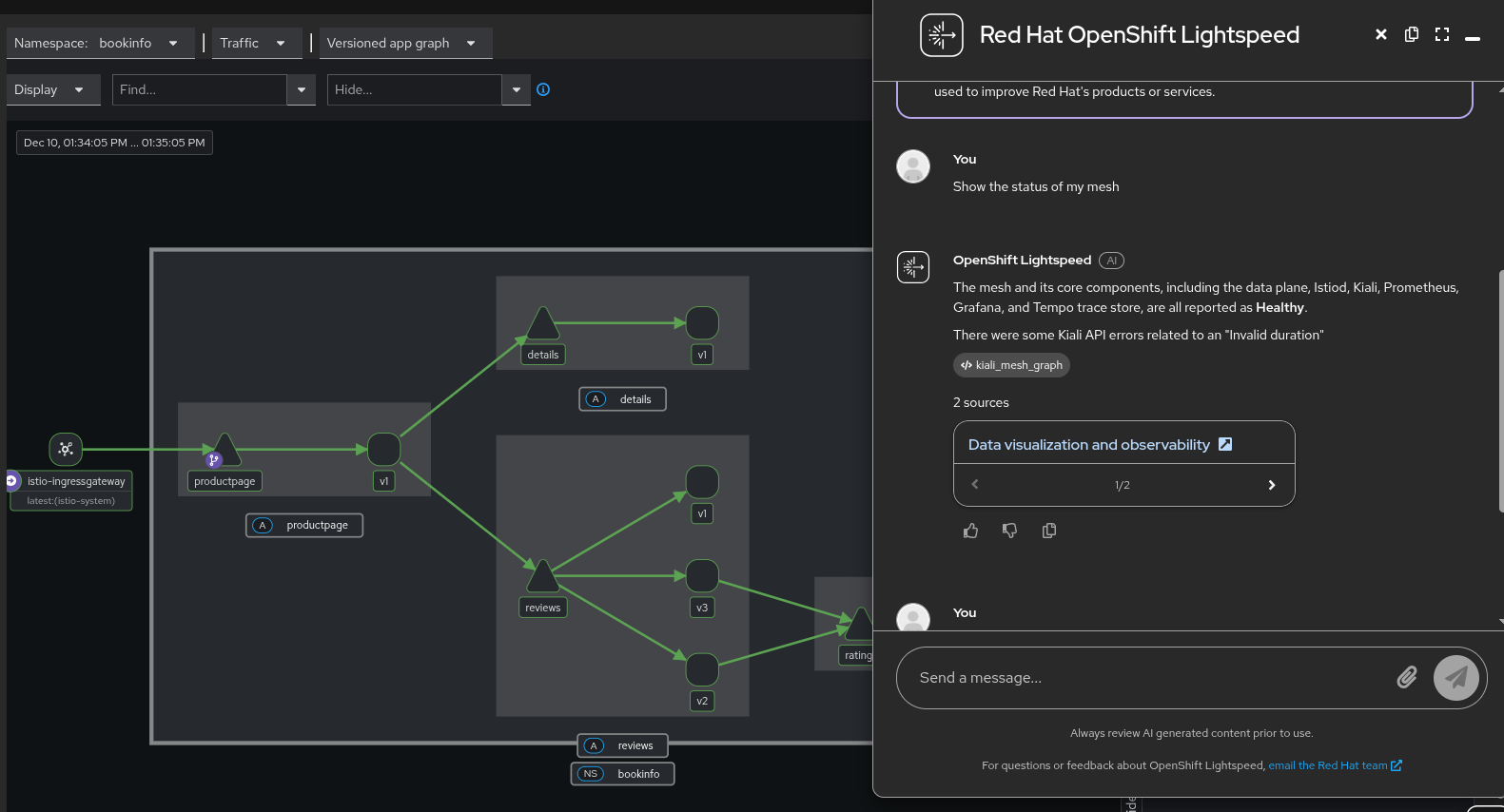
    OpenShift Lightspeed talking with the MCP in the chat window.
    Figure 2: OpenShift Lightspeed talks to the MCP.

    OpenShift Lightspeed returns an explanation in Figure 3.
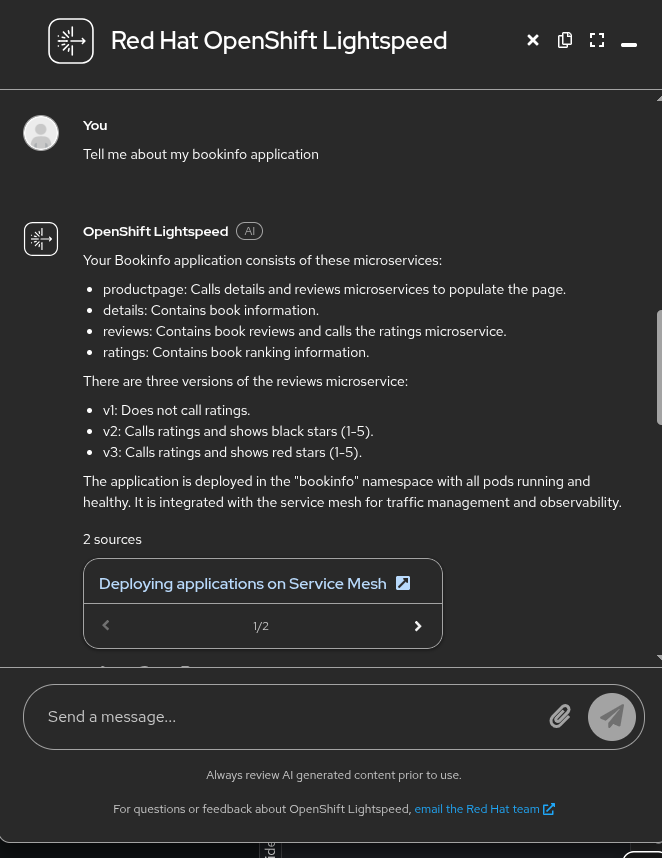
    OpenShift Lightspeed returns an explanation in this window.
    Figure 3: OpenShift Lightspeed returns an explanation.

    Final thoughts

    By installing the Kiali MCP integration, we've transformed Kiali from a passive dashboard into an active data source for AI-driven operations. This setup reduces the "time-to-insight" for SREs and developers by combining the comprehensive Kiali toolset with the conversational power of OpenShift Lightspeed. You can watch the demo on YouTube.

    Related Posts

    • Building effective AI agents with Model Context Protocol (MCP)

    • How to set up Red Hat Lightspeed Model Context Protocol

    • How to observe your multicluster service mesh with Kiali

    • Enhance Kubernetes observability: Connect AI to Istio with Kiali

    Recent Posts

    • Transform Kiali with OpenShift Lightspeed and Kubernetes MCP

    • Auto-registration v2: Easier management of Red Hat Enterprise Linux on AWS

    • How we turned OpenShift installation into a smart chatbot-driven experience

    • So you need more than port 80: Exposing custom ports in Kubernetes

    • A guide to AI code assistants with Red Hat OpenShift Dev Spaces

    What’s up next?

    Learning Path Get started with Red Hat OpenShift Lightspeed share image

    Get started with Red Hat OpenShift Lightspeed

    This learning exercise explains the requirements for Red Hat OpenShift...
    Red Hat Developers logo LinkedIn YouTube Twitter Facebook

    Platforms

    • Red Hat AI
    • Red Hat Enterprise Linux
    • Red Hat OpenShift
    • Red Hat Ansible Automation Platform
    • See all products

    Build

    • Developer Sandbox
    • Developer tools
    • Interactive tutorials
    • API catalog

    Quicklinks

    • Learning resources
    • E-books
    • Cheat sheets
    • Blog
    • Events
    • Newsletter

    Communicate

    • About us
    • Contact sales
    • Find a partner
    • Report a website issue
    • Site status dashboard
    • Report a security problem

    RED HAT DEVELOPER

    Build here. Go anywhere.

    We serve the builders. The problem solvers who create careers with code.

    Join us if you’re a developer, software engineer, web designer, front-end designer, UX designer, computer scientist, architect, tester, product manager, project manager or team lead.

    Sign me up

    Red Hat legal and privacy links

    • About Red Hat
    • Jobs
    • Events
    • Locations
    • Contact Red Hat
    • Red Hat Blog
    • Inclusion at Red Hat
    • Cool Stuff Store
    • Red Hat Summit
    © 2025 Red Hat

    Red Hat legal and privacy links

    • Privacy statement
    • Terms of use
    • All policies and guidelines
    • Digital accessibility

    Report a website issue