Page
Build a sample .NET application in a container used for development
This lesson will walk you through deploying our simple .NET application as a bootable container and deploying it as a web page using ASP.NET’s kestrel webserver. We’ll set up basic code and configuration files and build a Containerfile, which we will use to create our bootable container.
You’ll need the following:
- A basic understanding of how to traverse a Linux file system.
- An understanding of how to create and edit Linux text files.
- A basic understanding of .NET
In this lesson, you will:
- Develop a foundational understanding of the core application components.
- Create a systemd unit file to start our application at boot time.
- Create a Containerfile to install the necessary components and configure a bootable container.
Deploy the application as a bootable container
Step 1: Create a systemd unit file for our .NET application
Before we package everything up to deploy our application as a VM, we’ll need a systemd unit file, which automatically starts our .NET application.
Unlike traditional containers, image mode for RHEL containers use systemd (a Linux service control manager) to define how services (including your application) should start, stop, and behave during system boot. You need systemd because bootable containers include a full operating system, which will typically have multiple processes associated with the runtime environment. For example, you’ll be able to SSH into the system if the SSHD service is configured and running. A systemd unit file is used to start each service that will run at boot time, including our application.
We’ll create a hello-rhel.service file. Once system networking begins, our .NET application will start. We'll create the hello-rhel.service file in the dotnet-dev/bootc directory as follows:
[Unit]
Description=.NET 10 Hello World Web App
# Ensure networking is up before we start
Wants=network-online.target
After=network-online.target

[Service]
# Set the port to run the service on
Environment="ASPNETCORE_HTTP_PORTS=8000"
# Path to the .NET runtime and our application DLL
ExecStart=/usr/bin/dotnet /app/HelloRHEL.dll
WorkingDirectory=/app
Restart=on-failure
# We’ll create the user appuser and run our app as that user instead of root
User=appuser

[Install]
WantedBy=multi-user.target
Step 2: Create a Containerfile to install the components and configure a bootable container
Starting with the RHEL 10 bootable image, the sample container file performs the following steps:
- Install the .NET runtime package through DNF.
- Add a dedicated user,
appuser, with which we will run the production application. - Copy our published application into the image.
- Set the ownership of the application files to ‘appuser’.
- Enable and start our application services.
Using the text editor of your choice, create this file and save it locally as Containerfile in the dotnet-dev/bootc directory. Later, you will upload this file to Podman Desktop when you build the image in Lesson 4:
FROM registry.redhat.io/rhel10/rhel-bootc:latest

LABEL maintainer="Your Name <youremail@example.com>" \
      description="Bootable .NET App on RHEL 10."

# 1. Install the .NET 10 runtime from the RHEL repository
# We don't need the full .NET SDK for a production environment just the runtime
RUN dnf install -y dotnet-runtime-10.0 aspnetcore-runtime-10.0

# 2. Add user "appuser" so that we're not running our .NET app as root
RUN useradd -r -d /app -s /sbin/nologin appuser

# 3. Copy our *published* application into the image
COPY ./app/HelloRHEL/publish /app/

# 4. Change ownership of the app files from root to our ‘appuser’.
#    The 'appuser' needs to be able to read these files.
RUN chown -R appuser:appuser /app

# 5. Copy and enable our (newly modified) systemd service
COPY hello-rhel.service /etc/systemd/system/hello-rhel.service
RUN systemctl enable hello-rhel.service
Now that you have your configuration files, let’s create the bootable RHEL image mode container.
Step 3: Create your first disk image
Earlier, we installed the Red Hat Extension Pack, which includes the Bootable Containers extension used for image mode deployments. To pull your first bootable container, follow these steps:
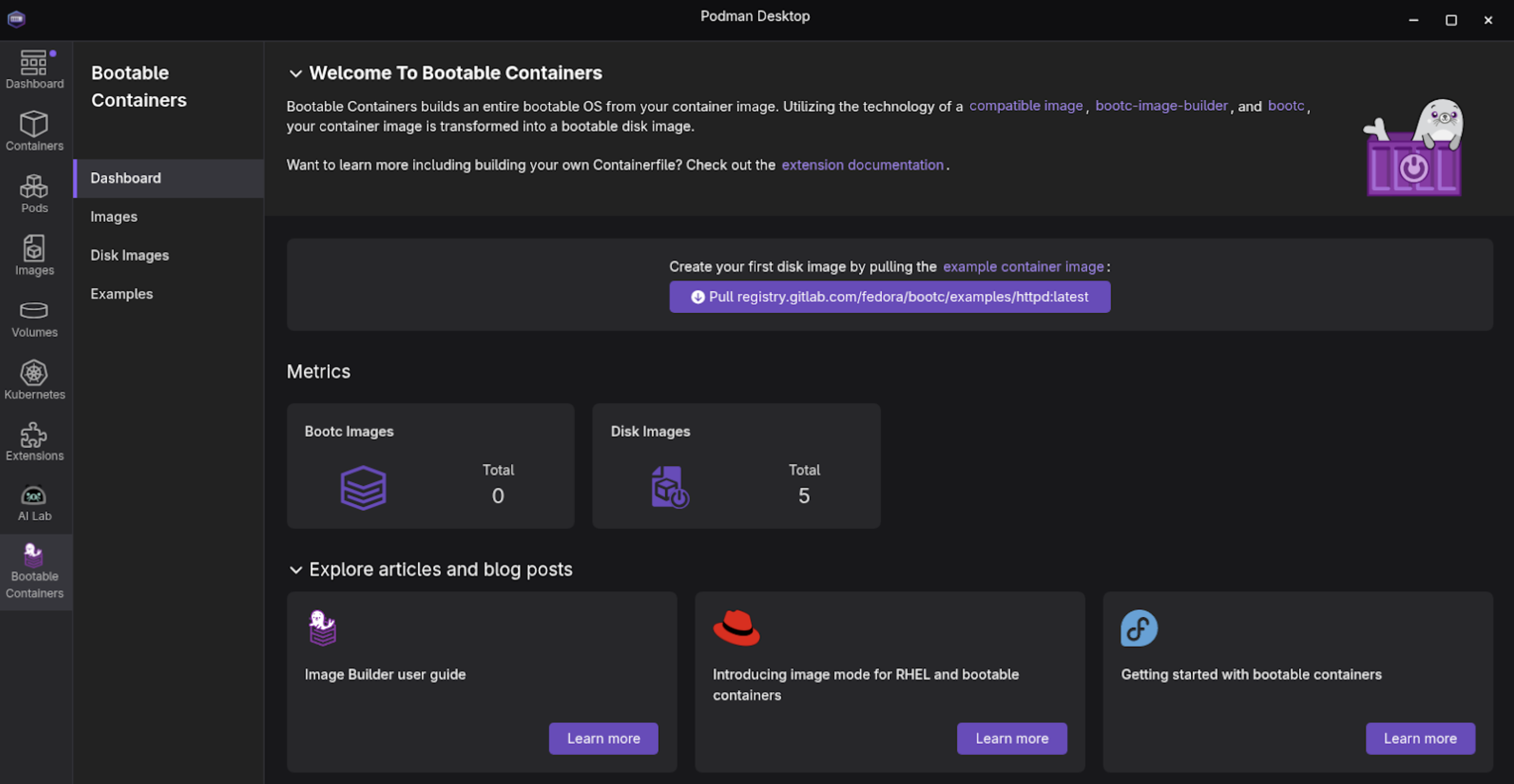
In Podman Desktop, select Bootable Containers from the side menu bar to access the Dashboard section (Figure 1).
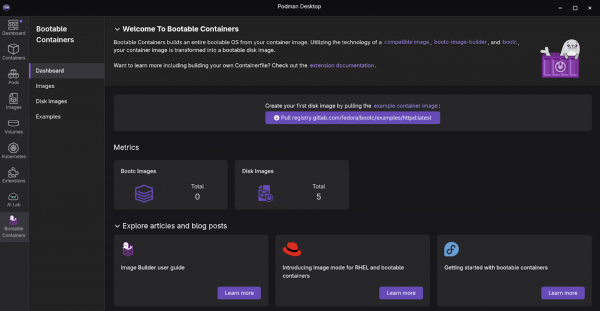
Figure 1: Welcome to Bootable Containers dashboard screen. - Within the Bootable Containers section, select Images from the left navigation.
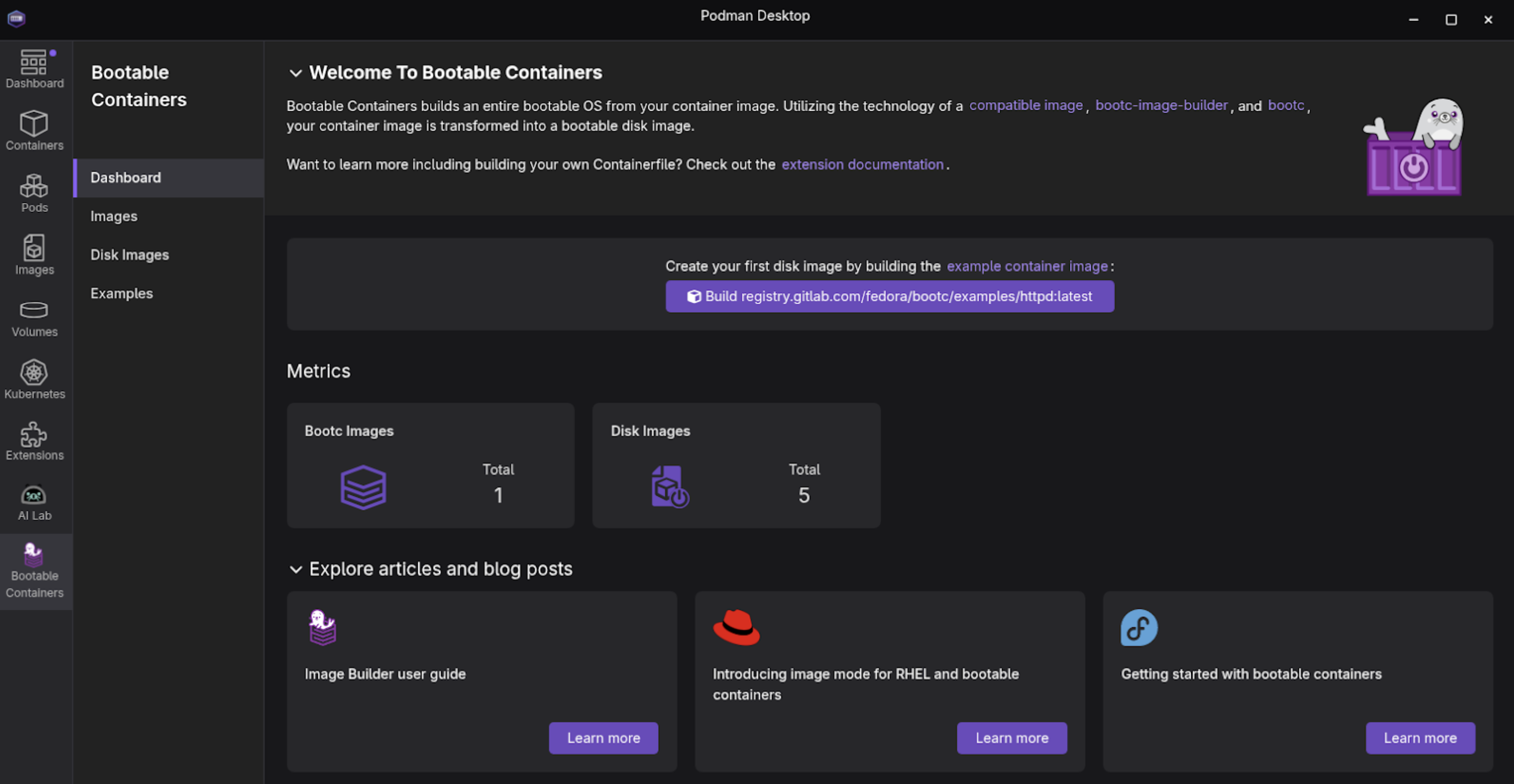
On the Images screen, select the option to pull the example container image from registry.gitlab.com (Figure 2).
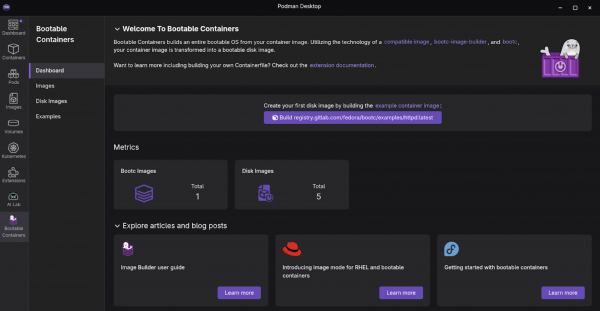
Figure 2: Bootable containers images listing screen with the example image now available. When you complete this, you will see the example image listed.
Note
The file size of the image is over 700MB (compressed) and may take a while to download.
Build an image from the Containerfile
Next, let’s use the Containerfile we created in Lesson 3 to build an image:
- Open Podman Desktop on your local machine and go to the Images section in the left navigation.
- Select Build to open the Build image from the Containerfile screen.
- Provide the following:
- Containerfile path:
your_home_directory/dotnet-dev/bootc/Containerfile, - Build directory path:
your_home_directory/dotnet-dev/bootc - Image name:
dotnet-bootc-image - Platform hardware spec: I chose the Intel and AMD x86_64 image option for my desktop environment.
- Containerfile path:
Select Build once you have all of the information entered (Figure 3).
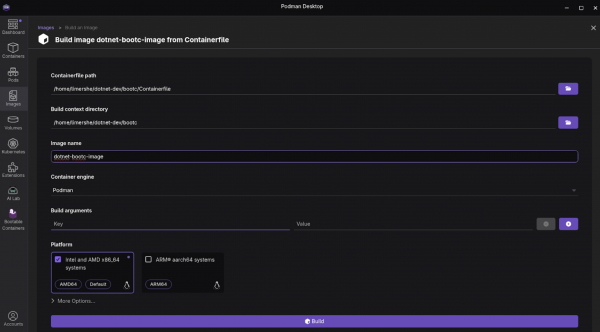
Figure 3: The Build image from Containerfile screen in Podman Desktop. - Observe if any issues or warnings are displayed while building the image.
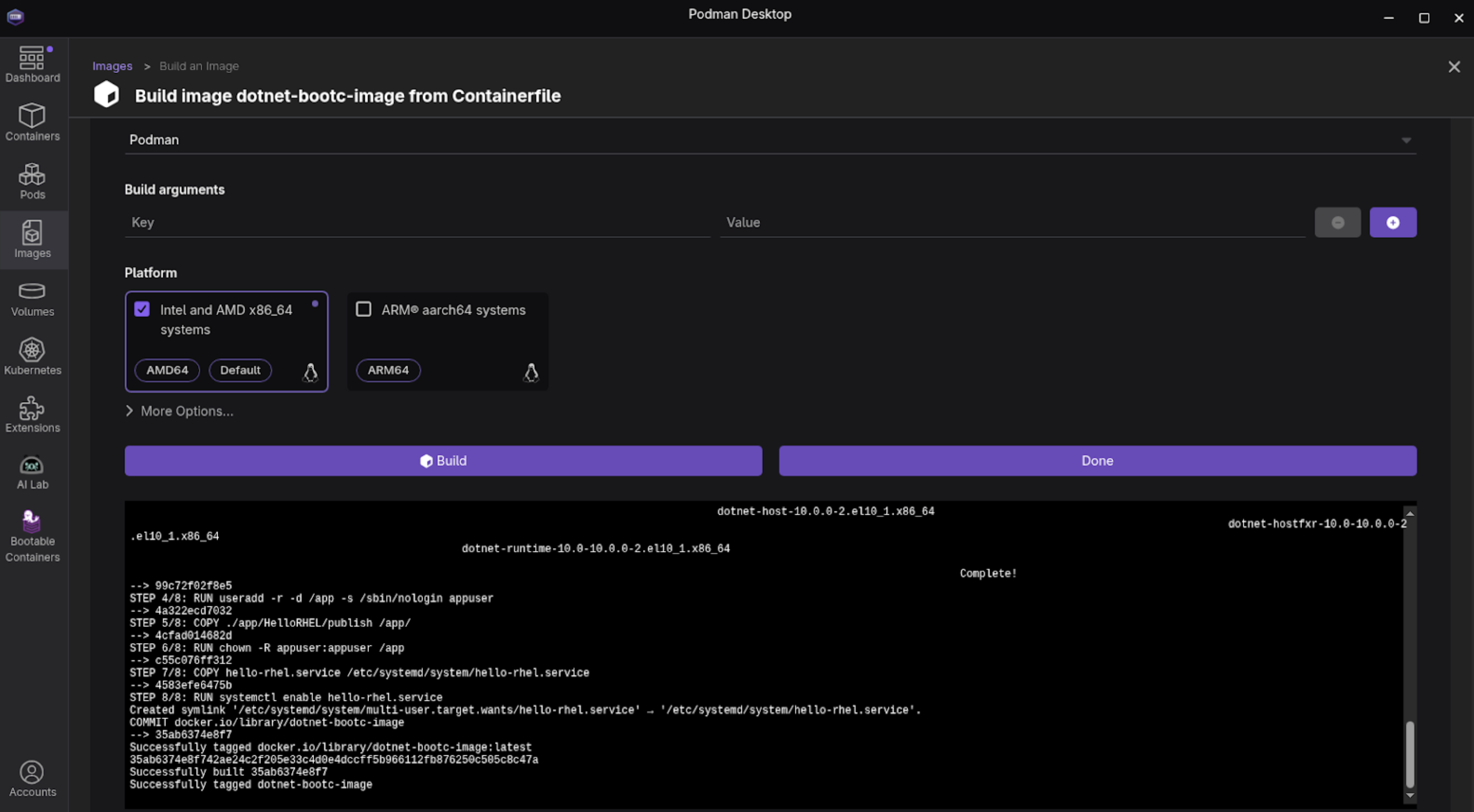
Once you’ve successfully created the image, it will be listed on the Images dashboard (Figures 4-5).
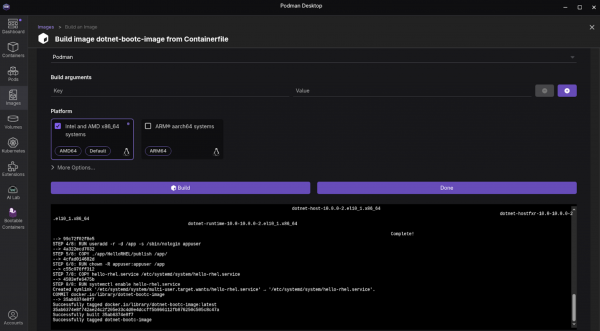
Figure 4: Successful Containerfile build output in Podman Desktop. 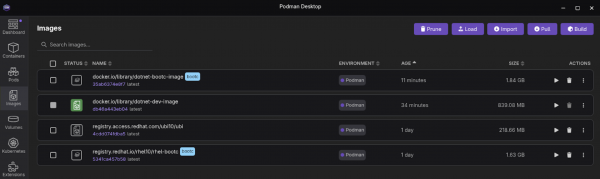
Figure 5: The container images listing screen with a new entry for the example image.


At this point, our image can run like any other container with Podman. This can be highly beneficial for basic testing and iterating on your application. In the next step, you will install (write) your container image as a disk image and run it as a Linux system.
Build a disk image
While a traditional application container image is like a self-contained software package that you install onto an existing OS, image mode for RHEL uses bootc to deliver a complete, bootable OS installation disk, but managed and versioned like a container image.
The magic of bootc is that it can install the contents of the container image to disk or file system and provide any format you need to run on virtually any platform. Podman Desktop makes this process simple because you can target a wide variety of platforms and image types.
To build an image in Podman Desktop:
- Open Podman Desktop on your local machine and go to the Images section from the left navigation. If you just completed the prior steps, you will already be on this screen.
Select the option to Build Disk Image from the ACTIONS kebab (Figure 6).
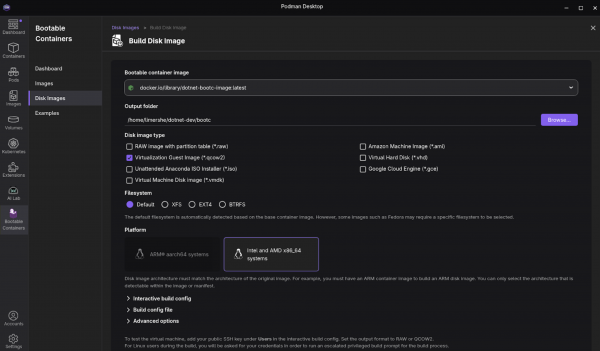
Figure 6: The Podman Desktop container images screen with the expanded menu under the actions kebab. - Select Build on the Disk Images screen.
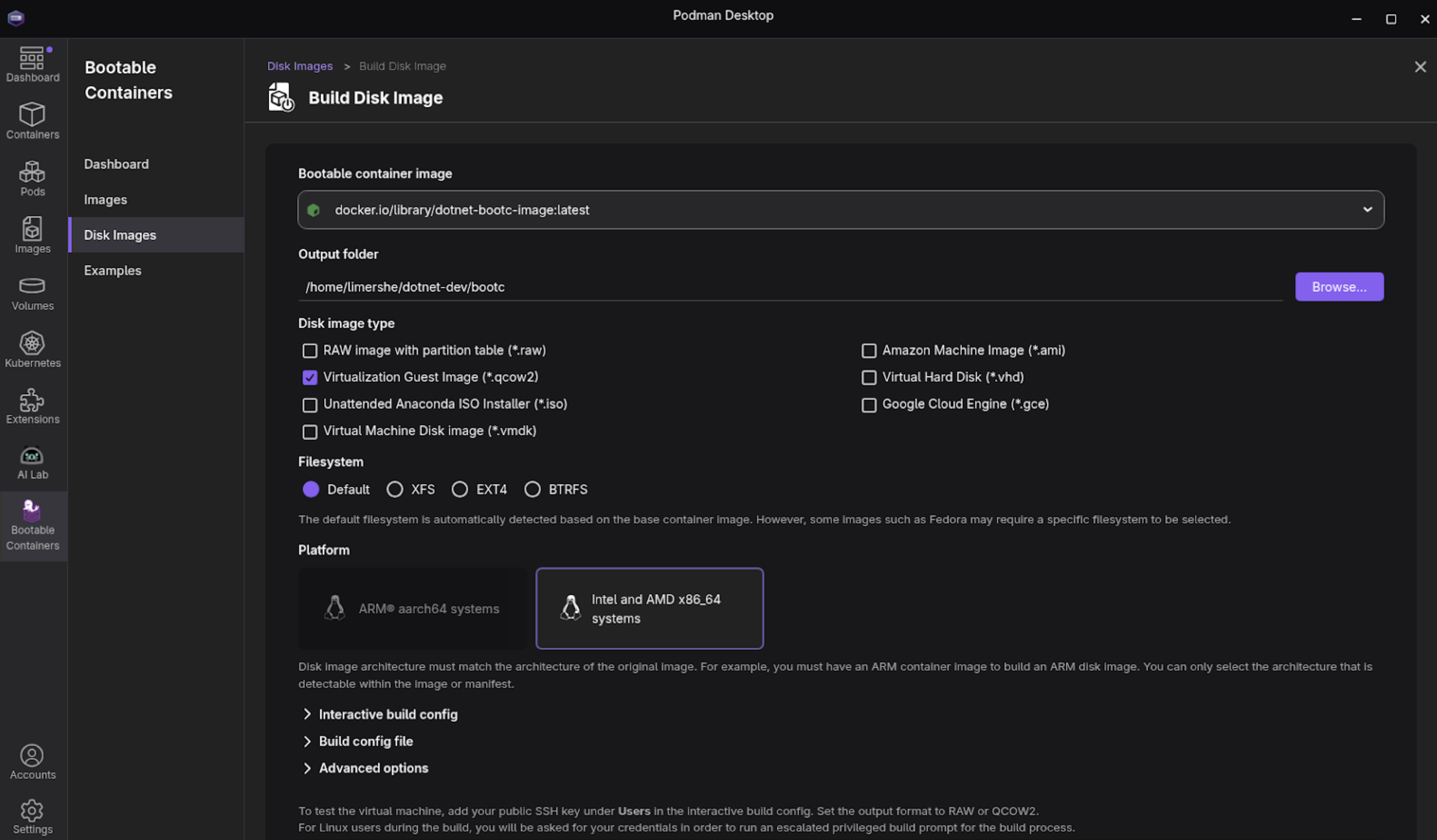
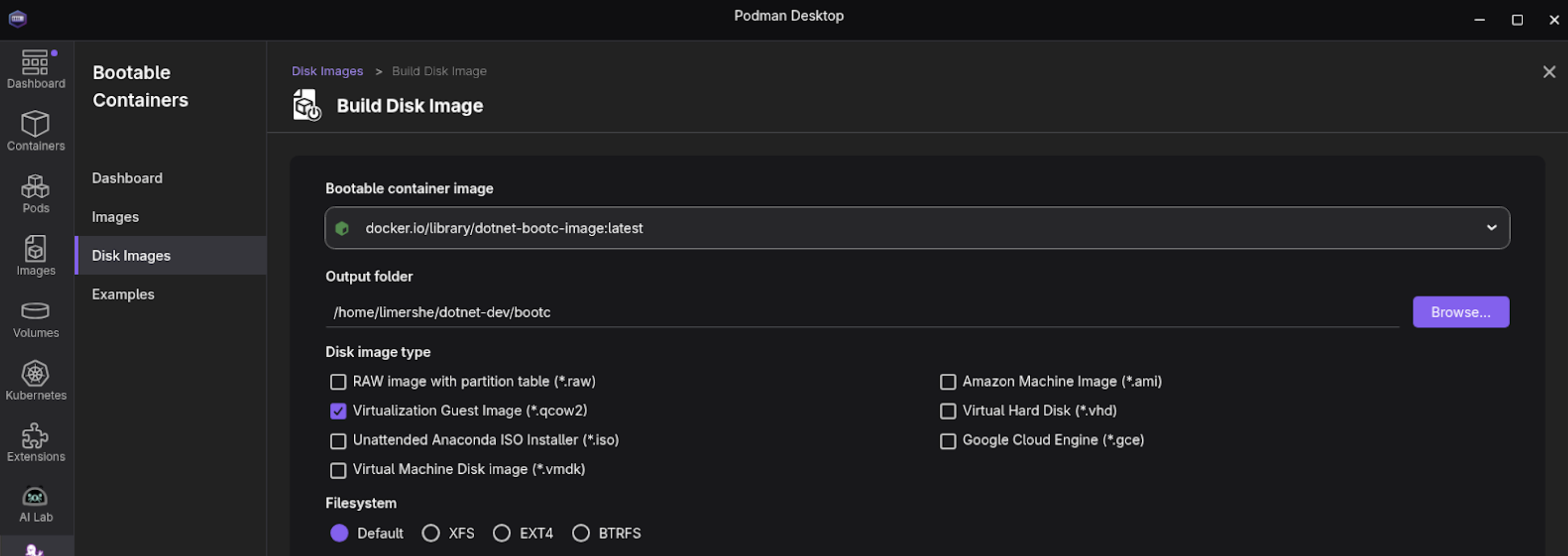
Provide the configuration details. For this exercise, we chose Virtualization Guest Image (qcow2) as the image type and a default filesystem (Figure 7).
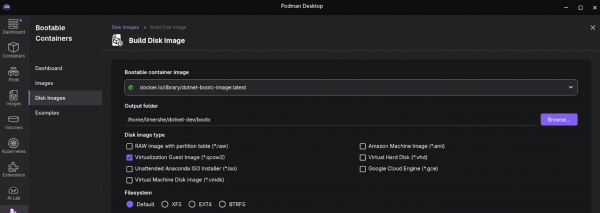
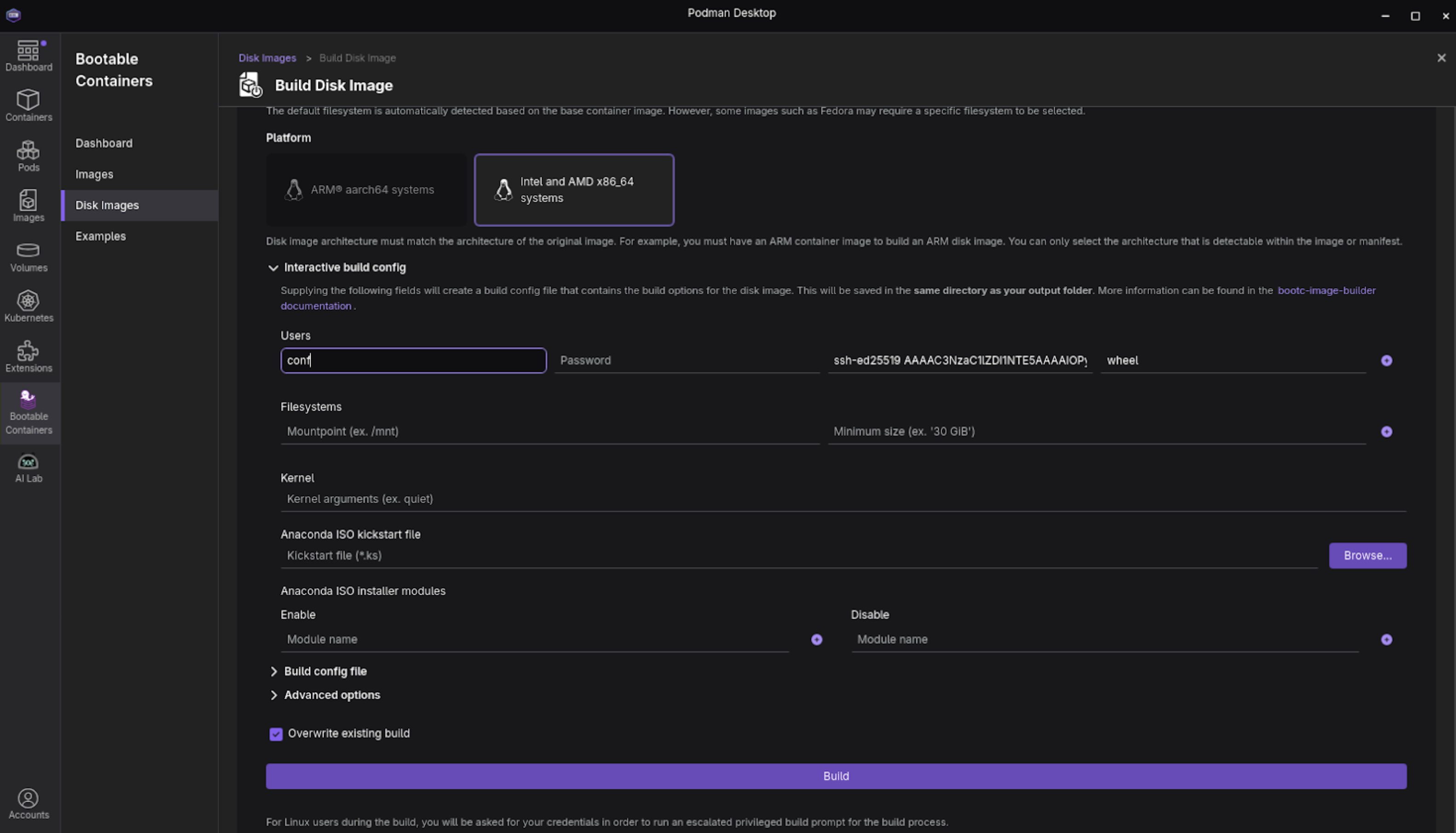
Figure 7: The completed Build Disk Image configuration. At the bottom of the screen, expand the Interactive build config section. This is where you will enter your SSH credentials you will need for the next section (Figure 8).
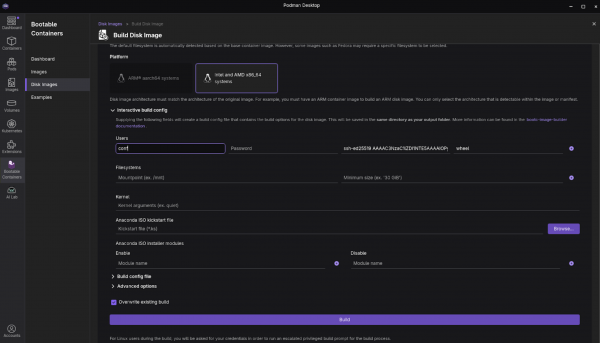
Figure 8: The expanded interactive build config section for building a disk image in Podman Desktop. - Select Build. Observe if any issues or warnings are displayed while building the disk image.
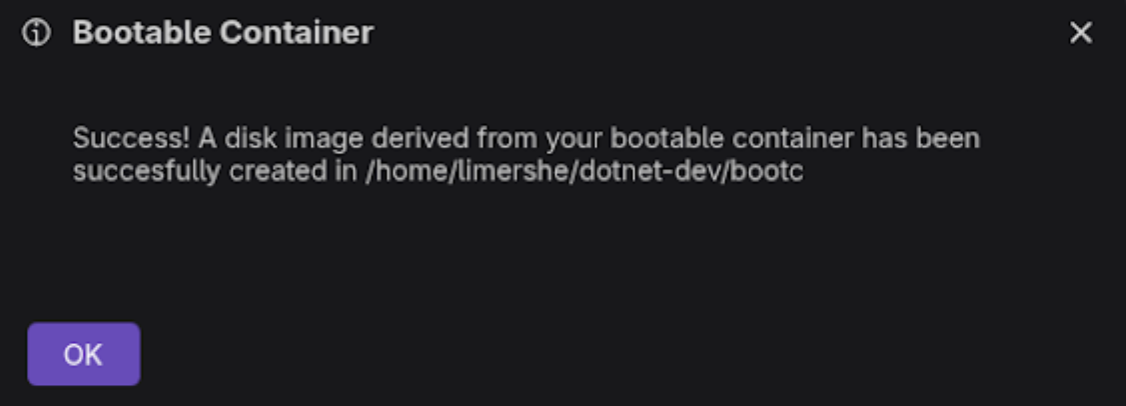
Once you’ve successfully created the image, you will see a success message listed in the Bootable Containers > Disk Images section of Podman Desktop (Figure 9).
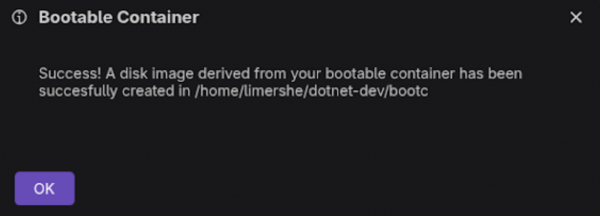
Figure 9: A successful disk image build.
Set up a virtual machine
Virtual environments provide a quick and convenient way to test your images. You can test modifications and configurations without impacting your primary operating system or incurring cloud expenditures. Once your image has been validated and you’re happy with it, we encourage you to create images for all the platforms you’d like to target.
Podman Desktop version 1.8.0 and later makes it easy to launch your built disk image as a virtual machine. After successfully building your disk image, simply select Virtual Machine (Experimental). Before doing so, please ensure you've met the necessary prerequisites, which may include specific hardware or software requirements.
Summary
This learning path demonstrates how easy it is to add the Red Hat SSO extension to Podman Desktop and access the Red Hat registry to create a .NET-based application container image that is ready to boot and run with image mode for RHEL. You can easily extend the rudimentary bootable .NET application container you created into a functional application.
As a developer, there are several reasons why you should care about deploying the application in image mode:
- Full-stack reproducibility: Image mode allows you to define your app, user space, and the entire OS, ensuring consistency from development to production.
- Simplified OS management: You can now treat OS updates and configurations as image rebuilds, integrating them into your existing container workflows.
- Ideal for appliances and edge: Image mode is perfect for creating specialized software appliances or consistent OS environments for edge devices with tightly coupled OS and applications.
- Testing: With image mode for RHEL, it is easy to spin up VMs on your desktop or in the cloud, running the exact OS and application build for testing.
The next steps you could take in completing your application might include the following:
- Extend the application code beyond the prototype Hello World.
- Integrate the application with a database, such as SQLLite, MariaDB, MySQL, and PostgreSQL.
- Configure keys and infrastructure to improve security for ASP.NET's Kestrel web server.

