Page
Import the MCE cluster
Now that the RHACM Hub is prepared, let's import the MCE cluster as a managed cluster.
In this lesson, you will:
- Initiate the multi-cluster engine for Kubernetes (MCE) cluster import.
- Create the auto-import-secret.
- Validate the import.
Step 1: Initiate MCE cluster import
For ease of understanding, let's assume that Hosting Cluster Name (your MCE cluster): hc-site1-lab
Important
For all the following commands, replace <managed-cluster-name> with comma-separated managed cluster names for the multi-cluster engine operator.
The MCE cluster is imported manually. In this example, we will import it via YAML. However, you can do this through the web interface if you wish, taking care to customize what is indicated.
cat <<EOF | oc apply -f -
apiVersion: cluster.open-cluster-management.io/v1
kind: ManagedCluster
metadata:
  name: <managed-cluster-name>
  labels:
    name: <managed-cluster-name>
    cloud: auto-detect
    vendor: auto-detect
  annotations:
    agent.open-cluster-management.io/klusterlet-config: mce-import-klusterlet-config
spec:
  hubAcceptsClient: true
  leaseDurationSeconds: 60
EOF
Be sure to replace <managed-cluster-name> with your MCE cluster name.
Step 2: Create the auto-import-secret
The auto-import-secret references the kubeconfig of the multi-cluster engine operator cluster. Go to Importing a cluster by using the auto import secret in Importing a managed cluster and adding the auto-import-secret with the CLI to complete the multicluster engine operator auto-import process.
Get your MCE cluster API address. In the import interface, enable YAML view and add the following annotations:
oc whoami --show-server
https://api.<managed-cluster-name>.example.com:6443
Create the auto-import-secret:
cat <<EOF | oc apply -f -
apiVersion: v1
kind: Secret
metadata:
  name: auto-import-secret
  namespace: <managed-cluster-name>
stringData:
  token:  sha256~<authentication-token>
  server: https://api.<managed-cluster-name>.example.com:6443
type: Opaque
EOF
Note
By default, the auto-import-secret is used one time and deleted when the import process completes.
Step 3: Validate the import
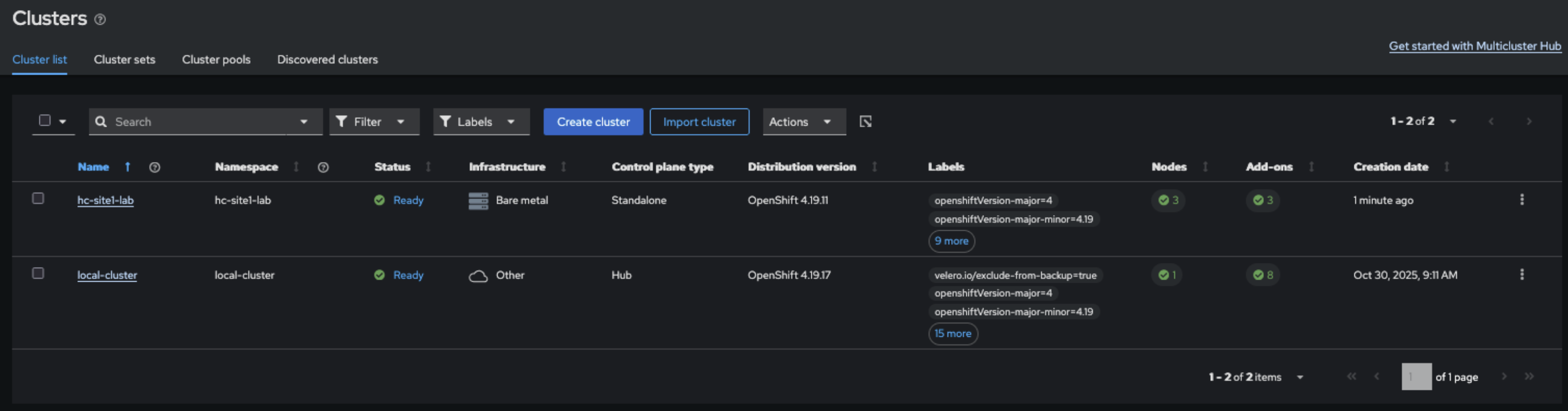
After a few minutes, verify if the cluster was successfully imported (Figure 1).
oc get managedcluster
NAME            HUB ACCEPTED   MANAGED CLUSTER URLS                   JOINED   AVAILABLE   AGE
local-cluster   true           https://api.xxx.example.com:6443   True     True        3d7h
hc-site1-lab    true           https://api.xxx.example.com:6443   True     True        31m    <--- MCE CLUSTER
Important
Do not enable any other Red Hat Advanced Cluster Management add-ons for the imported multicluster engine operator.