Modern IT organizations want automation to move faster, but security teams need to make sure automation does not introduce unmanaged privilege. Many automation tasks require elevated access, such as restarting services, patching systems, changing configuration files, modifying infrastructure, or performing administrative remediation. The challenge is that automation credentials are often granted broad access because they need to perform privileged work. Over time, this can create a standing-access concern: Credentials may remain privileged even when no approved work is taking place. This article reveals how to add another layer of defense by combining Red Hat Ansible Automation Platform, enterprise credential management, and ITSM-driven change control to introduce a new pattern: Just-in-time automated elevated access.
Red Hat Ansible Automation Platform helps greatly mitigate exposures by providing enterprise-grade guardrails, including role-based access control to govern who can create, modify, and execute automation job templates. Ansible Automation Platform also integrates with enterprise secrets management platforms such as Thycotic Secret Server, CyberArk, and HashiCorp Vault, helping organizations protect sensitive credentials while controlling how and when they are used by automation. Just-in-time automated elevated access can provide additional control by ensuring privileged access is granted only during an approved change window, and removed once that window ends.
What is just-in-time automated elevated access?
Just-in-time automated elevated access is a security and automation pattern in which a credential used to access a managed endpoint, such as a Linux or UNIX virtual machine, network device, cloud resource, or on-premises system, is granted privileged access only when there is an approved business need and only for the duration of the approved access window.
In this model:
- Automation is requested through an ITSM workflow.
- The ITSM platform validates the change request, including the approval status, planned start time, planned end time, target systems, and credential associated with the request.
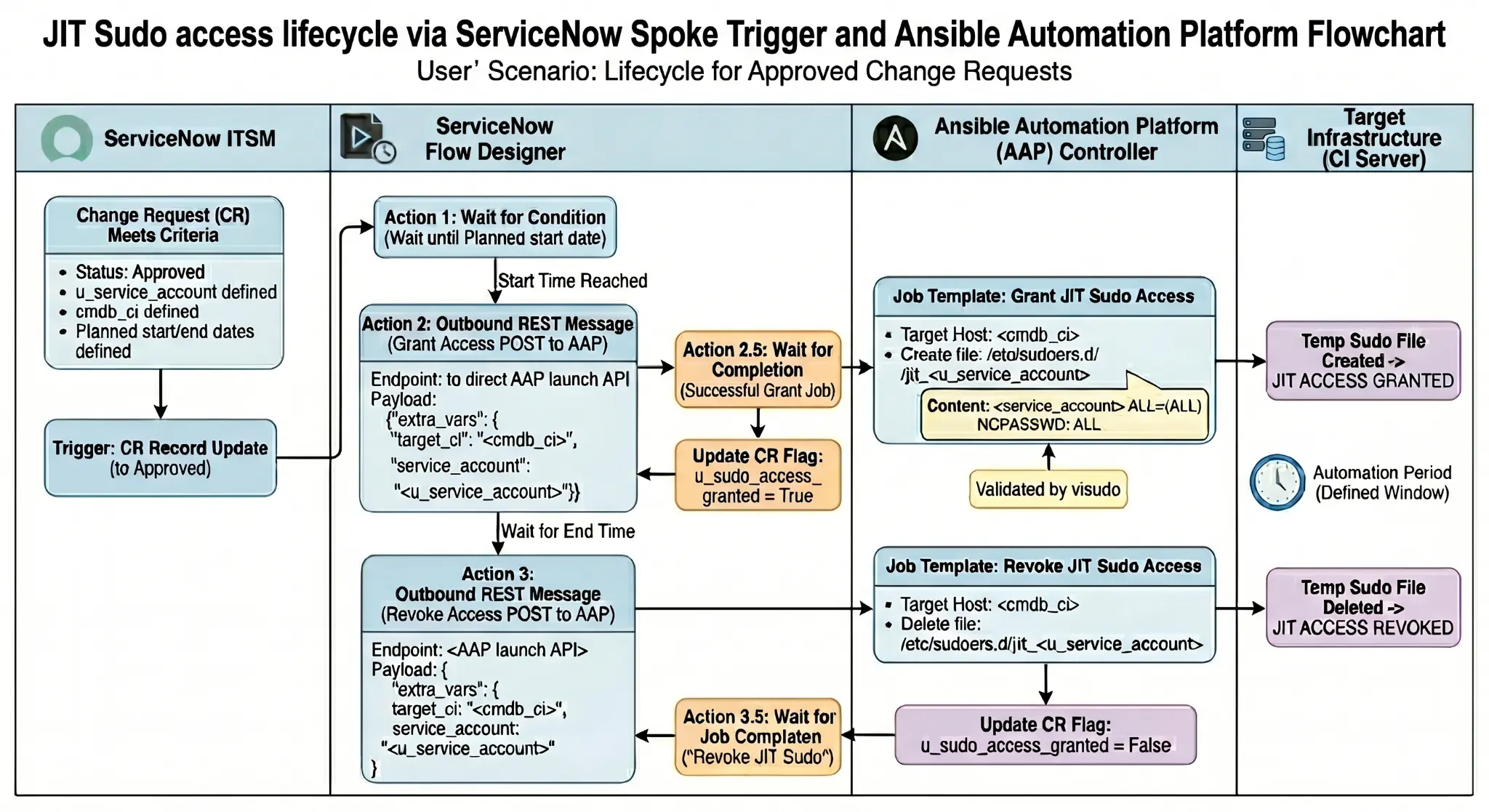
- At the defined start time, the ITSM workflow triggers an API call to Ansible Automation Platform to launch a job template that temporarily elevates access for the credential listed in the approved change request.
- Ansible Automation Platform runs the automation only when the change request is approved and the current time is within the approved change window.
- Ansible Automation Platform performs the required privileged tasks against the approved target systems.
- Once the approved change window ends, the ITSM workflow triggers another API call to Ansible Automation Platform to launch a job template that removes the elevated access.
- Optionally, access can be removed earlier, after the approved automation tasks are complete to reduce the window.
- A subsequent job template can update the change record with the automation status and close the change record based on the defined ITSM workflow.
How the workflow works
The goal of just-in-time automated elevated access is not simply to automate privileged tasks. The goal is to automate privileged tasks while enforcing security controls, approval governance, and time-bound access.
Step 1: Change request is created
A user or automated process creates a change request in the ITSM platform. The change request includes information such as:
- Target systems
- Requested task
- Business justification
- Start time
- End time
- Approval status
- Risk and impact
- Change owner
Step 2: Change request is approved
The ITSM process validates that the change is approved. This may involve CAB approval, manager approval, standard change approval, or another internal process.
The important control is that elevated automation access is not granted simply because a job was launched. It is granted only when the ITSM record says the work is approved.
Step 3: ServiceNow uses the Ansible Spoke to trigger automation
ServiceNow Flow Designer can use its Ansible Spoke to call Ansible Automation Platform and launch the correct job template (figure 1).
Step 4: Elevated access is granted temporarily
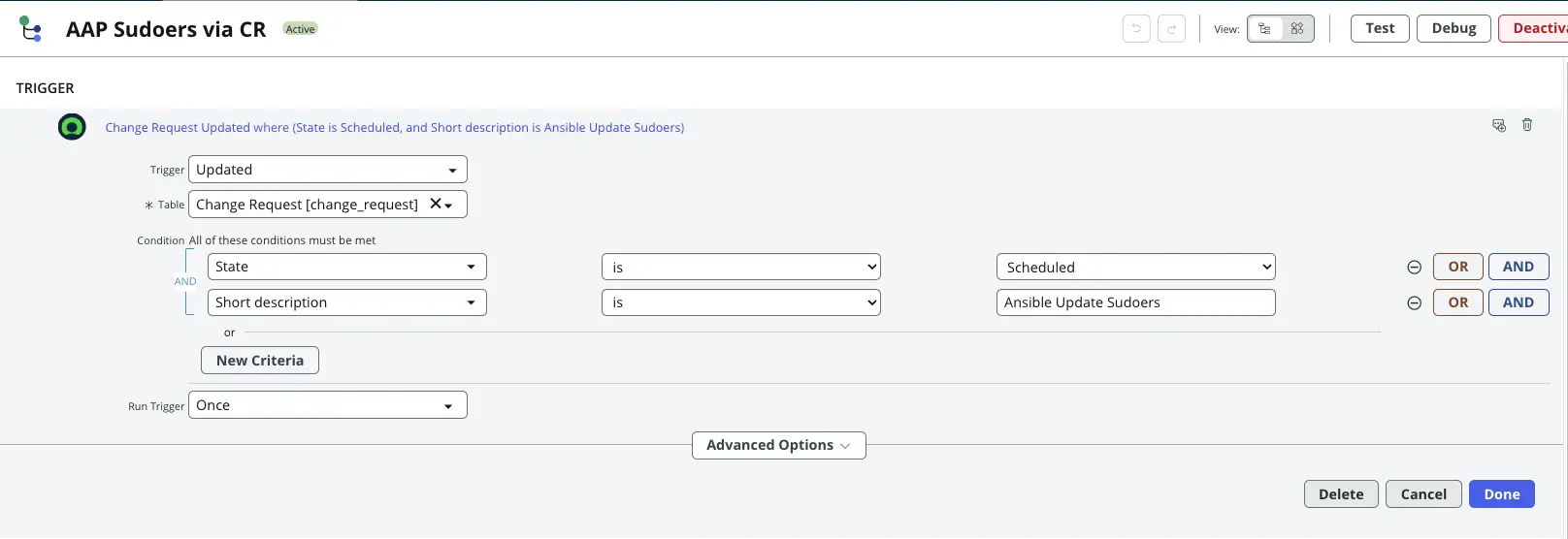
The workflow is triggered when the change request moves to a scheduled state, indicating that it has been approved. In this example, the workflow is scoped to a specific change request description so that it only applies to the intended just-in-time automated elevated access use case.
The workflow then reads the scheduled start and end times from the change request (figure 2) and uses those values to determine when to trigger the appropriate Ansible Automation Platform job templates.
In this example, the Ansible Automation Platform job template uses the credential defined in the change request and temporarily grants that service account elevated access on the target host. The playbook creates a sudoers drop-in file under /etc/sudoers.d/ for the specified credential and grants the required sudo privileges for the approved automation window. This example focuses only on the temporary elevation and removal of privileged access. It does not include the actual automation tasks that would be performed during the approved change window.
An example playbook triggered by the ServiceNow workflow as a job template in Ansible Automation Platform:
- name: Grant JIT sudo access
  hosts: "{{ target_ci | default('all', true)}}"
  tasks:
    - name: Create temporary sudoers file
      ansible.builtin.copy:
        content: "{{ service_account }} ALL=(ALL) NOPASSWD: ALL"
        dest: "/etc/sudoers.d/jit_{{ service_account }}"
        mode: '0440'
        validate: /usr/sbin/visudo -cf %s
The key principle is that the credential receives the required privilege, only for the approved task, and only for the approved duration.
Step 5: Ansible Automation Platform runs the privileged automation
During the approved window, Ansible Automation Platform runs the job template. This is where Ansible may perform tasks requiring become: true, such as:
- Restarting services
- Applying patches
- Updating configuration files
- Managing users or groups
- Performing remediation
- Executing infrastructure changes
- Updating middleware or application components
Because elevated access is granted only during the approved window, the automation can complete the required administrative work without creating a permanent standing privilege.
Step 6: Elevated access is removed
When the change window ends, the workflow triggers a job template in Ansible Automation Platform to remove elevated access to the automation credential. For example:
- name: Revoke JIT sudo access
  hosts: "{{ target_ci | default('all', true)}}"
  tasks:
    - name: Remove temporary sudoers file
      ansible.builtin.file:
        path: "/etc/sudoers.d/jit_{{ service_account }}"
        state: absent
The important control is that privilege does not remain attached to the credential after the approved window has ended.
Step 7: ITSM record is updated
After automation completes, Ansible Automation Platform can update the ITSM record with details such as:
- Job status
- Start and end time
- Systems changed
- Output summary
- Success or failure status
- Remediation notes
- Link to the Ansible Automation Platform job run
- Evidence for audit review
This closes the loop between request, approval, execution, and evidence.
Design considerations
When designing this solution, there are some important considerations:
- Which ITSM fields determine approval and change-window validity?
- Which system controls privileged access?
- How will Ansible Automation Platform validate that the change window is active?
- What happens if the job runs past the approved end time? Should the job stop, continue, or trigger an exception process?
- How is elevated access removed if a job fails?
- How is the ITSM record updated?
- What evidence is required for an audit?
- Which teams own the automation workflow?
- Which tasks are eligible for just-in-time elevated automation?
These questions must be answered before you put it into production.
Recommended guardrails
Recommended guardrails include:
- Validate the change request before granting privilege.
- Confirm the current time is within the approved window.
- Limit privilege to the target systems in the change request.
- Remove elevated access automatically.
- Log every access grant and removal event.
- Update the ITSM record with automation results.
- Fail safely if change validation cannot be completed.
- Avoid allowing users to manually override the process without approval.
- Use separate job templates for privileged and non-privileged automation where appropriate.
Additional examples of just-in-time automated elevated access with Ansible Automation Platform
Although this article uses a Linux sudoers example to demonstrate just-in-time automated elevated access, the same pattern can be applied across many different platforms and access models. The idea remains the same: Ansible Automation Platform is used to grant elevated access at the approved start time, perform or enable the approved privileged work, and then remove that access when the approved window ends.
For example, Ansible Automation Platform could be used to temporarily elevate access on network devices by changing the access level on a Cisco device to allow privileged EXEC access, such as level 15, during an approved maintenance window. Once the window ends, Ansible Automation Platform could remove or revert that elevated access.
In a cloud environment, Ansible Automation Platform could temporarily grant administrative access by adding a user to an AWS IAM group, attaching an IAM policy to a user or role, or applying another approved cloud identity change. When the approved change window ends, Ansible Automation Platform could remove the IAM group membership or detach the policy to return the identity to its normal access level.
This pattern can also apply beyond traditional Linux or UNIX systems. In Microsoft Active Directory environments, Ansible Automation Platform could temporarily elevate access by managing group membership or role assignments that provide administrative access to Microsoft Windows servers or enterprise applications. For organizations using tools such as Centrify to manage access across UNIX and Linux hosts through Active Directory-backed identity controls, Ansible Automation Platform could use the same ITSM-driven workflow to temporarily grant and remove access through the approved identity layer.
These examples show that just-in-time automated elevated access is not limited to /etc/sudoers.d/ or Linux-based privilege elevation. The pattern can be extended to network platforms, cloud IAM systems, Active Directory domains, privileged access management tools, and other enterprise control points where temporary access can be granted, audited, and removed through automation.
Conclusion
Just-in-time automated elevated access is a practical security pattern for any organization that wants to automate privileged work without leaving privileged credentials always enabled. By integrating Red Hat Ansible Automation Platform with ServiceNow ITSM, teams can connect approval, access, execution, and audit evidence into a single workflow. The result is a stronger operating model:
- No always-on elevated automation credentials
- Privilege granted only during approved change windows
- Privilege removed when the window ends
- Automation results written back to the ITSM record
- Security and operations teams aligned around a governed automation process
This approach can help your organization move faster, while reducing privileged access risk.