Page
Configure Open Data Hub
After installing Red Hat® OpenShift® Service on AWS, configuring Keycloak, and assigning users to groups, you're ready to configure Open Data Hub. In this lesson, you will install the ODH operator and its prerequisites, apply the DSCInitialization and DataScienceCluster resources, and configure the data science gateway to authenticate users through your Keycloak OIDC provider.
Prerequisites:
- An Amazon Web Services account.
- A Red Hat account.
- A configured ROSA cluster.
- Configured Keycloak, users, and groups.
In this lesson, you will:
- Install Open Data Hub Operator.
- Create DSCInitialization.
- Configure gateway for OpenID Connect (OIDC).
- Deploy a data science cluster.
- Learn additional testing and troubleshooting.
Install required operators
Before you can install Open Data Hub Operator, you need to install a few necessary operators from OperatorHub within the Red Hat® OpenShift® console. These are needed for ODH to function properly within your newly configured cluster:
- Navigate to the OpenShift console.
- From OperatorHub, find and install the following operators:
- Red Hat Connectivity Link
- Leader Worker Set Operator
- Job Set Operator
- cert-manager Operator for Red Hat OpenShift
Navigate to the console once again and create the
JobSetOperatorCR with a name cluster via the following command:cat <<EOF | oc apply -f - apiVersion: operator.openshift.io/v1 kind: JobSetOperator metadata: name: cluster spec: logLevel: Normal operatorLogLevel: Normal managementState: Managed EOFNow you can install Open Data Hub Operator. It’s important to perform this step before creating any ODH resources.
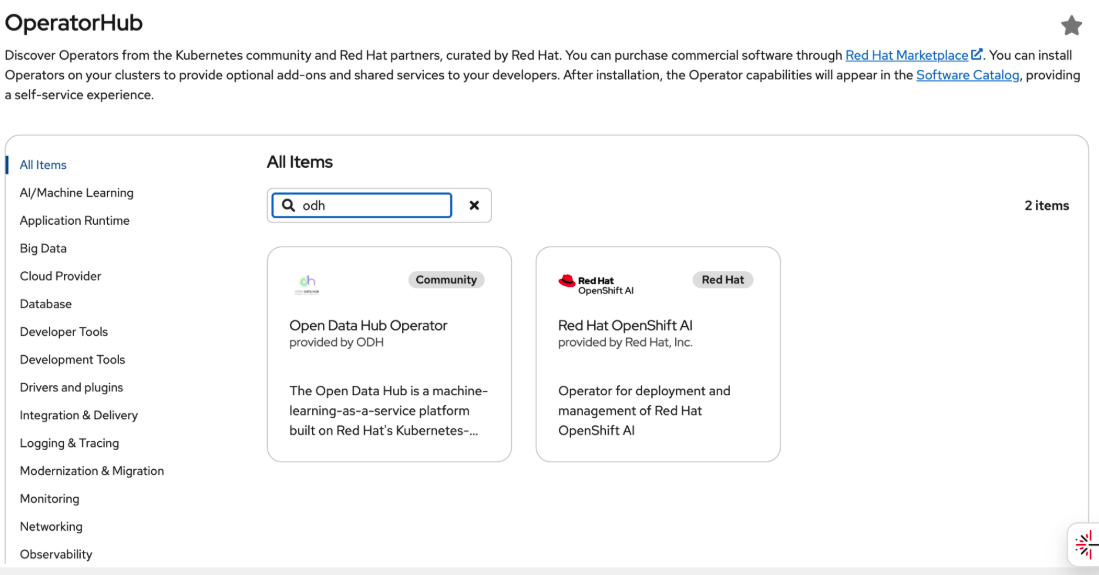
In the OpenShift console, navigate to the Operators menu, select OperatorHub, and search for ODH (Figure 1).
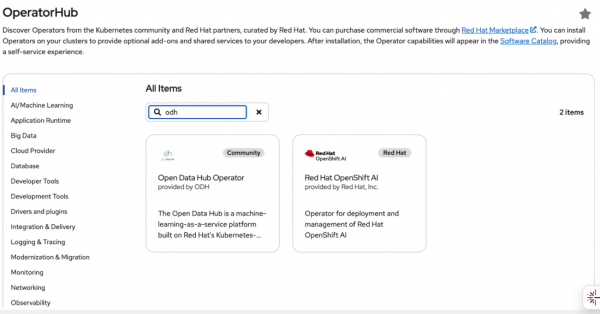
Figure 1: OperatorHub displaying search results for ODH with Open Data Hub Operator appearing as a selectable option. - Click on Open Data Hub Operator and install it.
Create DSCInitialization, configure the gateway, and deploy a data science cluster
An important step before deploying a data science cluster is ensuring that ODH is using the most up-to-date samples from its repository. Only after initializing that, can you then safely connect your Keycloak authentication and deploy.
- Use the latest DSCInitialization sample from the Open Data Hub Operator repository:
- DSCInitialization samples (e.g.,
dscinitialization_v2_dscinitialization.yaml), or the RHOAI samples underconfig/rhoai/samples/if applicable.
- DSCInitialization samples (e.g.,
Apply the
DSCInitializationCR (adjust the file path or URL to the sample you use):oc apply -f https://raw.githubusercontent.com/opendatahub-io/opendatahub-operator/main/config/samples/dscinitialization_v2_dscinitialization.yamlWait for initialization:
kubectl wait --for=jsonpath='{.status.phase}'=Ready dscinitialization/default-dsci -n opendatahub --timeout=300sVerify the
opendatahubnamespace is created and configured.Retrieve the cluster domain from the cluster you already have or created in the first resource of this learning path.
Should you need to retrieve it again, use the following command:
CLUSTER_DOMAIN=apps.rosa.$(rosa describe cluster -c $CLUSTER_NAME -o json | jq -r '.api.url' | sed 's|https://api.||;s|:6443||;s|:443||')If you do not have
jqinstalled, use this alternative command:CLUSTER_DOMAIN=apps.rosa.$(rosa describe cluster -c $CLUSTER_NAME | grep "API URL" | awk '{print $3}' | sed 's|https://api.||;s|:6443||;s|:443||') echo "Cluster domain: $CLUSTER_DOMAIN"Create a client secret:
oc create secret generic keycloak-client-secret \
  --from-literal=clientSecret=$KEYCLOAK_CLIENT_SECRET -n openshift-ingress
Update
GatewayConfigfor OIDC. Make sure to use the method most suited to your certificate creation during Keycloak configuration in earlier resources:- Without CA (using publicly trusted certificate)
oc patch gatewayconfig default-gateway --type='merge' -p='{ "spec": { "ingressMode": "LoadBalancer", "oidc": { "issuerURL": "https://'$KEYCLOAK_DOMAIN'/realms/'$KEYCLOAK_REALM'", "clientID": "'$KEYCLOAK_CLIENT_ID'", "clientSecretRef": { "name": "keycloak-client-secret", "key": "clientSecret" } }, "verifyProviderCertificate": true } }'- With CA Certificate (self-signed or custom CA)
oc create secret generic keycloak-ca-cert \ --from-file=ca.crt=keycloak-ca.crt \ -n openshift-ingress oc patch gatewayconfig default-gateway --type='merge' -p='{ "spec": { "ingressMode": "LoadBalancer", "oidc": { "issuerURL": "https://'$KEYCLOAK_DOMAIN'/realms/'$KEYCLOAK_REALM'", "clientID": "'$KEYCLOAK_CLIENT_ID'", "clientSecretRef": { "name": "keycloak-client-secret", "key": "clientSecret" } }, "providerCASecretName": "keycloak-ca-cert", "verifyProviderCertificate": true } }'- Disable CA validation (dev only; self-signed or custom CA)
oc patch gatewayconfig default-gateway --type='merge' -p='{ "spec": { "ingressMode": "LoadBalancer", "oidc": { "issuerURL": "https://'$KEYCLOAK_DOMAIN'/realms/'$KEYCLOAK_REALM'", "clientID": "'$KEYCLOAK_CLIENT_ID'", "clientSecretRef": { "name": "keycloak-client-secret", "key": "clientSecret" } }, "verifyProviderCertificate": false } }'- Verify that Secret exists and
GatewayConfigshows OIDC configuration.
Finally, you can run Open Data Hub with OIDC authentication and deploy your data science cluster.
Use the latest
DataScienceClustersample from the Open Data Hub Operator repository:DataScienceCluster samples (e.g.,
datasciencecluster_v2_datasciencecluster.yaml), or the RHOAI samples underconfig/rhoai/samples/if applicable.Apply the CR (adjust the file path or URL to the sample you use):
oc apply -f https://raw.githubusercontent.com/opendatahub-io/opendatahub-operator/main/config/samples/datasciencecluster_v2_datasciencecluster.yaml
Or download the file and run: oc apply -f datasciencecluster_v2_datasciencecluster.yaml
Wait for the cluster to become ready (pods in
opendatahubnamespace).kubectl wait --for=jsonpath='{.status.phase}'=Ready datasciencecluster/default-dsc -n opendatahub --timeout=300sVerify that the pods are running in the
opendatahubnamespace.
Congratulations! You have successfully set up ODH for your environment.
Validation testing and troubleshooting
In the event that you need to do any sort of testing and validation to check everything is working as intended, there are a few ways to do so.
Testing OpenShift Console access
- Access the console.
- Log in with Keycloak credentials.
Testing OC CLI access
Log in via command-line interface (CLI).
CLUSTER_DOMAIN=$(rosa describe cluster -c $CLUSTER_NAME -o json | jq -r '.api.url' | sed 's|https://api.||;s|:6443||;s|:443||')
# Without jq
CLUSTER_DOMAIN=$(rosa describe cluster -c $CLUSTER_NAME | grep "API URL" | awk '{print $3}' | sed 's|https://api.||;s|:6443||;s|:443||')
echo "Cluster domain: $CLUSTER_DOMAIN"
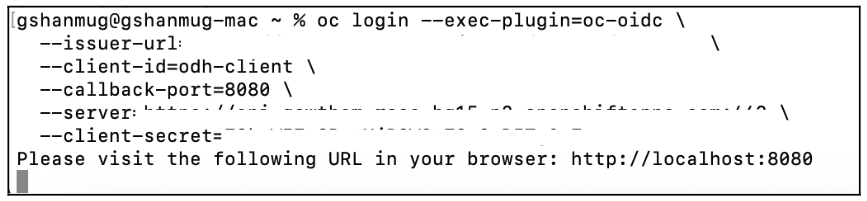
oc login --exec-plugin=oc-oidc \
  --issuer-url=https://$KEYCLOAK_DOMAIN/realms/$KEYCLOAK_REALM \
  --client-id=$KEYCLOAK_CLIENT_ID \
  --callback-port=8080 \
  --server=https://api.$CLUSTER_DOMAIN:443 \
  --client-secret=$KEYCLOAK_CLIENT_SECRET
- Add
--insecure-skip-tls-. Verify if Keycloak uses a self-signed or custom CA. - Follow browser instructions.
Verify using Figure 2:
oc whoami,oc get nodes,oc get user $(oc whoami) -o jsonpath='{.groups}{"\n"}'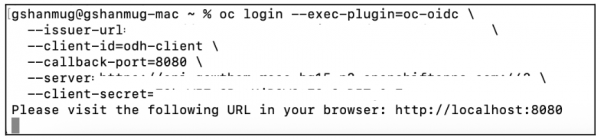
Figure 2: An example return in console showing results from using the listed commands.
Testing ODH Gateway access
- Access the gateway. This is the default subdomain for ODH 3.0. Legacy data-science-gateway may redirect here)
- Log in with Keycloak credentials.
- Verify ODH components are accessible.
Troubleshooting critical issues
Authentication fails or redirect errors:
- Verify redirect URIs in Keycloak client match your cluster domain.
- Ensure all three redirect URIs are configured in Keycloak:
https://console-openshift-console.${CLUSTER_DOMAIN}/auth/callbackhttp://localhost:8080/*https://rh-ai.${CLUSTER_DOMAIN}/oauth2/callback
- Verify Keycloak client secret matches the value in ROSA and
GatewayConfig.
Gateway returns 403 Forbidden:
- Check
kube-auth-proxy: oc get pods -n openshift-ingress -l app=kube-auth-proxy - Verify
GatewayConfig:oc get gatewayconfig default-gateway -o yaml
- Check
Groups not showing in OpenShift:
- In Keycloak, set group mapper Full group path to OFF.
- Confirm the user is in the
odh-admingroup. - Verify
ClusterRoleBinding:oc get clusterrolebinding rosa-hcp-admins
Essential debug commands
# Cluster authentication mode
oc get authentication cluster -o jsonpath='{.spec.type}'
# Gateway configuration
oc get gatewayconfig default-gateway -o yaml
# Auth proxy pods
oc get pods -n openshift-ingress -l app=kube-auth-proxy
# External auth provider
rosa list external-auth-providers -c $CLUSTER_NAME
# User groups
oc get user $(oc whoami) -o jsonpath='{.groups}{"\n"}'
Learning path summary
Congratulations! You now have a working OIDC instance on your ROSA-enabled cluster. As you work within this new environment, some things to further explore include Red Hat® OpenShift® AI (RHOAI). This can be used to deploy and run things like large language models (LLMs) on an AWS cluster. Read more about it here.
Ready to learn more?
- Red Hat OpenShift Service on AWS with hosted control planes quick start guide — prerequisites, CLI, VPC, OIDC config, Operator roles, create cluster
- Creating a ROSA cluster with external OIDC — HCP + Keycloak/external auth
- Configuring a shared VPC for ROSA clusters — shared VPC (VPC Owner / Cluster Creator)
- Creating a private cluster on ROSA — private cluster, private subnets
- Creating ROSA clusters with egress zero — disconnected / egress-zero
- Open Data Hub Documentation
- Keycloak Documentation

