"Hey, can you take a photo of me using Photo Booth with a filter… also, open Chess and move some of the pawns up."
That little exchange shows computer use in action, one of the coolest things happening in agentic AI right now.
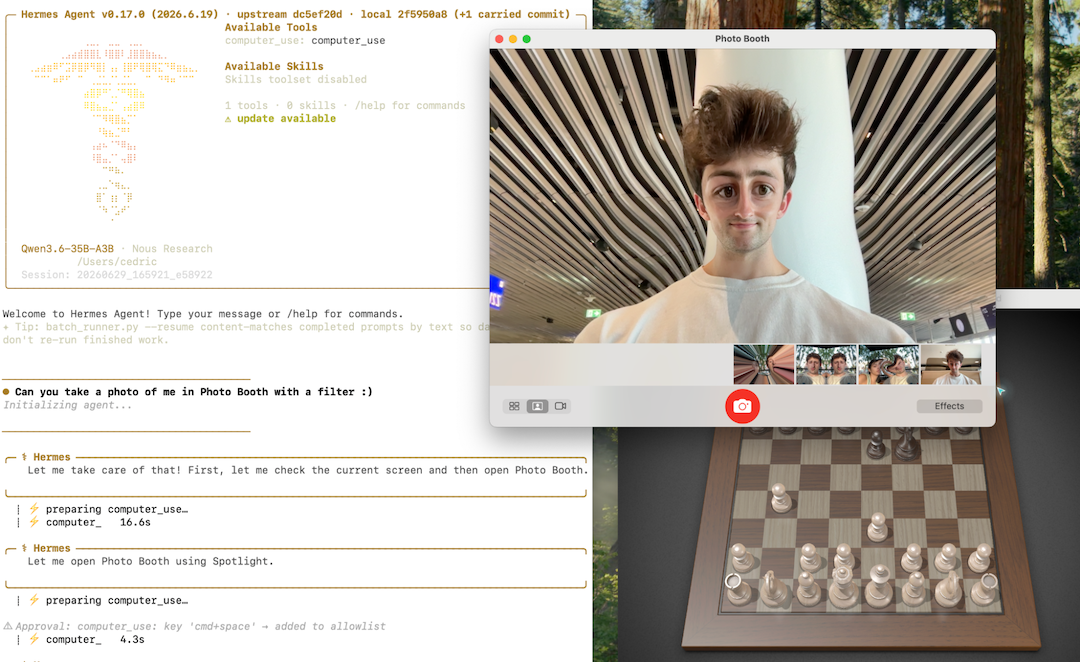
What is computer use?
Computer use lets an AI use software the same way you do, so it can view the screen, click, and type—all without you touching the keyboard or mouse. This approach is invaluable for automating tedious, manual tasks. For example, one of my previous jobs required me to move data from a CRM into Jira tickets. Computer use can also help with enterprise-level tasks where custom integrations are not available.
Pretty neat, right? But you almost certainly have private data on your own machine that you'd rather not hand to a third-party AI provider. If you pay per token via an LLM API, these tool calls can get quite expensive. You might want to look at running your own LLM and wiring it up to an agent running locally.
With that in mind, I'll show you how to run an open-weight model (such as Qwen or Gemma) with an open source AI harness (Hermes) so that you can implement computer use on your own terms.
Step 1: Pick a model (and don't overpay for hardware)
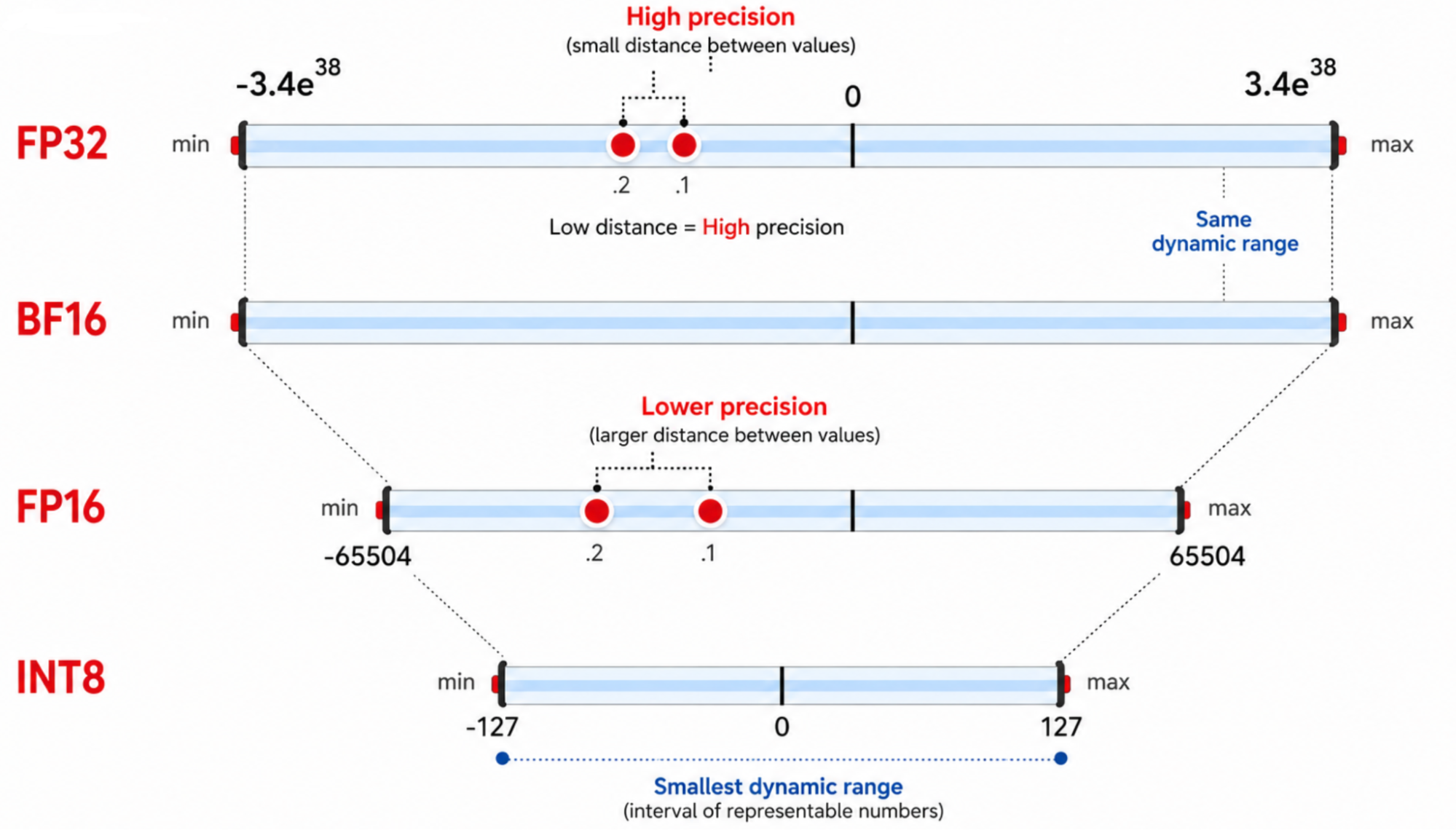
When you choose a model, it's worth checking out Red Hat AI on Hugging Face, where an entire library of compressed models can dramatically cut your hardware requirements (in some cases, halving the RAM requirements or more). The core technique is quantization, which squeezes a model down to fewer bits per weight (Figure 2).
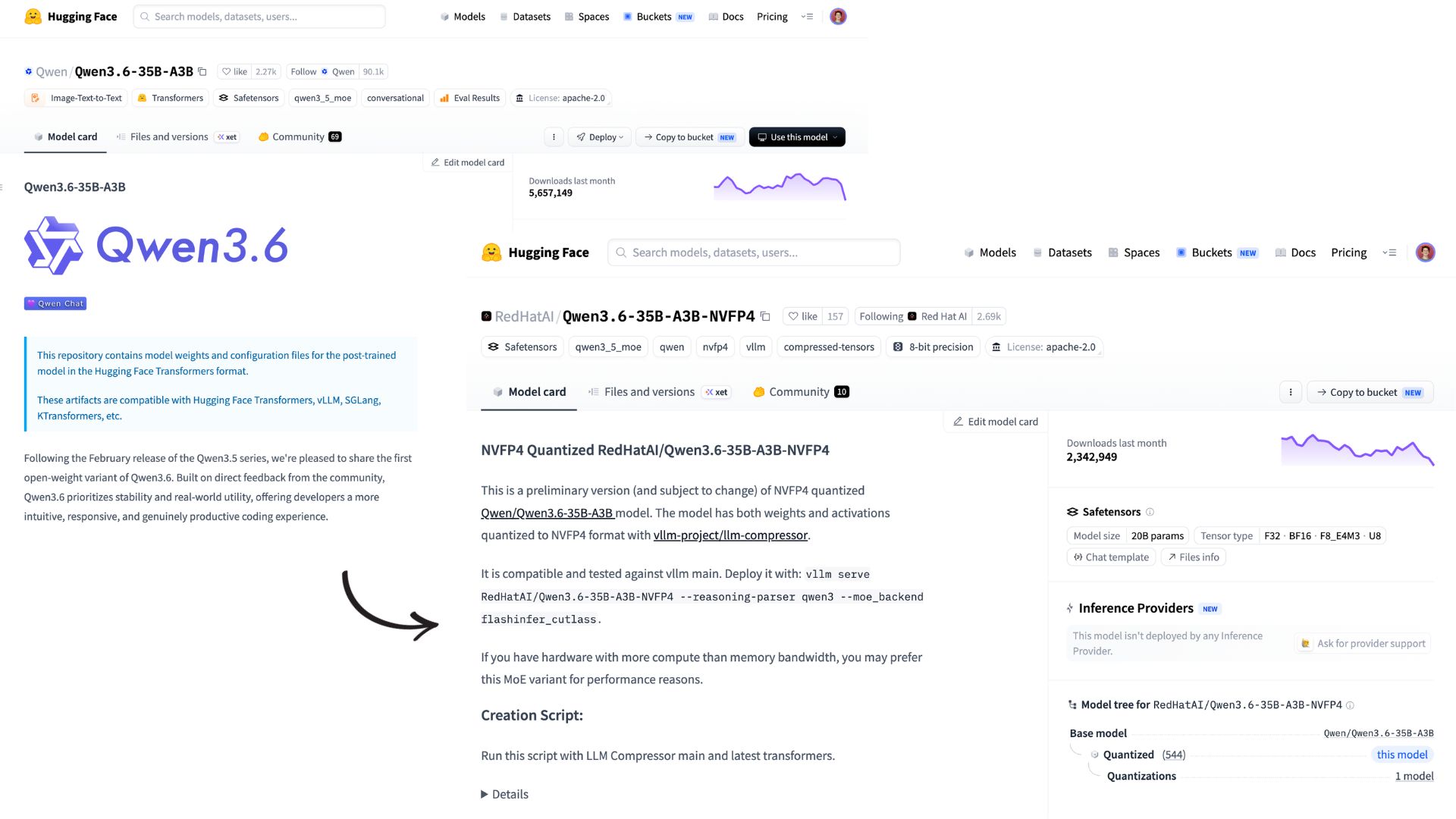
Take the Qwen 3.6 35B model shown in Figure 3. The native released weights in full precision are roughly 72 GB. Red Hat's 4-bit version? About 25 GB. This reduced footprint means that you can run this model on your own MacBook Pro with stable performance. Thanks to modern compression algorithms, the quantized version performs almost identically to the original on most benchmarks. The compressed version retains 99% of the original model accuracy while using a fraction of the hardware footprint.
Step 2: Deploy it (either locally or on Kubernetes)
For this example, we use Qwen 3.6 with 35 billion parameters. It's a sparse Mixture-of-Experts model, meaning it features 35 billion total parameters with roughly 3 billion active parameters per token, and it's natively multimodal. This architecture makes it a good fit for computer use because the agent passes a screen capture to the model and then uses tools to interact with user interface elements like check boxes.
Now, let's get it running.
Deploying the model locally
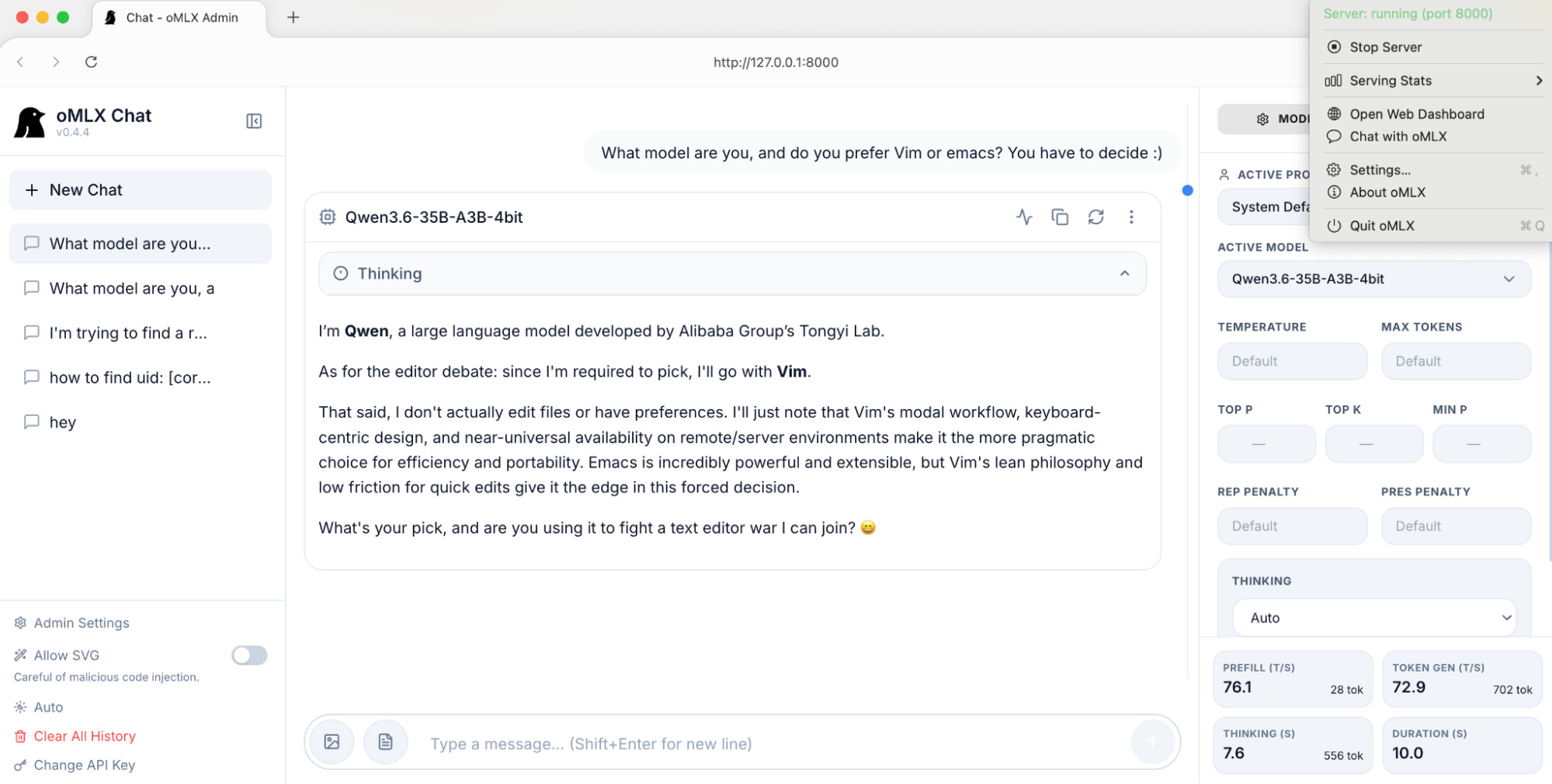
If you have the hardware to run it (I like to use the llmfit project to check compatibility before downloading anything) you might be surprised by how quickly you can serve a model locally. As a macOS user, I've tried most of the local inference tools, from Ollama to LM Studio and upstream llama.cpp. These days, I'm reaching for oMLX, a simple open source server and menu-bar application that manages models and exposes an OpenAI-compatible API endpoint (Figure 4). This tool usesApple's MLX framework to accelerate inference through unified memory.
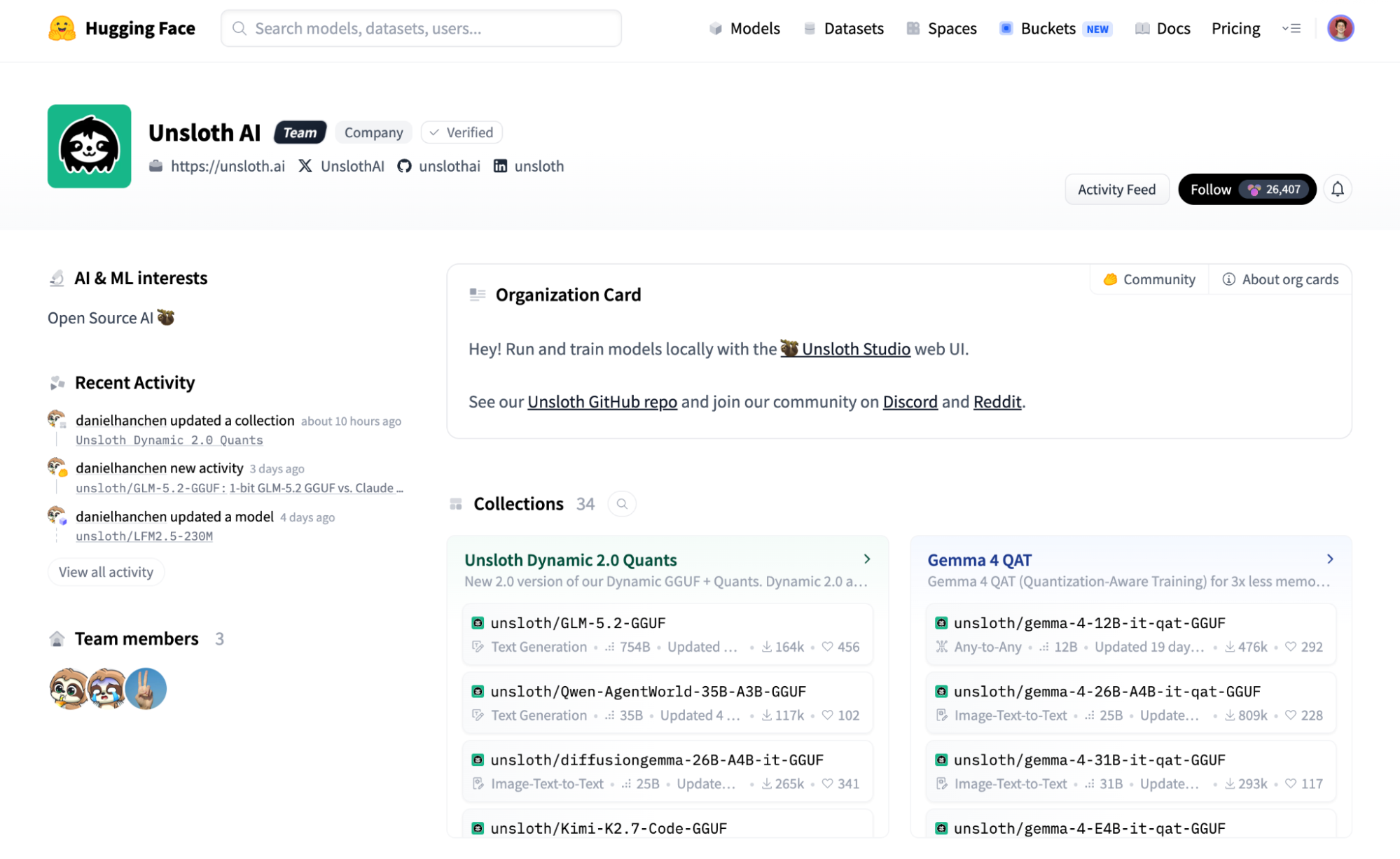
If you are developing on Windows or Linux, the same model runs through llama.cpp. Download a model (Unsloth, shown in Figure 5, makes some good quantized ones), point llama-server at it, and configure the same OpenAI-compatible endpoint to connect your agent.
Deploying the model with vLLM on OpenShift AI
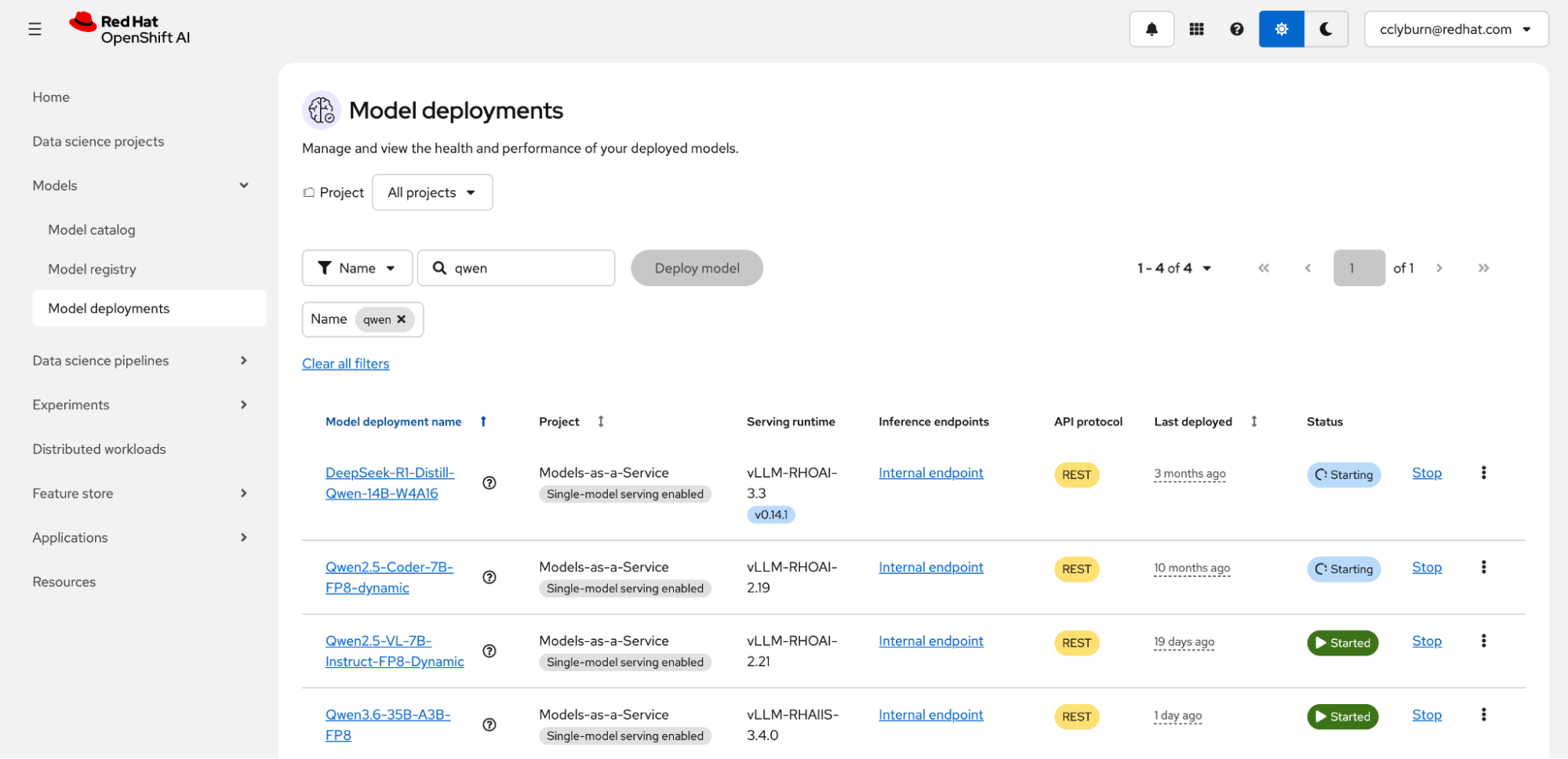
On Red Hat OpenShift AI, you can deploy models directly from the model catalog onto a Kubernetes environment. You can then create a route to make the model reachable from outside the cluster, authenticated with a custom API key.
Inside the cluster, the platform optimizes throughput and reduces latency by intelligently routing traffic and disaggregating the inference steps. This process splits the compute-heavy prefill phase from the memory-bound decode phase by using the llm-d project. In Red Hat's published benchmarks, intelligent inference scheduling delivered up to 57 times faster time-to-first-token and roughly two times the throughput compared to naive round-robin routing on the same hardware.
Note
To learn more about the differences between llama.cpp and vLLM, read our guide on choosing the right local LLM inference engine.
Step 3: Set up the local agent
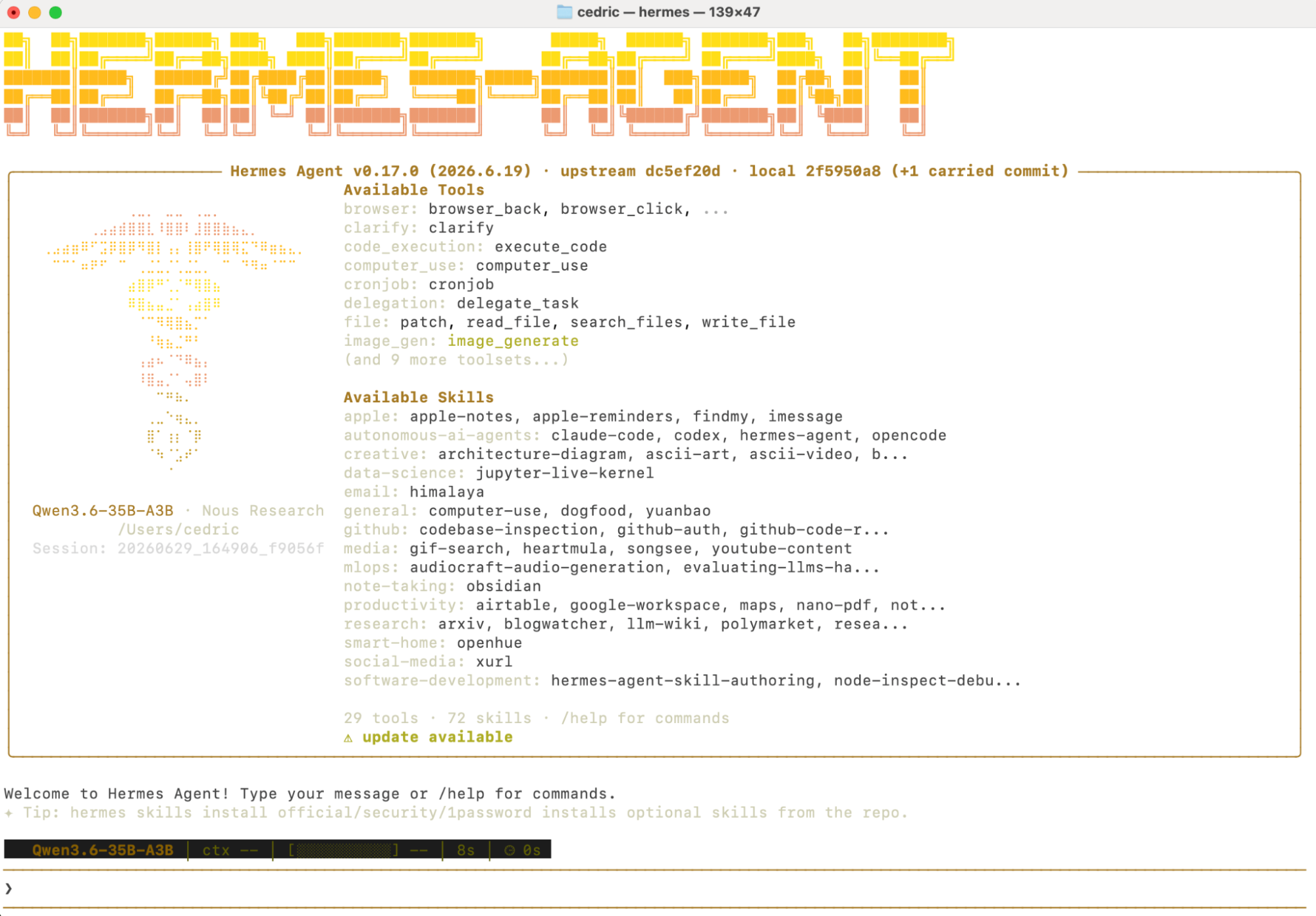
On my local machine, I've installed Hermes, a popular open source AI agent that runs on macOS, Windows, and Linux (Figure 7). Hermes can write code, manage your calendar, diagnose your Kubernetes cluster, and more. Because it connects to any OpenAI-compatible endpoint, I can point it directly at the model I just served—whether that's oMLX on my macOS environment or vLLM on OpenShift—with no code changes. The configuration requires only a base URL and an API key.
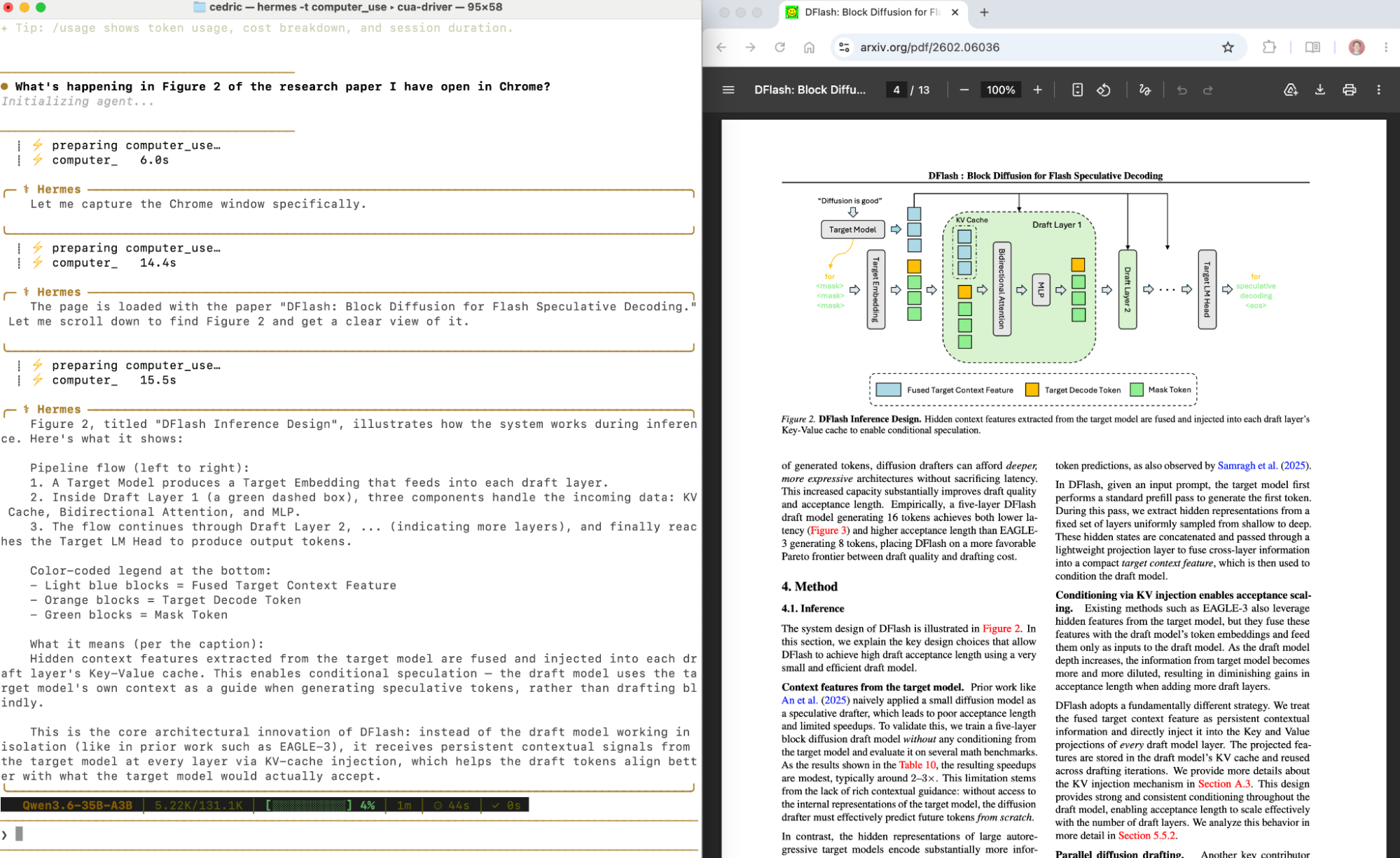
To interact with your desktop, Hermes performs computer use through a computer use agent (CUA) driver, which is an open source tool that lets the agent control the screen. The driver also includes configurable, multi-layer guardrails that protect windows from closing unexpectedly and require user approval before the agent types text or takes sensitive actions. You stay in the loop.
Step 4: Profit? Well, yes
So, let's give it a try: "Hey, can you use my browser to go to the vLLM repo and give it a star?"
Just kidding, you don't have to. But that's what computer use is all about. The model reads the screen, finds the browser, locates the star button, and selects it automatically. This architectural configuration differs because it runs entirely within a sovereign environment, keeping the local model, the local agent, and your private data on your machine.
To explore more capabilities, view the available open source tools and options from Red Hat AI.