As enterprises scale AI from proof of concept to production, there's a need for flexible and cost-effective inference infrastructure. As AI workloads move into production, enterprises need flexibility in the accelerators powering their inference infrastructure. Neural processing units (NPU), purpose-built for AI inference, complements existing infrastructure by delivering high throughput with greater energy efficiency, giving your organization more options to optimize cost and performance at scale.
In December 2025, Red Hat and Rebellions announced a joint solution bringing Rebellions' ATOM NPUs to Red Hat OpenShift AI, reinforcing Red Hat's "any model, any accelerator, any cloud" strategy. Today, following months of intensive co-engineering, that solution is generally available.
This milestone highlights Red Hat's leadership in the vLLM ecosystem, where we have collaborated with Rebellions to drive upstream contribution. In this post, we walk through how to deploy and serve large language models (LLMs) on Rebellions ATOM NPUs using Red Hat OpenShift AI and a certified vLLM container image on the Red Hat AI Inference Server.
What is the Rebellions ATOM NPU?
Rebellions is South Korea's first "unicorn" in the AI chips industry that designs processors optimized specifically for AI inference. The ATOM NPU delivers high throughput and low latency for LLM serving while consuming significantly less power than traditional GPUs, reducing both deployment and operational costs at the server and rack level.
Each ATOM chip provides 16 GB of on-chip memory. A typical ATOM Max card contains 4 chips, and a single server can house multiple cards, providing substantial aggregate memory and compute for even large models. For example, a server with dual ATOM Max cards exposes 8 NPU devices with 128 GB of total NPU memory, which is sufficient to run 70B-parameter models.
Architecture
The joint solution consists of four layers that work together to deliver enterprise AI inference on NPUs:
- Red Hat AI Inference server with Rebellions certified vLLM container runtime
- Red Hat OpenShift AI provides enterprise AI services including model serving with KServe, integrated with the Rebellions SDK for hardware-accelerated inference on ATOM NPUs
- Red Hat OpenShift delivers the enterprise Kubernetes foundation (logging, monitoring, GitOps, service mesh, certified storage) that is now NPU-aware. This enables intelligent scheduling, monitoring, and lifecycle management of NPU-based inference workloads, treating NPUs as first-class resources within the cluster.
- Rebellions NPU operator, certified for Red Hat OpenShift, seamlessly integrates Rebellions' cloud-native toolkit (drivers, device plugins, monitoring) into OpenShift, enabling native NPU support with high performance and low latency.
- Integrated infrastructure for the OpenShift control plane with NPU-powered inference nodes, delivered as a rapid deployment pattern for enterprise data centers.
Prerequisites
Before you begin, ensure you have the following:
- Red Hat OpenShift 4.20 or later
- Red Hat OpenShift AI 3.3 or later
- A server with Rebellions ATOM NPUs (refer to the Red Hat Ecosystem Catalog for validated hardware configurations)
- Cluster administrator access to your OpenShift cluster
- A Hugging Face account with access to the model you want to serve (if pulling from Hugging Face Hub)
Step 1: Install the Node feature discovery operator
The Node Feature Discovery operator (NFD) detects hardware features on cluster nodes, including Rebellions NPUs. The NPU operator depends on NFD to identify nodes with ATOM devices.
- In the OpenShift web console, navigate to Ecosystem > Software Catalog.
- Search for Node Feature Discovery and install it with the default settings (see Figure 1).
- Create a NodeFeatureDiscovery instance to start detecting hardware features on your nodes.
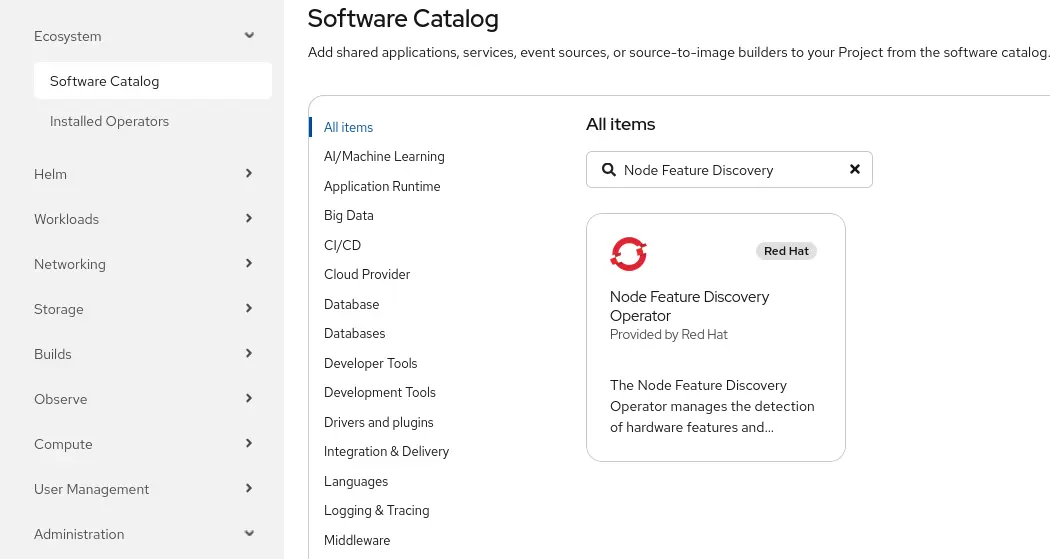
After NFD has been installed, create a NodeFeatureDiscovery resource with the default settings. Nodes with Rebellions NPUs are labeled automatically. You can verify by checking the node labels:
oc get node <node-name> -o jsonpath='{.metadata.labels}' \
| jq 'with_entries(select(.key | contains("1eff")))'
The expected output on a node with Rebellions NPUs:
{
  "feature.node.kubernetes.io/pci-1eff.present": "true"
}
1eff is the PCI vendor ID for Rebellions Inc., so this label marks the node as having at least one Rebellions device present.
The Node Feature Discovery operator can be used for a wide range of hardware detection and labeling tasks. For more details on using and configuring NFD, see the Openshift Documentation.
Step 2: Install the Rebellions NPU operator
The Rebellions NPU operator manages the full lifecycle of NPU drivers, device plugins, and monitoring components on OpenShift.
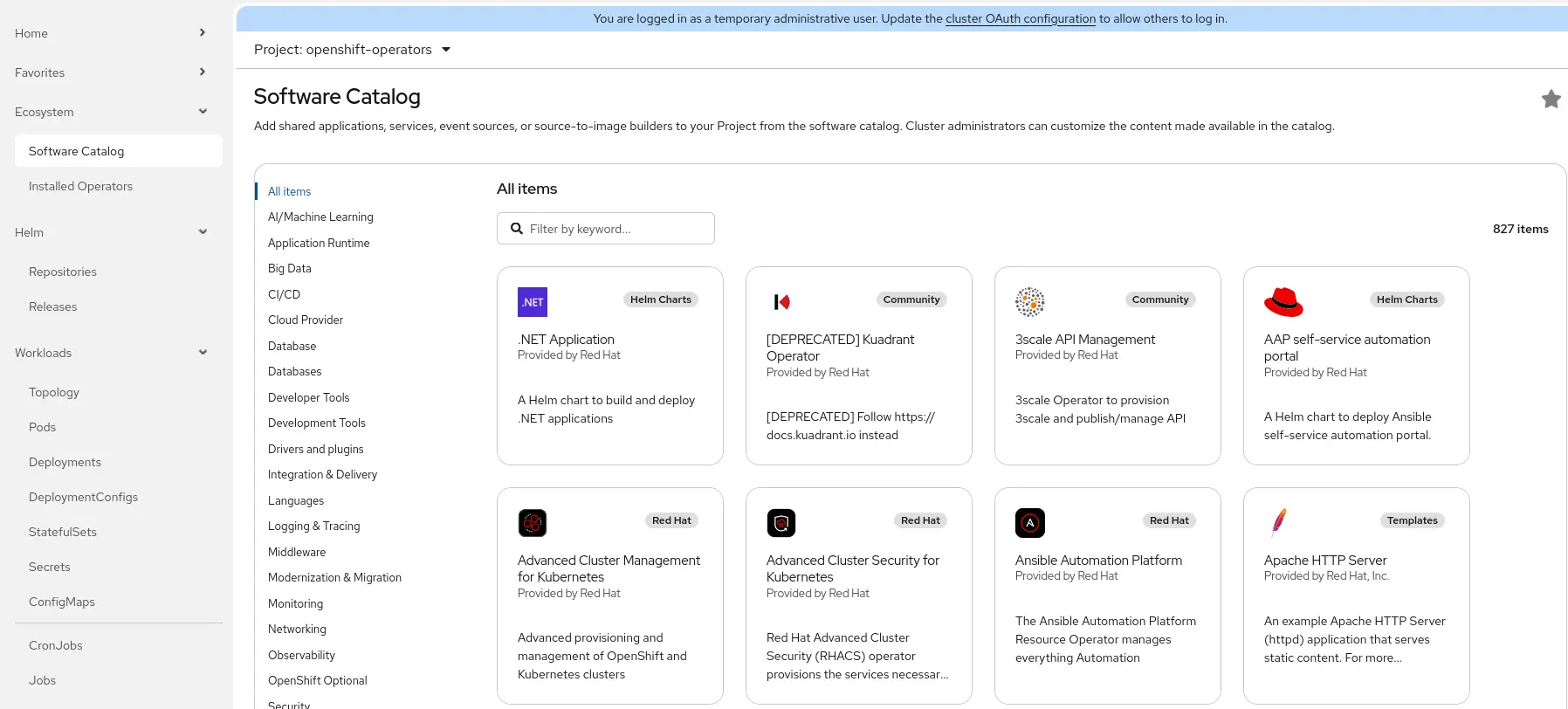
In the OpenShift web console, navigate to the Software Catalog in Ecosystem > Software Catalog (see Figure 2).
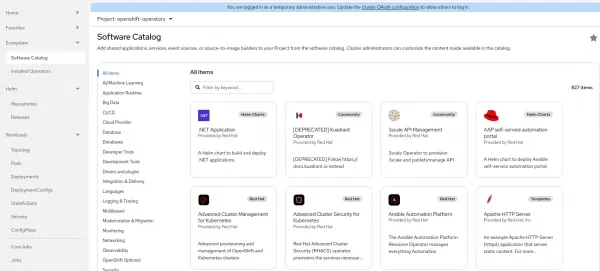
Figure 2: Software Catalog in Red Hat OpenShift. - Search for Rebellions NPU (it is certified in the Red Hat OpenShift Ecosystem Catalog).
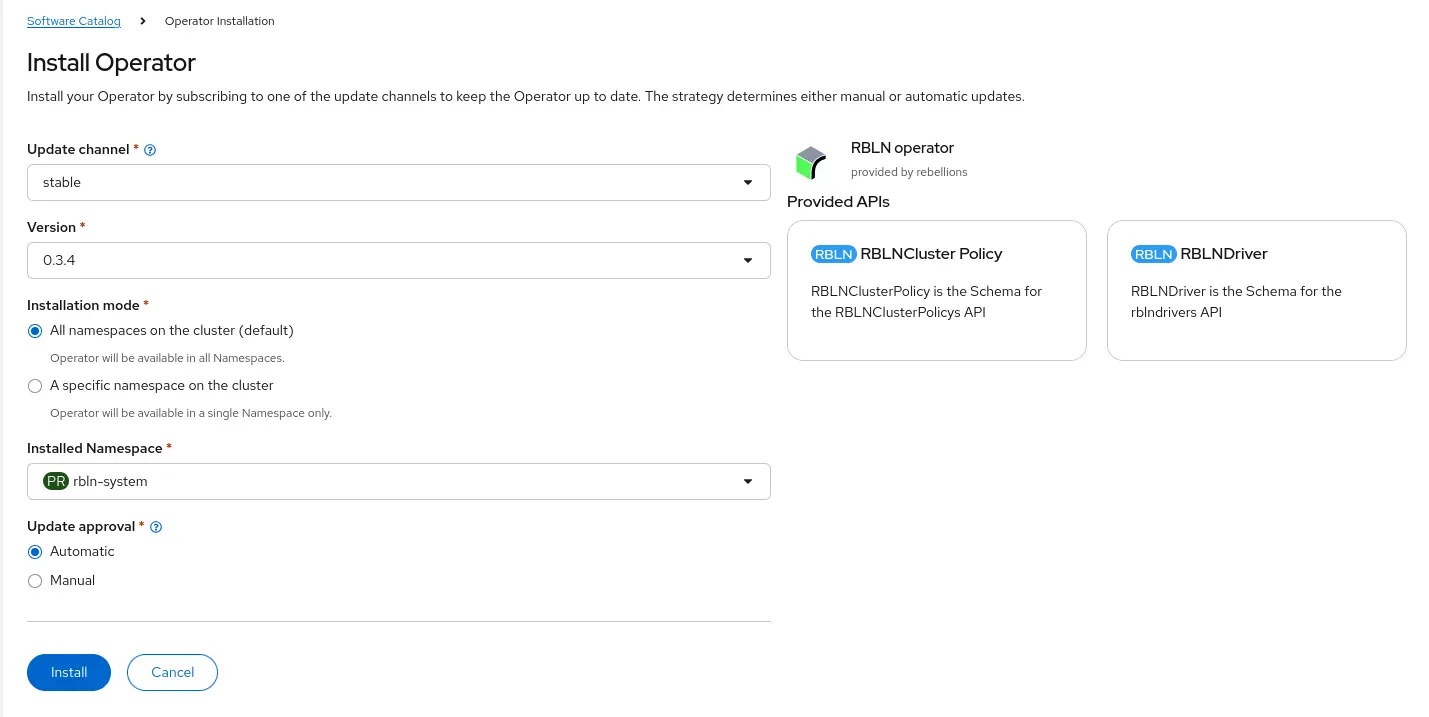
Install the operator with the default settings, ensuring it installs in the
rbln-systemnamespace (Figure 3).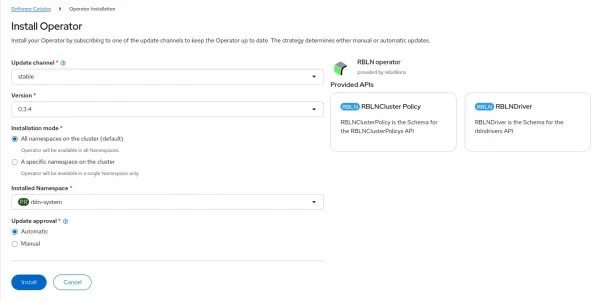
Figure 3: Installing an operator in Red Hat OpenShift. Verify your progress so far using
oc:
oc get pods -n rbln-system
NAME                        READY  STATUS   RESTARTS
controller-manager-867..nqt  1/1   Running  0
To be able to pull driver containers from the repo.rebellions.ai repository the operator expects a secret containing the credentials for that repo:
oc create secret docker-registry drivercred \
  --docker-server=repo.rebellions.ai \
  --docker-username=<your-username> \
  --docker-password=<your-password> \
  --docker-email=<your-email>  \
  -n rbln-system
The operator then needs two custom resources configured, firstly a RBLNDriver resource defining the driver to be installed, and second a RBLNClusterPolicy resource to configure the individual pods that the operator manages. You can do this from the Ecosystem > Installed Operators > RBLN operator page, clicking Create instance for both. For most installations the default settings are correct (Figure 4).
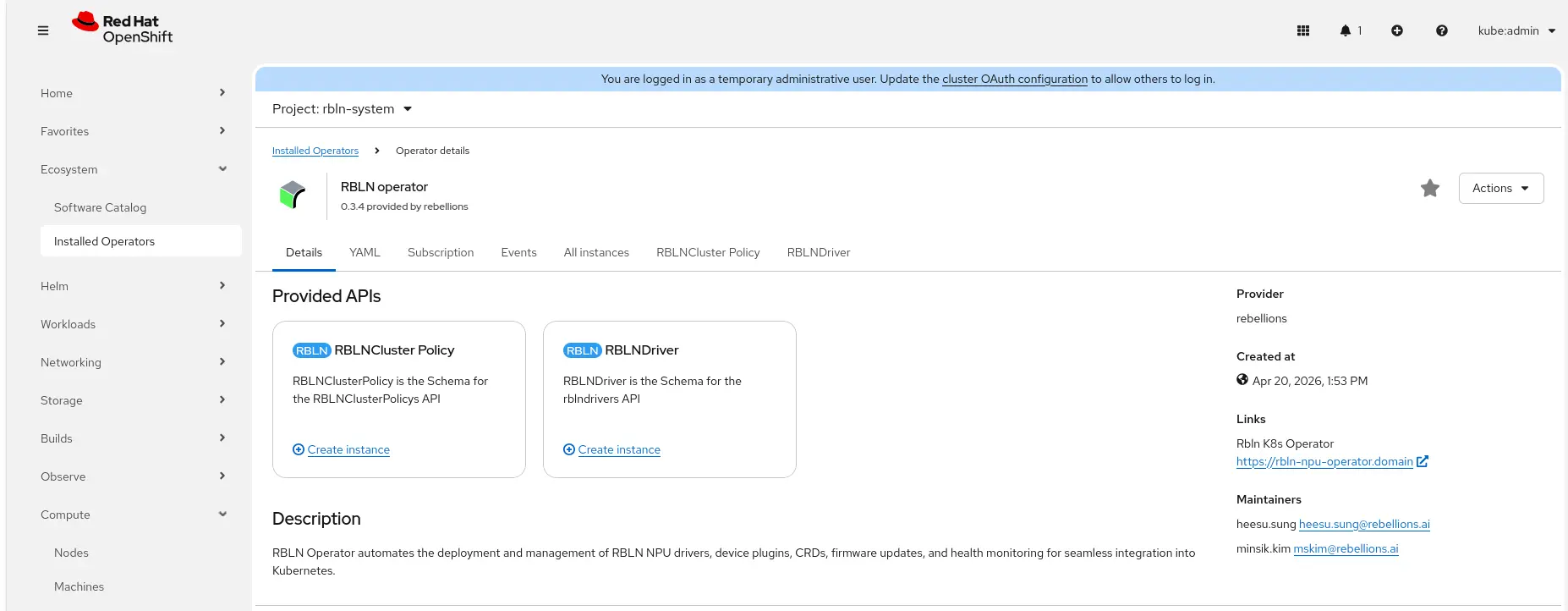
After creating these, the operator automatically:
- Builds and deploys the RBLN kernel module
- Registers ATOM devices with the Kubernetes device plugin framework
- Deploys metrics exporters for NPU monitoring
You now have 8 pods running in the rbln-system namespace. For example:
oc get pods -n rbln-system

NAME                                        READY STATUS
controller-manager-797798d7b8-rjzht         1/1   Running
rbln-device-plugin-4qgxc                    1/1   Running
rbln-metrics-exporter-jghbg                 1/1   Running
rbln-npu-feature-discovery-zg47r            1/1   Running
rbln-container-toolkit-ttz2c                1/1   Running
rblndriver-sample-rhel9.6-5.14.0-570..qf9   1/1   Running
rbln-operator-validator-qhf4t               1/1   Running
Verify that ATOM devices are visible as allocatable resources on your nodes:
oc get nodes -o \
custom-columns=NAME:.metadata.name,NPUs:.status.capacity.'rebellions\.ai/npu'
You see rebellions.ai/npu listed among the allocatable resources, for example:
NAME                            NPUs
rbln-npu-worker-01              32
Note: The per-product labels applied to the nodes by rbln-npu-feature-discovery such as rebellions.ai/npu.product=RBLN-CA25 are the recommended mechanism for workloads to pin to a specific card type in heterogeneous clusters.
At this point, the ATOM devices should be fully configured and ready for use with OpenShift AI.
Step 3: Create the ATOM hardware profile in OpenShift AI
A hardware profile tells OpenShift AI how much CPU, memory, and accelerator resources to allocate when deploying a model. Create a hardware profile for ATOM-based inference.
- Navigate to the Red Hat OpenShift AI dashboard (find this in the grid icon icon at the top right of the OpenShift GUI).
- In the OpenShift AI dashboard, navigate to Settings > Environment Setup > Hardware profiles.
- Click Create hardware profile and configure it according to your server configuration and the model you intend to serve.
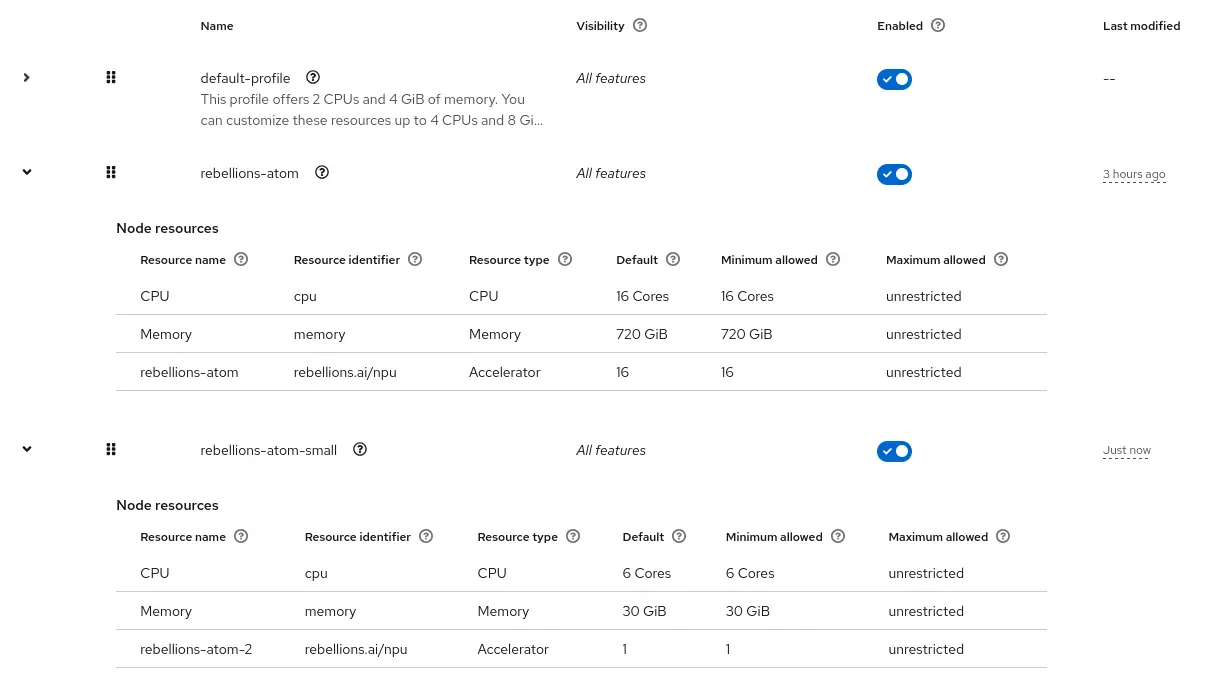
- Add the Accelerator resource using the Add Resource button and assign the number of accelerators the model requires:
For example:
- Name:
rebellions-atom - CPU:
28 - Memory:
720GiB - Accelerator:
rebellions.ai/npu - Accelerator count:
16
If you intend to serve multiple models of different sizes on the cluster, you can create multiple hardware profiles by repeating the same procedure (Figure 5).
Step 4: Create the vLLM RBLN ServingRuntime
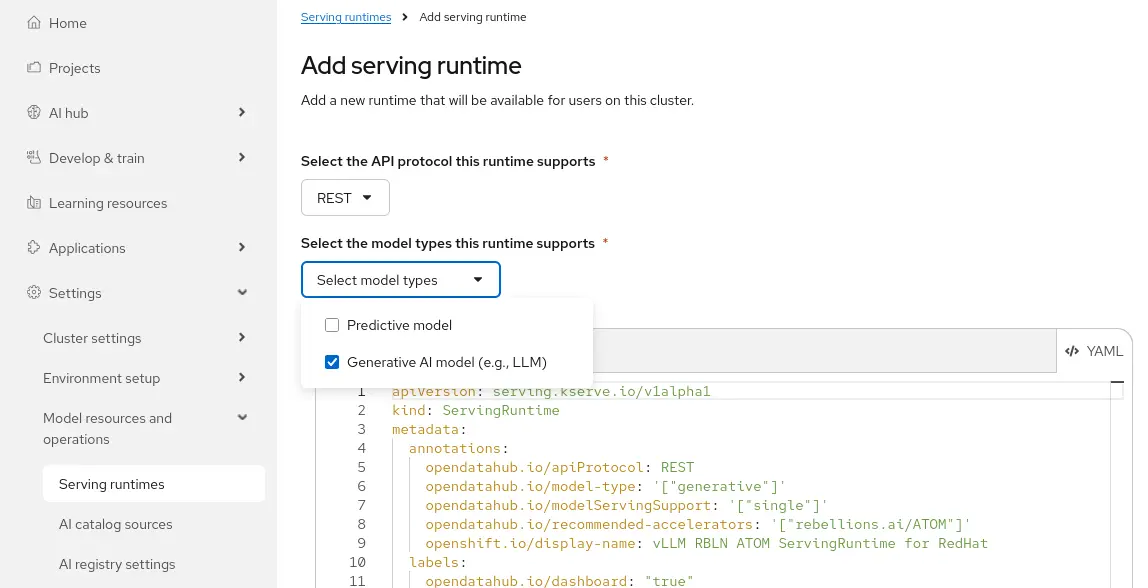
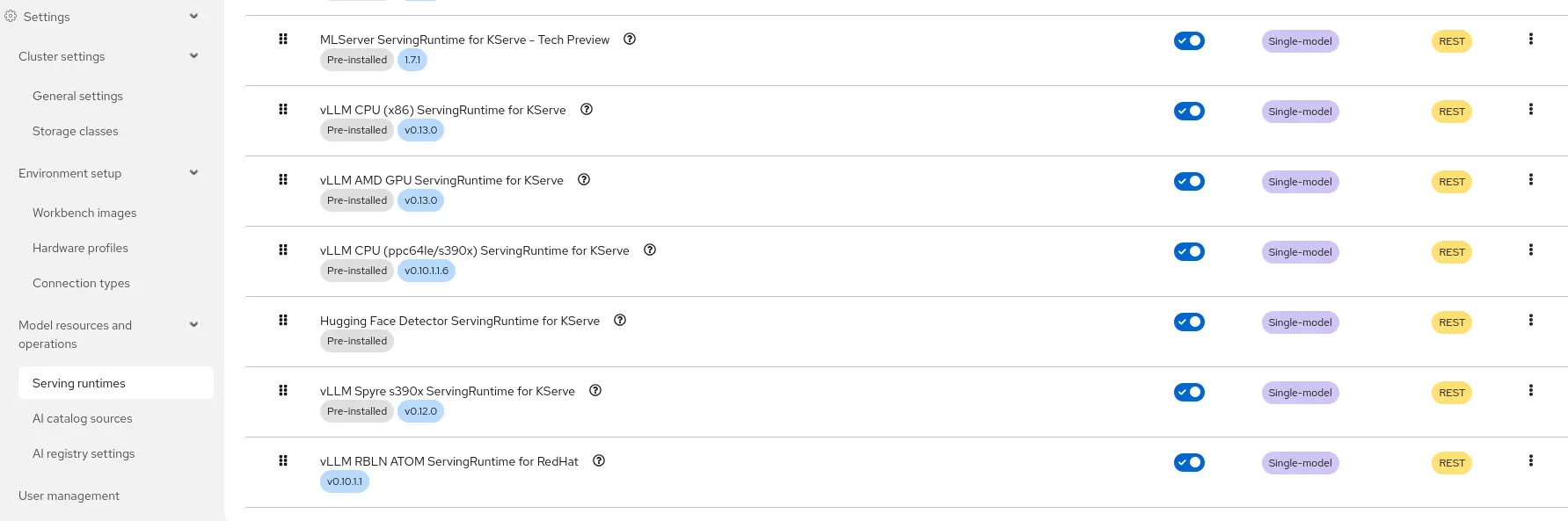
The ServingRuntime defines the container image, startup arguments, and environment variables used by KServe to serve models on ATOM NPUs. You can create a template ServingRuntime that can be reused for every model deployment by navigating to Settings > Model Resources and operations > Serving runtimes and clicking Add Serving Runtime selecting the appropriate API protocol and Model Type. Add the following YAML:
apiVersion: serving.kserve.io/v1alpha1
kind: ServingRuntime
metadata:
  annotations:
    opendatahub.io/apiProtocol: REST
    opendatahub.io/model-type: '["generative"]'
    opendatahub.io/modelServingSupport: '["single"]'
    opendatahub.io/recommended-accelerators: '["rebellions.ai/ATOM"]'
    openshift.io/display-name: vLLM RBLN ATOM ServingRuntime for RedHat
  labels:
    opendatahub.io/dashboard: "true"
  name: vllm-rbln-runtime
spec:
  annotations:
    prometheus.io/path: /metrics
    prometheus.io/port: "8080"
  containers:
    - args:
        - --port=8080
        - --model=/mnt/models
        - --served-model-name={{.Name}}
        - --block-size=1024
        - --max-num-seqs=1
        - --max-model-len=8192
        - --max-num-batched-tokens=128
        - --enable-chunked-prefill
      command:
        - python
        - -m
        - vllm.entrypoints.openai.api_server
      env:
        - name: HOME
          value: /workspace
        - name: HF_HOME
          value: /tmp/hf_home
        - name: VLLM_TARGET_DEVICE
          value: rbln
        - name: VLLM_USE_V1
          value: "1"
        - name: VLLM_RBLN_COMPILE_STRICT_MODE
          value: "1"
        - name: VLLM_RBLN_METRICS
          value: "1"
        - name: VLLM_RBLN_USE_VLLM_MODEL
          value: "1"
        - name: RBLN_KERNEL_MODE
          value: triton
        - name: VLLM_LOGGING_LEVEL
          value: WARNING
        - name: RBLN_ROOT_IP
          valueFrom:
            fieldRef:
              fieldPath: status.podIP
        - name: RBLN_LOCAL_IP
          valueFrom:
            fieldRef:
              fieldPath: status.podIP
      image: <vllm-rbln-image>
      name: kserve-container
      ports:
        - containerPort: 8080
          protocol: TCP
      readinessProbe:
        failureThreshold: 30
        initialDelaySeconds: 80
        periodSeconds: 20
        tcpSocket:
          port: 8080
        timeoutSeconds: 5
      volumeMounts:
        - mountPath: /workspace
          name: workspace-volume
  multiModel: false
  supportedModelFormats:
    - autoSelect: true
      name: vLLM
  volumes:
    - emptyDir:
        sizeLimit: 100G
      name: workspace-volume
Replace <vllm-rbln-image> with the certified vLLM RBLN container image from the Rebellions registry. At the time of writing, this is repo.rebellions.ai/rebellions/vllm-rbln-rhel9:3.3, but consult the Rebellions documentation for the latest image reference.
Key environment variables to note:
VLLM_TARGET_DEVICE=rbln: Directs vLLM to use the Rebellions NPU backendVLLM_USE_V1=1: Enables the vLLM V1 engineVLLM_RBLN_COMPILE_STRICT_MODE=1: Enforces strict compilation mode for model graphsVLLM_RBLN_METRICS=1: Enables NPU-specific metrics for PrometheusRBLN_KERNEL_MODE=triton: Selects the Triton-based kernel execution mode
The workspace-volume with a sizeLimit of 100G is required for the RBLN compilation cache, which stores compiled model graphs for faster subsequent startups.
Once the ServingRuntime is created, it appears as vLLM RBLN ATOM ServingRuntime for Red Hat in the OpenShift AI dashboard (Figure 7) under available serving runtimes (Settings > Model Resources > Serving Runtimes ).
Step 5: Deploy a model
With the hardware profile and ServingRuntime in place, you can now deploy a model through the OpenShift AI dashboard.
- In the OpenShift AI dashboard, click on Projects in the menu on the left, and select or create a project.
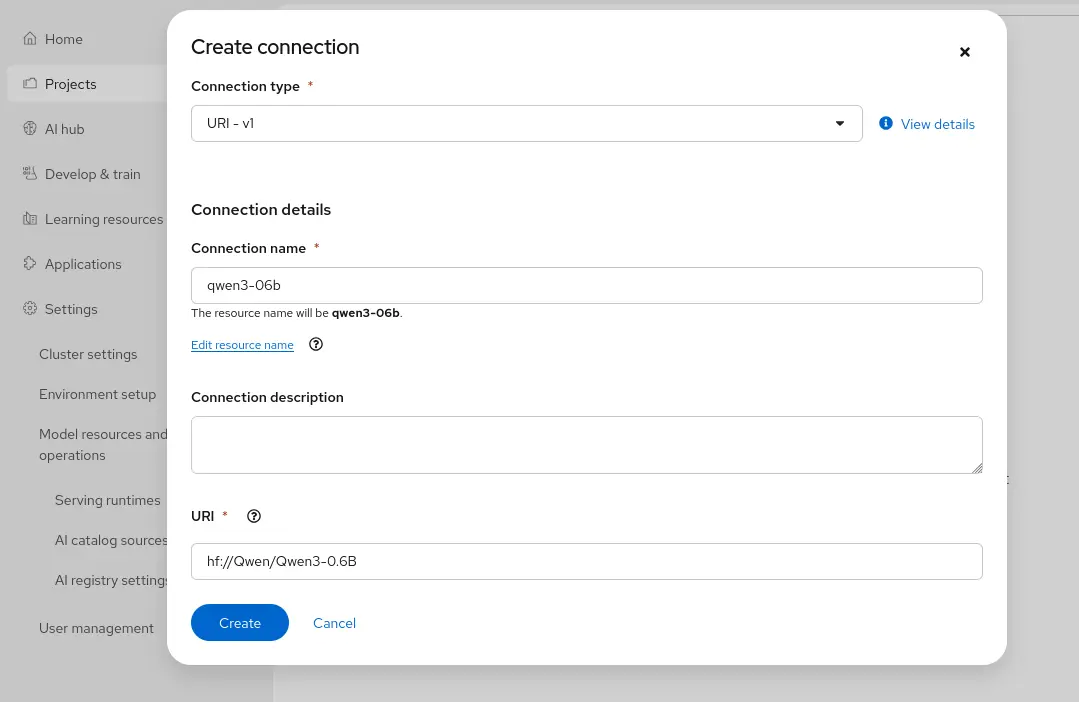
Under the Connections tab, configure a data connection for model storage (for example, an NFS-backed PersistentVolumeClaim or an S3-compatible object store) and upload your model weights (Figure 8).
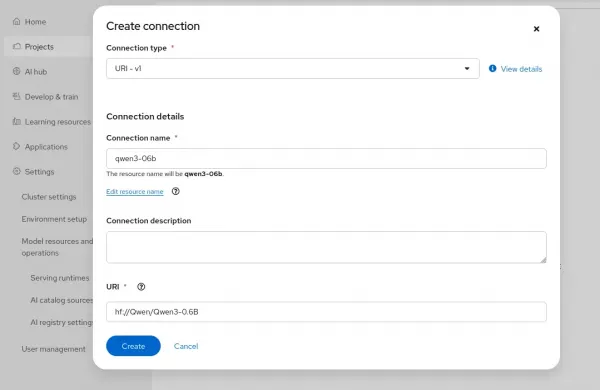
Figure 8: Configuring a data connection for model storage. - Under Serve Models in the Overview tab, click the Deploy model link and configure:
- Model location: Point to the model path in your data connection
- Model deployment name: For example,
qwen3-0-6b - Hardware profile: Select rebellions-atom
- Serving runtime: Select vLLM RBLN ATOM ServingRuntime
- Model access: If you require external access to the model, enable Make model deployment available through an external route
Click Deploy model (Figure 9).
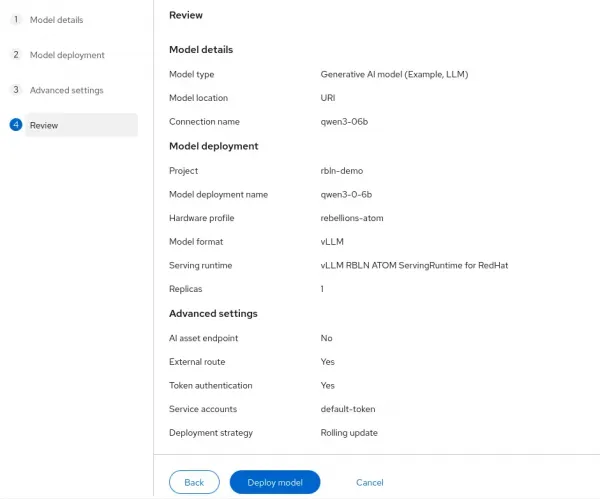
Figure 9: Deploying a model in Red Hat OpenShift.
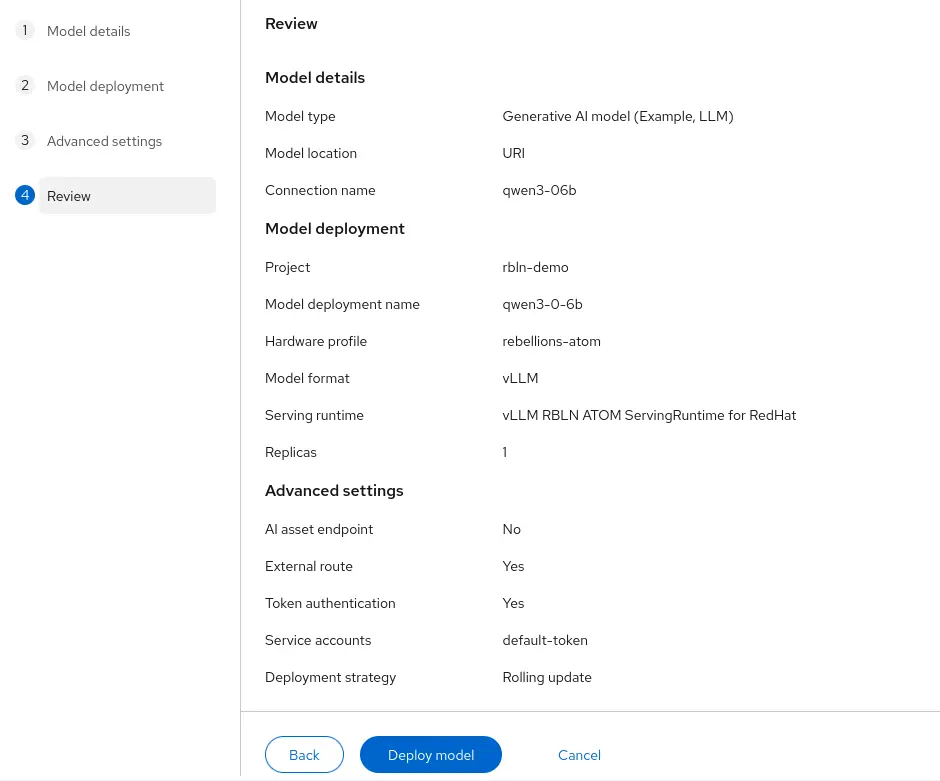
This creates an OpenShift project with all the objects needed to run the model, for example:
oc get all -n rbln-demo

NAME                              READY STATUS   RESTARTS
pod/qwen3-0-6b-predictor-798..s2w  2/2  Running  0

NAME                     TYPE       CLUSTER-IP     EXT..IP PORT
service/qwen3..metrics   ClusterIP  172.30.176.153 <none>  8080/TCP
service/qwen3..predictor ClusterIP  None           <none>  8443/TCP

NAME                              READY  UP-TO-DATE   AVAILABLE
deployment.apps/qwen3..predictor  1/1    1            1

NAME                         DESIRED   CURRENT   READY
replicaset.apps/qwen3..767   1         1         1

NAME
horizontalpodautoscaler.autoscaling/qwen3-0-6b-predictor
REFERENCE
Deployment/qwen3-0-6b-predictor
TARGETS              MINPODS   MAXPODS   REPLICAS
cpu: <unknown>/80%   1         1         1

NAME                                  HOST/PORT                                    PATH   SERVICES               PORT    TERMINATION          WILDCARD
route.route.openshift.io/qwen3-0-6b
   qwen3-0-6b-rbln-demo.apps.sno-prod.rbln.ai          qwen3-0-6b-predictor   https   reencrypt/Redirect   None
The first deployment takes longer than usual because the RBLN compiler needs to compile the model graph for the ATOM NPU architecture. Subsequent deployments of the same model will reuse the cached compilation artifacts.
You can monitor the deployment progress in the OpenShift AI dashboard or by watching the pod logs:
oc logs -f <inference-pod-name> -n <project-namespace>Once the readiness probe passes, the model is ready to serve requests.
Step 6: Verify the devices
You can check the devices visible to the pod, including a number of useful metrics such as power usage and memory utilisation using the rbln-smi utility:
oc exec -it pod/qwen3-0-6b-predictor-798b5c767-cks2w \
-n rbln-demo -- rbln-smi


+-------------------------------------------------------------------------------------------------+
|                                Device Information KMD ver: 3.0.0                                |
+-----+-----------+---------+---------------+------+---------+------+---------------------+-------+
| NPU |    Name   | Device  |   PCI BUS ID  | Temp |  Power  | Perf |  Memory(used/total) |  Util |
+=====+===========+=========+===============+======+=========+======+=====================+=======+
| 0   | RBLN-CA25 | rbln0   |  0000:0b:00.0 |  38C |  43.7W  | P14  |  14.0GiB / 15.7GiB  |   0.0 |
| 1   |           | rbln1   |  0000:0c:00.0 |  40C |         | P14  |    0.0B / 15.7GiB   |   0.0 |
| 2   |           | rbln2   |  0000:0d:00.0 |  33C |         | P14  |    0.0B / 15.7GiB   |   0.0 |
| 3   |           | rbln3   |  0000:0e:00.0 |  29C |         | P14  |    0.0B / 15.7GiB   |   0.0 |
+-----+-----------+---------+---------------+------+---------+------+---------------------+-------+
| 4   | RBLN-CA25 | rbln4   |  0000:0f:00.0 |  35C |  43.5W  | P14  |    0.0B / 15.7GiB   |   0.0 |
| 5   |           | rbln5   |  0000:10:00.0 |  39C |         | P14  |    0.0B / 15.7GiB   |   0.0 |
| 6   |           | rbln6   |  0000:11:00.0 |  31C |         | P14  |    0.0B / 15.7GiB   |   0.0 |
| 7   |           | rbln7   |  0000:12:00.0 |  32C |         | P14  |    0.0B / 15.7GiB   |   0.0 |
+-----+-----------+---------+---------------+------+---------+------+---------------------+-------+
| 8   | RBLN-CA25 | rbln16  |  0000:1b:00.0 |  38C |  44.8W  | P14  |    0.0B / 15.7GiB   |   0.0 |
| 9   |           | rbln17  |  0000:1c:00.0 |  34C |         | P14  |    0.0B / 15.7GiB   |   0.0 |
| 10  |           | rbln18  |  0000:1d:00.0 |  32C |         | P14  |    0.0B / 15.7GiB   |   0.0 |
| 11  |           | rbln19  |  0000:1e:00.0 |  31C |         | P14  |    0.0B / 15.7GiB   |   0.0 |
+-----+-----------+---------+---------------+------+---------+------+---------------------+-------+
| 12  | RBLN-CA25 | rbln20  |  0000:1f:00.0 |  31C |  44.7W  | P14  |    0.0B / 15.7GiB   |   0.0 |
| 13  |           | rbln21  |  0000:20:00.0 |  34C |         | P14  |    0.0B / 15.7GiB   |   0.0 |
| 14  |           | rbln22  |  0000:21:00.0 |  28C |         | P14  |    0.0B / 15.7GiB   |   0.0 |
| 15  |           | rbln23  |  0000:22:00.0 |  27C |         | P14  |    0.0B / 15.7GiB   |   0.0 |
+-----+-----------+---------+---------------+------+---------+------+---------------------+-------+
+-------------------------------------------------------------------------------------------------+
|                                       Context Information                                       |
+-----+---------------------+--------------+-----------+----------+------+---------------+--------+
| NPU | Process             |     PID      |    CTX    | Priority | PTID |      Memalloc | Status |
+=====+=====================+==============+===========+==========+======+===============+========+
| 0   | VLLM::EngineCore    |     521      |   10001   |  normal  |  0   |       14.0GiB |  idle  |
+-----+---------------------+--------------+-----------+----------+------+---------------+--------+
Step 7: Run inference
The deployed model exposes an OpenAI-compatible API endpoint. You can send requests using curl or any OpenAI-compatible client.
First, retrieve the inference endpoint:
oc get inferenceservice <model-name> \
-n <project-namespace> \
-o jsonpath='{.status.url}'
Note: If you didn't enable an external route during deployment, this URL is only available to other pods running on the cluster.
Send a chat completion request:
curl -s https://<inference-endpoint>/v1/chat/completions \
  -H "Content-Type: application/json" \
  -d '{
    "model": "qwen3-0-6b",
    "messages": [
      {"role": "system", "content": "You are a helpful assistant."},
      {"role": "user", "content": "Explain the benefits of NPUs 9for AI inference in two sentences."}
    ],
    "max_tokens": 256,
    "temperature": 0.7
  }'
Example response:
{
  "id": "chatcmpl-abc123",
  "object": "chat.completion",
  "model": "qwen3-0-6b",
  "choices": [
    {
      "index": 0,
      "message": {
        "role": "assistant",
        "content": "NPUs are purpose-built for AI inference workloads, delivering higher throughput per watt compared to general-purpose GPUs, which translates directly into lower operational costs at scale. Their optimized architecture reduces latency for token generation while enabling dense deployment in data centers without the cooling and power overhead typically associated with GPU clusters."
      },
      "finish_reason": "stop"
    }
  ]
}
Serving large and Mixture of Experts models
For larger dense models (such as Llama 3.3 70B) or Mixture of Experts (MoE) models (such as Qwen3-30B-A3B), you must distribute the model across multiple ATOM devices using tensor parallelism and expert parallelism.
When deploying these models, add the following custom runtime arguments in the Configuration parameters section of Advanced settings stage of the model deployment form:
--enable-expert-parallel
--data-parallel-size=4
--max-model-len=40960
--block-size=8192
Add the following environment variable to control the tensor parallel mapping:
VLLM_RBLN_TP_SIZE=4OMP_NUM_THREADS=2This configuration distributes the model across 16 ATOM devices with tensor parallelism and enables expert parallelism for MoE architectures, while running 4 data-parallel replicas for higher throughput.
Update the hardware profile accordingly to allocate 16 ATOM devices, 28 CPUs, and 720 Gi of memory for these larger models.
Monitoring NPU
When the NPU operator is installed, the Rebellions metrics exporter is added and exposes detailed telemetry for Rebellions NPUs in Prometheus format.
rbln_npu_temperature: Device temperature (°C)rbln_npu_power: Card power draw (W)rbln_npu_memory_used: DRAM currently in use (bytes)rbln_npu_memory_total: Total DRAM (bytes)rbln_npu_utilization: SM utilization (%)rbln_npu_health: Binary health (0 = active, 1 = inactive)
- Activate OpenShift user workload monitoring by applying this configmap:
apiVersion: v1
kind: ConfigMap
metadata:
  name: cluster-monitoring-config
  namespace: openshift-monitoring
data:
  config.yaml: |
    enableUserWorkload: true
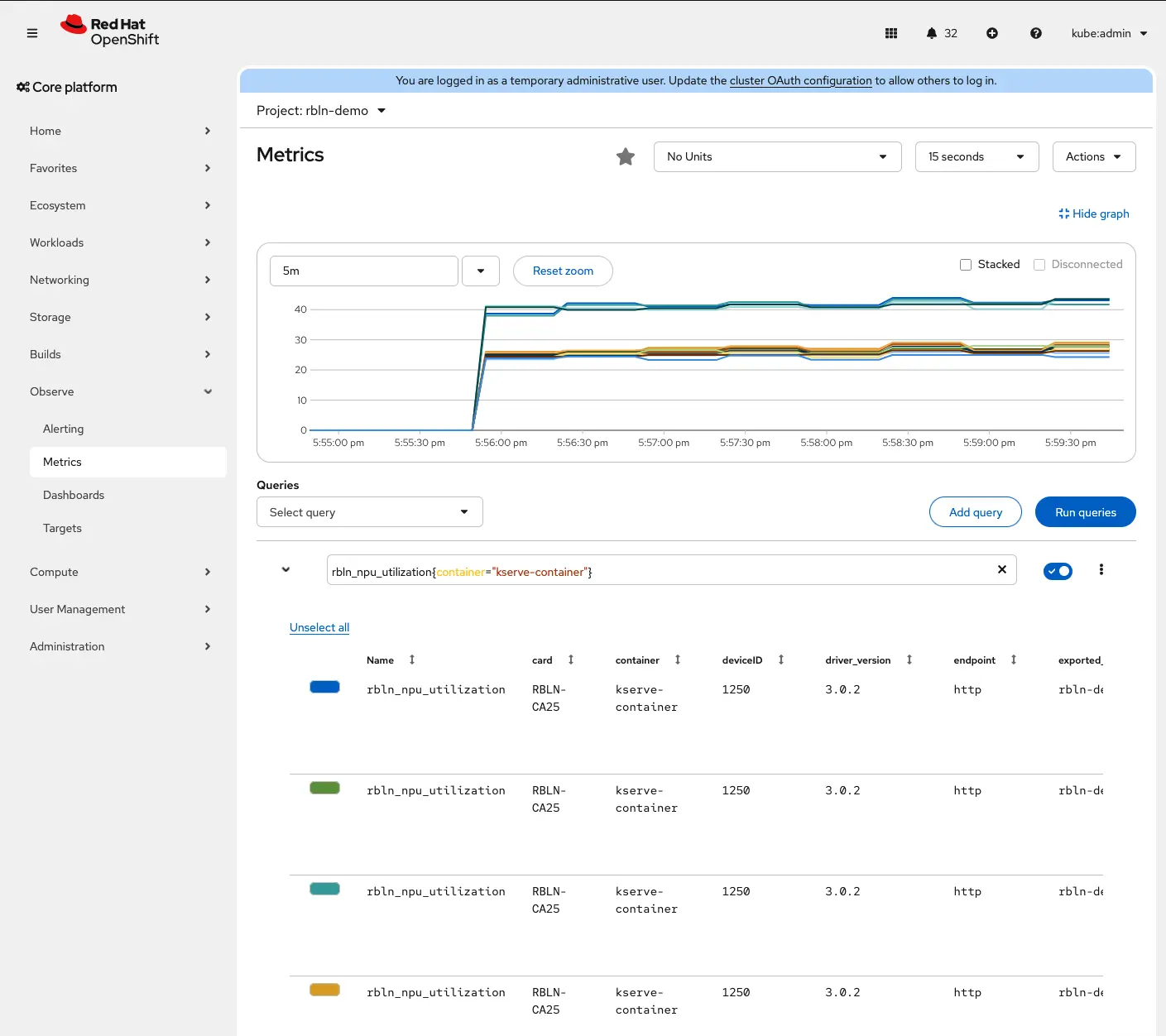
Navigate to Observe > Metrics in the OpenShift web console (Figure 10) to see Rebellions ATOM metrics.
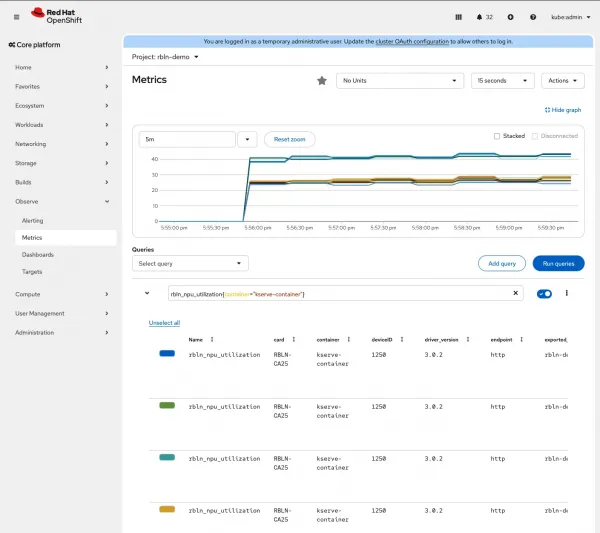
Figure 10: Rebellions ATOM metrics in Red Hat OpenShift web console.
Supported models
The following model families have been validated with the vLLM RBLN runtime on Red Hat OpenShift AI:
- Llama: Llama3.3-70b, Llama3.2-3b
- Qwen: Qwen3-0.6b, Qwen3-8b, Qwen3-VL-8b
- DeepSeek: DeepSeek-R1-Distill-Qwen-32b
- Gemma: Gemma2-9b, Gemma-7b, Gemma-2b
- Mistral: Mistral-7b
- EXAONE: EXAONE-3.5-32b, EXAONE-3.5-2.4b
- Others: Stable Diffusion, Time-Series-Transformer, gpt-oss-20b
Supported vLLM features include continuous batching, chunked prefill, prefix caching, speculative decoding, LoRA, sliding window attention, tensor/pipeline/data/expert parallelism, structured output, and w4a16 group quantization.
For the latest support matrix, including per-model feature compatibility, consult the Rebellions vLLM documentation.
What comes next
This is just the beginning of the Red Hat and Rebellions collaboration. Upcoming milestones include:
- Multi-node NPU clusters for scaling inference across multiple servers
- Disconnected (air-gapped) environment support for secure, isolated deployments
- Integration with llm-d for disaggregated prefill/decode and advanced serving topologies
- Support for REBEL NPU, Rebellions' next-generation chiplet architecture with 144 GB HBM3E, targeting GPU-class performance with NPU-class efficiency
Get started
To start running AI inference on Rebellions ATOM NPUs with Red Hat OpenShift AI:
- Visit the Red Hat Ecosystem Catalog for the validated solution listing and certified operator
- Review the Rebellions documentation for the latest support matrix, container images, and configuration guides
- Read the joint press release for more on the partnership and strategic vision
Red Hat's commitment to "any model, any accelerator, any cloud" means giving enterprises real choice in how they deploy AI. With Rebellions ATOM NPUs now fully supported on Red Hat OpenShift AI, organizations have a validated, energy-efficient path to production AI inference that doesn't compromise on enterprise-grade security, scalability, or operational simplicity.