Page
Package the application and operating system into a verified image
Image mode for Red Hat Enterprise Linux lets you manage your operating system (OS) just like a container.
In this lesson, you will integrate your server configuration (the Podman Quadlets) and your security scripts directly into the Red Hat Enterprise Linux 10 OS image. When the server boots for the first time, it automatically downloads your application containers and starts the website. Because the application is decoupled from the OS, you can update your web server or database later without restarting the entire machine. To ensure accuracy before building the final disk, run a test by starting the image in container mode. This verifies that the PHP code and database function together without starting a full virtual machine (VM).
Prerequisites:
- Create and run a LAMP application locally.
- Your application and HTTPD proxy configuration files are in the
lampdev-hardenedproject directory. - Your Quadlet files are in the
lampdev-hardened/quadletsdirectory.
In this lesson, you will:
- Automate credentials and the build process.
- Create the
Containerfile. - Build and test the application.
Package the application and operating system into a verified image
To integrate your Quadlets and your security scripts directly into the Red Hat Enterprise Linux 10 OS image, start by automating your credentials.
Step 1: Automate credentials with Podman secrets
To avoid the risk of hardcoding passwords in your configuration files, automate your credentials with Podman secrets, using a script called setup-secrets.sh. When Red Hat Enterprise Linux 10 boots for the first time, this script runs automatically. It generates strong, random passwords and stores them in the Podman secret store.
The database and application containers then pull these credentials directly from the encrypted store. This ensures that every instance of your server has its own unique set of credentials without you ever having to write a password in plain text.
This script checks for existing secrets. If none are found, it creates them and saves a backup of the generated passwords to /root/lamp-secrets-generated.txt for your reference.
Copy the following text into the file lampdev-hardened/setup-secrets.sh:
#!/bin/bash
set -euo pipefail

# 1. Choose where to save a backup of the passwords.
GENERATED_FILE="/root/lamp-secrets-generated.txt"

# 2. Check if passwords already exist so we do not overwrite them when the server restarts.
# If you want to use PostgreSQL instead, change 'mariadb_root_password' to your new secret name.
if podman secret inspect mariadb_root_password &>/dev/null; then
    echo "Passwords already exist. Skipping setup."
    exit 0
fi

echo "Creating new secure passwords..."

# 3. Create random 16-character passwords.
# This uses standard Linux tools built into the server.
ROOT_PASS=$(head -c 16 /dev/urandom | base64)
APP_PASS=$(head -c 16 /dev/urandom | base64)

# 4. Save a backup copy to a text file so you can log in later.
echo "# Auto-generated LAMP passwords — $(date -Iseconds)" > "$GENERATED_FILE"
echo "MARIADB_ROOT_PASSWORD=$ROOT_PASS" >> "$GENERATED_FILE"
echo "MARIADB_APP_PASSWORD=$APP_PASS" >> "$GENERATED_FILE"

# Lock the file so only the root user can read it.
chmod 600 "$GENERATED_FILE"
echo "Passwords saved to $GENERATED_FILE"

# 5. Save the passwords into Podman's secure storage.
# 5. Save the passwords into Podman's secure storage.
# We use 'echo -n' so it doesn't add a hidden newline (like pressing Enter)
# to the end of the password.
# To use a different database, change these names (for example, change 'mariadb' to 'postgres').
echo -n "$ROOT_PASS" | podman secret create mariadb_root_password -
echo -n "$APP_PASS"  | podman secret create mariadb_app_password -

echo "Database passwords are set up successfully."
Next, create the systemd service that will execute this script during the initial boot process. Create a new directory for your systemd configurations:
mkdir -p lampdev-hardened/systemd Create the file lampdev-hardened/systemd/lamp-secrets.service and add the following configuration:
[Unit]
Description=Provision LAMP podman secrets

[Service]
Type=oneshot
RemainAfterExit=yes
ExecStart=/usr/local/bin/setup-secrets.sh

[Install]
WantedBy=multi-user.target default.target
Step 2: Create the Containerfile
This file is the set of instructions for building your operating system. It starts with a Red Hat Enterprise Linux 10 base and adds the firewall, your PHP code, and your validated Quadlet files.
The most important part of this file is how it copies your configuration and code into the OS. You also include the setup-secrets.sh script and a systemd service to ensure your unique passwords are generated automatically on the first boot. Create the file lampdev-hardened/Containerfile.bootc as follows:
FROM registry.redhat.io/rhel10/rhel-bootc:latest

# Install firewalld for port management and cloud-init for automated
# registration
RUN dnf -y install firewalld cloud-init && dnf clean all

# Copy the PHP application
COPY app/ /srv/www/

# Copy the httpd proxy config
COPY httpd/proxy-php.conf /etc/httpd/conf.d/proxy-php.conf

# Copy quadlet unit files
COPY quadlets/lamp.network      /usr/share/containers/systemd/lamp.network
COPY quadlets/mariadb-data.volume /usr/share/containers/systemd/mariadb-data.volume
COPY quadlets/mariadb.container /usr/share/containers/systemd/mariadb.container
COPY quadlets/php-fpm.container /usr/share/containers/systemd/php-fpm.container
COPY quadlets/httpd.container   /usr/share/containers/systemd/httpd.container

# Copy secret provisioning script and systemd service
COPY setup-secrets.sh /usr/local/bin/setup-secrets.sh
RUN chmod 755 /usr/local/bin/setup-secrets.sh
COPY systemd/lamp-secrets.service /usr/lib/systemd/system/lamp-secrets.service
RUN systemctl enable lamp-secrets.service

# Open port 8080 for the web application
RUN firewall-offline-cmd --add-port=8080/tcp
Step 3: Create a build script to automate the build process
This script automates the build process. It uses Podman to package your containers into a local image named lampdev-hardened-bootc. Create the file lampdev-hardened/build-bootc.sh with the following contents:
#!/bin/bash
set -euo pipefail

IMAGE="localhost/lampdev-hardened-bootc:latest"

echo "Building bootc image..."
podman build -f Containerfile.bootc -t "$IMAGE" .

echo "Build complete: $IMAGE"
Set the permissions for the script from the command line as follows:
chmod 755 build-bootc.shStep 4: Create test-container.sh
This script (test-container.sh) tests your OS image by starting it as a container. It automates configurations required for testing, such as pulling the Hardened Images into the environment and mapping storage directories.
#!/bin/bash
set -euo pipefail

IMAGE="localhost/lampdev-hardened-bootc:latest"
NAME="lampdev-bootc"

podman rm -f "$NAME" 2>/dev/null || true

echo "Starting bootc image in container mode..."
podman run -d --name "$NAME" \
  --privileged \
  --tmpfs /var/lib/containers:rw \
  -p 8080:8080 \
  "$IMAGE" \
  /sbin/init

echo "Waiting for systemd to initialize..."
sleep 5

echo "Starting services (this will pull the images automatically)..."
# We use 'start' because Quadlet units are automatically generated
podman exec "$NAME" systemctl start mariadb php-fpm httpd

echo "Waiting for database initialization..."
sleep 15

echo "Service status:"
podman exec "$NAME" systemctl is-active mariadb php-fpm httpd

echo ""
echo "Setting up port forwarding..."
HTTPD_IP=$(podman exec "$NAME" podman inspect httpd --format '{{range .NetworkSettings.Networks}}{{.IPAddress}}{{end}}')
podman exec "$NAME" bash -c "nohup socat TCP-LISTEN:8080,fork,reuseaddr,bind=0.0.0.0 TCP:${HTTPD_IP}:8080 &"

echo ""
echo "Application is running at: http://127.0.0.1:8080"
echo "--------------------------------------------------------"
echo "To stop the bootc container, run: podman stop $NAME"
echo "To completely remove the container, run: podman rm -f $NAME"
echo "--------------------------------------------------------"
Set the permissions for the script from the command line as follows:
chmod 755 test-container.shNote
This test method runs the OS image as a container with elevated privileges for faster validation only. The production path (next step) boots the image in a VM, where no special container flags (e.g., --privileged) are needed.
Step 5: Build and test the application
To combine Red Hat Enterprise Linux 10 and your hardened LAMP stack into a bootable container from the lampdev-hardened directory, run the command:
./build-bootc.shThe test script starts the bootable container in container mode and uses the Quadlets you created to launch your hardened container services with the command:
./test-container.shTo test, point your web browser at http://localhost:8080. You should see results similar to Figure 1:
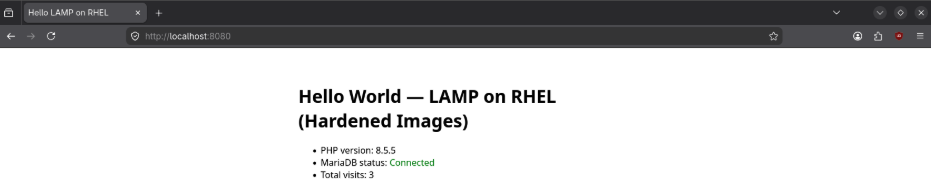
Here is what to look for to validate success:
- PHP version: Confirms the PHP-FPM container is processing code.
- MariaDB status: "Connected" means your application successfully authenticated with the hardened database.
- Total visits: Refresh the page to see the count increase, confirming persistent storage is working.
Success! You’ve demonstrated the bootable container functionality of your hardened LAMP stack running in container mode. You’re now ready to create (and test) it booting as a virtual machine.
