Page
Create a bootable virtual machine
The goal of image mode for Red Hat Enterprise Linux is to reduce the gap between containers and bootable operating system (OS) environments. In this lesson, you will convert your bootable container into a physical disk file.
This process is called materialization. The bootc-image-builder tool inspects your container and generates a bootable disk. This disk includes the Red Hat Enterprise Linux 10 operating system, your PHP code, configuration files, and the Red Hat Hardened Images for PHP-FPM, Apache, and MariaDB.
Prerequisites:
- A verified, bootable container.
In this lesson, you will:
- Configure the user, storage, and subscription credentials.
- Create the image build script.
- Create a launch script for Linux KVM.
- Build and test your bootable virtual machine (VM).
Create a bootable virtual machine
You are now ready to take this verified bootable container and use bootc-image-builder to create a final .qcow2 disk file. This file can be used to run your application as a production-ready virtual machine.
Step 1: Configure the user, storage, and subscription credentials for your image
When you build a virtual machine, you need a way to log in. This configuration file tells the builder to create an admin user, set a local password for sudo access, and inject your modern ed25519 public key. It also ensures the disk is large enough to hold your data.
Create the script lampdev-hardened/bootc-config.sh script with the following contents:
# Ensure you have an ed25519 SSH key generated.
# If you do not, run: ssh-keygen -t ed25519
PUB_KEY=$(cat ~/.ssh/id_ed25519.pub)

cat < lampdev-hardened/config.toml
[[customizations.user]]
name = "admin"
password = "changeme"
groups = ["wheel"]
key = "${PUB_KEY}"

[[customizations.filesystem]]
mountpoint = "/"
minsize = "10 GiB"
EOF
Execute the script to create the config.toml file which Podman will use to build your container configuration with the following commands:
chmod 755 bootc-config.sh
./bootc-config.sh
Next, create the user-data file that cloud-init will read during the initial boot. This passes your Red Hat credentials to the system to automatically register the VM with Red Hat Lightspeed for Red Hat Enterprise Linux .
Create a file named lampdev-hardened/user-data in your project directory. Add the following content, replacing the placeholder values with actual Red Hat Organization ID and activation keys:
# cloud-config
rh_subscription:
  org: "YOUR_ORG_ID"
  activation-key: "YOUR_ACTIVATION_KEY"
  auto-attach: true
You can generate these for testing in console.redhat.com with a no-cost developer subscription using the Create activation key button. For production workloads in commercial use cases, be sure to use official activation keys paid for by your organization.
Step 2: Create the image build script
This script uses the bootc-image-builder tool. It performs a few important tasks:
- It moves your container from your local user storage to the system's root storage so the builder can see it.
- It pulls the Apache, PHP, and MariaDB Hardened Images so they can be integrated into the disk.
- It outputs a
.qcow2file, which is a standard format for VM disks.
Create the file lampdev-hardened/build-qcow2.sh with the following content:
#!/bin/bash
set -euo pipefail

IMAGE="localhost/lampdev-hardened-bootc:latest"
OUTPUT_DIR="./output"
USER_STORAGE="${HOME}/.local/share/containers/storage"

mkdir -p "$OUTPUT_DIR"

# Copy the OS image from rootless to root storage
echo "Copying bootc image to root storage..."
sudo podman pull "containers-storage:[overlay@${USER_STORAGE}]${IMAGE}"

echo "Building qcow2 disk image from $IMAGE..."
sudo podman run --rm --privileged \
  --security-opt label=type:unconfined_t \
  -v /var/lib/containers/storage:/var/lib/containers/storage \
  -v "${OUTPUT_DIR}:/output" \
  -v ./config.toml:/config.toml:ro \
  registry.redhat.io/rhel10/bootc-image-builder:latest \
  --type qcow2 \
  "$IMAGE"

echo "Disk image created at: ${OUTPUT_DIR}/qcow2/disk.qcow2"
Set the permissions for the script from the command line as follows:
chmod 755 build-qcow2.shStep 3: Create a launch script for Linux KVM
Once the disk is ready, you need to start it. This script uses virt-install to create a VM using the disk you just built. It waits for the machine to start and then finds its IP address so you can visit your application.
Create the file lampdev-hardened/launch-vm.sh with the following content:
#!/bin/bash
set -euo pipefail

QCOW2="./output/qcow2/disk.qcow2"
VM_NAME="lampdev-hardened"
CONFIG_FILE="./config.toml"

echo "Launching VM: $VM_NAME"

# Dynamically parse credentials from the config file
VM_USER=$(grep 'name =' "$CONFIG_FILE" | cut -d'"' -f2 || echo "unknown")
VM_PASS=$(grep 'password =' "$CONFIG_FILE" | cut -d'"' -f2 || echo "unknown")

# Start the VM
sudo virt-install \
    --connect qemu:///system \
    --name "$VM_NAME" \
    --cpu host-model \
    --vcpus 2 \
    --memory 4096 \
    --network network=default \
    --noautoconsole \
    --import \
    --disk "${QCOW2},format=qcow2" \
    --os-variant rhel10-unknown \
    --cloud-init user-data=./user-data

echo "VM '$VM_NAME' started. Waiting for IP address..."

# Poll the hypervisor for the DHCP-assigned IP address
VM_IP=""
while [ -z "$VM_IP" ]; do
    sleep 5
    # Suppress errors while booting; extract IPv4 address once available
    VM_IP=$(sudo virsh domifaddr "$VM_NAME" 2>/dev/null | grep ipv4 | awk '{print $4}' | cut -d/ -f1 | head -n 1) || true
done

echo ""
echo "VM '$VM_NAME' is running at: $VM_IP"
echo "App: http://${VM_IP}:8080"
echo "Console: sudo virsh console $VM_NAME"
echo "Login: $VM_USER / $VM_PASS"
echo "--------------------------------------------------------"
echo "To stop the virtual machine, run: sudo virsh destroy $VM_NAME"
echo "To completely remove the virtual machine, run: sudo virsh undefine $VM_NAME --remove-all-storage"
echo "--------------------------------------------------------"
Set the permissions for the script from the command line as follows:
chmod 755 launch-vm.shStep 4: Build and test
Build the .qcow2 formatted disk image for the Linux-based KVM virtual machine from the command line with:
./build-qcow2.shYou’ll be prompted for your password so that the sudo command can run. This will take several minutes as it creates the 10GB disk image. On successful completion, you’ll see output similar to what follows:
⏱  Duration: 49.02s
manifest - finished successfully
build:    	4e8343c0bf3ca000f32bf9cbfedd4f85640c60358e8547817eda1705060d9957
image:    	fdcb53951baacfa53804fb0f5295b8f1c166a34a7996f110e3c0bc16859a6b4c
qcow2:    	64f71d529c2b17ae8cdff44318d3326900159a345f99c10c430eb86b6ae0c73b
vmdk:     	f0557aeb506030bd810d249a85bf25281add6931a107ceebb6147b0e81256f6b
vpc:      	1887e6c7b3b2852f56361c70ed78cc6175151bf200ab9f01bf46c3da455a2565
ovf:      	2a6d412af75123610fe7a2374cd50f1b97931b74dfb90e13d84d1a545839ca1e
archive:  	31b1082ab67e67c5db2c0ad06fb229d4807be30ef7b9e694415860068e27d79f
gce:      	79874680711344ef7c0d51e096d3de573986d45a2a25444fec2a1779790fa763
Build complete!
Results saved in .
qcow2 image created at: ./output/qcow2/disk.qcow2
Now, start the VM with:
./launch-vm.shThe launch command will give you the IP address to connect to for testing. For example:
Launching VM: lampdev-hardened

Starting install...
Creating domain...                                          |         00:00
Domain creation completed.

VM 'lampdev-hardened' started. Waiting for IP address...

VM 'lampdev-hardened' is running at: 192.168.122.151
App: http://192.168.122.151:8080
Console: sudo virsh console lampdev-hardened
Login: admin / changeme
Open the specified App: link in your browser (e.g., http://192.168.122.151:8080) and you should see results similar to Figure 1:
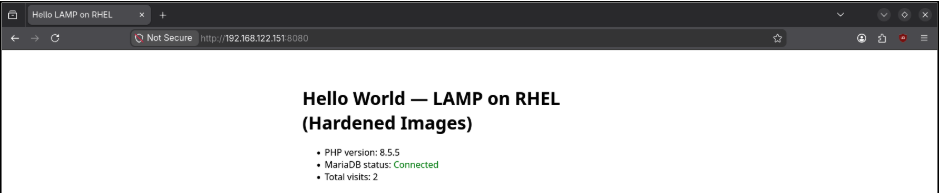
Here is what to look for to validate success:
- PHP version: Confirms the PHP-FPM container is processing code.
- MariaDB status: "Connected" means your application successfully authenticated with the hardened database.
- Total visits: Refresh the page to see the count increase, confirming persistent storage is working.
Note on Database Passwords
Because you used the setup-secrets.sh script to harden the system, the database passwords were randomly generated when the VM started. To find these unique credentials for your records, log in to the VM console using the admin user and changeme password, then run:
cat /root/lamp-secrets-generated.txtSuccess! You’ve created a bootable VM. Now that you have the application up and running, you can update your website or fix a database bug without having to reboot. You’re now ready to manage and update your application.

