In this article, we will define and run a workflow that demonstrates how Apache Camel K interacts with spatial data in the standardized GeoJSON format. While the example is simplified, you can use the same workflow to handle big data and more complex data transformations.
You will learn how to use Camel K to transform data in common formats like XML and JSON. You will also see how to connect to a database and extract the data that you want from it. After we've defined the workflow, we'll run the integration on Red Hat OpenShift.
Note: Please see the extended example for step-by-step instructions to set up a demonstration environment with Visual Studio Code, OpenShift, and Apache Camel K.
Working with geospatial formats
There are many ways to encode geographic information. In a geospatial format, we want to capture both the data and the location context, usually in geographic coordinates. Stored images, such as photos from a satellite, are known as raster data. This type of image usually contains metadata attributes with the coordinates defining where the photo was taken.
When we want to represent alphanumeric data, we use vector data. Vector data comprises features: Objects or elements that can be placed or associated with spatial coordinates. A feature could be a bank, a city, a road, and so on. Each of these elements has an associated point, line, or polygon defining its geographic location.
Two of the most-used formats for vector data are Keyhole Markup Language (KML), based on XML; and GeoJSON, based on JSON.
GeoJSON
GeoJSON is a well-known standard used to encode data structures. It can be used by any application or library that understands JSON. GeoJSON includes specific attributes for the geospatial context. For example, the following snippet defines a point:
{
  "type": "Feature",
  "geometry": {
    "type": "Point",
    "coordinates": [125.6, 10.1]
  },
  "properties": {
    "name": "Dinagat Islands",
    "country": "Philippines",
    "type": "Province"
  }
}
The example includes a JSON attribute, type, which tells us that we are looking at a feature representing an object. Another attribute, geometry, defines a point in space. There is also an object containing properties, which are the attributes associated with the given point in space. According to the properties, the point described is located in a province called Dinagat Islands in the Philippines. GeoJSON does not define the semantics for the properties; that depends on each use case.
I've given a brief overview of working with geospatial data and GeoJSON. Now, let's explore our data transformation workflow.
The data transformation workflow
We start by reading a CSV file and looping over each row independently. We'll query an XML API to add more data to each element in each row. Finally, we'll collect and aggregate all of the rows to build a GeoJSON file and store it in a PostgreSQL database. While it's not demonstrated, we're using the PostGIS extension to add spatial capabilities to the PostgreSQL database. Figure 1 describes the workflow.

After we've defined the workflow, we'll use a Java file to implement it with Camel K. Note that Camel K supports many languages besides Java. You could use any of the supported languages to implement this workflow.
Step 1: Start the data transformation workflow
For simplicity, we'll start with a timer. A timer is a type of step that defines when to run a workflow based on a given duration. For example, we could run this workflow every 120 seconds:
from("timer:java?period=120s")We might replace this timer with a trigger like a Kafka or RabbitMQ message in a real-life workflow. Using a message as a trigger ensures that the data is processed the moment that it is updated.
Step 2: Process the original data set in a CSV file
Next, we read the CSV file. For this example, we're using a small subset of an air quality dataset maintained by the European Environment Agency. We collect the data, which is hosted on a remote server, and process it as a CSV file:
.to("{{source.csv}}")
.unmarshal("customCSV")
This command tells Camel K to convert the CSV data to a list of elements, with one element per row. Each element is a map whose keys are column names. We want to iterate over each row, so we split the body and start streaming it to the rest of the workflow:
.split(body()).streaming()
The split is how we process each row in the CSV file. Each row is now an element in the list.
Step 3: Extract the data
At each step, we want to extract the data that interests us. The best way to do this is to use a processor that extracts the values. We start with a CSV processor:
.process(processCsv)
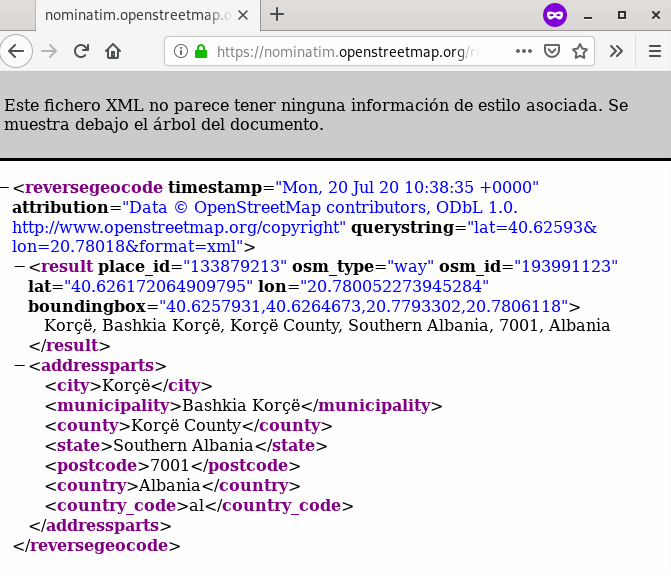
Remember that a map represents each element. For each element, we call a Nominatim service with a query about the address where the measurement happens:
.setBody().constant("")
.setHeader(Exchange.HTTP_METHOD, constant("GET"))
.setHeader(Exchange.HTTP_QUERY, simple("lat=${exchangeProperty.lat}&lon=${exchangeProperty.lon}&format=xml"))
.to("https://nominatim.openstreetmap.org/reverse")
The response is in XML format, which we can unmarshal for easier processing:
.unmarshal().jacksonxml()
Figure 2 shows the Nominatim response in XML.
We can now use another processor to extract more of the data that interests us and add it to our stored data collection. This time, we'll use an XML processor:
.process(processXML)
We can also query a PostgreSQL database for even more data:
.setBody().simple("SELECT info FROM descriptions WHERE id like '${exchangeProperty.pollutant}'")
.to("jdbc:postgresBean?readSize=1")
We'll use another processor to extract the data that we want from the database:
.process(processDB)
At this point, we have processed each row of the original CSV file and added data from both a remote service and a database.
Step 4: Aggregate the data into a single GeoJSON file
Now, we will aggregate all of the rows to make a single GeoJSON file. This file contains a feature collection, where each feature is built from a row of the original CSV file:
.aggregate(constant(true), aggregationStrategy)
.completionSize(5)
.process(buildGeoJSON)
.marshal().json(JsonLibrary.Gson)
We store the GeoJSON result in our PostgreSQL database:
.setBody(simple("INSERT INTO measurements (geojson) VALUES (ST_GeomFromGeoJSON('${body}'))"))
.to("jdbc:postgresBean")
Step 5: Run the integration with Camel K
So far, we have defined a workflow, but we haven't yet run it. This is where the magic starts.
To deploy our integration, we need a Kubernetes environment like OpenShift. Assuming we have the OpenShift environment set up, we can use the kamel client to launch our integration:
kamel run OurIntegration.java
When we run the integration, our workflow deploys on a container and runs seamlessly.
Step 6: View the output
As our last step, we can query the data stored on the database to visualize it over a map, as shown in Figure 3. Because we are using a standard format (GeoJSON), we can use it in any geospatial application. In this case, we are using QGIS, the leading geographic information system for the desktop, which is free and open source.

Conclusion
This article has presented a brief introduction to GeoJSON and showed you how to use it to document spatial data for Camel K. No matter how specific your use case is, Camel K can adapt to any circumstances.
Last updated: November 19, 2020