Redhat Developers  Logo
  • AI

    Get started with AI

    • Red Hat AI
      Accelerate the development and deployment of enterprise AI solutions.
    • AI learning hub
      Explore learning materials and tools, organized by task.
    • AI interactive demos
      Click through scenarios with Red Hat AI, including training LLMs and more.
    • AI/ML learning paths
      Expand your OpenShift AI knowledge using these learning resources.
    • AI quickstarts
      Focused AI use cases designed for fast deployment on Red Hat AI platforms.
    • No-cost AI training
      Foundational Red Hat AI training.

    Featured resources

    • OpenShift AI learning
    • Open source AI for developers
    • AI product application development
    • Open source-powered AI/ML for hybrid cloud
    • AI and Node.js cheat sheet

    Red Hat AI Factory with NVIDIA

    • Red Hat AI Factory with NVIDIA is a co-engineered, enterprise-grade AI solution for building, deploying, and managing AI at scale across hybrid cloud environments.
    • Explore the solution
  • Learn

    Self-guided

    • Documentation
      Find answers, get step-by-step guidance, and learn how to use Red Hat products.
    • Learning paths
      Explore curated walkthroughs for common development tasks.
    • See all learning

    Hands-on

    • Developer Sandbox
      Spin up Red Hat's products and technologies without setup or configuration.
    • Interactive labs
      Learn by doing in these hands-on, browser-based experiences.
    • Interactive demos
      Click through product features in these guided tours.

    Browse by topic

    • AI/ML
    • Automation
    • Java
    • Kubernetes
    • Linux
    • See all topics

    Training & certifications

    • Courses and exams
    • Certifications
    • Skills assessments
    • Red Hat Academy
    • Learning subscription
    • Explore training
  • Build

    Get started

    • Red Hat build of Podman Desktop
      A downloadable, local development hub to experiment with our products and builds.
    • Developer Sandbox
      Spin up Red Hat's products and technologies without setup or configuration.

    Download products

    • Access product downloads to start building and testing right away.
    • Red Hat Enterprise Linux
    • Red Hat AI
    • Red Hat OpenShift
    • Red Hat Ansible Automation Platform
    • See all products

    Featured

    • Red Hat build of OpenJDK
    • Red Hat JBoss Enterprise Application Platform
    • Red Hat OpenShift Dev Spaces
    • Red Hat Developer Toolset

    References

    • E-books
    • Documentation
    • Cheat sheets
    • Architecture center
  • Community

    Get involved

    • Events
    • Live AI events
    • Red Hat Summit
    • Red Hat Accelerators
    • Community discussions

    Follow along

    • Articles & blogs
    • Developer newsletter
    • Videos
    • Github

    Get help

    • Customer service
    • Customer support
    • Regional contacts
    • Find a partner

    Join the Red Hat Developer program

    • Download Red Hat products and project builds, access support documentation, learning content, and more.
    • Explore the benefits

Develop Eclipse MicroProfile applications on Red Hat JBoss Enterprise Application Platform Expansion Pack 1.0 with Red Hat CodeReady Workspaces

July 1, 2020
Emmanuel Hugonnet
Related topics:
JavaDeveloper toolsDevOpsMicroservices

    This article builds on my previous tutorial, Enable Eclipse MicroProfile applications on Red Hat JBoss Enterprise Application Platform 7.3. To follow the examples, you must have Eclipse MicroProfile enabled in your Red Hat JBoss Enterprise Application Platform Expansion Pack (JBoss EAP XP) 1.0.0.GA installation, via Red Hat CodeReady Studio. See the previous article for installation instructions.

    In this article, we will use the installed MicroProfile-enabled image to set up a JBoss EAP XP quickstart project in Red Hat CodeReady Workspaces (CRW). You can also apply what you learn from this article to develop your own applications using CodeReady Workspaces.

    Note: For more examples, be sure to see the video demonstration at the end of the article.

    Step 1: Create a new devfile

    To start, open CodeReady WorkSpaces and create a new devfile. In the next sections, I'll describe the steps to configure and build this devfile so that you can build and run the quickstarts in CodeReady Workspaces. You can download the sample devfile here.

    Step 2: Define the editor plugins

    Because this is a Java project, we're using the Java Che plugin:

    components: 
    -
      type: chePlugin
      id: redhat/java11/latest
    -
    

    Step 3: Define the Jaeger Docker image

    This example uses Jaeger for MicroProfile OpenTracing, so we include a Docker image to start a Jaeger server instance and expose its UI endpoint on port 16686:

    components: 
    - 
      alias: jaeger
      type: dockerimage
      image: jaegertracing/all-in-one
      memoryLimit: 128Mi
      endpoints:
          - name: 'tracing-ui'
            port: 16686
    -
    

    Note: You can find the full eapxp-quickstarts.yaml file here.

    Step 4: Define the JBoss EAP XP component

    The last component is the source-to-image (S2I) Docker image for JBoss EAP XP. This image provides instances of both Apache Maven to build the applications and the JBoss EAP XP runtime to run them.

    We need to expose the HTTP endpoint to be able to access the running application on port 8080. Later, we'll also need to be able to expose the management endpoint on port 9990, because JBoss EAP XP exposes the MicroProfile Health and MicroProfile Metrics APIs on this endpoint.

    We also define the environment variables for this container. These will configure its various elements, as shown:

    -
      type: dockerimage
      alias: maven
      image: 'registry.redhat.io/jboss-eap-7/eap-xp1-openjdk11-openshift-rhel8@sha256:bebc469f8b21d8132f7b0df62b90107e68e7a77c36d39270f349216557102787'
      env:
    # Enabling Jaeger tracing
       - name: WILDFLY_TRACING_ENABLED
         value: 'true'
    # Define the Jaeger service name 
       - name: JAEGER_SERVICE_NAME
         value: 'microprofile-opentracing'
    # Configure Jaeger traces
       - name: JAEGER_REPORTER_LOG_SPANS 
         value: 'true'
       - name: JAEGER_SAMPLER_TYPE
         value: 'const'
       - name: JAEGER_SAMPLER_PARAM
         value: '1'
       -
        name: MAVEN_OPTS
        value: >-
         -Xmx200m -XX:MaxRAMPercentage=50.0 -XX:+UseParallelGC -XX:MinHeapFreeRatio=10 -XX:MaxHeapFreeRatio=20 -XX:GCTimeRatio=4
         -XX:AdaptiveSizePolicyWeight=90 -Dsun.zip.disableMemoryMapping=true -Xms20m -Djava.security.egd=file:/dev/./urandom -Duser.home=/home/jboss
      memoryLimit: 1024Mi
      endpoints:
       -
        name: eap-http
        port: 8080
       -
        name: eap-management
        port: 9990
      mountSources: true
      volumes:
       -
        name: m2
        containerPath: /home/jboss/.m2
    

    First, we set the environment variable WILDFLY_TRACING_ENABLED to true to enable MicroProfile OpenTracing in JBoss EAP XP.

    Second, we configure how Microprofile OpenTracing traces are collected and sent to the Jaeger instance using JAEGER_SERVICE_NAME, JAEGER_REPORTER_LOG_SPANS, JAEGER_SAMPLER_TYPE, and JAEGER_SAMPLER_PARAM.

    Last, we need to configure Apache Maven using MAVEN_OPTS.

    As shown in Figure 1, we provide several commands. The most notable is a build command to build from the Apache Maven pom.xml. (We'll use the copy war command to deploy the application after it's been built.)
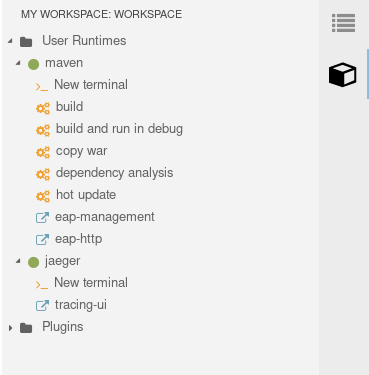
    A screenshot of the build commands available in the quickstart project workspace.
    Figure 1: Build commands for the MicroProfile OpenTracing quickstart project.

    Step 5: Build the project

    Finally, we select the pom.xml for the microprofile-opentracing quickstart and build the file. Once it is built, you can copy the resulting WAR file. Use the eap-http endpoint command to produce endpoint traces, then use the tracing-ui command to see them in the Jaeger instance, as shown in Figure 2.
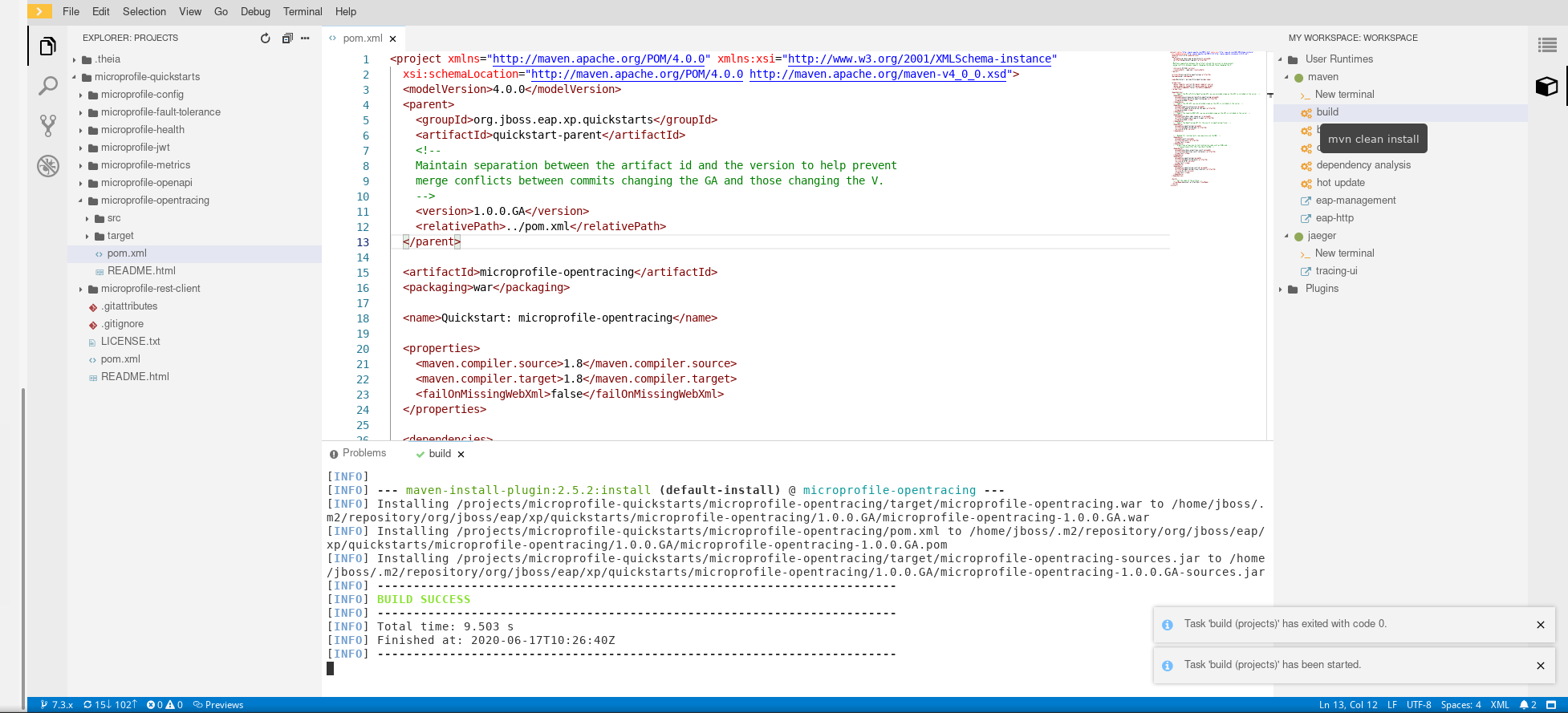
    A screenshot of the build file for the MicroProfile OpenTracing quickstart project.
    Figure 2: Build the MicroProfile OpenTracing quickstart project.

    Next steps

    You can follow these instructions and the video demonstration at the end of the article to build and install the microprofile-health and microprofile-metrics quickstart projects in your workspace. You would use the eap-management endpoint to access MicroProfile Health content, as shown in Figure 3.
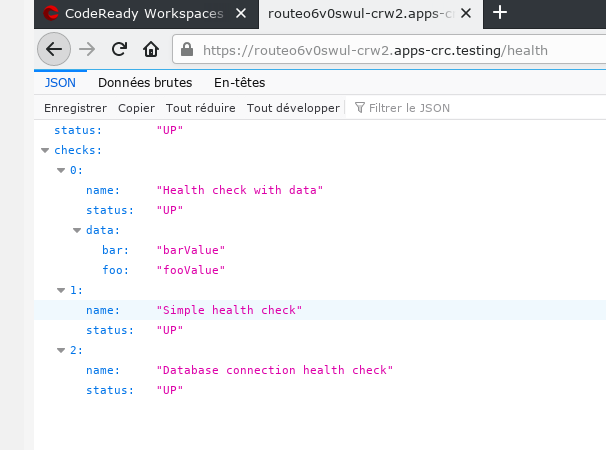
    A screenshot of the CRW workspace with the MicroProfile Health endpoint configured.
    Figure 3: Database connection for a MicroProfile application health check.

    Video demo: See more MicroProfile quickstarts in action

    This video demonstrates how to set up CodeReady Workspaces to build and run MicroProfile quickstarts on JBoss EAP XP 1.0. Start the video now to see Eclipse MicroProfile OpenTracing, Eclipse MicroProfile Health, and Eclipse MicroProfile Metrics in action.

    Conclusion

    In my previous article, I showed you how to install JBoss EAP XP 1.0 and enable Eclipse MicroProfile support on that platform. In this article, I showed you how to configure and run a MicroProfile quickstart project using CodeReady Workspaces. For more details, be sure to check out the video demonstration that is included in both articles.

    Recent Posts

    • Federated identity across the hybrid cloud using zero trust workload identity manager

    • Confidential virtual machine storage attack scenarios

    • Introducing virtualization platform autopilot

    • Integrate zero trust workload identity manager with Red Hat OpenShift GitOps

    • Best Practice Configuration and Tuning for Linux and Windows VMs

    Red Hat Developers logo LinkedIn YouTube Twitter Facebook

    Platforms

    • Red Hat AI
    • Red Hat Enterprise Linux
    • Red Hat OpenShift
    • Red Hat Ansible Automation Platform
    • See all products

    Build

    • Developer Sandbox
    • Developer tools
    • Interactive tutorials
    • API catalog

    Quicklinks

    • Learning resources
    • E-books
    • Cheat sheets
    • Blog
    • Events
    • Newsletter

    Communicate

    • About us
    • Contact sales
    • Find a partner
    • Report a website issue
    • Site status dashboard
    • Report a security problem

    RED HAT DEVELOPER

    Build here. Go anywhere.

    We serve the builders. The problem solvers who create careers with code.

    Join us if you’re a developer, software engineer, web designer, front-end designer, UX designer, computer scientist, architect, tester, product manager, project manager or team lead.

    Sign me up

    Red Hat legal and privacy links

    • About Red Hat
    • Jobs
    • Events
    • Locations
    • Contact Red Hat
    • Red Hat Blog
    • Inclusion at Red Hat
    • Cool Stuff Store
    • Red Hat Summit
    © 2026 Red Hat

    Red Hat legal and privacy links

    • Privacy statement
    • Terms of use
    • All policies and guidelines
    • Digital accessibility

    Chat Support

    Please log in with your Red Hat account to access chat support.