In this multi-part series, we will take a look at how to deploy modern web applications, like React and Angular apps, to Red Hat OpenShift using a new source-to-image (S2I) builder image.
Series overview:
- Part 1: How to deploy modern web apps using the fewest steps
- Part 2: How to combine this new S2I image with a current HTTP server image, like NGINX, using an OpenShift chained build for a more production-ready deployment
- Part 3: How to run your app's development server on OpenShift while syncing with your local file system
Some initial setup
If you want to follow along, there are some prerequisites. You'll need a running instance of OpenShift. I'll be using minishift which allows you to run OpenShift on your Windows, Mac, or Linux desktop in a VM. To get minishift, download Red Hat Container Development Kit (CDK). Follow these instructions to install and getting minishift running. For more information see the CDK documentation, and the documentation on OKD.io.
Once minishift is running, you need to make sure you are logged in and have a project set up, which you can do using code like this:
$ oc login

$ oc new-project web-apps
I also assume you have Node.js 8+ and npm 5.2+ installed.
If all you want to see are the two commands, skip to the "Summary" section.
What is a modern web application?
Before we begin, we should probably define what exactly a modern web application is and how it differs from what I like to call a "pure" Node.js application.
To me, a modern web application is something like React, Angular, or Ember, where there is a build step that produces static HTML, JavaScript, and CSS. This build step usually does a few different tasks, like concatenation, transpilation (Babel or Typescript), and minifying of the files. Each of the major frameworks has its own build process and pipeline, but tools like Webpack, Grunt, and Gulp also fall into this category. No matter what tool is used, they all use Node.js to run the build processes.
But the static content that is generated (compiled) doesn't necessarily need a node process to serve it. Yes, you could use something like the serve module, which is nice for development since you can see your site quickly, but for production deployments, it is usually recommend to use something like NGINX or Apache HTTP Server.
A "pure" node application, on the other hand, will use a Node.js process to run and can be something like an Express.js application (that is, a REST API server), and there isn't usually a build step (I know, I know: Typescript is a thing now). Development dependencies are usually not installed since we only want the dependencies that the app uses to run.
To see an example of deploying a "pure" node app to OpenShift quickly using our Node.js S2I image, check out my post on deploying an Express.js application to OpenShift.
Deploying a web app to OpenShift
Now that we understand the difference between a modern web application and a Node.js application, let's see how we go about getting our web app on OpenShift.
For this post, we will deploy both a React and a modern Angular application. We can create both projects pretty quickly using their respective CLI tools, create-react-app and @angular/cli. This will count as one of the two commands I referred to in the title.
React App
Let's start with the React application. If you have create-react-app installed globally, great. But if not, then you can run the command using npx like this:
$ npx create-react-app react-web-app
Note: npx is a tool that comes with npm 5.2+ to run one-off commands. Check out more here.
This command will create a new React app, and you should see something like this:
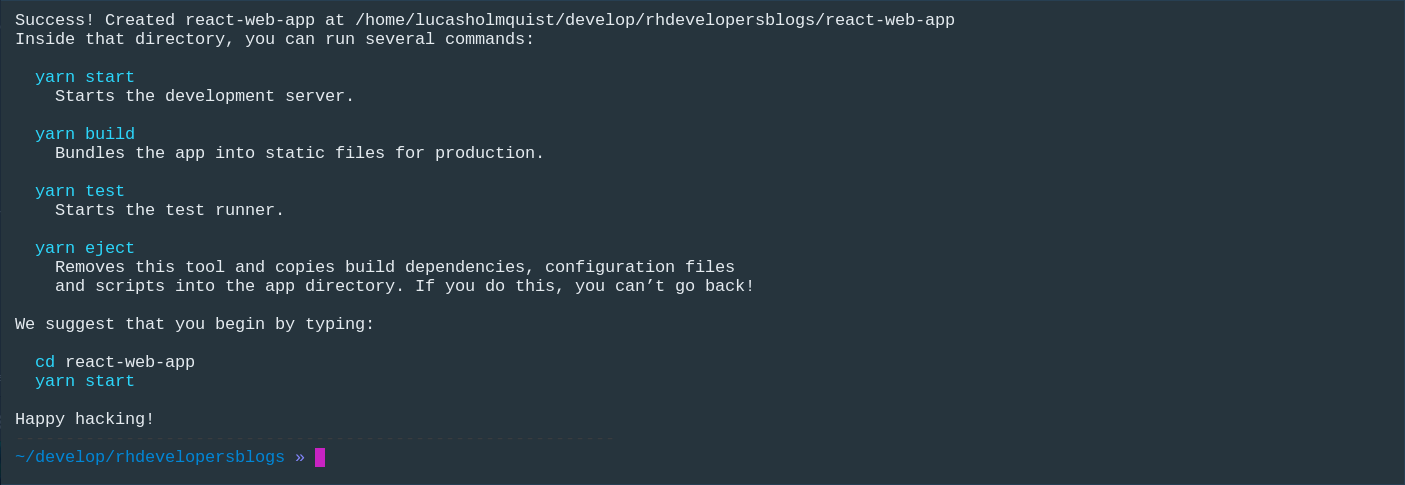
Assuming you are in the newly created project directory, you can now run the second command to deploy the app to OpenShift:
$ npx nodeshift --strictSSL=false --dockerImage=nodeshift/ubi8-s2i-web-app --imageTag=10.x --build.env YARN_ENABLED=true --expose
Your OpenShift web console will look something like this:
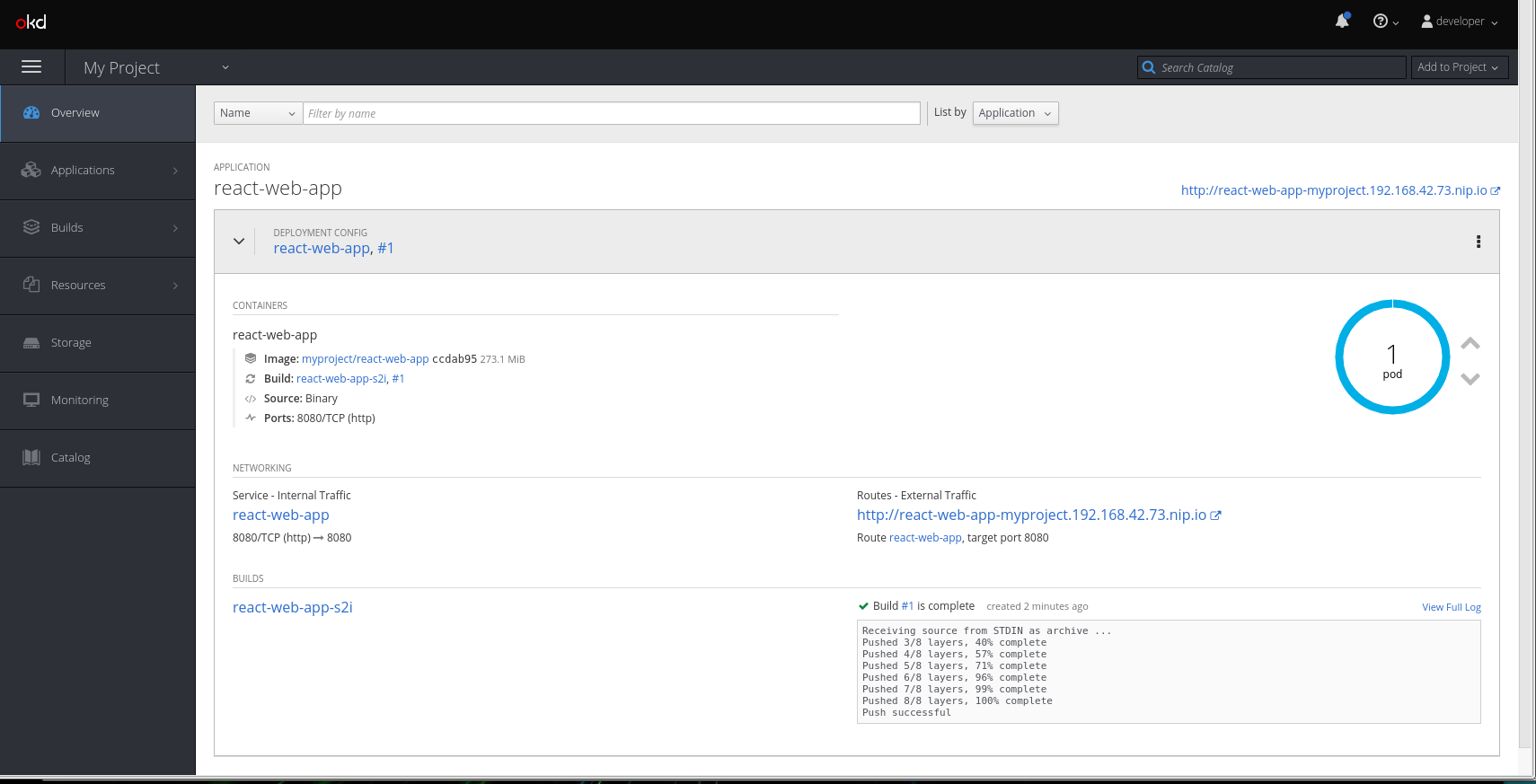
And here's what the web console looks like when you run the application:
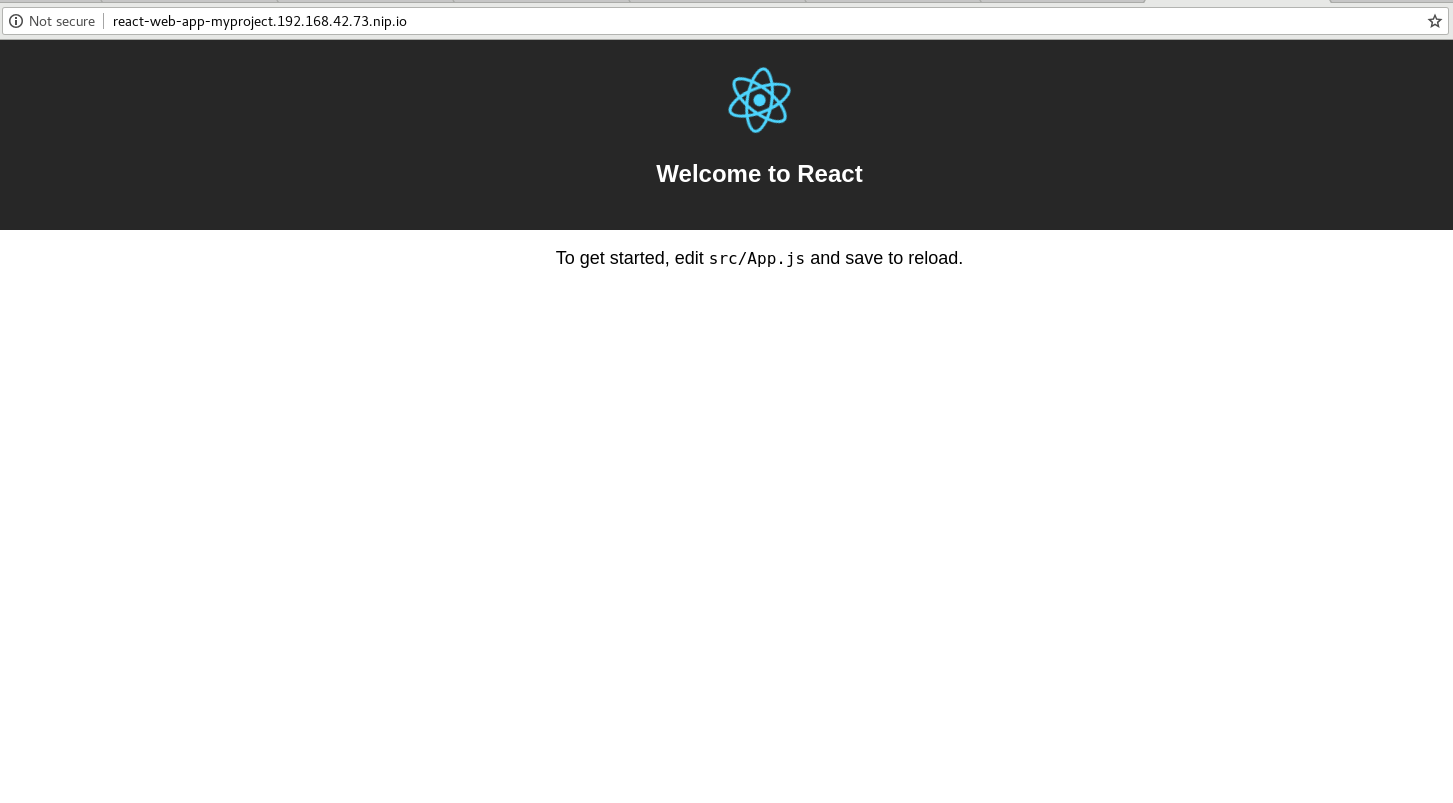
Before we get into the Angular example, let's see what that last command was doing.
First, we see npx nodeshift. We are using npx to run the nodeshift module. As I've mentioned in previous posts, nodeshift is a module for easily deploying node apps to OpenShift.
Next, let's see what options are being passed to nodeshift. The first is --strictSSL=false. Since we are using minishift, which is using a self-signed certificate, we need to tell nodeshift (really, we are telling the request library, which is used under the covers), about this so a security error isn't thrown.
Next is --dockerImage=nodeshift/ubi8-s2i-web-app --imageTag=10.x. This tells nodeshift we want to use the new Web App Builder image and we want to use its 10.x tag.
Next, we want to tell the S2I image that we want to use yarn: --build.env YARN_ENABLED=true. And finally, the --expose flag tells nodeshift to create an OpenShift route for us, so we can get a publicly available link to our application.
Since this is a "get on OpenShift quickly" post, the S2I image uses the serve module to serve the generated static files. In a later post, we will see how to use this S2I image with NGINX.
Angular App
Now let's create an Angular application. First, we need to create our new application using the Angular CLI. Again, if you don't have it installed globally, you can run it with npx:
$ npx @angular/cli new angular-web-app
This will create a new Angular project, and as with the React example, we can run another command to deploy:
$ npx nodeshift --strictSSL=false --dockerImage=nodeshift/ubi8-s2i-web-app --imageTag=10.x --build.env OUTPUT_DIR=dist/angular-web-app --expose
Again, similar to the React application, your OpenShift web console will look something like this:
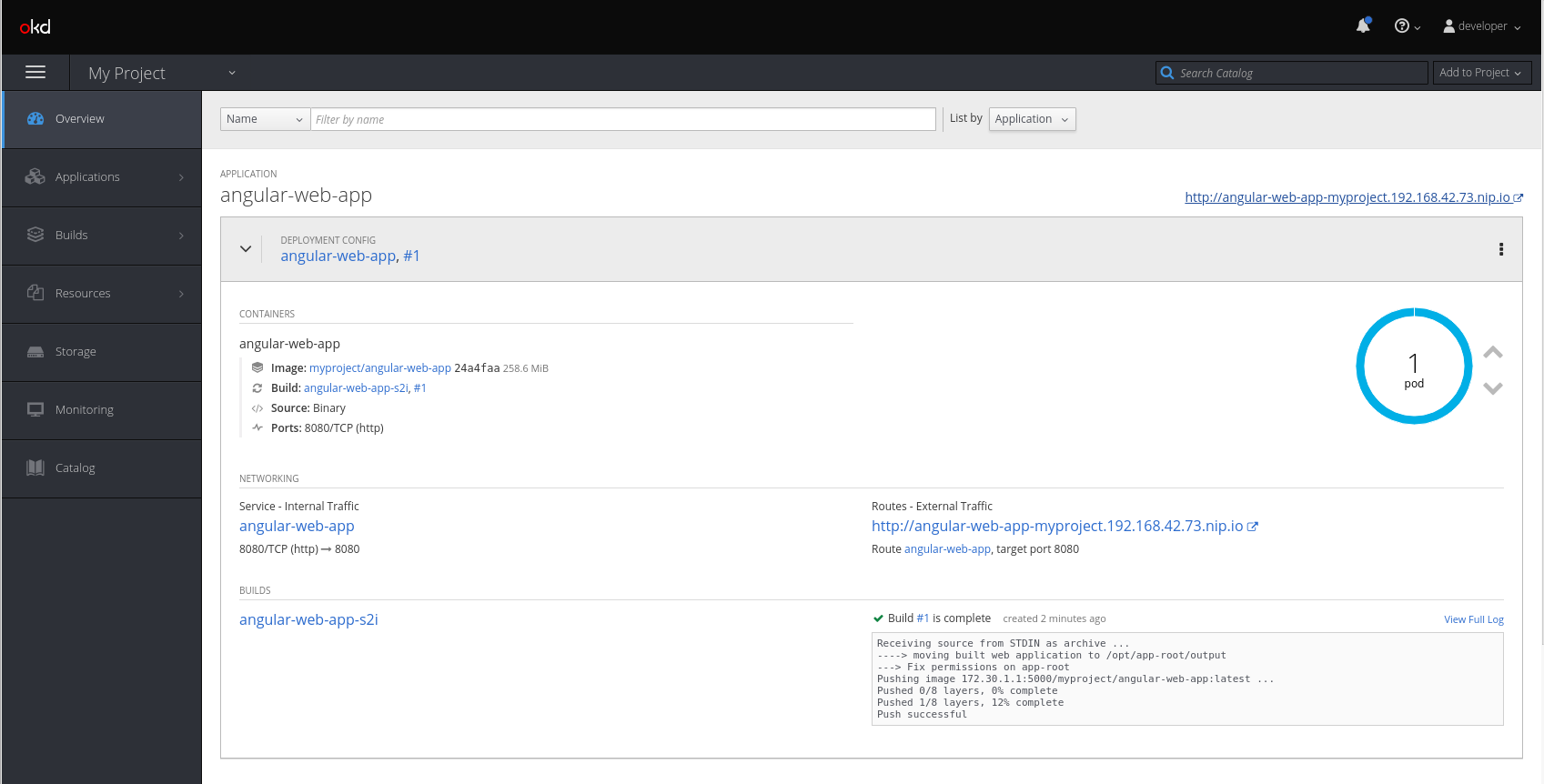
And here's what the web console looks like when you run the application:
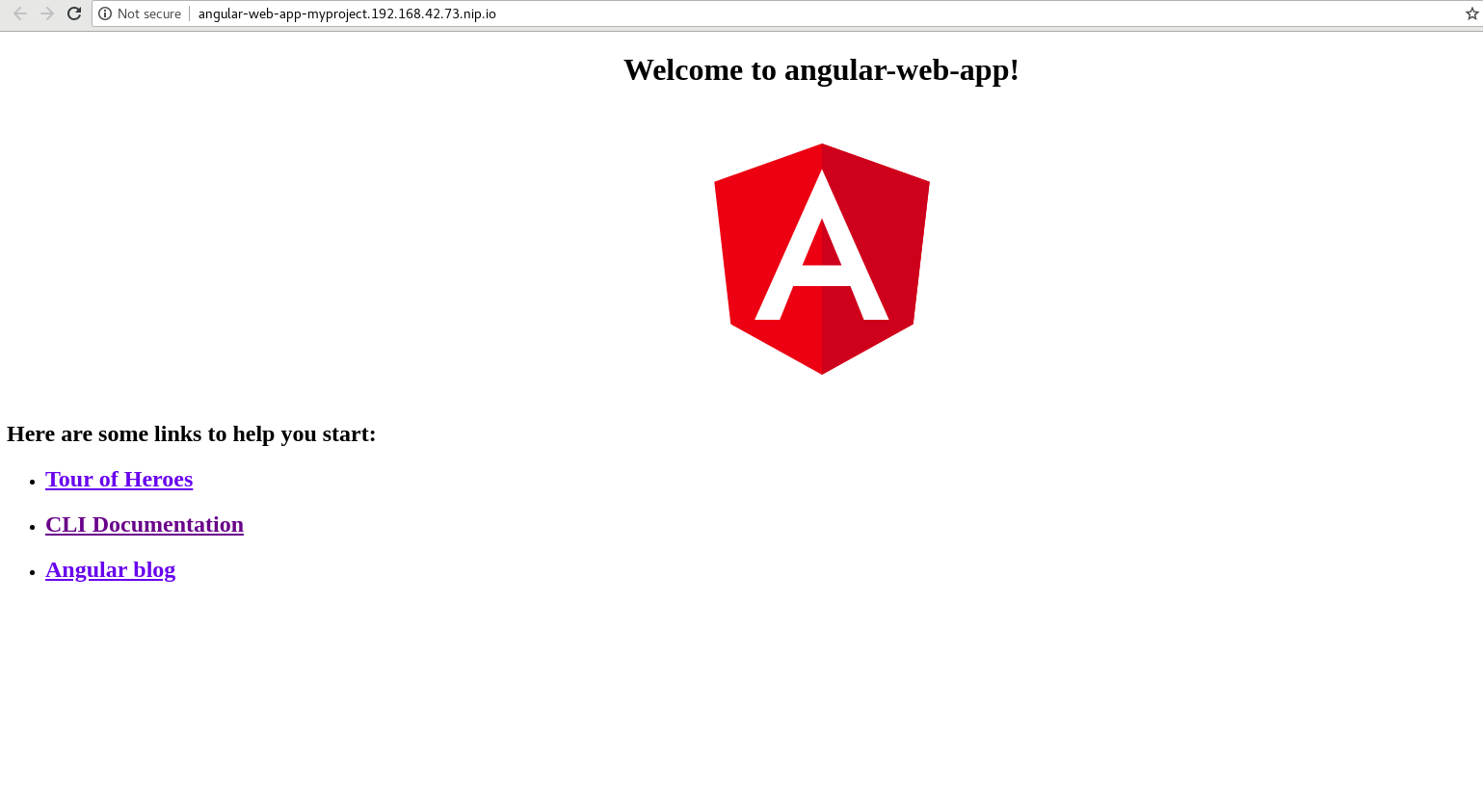
Let's take a look at that command again. Even though it looks very similar to the command we used for the React app, there is are some very important differences.
The differences are with the build.env flag: --build.env OUTPUT_DIR=dist/angular-web-app. There are two things different here.
First, we removed the YARN_ENABLED variable, since we aren't using yarn for the Angular project.
The second is the addition of the OUTPUT_DIR=dist/angular-web-app variable. So, by default, the S2I image will look for your compiled code in the build directory. React uses build by default; that is why we didn't set it for that example. However, Angular uses something different for its compiled output. It uses dist/<PROJECT_NAME>, which in our case is dist/angular-web-app.
Summary
For those who skipped to this section to see the two commands to run, here they are:
React:
$ npx create-react-app react-web-app

$ npx nodeshift --strictSSL=false --dockerImage=nodeshift/ubi8-s2i-web-app --imageTag=10.x --build.env YARN_ENABLED=true --expose
Angular:
$ npx @angular/cli new angular-web-app

$ npx nodeshift --strictSSL=false --dockerImage=nodeshift/ubi8-s2i-web-app --imageTag=10.x --build.env OUTPUT_DIR=dist/angular-web-app --expose
Additional resources
In this article, we saw how quickly and easily we can deploy a modern web app to OpenShift using the new S2I Web App Builder image. The examples use the community version of the image, but very soon there will be an official Red Hat Openshift Application Runtime (RHOAR) tech preview release. So watch out for that.
In the coming articles, we will take a deeper look at what the image is actually doing and how we can use more of its advanced features, as well as some advanced features of OpenShift, to deploy a more production-worthy application.
Read part 2 of this series to learn how to combine this new S2I image with a current HTTP server image like NGINX, using an OpenShift chained build for a more production-ready deployment.
Read part 3 of this series to see how you can run your app’s “development workflow” on OpenShift.
For more information, download the free ebook Deploying to OpenShift.
Last updated: January 12, 2024
