To help platform teams secure, manage, and scale AI agent systems behind a single endpoint, Red Hat Connectivity Link 1.5 brings the Model Context Protocol (MCP) gateway from Technology Preview to General Availability, and the new Connectivity Link MCP gateway console plug-in in Developer Preview. Powered by an Envoy-based proxy, the MCP gateway delivers enterprise-grade protection and traffic management for back-end MCP servers. With the new console plug-in, teams can create, configure, and visualize both MCP gateways and servers while interactively testing server capabilities directly from the Red Hat OpenShift console.
MCP gateway setup
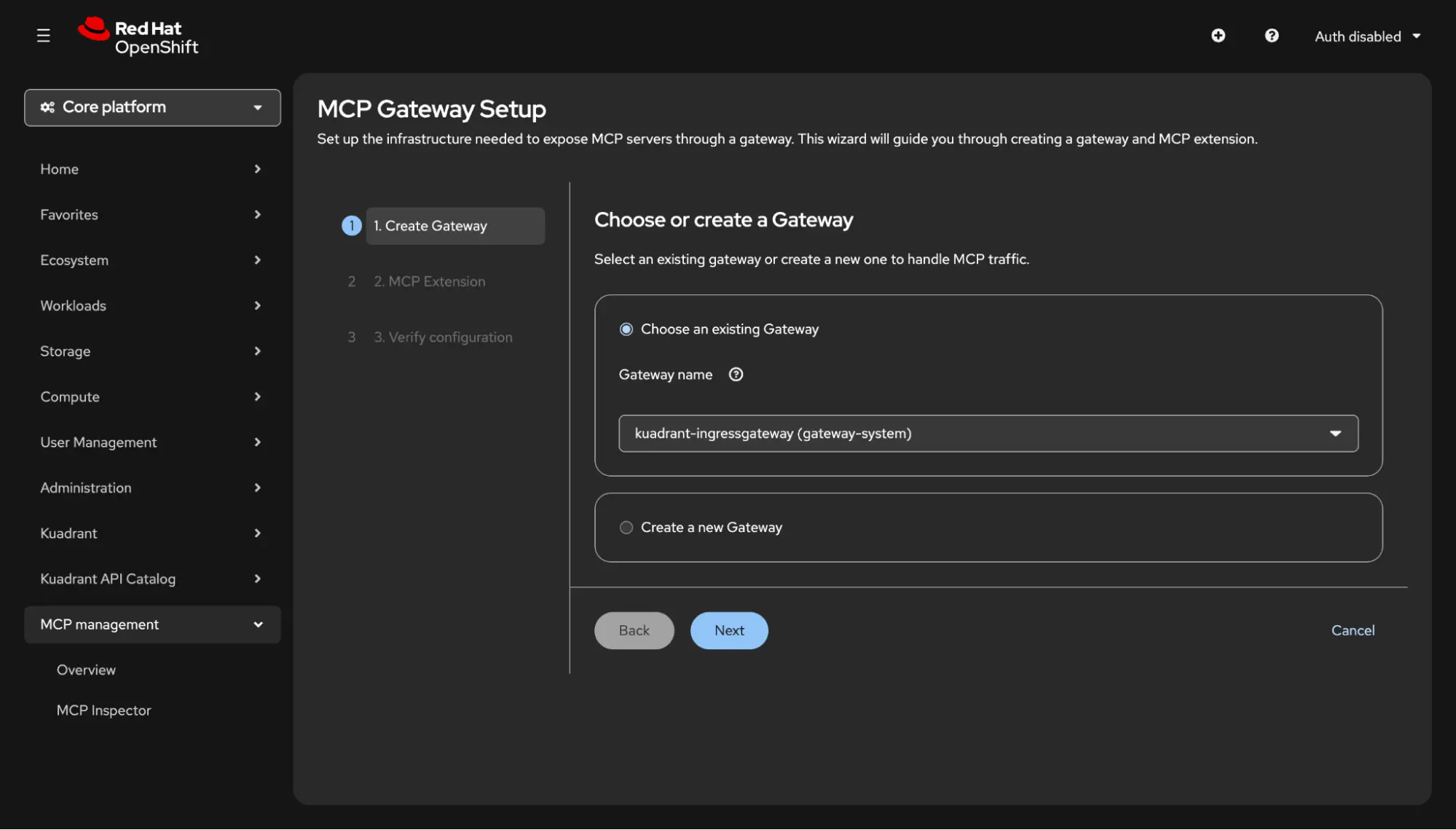
Setting up an MCP gateway provides a single, managed entry point to secure and federate tool traffic across backend MCP servers. The setup wizard walks platform teams through a step-by-step guide to set up an MCP gateway without requiring manual YAML creation.
Choose an existing Gateway or create one (Figure 1), then pick the listener that will carry MCP traffic. The wizard creates an MCPGatewayExtension, plus a ReferenceGrant if the Gateway is in another namespace, and waits until the extension is ready.
MCP server registration
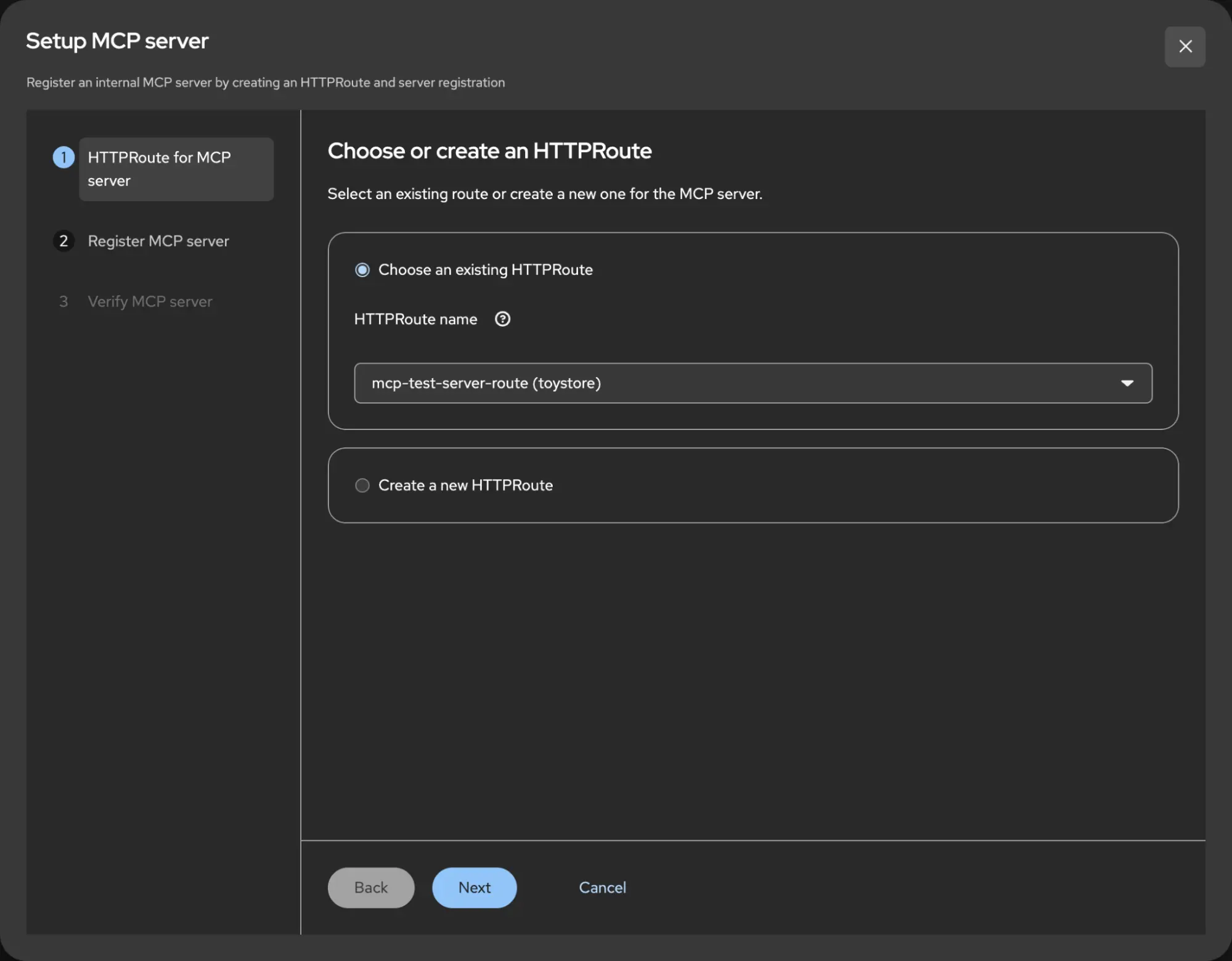
Registering your MCP servers with the gateway enables automated discovery, policy enforcement and routing across your AI agentic ecosystem. The server registration wizard provides a step-by-step guide to bind an MCPServerRegistration custom resource to an underlying HTTPRoute.
Choose the HTTPRoute that points at your MCP server or create one (figure 2), then name the registration and set a tool prefix so tool names stay unique across servers. The wizard creates the MCPServerRegistration, plus the HTTPRoute if you made a new one, and waits until the server is ready.
MCP Overview dashboard
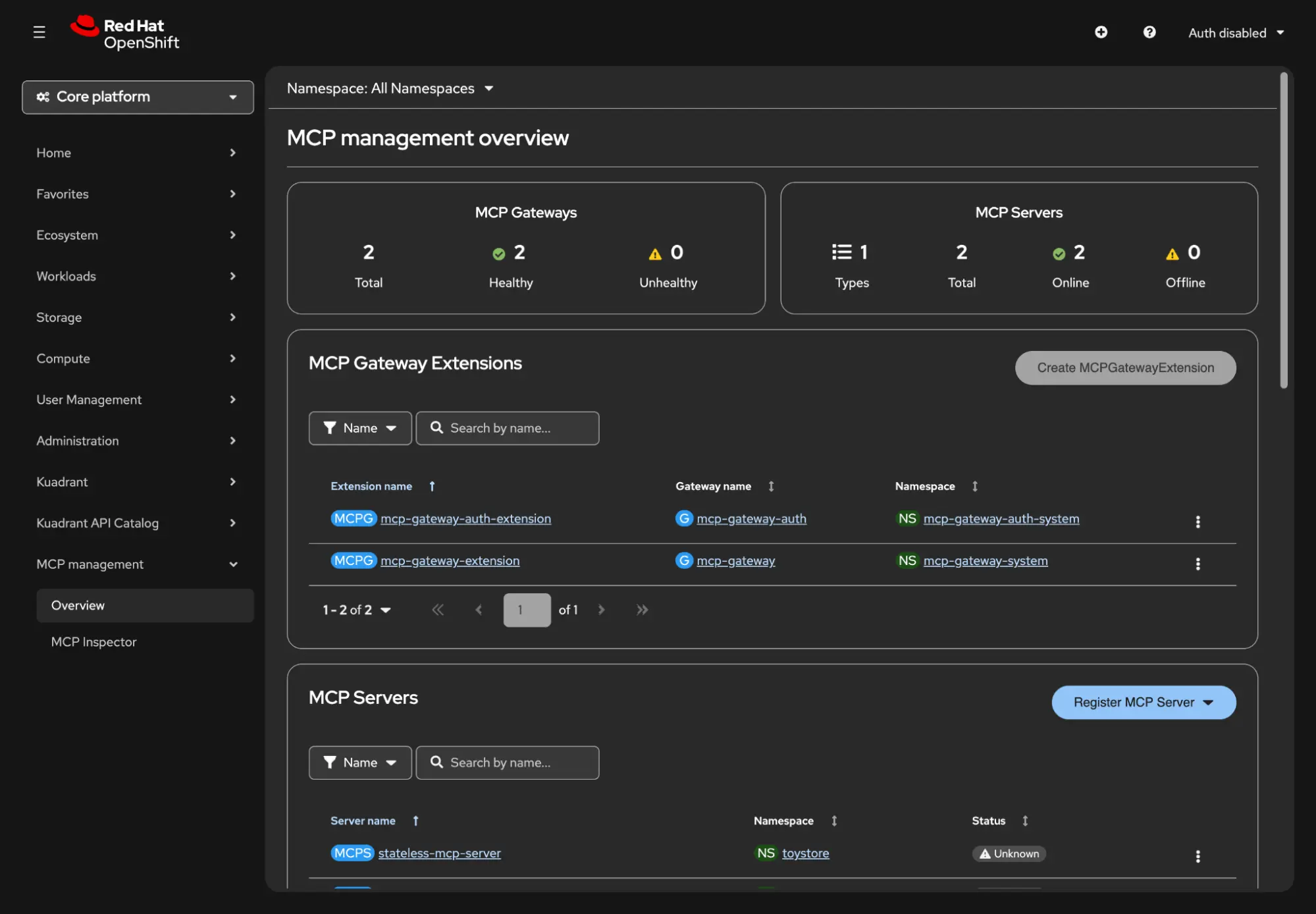
The MCP Overview dashboard brings MCP gateway and server management together into a single pane of glass within the Red Hat OpenShift console. It provides real-time visibility into the health of MCP gateways and the connection status of registered servers (Figure 3), giving platform teams immediate insight into operational stability.
From this unified dashboard, administrators can monitor active endpoints and manage core gateway infrastructure without jumping between different command-line tools or navigation menus, including:
- Gateway and server status: Track healthy and unhealthy gateways and online or offline MCP servers, at a glance.
- Resource lifecycle management: Create and inspect underlying
MCPGatewayExtension,MCPServerRegistration,HTTPRoute, andReferenceGrantcustom resources. - Policy governance: Manage attached Red Hat Connectivity Link policies, such as authentication, authorization, and rate limiting, directly alongside the servers they protect.
Discovering and testing tools and prompts with MCP Inspector
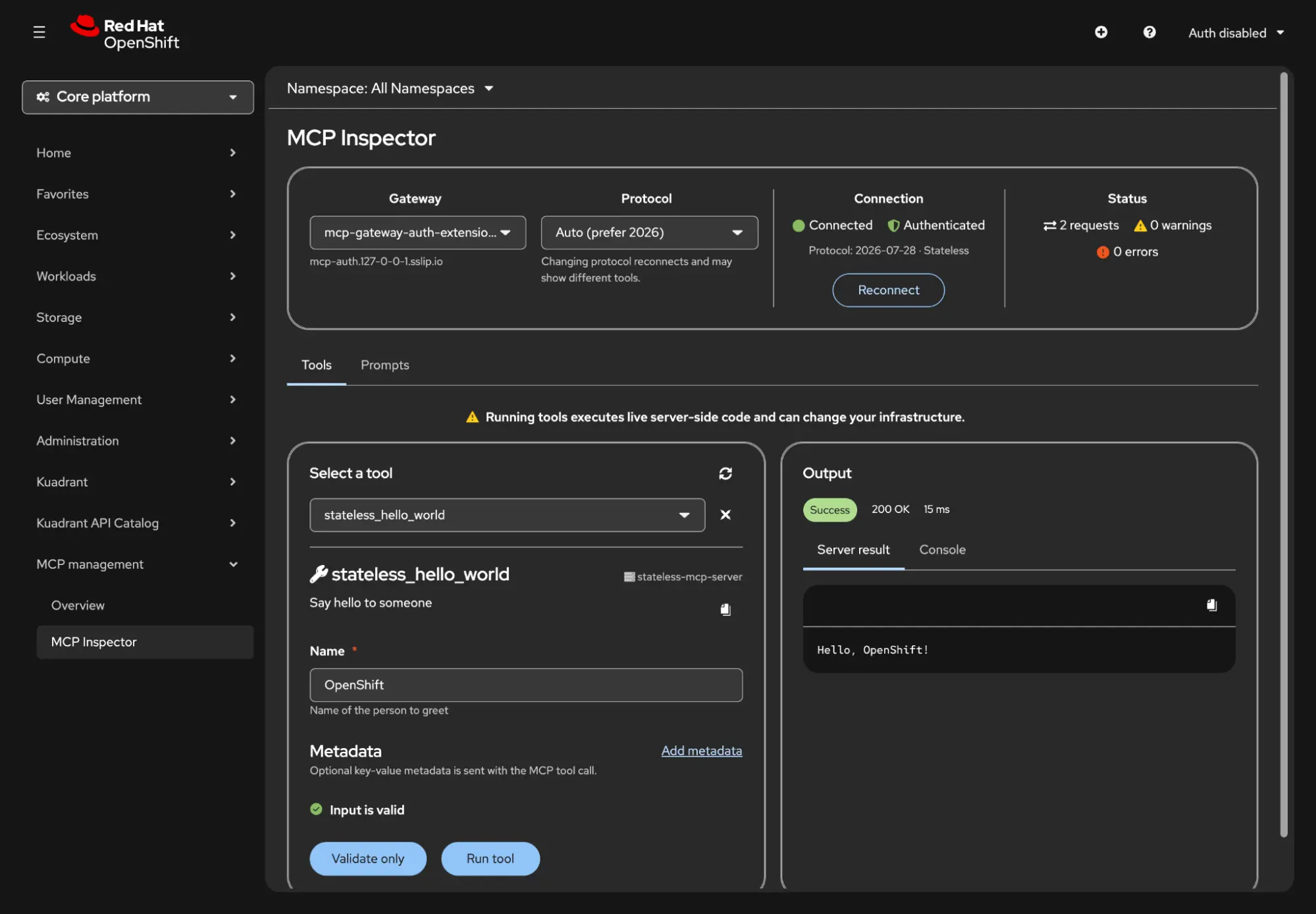
The MCP Inspector (Figure 4) provides a built-in interactive client that automatically discovers the tools and prompts exposed by registered MCP servers through the gateway. From the console, you can view descriptions, inputs, and arguments for all available capabilities without leaving Red Hat OpenShift:
- Tools: Validate and execute live tool calls directly against back-end servers to inspect real-time results. The inspector displays server output alongside the raw JSON-RPC request and response, making it easy to debug payloads.
- Prompts: Inspect prompt templates, configure arguments, and render generated prompt text for review—complete with the underlying JSON-RPC payload visibility.
- Custom auth and protocol selection: Developers can configure custom authentication headers (for example, bearer tokens) to test role-based access rules and select between stateful and 2026 stateless protocol modes.
Get started
The Model Context Protocol gateway and its dedicated Red Hat OpenShift console plug-in bridge the gap between cluster administration and AI developer workflows, giving teams the confidence to scale agent tools with full visibility and governance.
Ready to test it in your environment?
- Install the console plug-in: Follow the Connectivity Link web console administration guide to enable the MCP gateway plug-in.
- Configure your gateway: Review the Red Hat Connectivity Link MCP gateway documentation for installation prerequisites, routing architecture, and policy enforcement guides.

