Previous releases of the Red Hat build of Podman Desktop have introduced enterprise features to make it easy to integrate the tool into strict corporate settings. Building on that foundation, Red Hat continues to strengthen usability, developer velocity, and platform security with Red Hat build of Podman Desktop 1.2, including:
- Podman 6 engine support: Full integration with the next-generation container engine release.
- Automatic public CA keys synchronization: UI option to enable localhost public CA key synchronization when creating a new Podman virtual machine (VM).
- Secret management UI: A graphical dashboard for creating, mounting, and managing Docker and Podman secrets.
- In-app updating: Automated checks and single-click update execution directly from the desktop interface.
- Bug and CVE fixes: Upgraded dependencies and patched security vulnerabilities to keep enterprise environments resilient and compliant.
Podman 6 engine support
The Red Hat build of Podman Desktop 1.2 delivers support for Podman 6. It provides a workflow for downloading and updating your current Podman installation, so you can start using an improved CLI, new security features, tighter host-to-VM integration, AMD GPU support, and Quadlet improvements.
Read the project release notes for a full list of new features in Podman 6.
Secret management UI
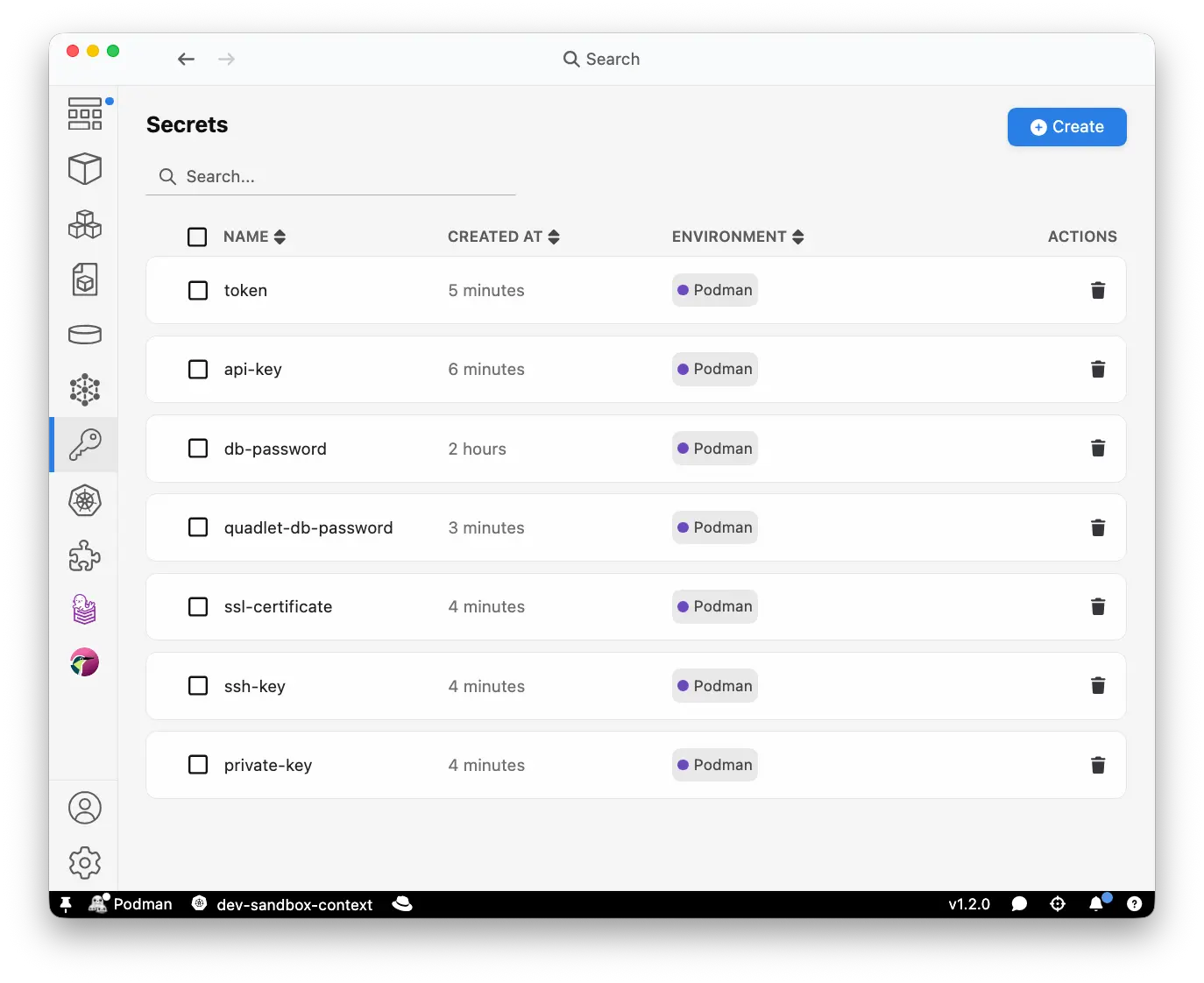
Managing application credentials, API keys, and certificates when running local containers often meant falling back on complex CLI operations. Red Hat build of Podman Desktop 1.2 introduces a dedicated Secrets panel designed to improve sensitive configuration management, along with a Secrets section in the New Container pane to configure secret injection for new containers.
Secret management page
Access all local secrets across different environments from a single pane under the new Secrets sidebar menu. The panel displays a list of all secrets and allows you to create new ones, as well as inspect or delete existing ones.
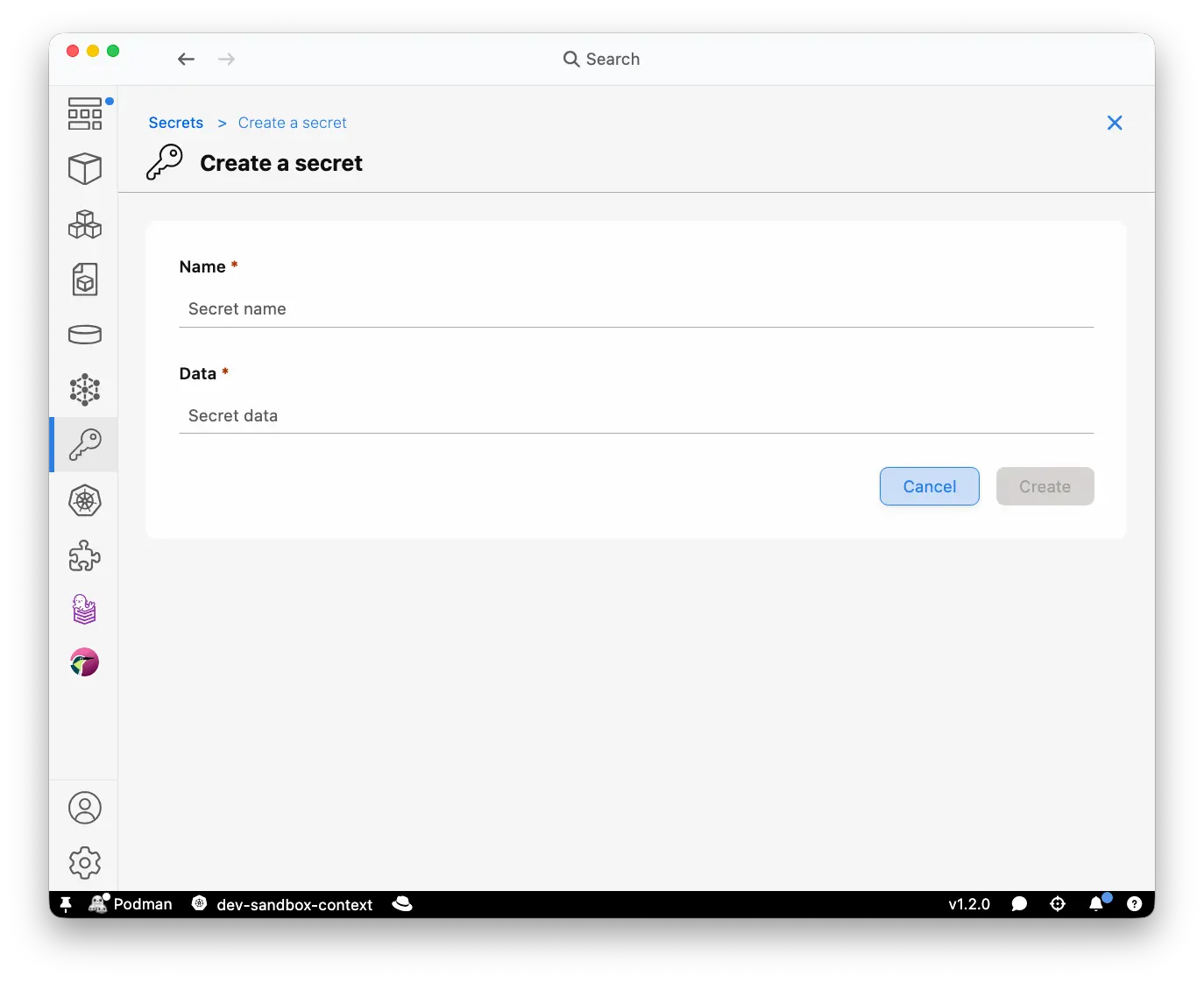
The Create Secret panel prompts you for a secret's name and contents (data). The Data field accepts sensitive text information, such as passwords or private key contents, that you want to pass to a container.
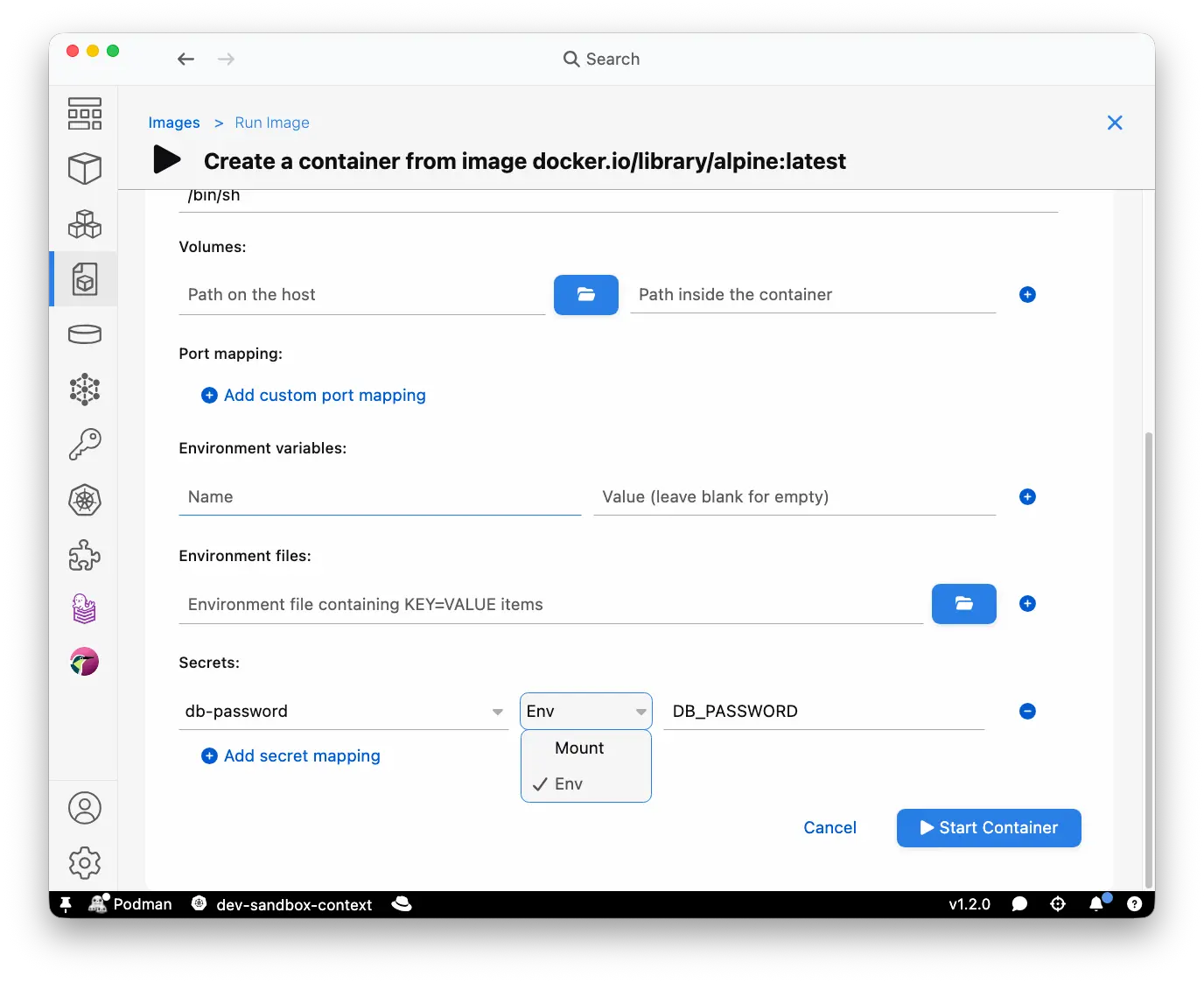
Secrets injection for new containers
The New Container panel allows you to inject existing local secrets into new container instances in the Secrets section at the bottom of the window. When creating a new container, scroll to the bottom of the pane to locate this section, then click Add secret mapping to configure secret injection as an environment variable or a mounted file.
Extension ecosystem support
Extension authors can use the Podman Desktop API to expose secret management for custom providers that support the Docker API endpoint. Read Podman Desktop Provider API documentation and Docker Secrets API endpoint documentation for more information.
Automatic public CA keys synchronization support
In previous releases, CA key management required manual intervention because the engine lacked automated, native synchronization hooks during machine initialization. Developers working behind corporate firewalls or SSL-inspecting proxies—which intercept and re-sign network traffic using custom root certificates—frequently encountered TLS handshake or untrusted certificate errors unless they ran manual sync scripts post-creation.
Prior versions of the Red Hat build of Podman Desktop provided a designated command for manual synchronization across all running Podman VMs. With Podman 6 support, CA key synchronization is fully automated.
After migrating to Podman 6, a new option (Import host trusted CA certificates into machine during startup) is available at the bottom of the Create Podman machine page. This option is enabled by default.
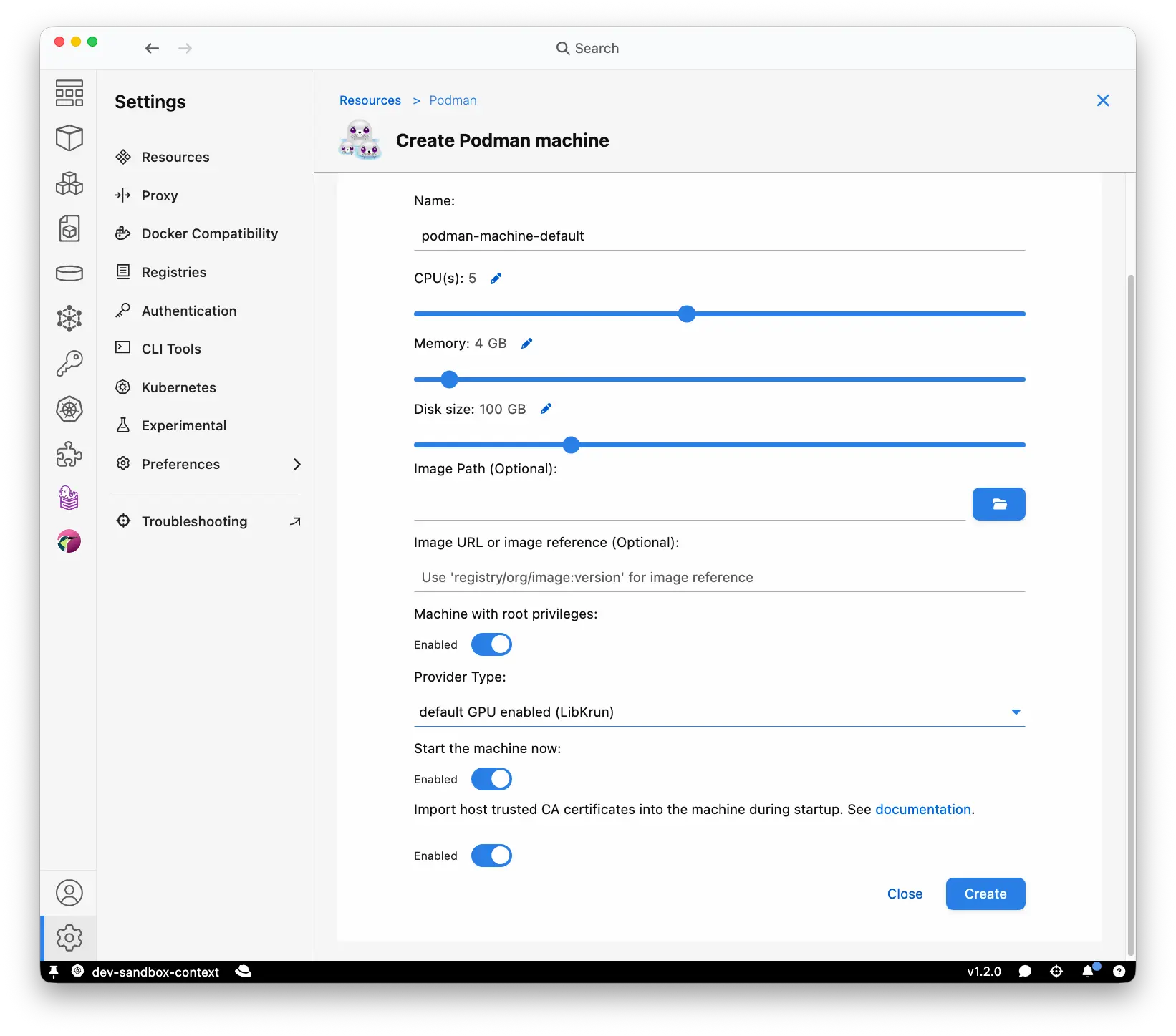
During Podman VM initialization, Podman Desktop automatically invokes native Podman 6 with the required options (--import-native-ca) to import trusted public CA keys directly from the host machine's root store into the virtual machine's trust store. This eliminates manual certificate configuration for developers working on corporate networks. Network calls, image pulls, and registry operations work out of the box under corporate proxies, providing a compelling reason to upgrade to Podman 6 for enterprise deployments.
In-app updating
Updating Red Hat build of Podman Desktop used to be a manual process. Red Hat build of Podman Desktop 1.2 simplifies maintenance with integrated update support. Now the application automatically checks for new Red Hat release builds in the background, without interrupting active workflows. When a new version or security patch is available, a notification appears in the application dashboard, in the status line, and within the platform's native notifications UI.
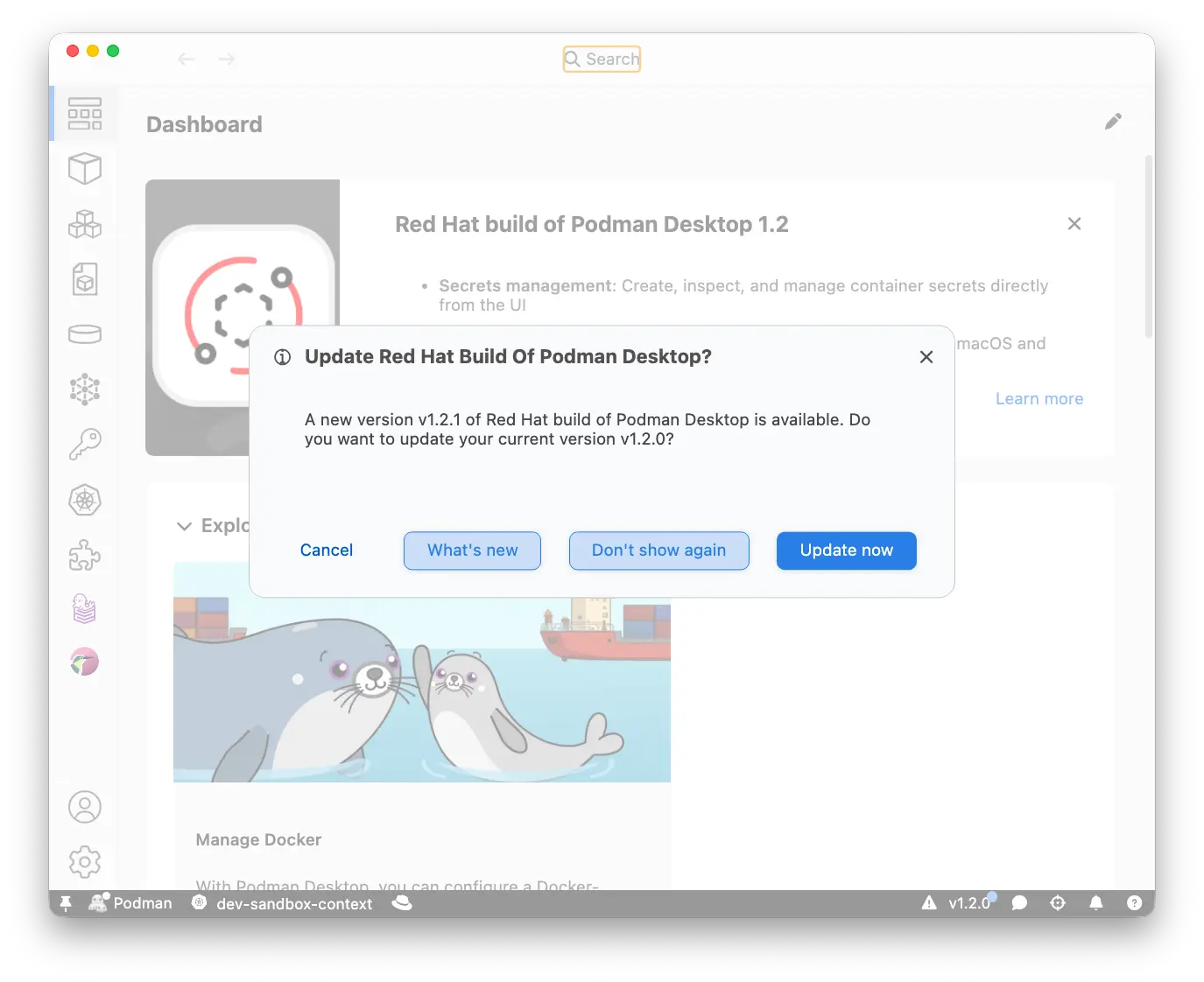
Before installing a new version, you can review release highlights, change logs, and security advisories within the app interface, then trigger the upgrade process directly with a single click.
Migrate from Podman 5.x to Podman 6
To ensure a smooth transition from Podman 5.x to Podman 6 without state conflicts, follow these migration steps:
- Stop active machines: Before updating, stop all running Podman virtual machines.
- Reset Hyper-V (Windows users only): If you are using Hyper-V (non-WSL), then run
podman machine resetfrom the CLI to clear old engine states completely. - Automated cleanup with Podman Desktop UI: Upon launching the updated Podman Desktop app, a migration prompt detects the major version upgrade. Confirm the cleanup process to remove outdated 5.x containers, networks, volumes, and machine definitions.
- Recreate machines: Launch a fresh Podman 6 virtual machine using the guided onboarding wizard in the UI.
Conclusion
Upgrading to Red Hat build of Podman Desktop 1.2 streamlines container management with native Podman 6 engine support, seamless secret handling, automated CA key synchronization, and an improved update workflow. Download Red Hat build of Podman Desktop today, and learn more by reading the official documentation.