This article demonstrates how to combine multiple knowledge sources into a single AI assistant. In this example, we'll use Red Hat OpenShift Lightspeed as the front-end assistant and extend its capabilities in 2 different ways.
First, we'll integrate the Model Context Protocol (MCP) server provided by Red Hat Satellite, allowing OpenShift Lightspeed to interact directly with Satellite and retrieve live operational data from our infrastructure.
Second, we'll enrich the assistant with private enterprise knowledge using bring your own knowledge (BYOK), making internal documentation and procedures available alongside product knowledge.
By combining these capabilities, OpenShift Lightspeed becomes much more than an assistant for OpenShift. It can answer questions about your infrastructure, retrieve information about organizations, hosts, installed packages, Common Vulnerabilities and Exposures (CVEs), errata, and other Satellite-managed resources, while also using your organization's internal knowledge base, all through a single conversational interface. MCP and BYOK aren't competing technologies; they complement each other to provide a holistic view of both enterprise knowledge and live infrastructure data through a single assistant.
Install OpenShift Lightspeed operator
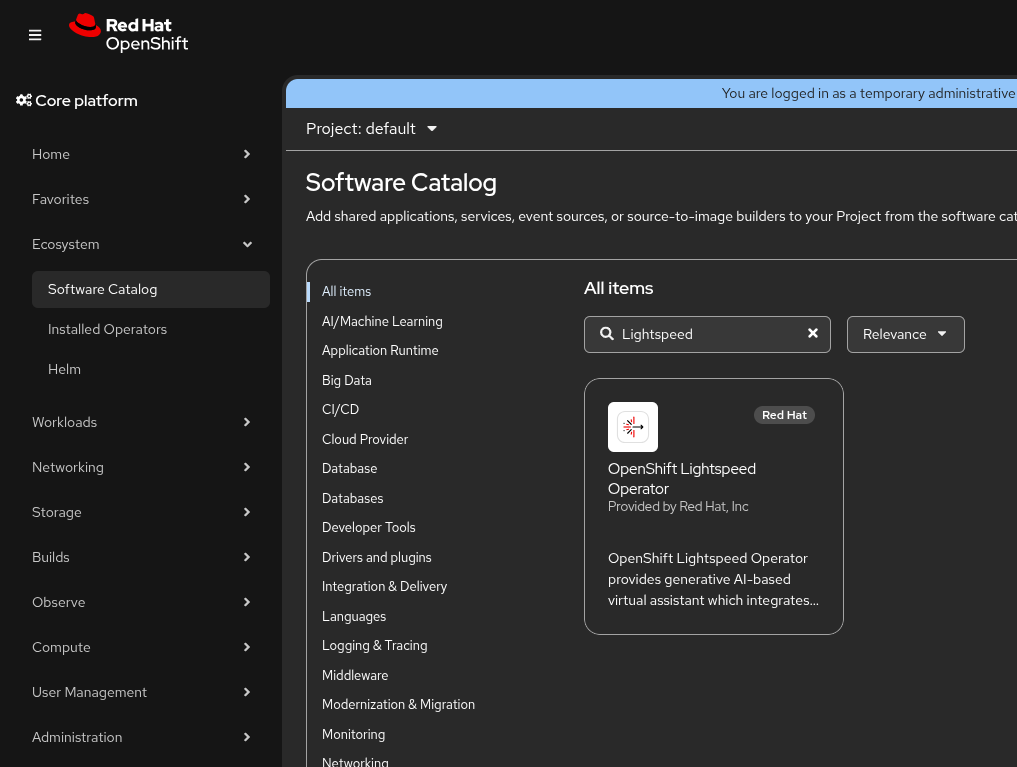
Let's start by installing OpenShift Lightspeed. In the OpenShift Container Platform web console, navigate to Ecosystem → Software Catalog, search for OpenShift Lightspeed, and select it, as shown in Figure 1.
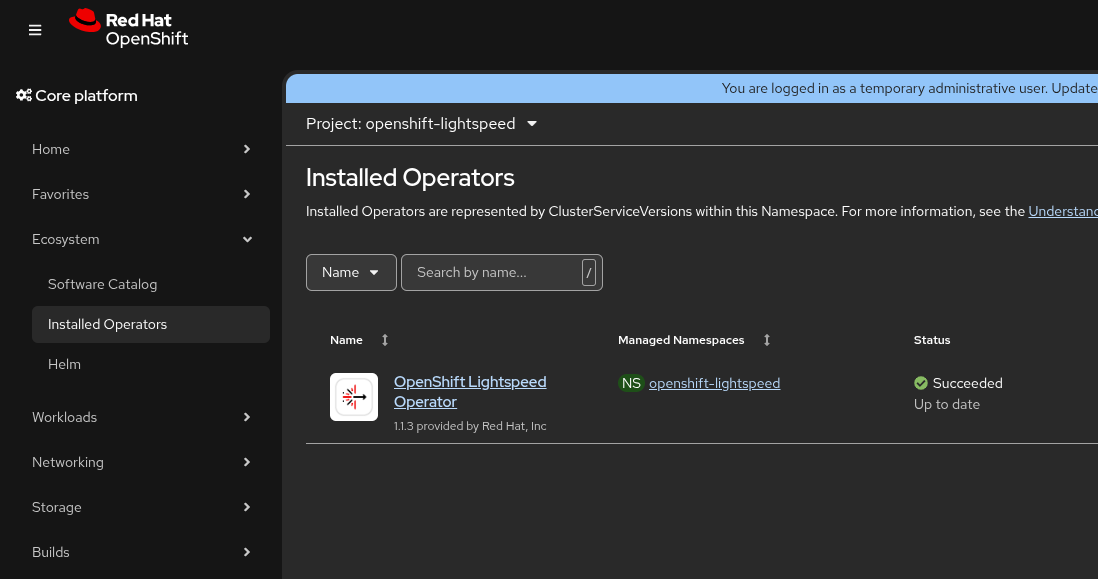
Use the default installation settings and select Install to continue. Once the installation is complete, navigate to Ecosystem → Installed Operators. OpenShift Lightspeed should appear with a Succeeded status, as shown in Figure 2.
Configure OpenShift Lightspeed
To use OpenShift Lightspeed, you must configure a large language model (LLM) provider. In this example, we connect OpenShift Lightspeed to a Qwen3.6-35B LLM hosted internally on Red Hat OpenShift AI.
It's important to note the effectiveness of the integration, particularly when using MCP tools, can depend heavily on the capabilities of the selected model. Different models might behave differently when selecting tools, processing the returned context, and deciding whether additional tool calls are required.
For example, in our testing, Qwen sometimes required additional MCP calls and reasoning iterations to obtain the information needed to answer a query, whereas GPT-5 was generally more efficient at orchestrating the available tools and reaching the final answer with fewer iterations.
To connect to the LLM, create the API token as a Secret:
kind: Secret
apiVersion: v1
metadata:
 name: llm-model-lightspeed-creds
 namespace: openshift-lightspeed
 annotations:
   ols.openshift.io/watcher: cluster
data:
 apitoken: c2stTnRSeU9OclVZNS1lZU9sTVhCZW5hUQ==
type: Opaque
Next, create a new OLSConfig object:
apiVersion: ols.openshift.io/v1alpha1
kind: OLSConfig
metadata:
  name: cluster
spec:
 featureGates:
   - MCPServer
 llm:
   providers:
     - credentialsSecretRef:
         name: llm-model-lightspeed-creds
       models:
         - name: Qwen3.6-35B-A3B
           parameters:
             toolBudgetRatio: 0.5
       name: maas
       type: rhoai_vllm
       url: 'https://test-llm-model.example.com/v1'
 ols:
   logLevel: INFO
   deployment:
     api:
       replicas: 1
     console:
       replicas: 1
     dataCollector: {}
     database:
       replicas: 1
     mcpServer: {}
   introspectionEnabled: true
   defaultModel: Qwen3.6-35B-A3B
   defaultProvider: maas
   userDataCollection: {}
   maxIterations: 5
   conversationCache:
     postgres:
       maxConnections: 2000
       sharedBuffers: 256MB
     type: postgres
 olsDataCollector:
   logLevel: INFO
This creates the required Lightspeed resources so we can start our integration.
Integrating Red Hat Satellite MCP with OpenShift Lightspeed
The first step is to deploy the Red Hat Satellite MCP server inside our OpenShift Container Platform cluster. You achieve this by creating a deployment with a container running the Satellite MCP server image, and afterward exposing it internally through a ClusterIP service. Deploy these resources in the openshift-lightspeed project, where the OpenShift Lightspeed components reside.
Deploying this container in our cluster exposes Satellite capabilities through MCP, allowing AI assistants to discover available tools and execute operations such as retrieving host information, searching for CVEs, listing organizations, or querying installed packages. The following manifest deploys the MCP server and exposes it on port 8080:
apiVersion: apps/v1
kind: Deployment
metadata:
  name: satellite-mcp
  namespace: openshift-lightspeed
spec:
  replicas: 1
  selector:
    matchLabels:
      app: satellite-mcp
  template:
    metadata:
      labels:
        app: satellite-mcp
    spec:
      containers:
      - name: satellite-mcp
        image: registry.redhat.io/satellite/foreman-mcp-server-rhel9:6.18
        args:
        - "--foreman-url"
        - "https://satellite619.jfont.tamlab.rdu2.redhat.com"
        - "--no-verify-ssl"
        ports:
        - containerPort: 8080
---
apiVersion: v1
kind: Service
metadata:
  name: satellite-mcp
  namespace: openshift-lightspeed
spec:
  selector:
    app: satellite-mcp
  ports:
  - name: http
    port: 8080
    targetPort: 8080
As you can see, we've specified the --no-verify-ssl flag for simplicity, disabling Transport Layer Security (TLS) verification at Satellite. While this is acceptable in a lab environment, in production, you should enable Secure Sockets Layer (SSL) verification and mount the Certificate Authority (CA) certificate that signed the Satellite HTTPS certificate into the container (for example, using a ConfigMap). In Satellite deployments, this corresponds to the certificate in the path /etc/foreman/proxy_ca.pem.
Before configuring OpenShift Lightspeed, we recommend verifying the MCP server is reachable from within the cluster. Since the service is exposed as a ClusterIP, it should be accessible through Kubernetes internal domain name system (DNS). A simple curl command from inside a pod in the cluster can help validate this:
# oc run mcp-test --rm -it --restart=Never --image=registry.access.redhat.com/ubi9/ubi -- bash
[root@mcp-test /]# curl http://satellite-mcp.openshift-lightspeed.svc:8080/mcp
{"jsonrpc":"2.0","id":"server-error","error":{"code":-32600,"message":"Not Acceptable: Client must accept text/event-stream"}}
Although this response reports an error, it confirms internal DNS resolution, the ClusterIP service, and the MCP endpoint are all working correctly. The request is rejected only because a plain curl request doesn't advertise support for the text/event-stream media type required by the MCP transport. In other words, the MCP server expects clients to include appropriate Accept headers before the protocol can be established, and a plain HTTP request doesn't satisfy that requirement.
The Satellite MCP server requires authentication to communicate with the Satellite API. OpenShift Lightspeed provides this information through Kubernetes Secrets, which the MCP configuration later references. In our example, we create 2 Secrets:
# oc create secret generic satellite-mcp-username --from-literal=header=admin -n openshift-lightspeed
# oc create secret generic satellite-mcp-token --from-literal=header=<SATELLITE_PERSONAL_ACCESS_TOKEN> -n openshift-lightspeed
You can generate the Personal Access Token directly from the Red Hat Satellite web interface under My Account → Personal Access Tokens.
Additionally, the key stored in each Secret is intentionally named header instead of username or token. This is because OpenShift Lightspeed reads the value associated with the header key and uses it as the value of the corresponding HTTP header configured in the OLSConfig resource, as we'll see in upcoming sections. In other words, the Secret stores the header value rather than a generic credential field.
At this point, the authentication information is already stored in the cluster. However, an important detail exists regarding how OpenShift Lightspeed forwards HTTP headers to MCP servers. This behavior prevents the integration from working out of the box and requires a small workaround, which we describe in the next section.
Bridging the HTTP header naming incompatibility
The Red Hat Satellite MCP server expects authentication credentials through the FOREMAN_USERNAME and FOREMAN_TOKEN HTTP headers. However, OpenShift Lightspeed only accepts header names matching the ^[A-Za-z0-9-]+$ pattern, which means underscores aren't permitted. Consequently, OpenShift Lightspeed can't send the header names expected by the Satellite MCP server directly.
To bridge this incompatibility, we must intercept the call OpenShift Lightspeed makes to MCP. To achieve that, we deploy an internal NGINX proxy between OpenShift Lightspeed and the Satellite MCP server. The proxy receives the hyphenated headers from OpenShift Lightspeed and forwards them to the MCP server using the underscore-based names it expects. The proxy also forwards the HTTP headers required by the MCP transport, including the content negotiation headers and the MCP session identifier. The following manifest creates the NGINX proxy configuration, deployment, and internal ClusterIP service:
apiVersion: v1
kind: ConfigMap
metadata:
  name: satellite-mcp-proxy-config
  namespace: openshift-lightspeed
data:
  nginx.conf: |
    events {}
    http {
      underscores_in_headers on;
      server {
        listen 8080;
        location /mcp {
          proxy_pass http://satellite-mcp.openshift-lightspeed.svc:8080/mcp;
          proxy_http_version 1.1;
          proxy_buffering off;
          proxy_set_header Host $host;
          proxy_set_header Accept $http_accept;
          proxy_set_header Content-Type $http_content_type;
          proxy_set_header MCP-Session-Id $http_mcp_session_id;
          proxy_set_header FOREMAN_USERNAME $http_foreman_username;
          proxy_set_header FOREMAN_TOKEN $http_foreman_token;
        }
      }
    }
---
apiVersion: apps/v1
kind: Deployment
metadata:
  name: satellite-mcp-proxy
  namespace: openshift-lightspeed
spec:
  replicas: 1
  selector:
    matchLabels:
      app: satellite-mcp-proxy
  template:
    metadata:
      labels:
        app: satellite-mcp-proxy
    spec:
      containers:
      - name: nginx
        image: registry.access.redhat.com/ubi9/nginx-124
        command: ["nginx"]
        args: ["-g", "daemon off;", "-c", "/etc/nginx/nginx.conf"]
        ports:
        - containerPort: 8080
        volumeMounts:
        - name: config
          mountPath: /etc/nginx/nginx.conf
          subPath: nginx.conf
      volumes:
      - name: config
        configMap:
          name: satellite-mcp-proxy-config
---
apiVersion: v1
kind: Service
metadata:
  name: satellite-mcp-proxy
  namespace: openshift-lightspeed
spec:
  selector:
    app: satellite-mcp-proxy
  ports:
  - name: http
    port: 8080
    targetPort: 8080
The proxy is exposed only through an internal ClusterIP service because it's intended to be consumed exclusively by OpenShift Lightspeed from within the cluster. No external route is required. As you can see, this is our 2nd service exposed at 8080; there isn't any incompatibility between them, given that both have different DNS resolution and different IPs:
# oc get svc -n openshift-lightspeed
NAME                                             TYPE        CLUSTER-IP       EXTERNAL-IP   PORT(S)    AGE
[...]
satellite-mcp                               ClusterIP   172.30.92.161    <none>        8080/TCP   50d
satellite-mcp-proxy                 ClusterIP   172.30.100.58    <none>        8080/TCP   50d
[...]
Configure OpenShift Lightspeed with external MCP servers
You configure OpenShift Lightspeed external MCP servers through the cluster-wide OLSConfig resource. The Satellite MCP entry points to the internal NGINX proxy service and associates each authentication header with a Kubernetes Secret. When the resource is reconciled, the OpenShift Lightspeed operator automatically mounts the referenced Secrets into the application server and makes their values available to the MCP client. To do so, first edit the olsconfig cluster resource:
# oc edit olsconfig clusterThen add the Satellite MCP server under the mcpServers section (don't remove any content already present in the file), for example:
spec:
[...]
  mcpServers:
  - headers:
    - name: FOREMAN-USERNAME
      valueFrom:
        secretRef:
          name: satellite-mcp-username
        type: secret
    - name: FOREMAN-TOKEN
      valueFrom:
        secretRef:
          name: satellite-mcp-token
        type: secret
    name: satellite
    timeout: 30
    url: http://satellite-mcp-proxy.openshift-lightspeed.svc:8080/mcp
Notice the URL points to the internal NGINX proxy rather than directly to the Satellite MCP server. As explained in the previous section, the proxy transparently translates the authentication headers expected by OpenShift Lightspeed into the format required by the Red Hat Satellite MCP server.
Validate the integration
Once you apply the OLSConfig and the operator reconciles the changes, you can verify the integration by monitoring the logs of the Satellite MCP server:
# oc logs -n openshift-lightspeed deployment/satellite-mcp -fWhen OpenShift Lightspeed connects to the MCP server, log entries similar to the following should appear:
INFO:mcp.server.lowlevel.server:Processing request of type ListToolsRequest
INFO:mcp.server.streamable_http:Terminating session: 40323e8f06e84b47850c950a8980ece5
INFO:     10.131.0.14:55786 - "DELETE /mcp HTTP/1.1" 200 OK
INFO:mcp.server.streamable_http_manager:Created new transport with session ID: 6f191f7c556c4f3b8232dcd4be452a2a
INFO:     10.131.0.14:44570 - "POST /mcp HTTP/1.1" 200 OK
INFO:     10.131.0.14:44574 - "GET /mcp HTTP/1.1" 200 OK
INFO:     10.131.0.14:44576 - "POST /mcp HTTP/1.1" 202 Accepted
INFO:     10.131.0.14:44584 - "POST /mcp HTTP/1.1" 200 OK
INFO:mcp.server.lowlevel.server:Processing request of type ListToolsRequest
INFO:mcp.server.streamable_http:Terminating session: 6f191f7c556c4f3b8232dcd4be452a2a
INFO:     10.131.0.14:44596 - "DELETE /mcp HTTP/1.1" 200 OK
INFO:mcp.server.streamable_http_manager:Created new transport with session ID: 14bea4b306144c94ad28fa92f90645d3
INFO:     10.131.0.14:44602 - "POST /mcp HTTP/1.1" 200 OK
These messages confirm OpenShift Lightspeed is successfully discovering the available MCP tools and invoking them to query Red Hat Satellite.
Agent iteration limits
Satellite queries might require several MCP tool calls. The model (such as Qwen or GPT-5) might first discover available Foreman API resources, inspect their documentation, and then perform 1 or more API calls to retrieve and correlate the requested data. For complex queries involving multiple hosts, the default iteration limit might therefore be insufficient and lead to inefficient and inconsistent results.
In our test environment, increasing spec.ols.maxIterations to 30 allowed the agent to complete more complex multi-step Satellite queries reliably. To configure it, use:
# oc patch olsconfig cluster --type=merge -p '{"spec":{"ols":{"maxIterations":30}}}'External MCP tool selection and execution depend significantly on the LLM being used and the complexity of the request. During initial interactions, more explicit prompts can help the model select the Satellite MCP server instead of relying on general knowledge.
Once you establish the context and increase the maxIterations value when necessary to accommodate more complex multi-step queries, you can use shorter and more natural follow-up questions. You can monitor the process using:
# oc logs -n openshift-lightspeed deployment/lightspeed-app-server --all-containers=true -f | grep -E 'Tool loop iteration|execute_tool|mcp_server|tool_remaining'Adding enterprise-specific knowledge with BYOK
The final piece of our integration is to extend OpenShift Lightspeed with our own organization-specific knowledge using bring your own knowledge (BYOK).
So far, Lightspeed can reason about OpenShift and, through the Satellite MCP server, retrieve information about our Red Hat Enterprise Linux (RHEL) infrastructure. However, there's another type of information neither OpenShift nor Satellite knows about: the internal procedures and policies defining how our organization operates.
For example, our organization might have a policy stating infrastructure changes must be approved by an internal committee meeting every Thursday, or production systems can only be restarted during a specific maintenance window. By adding this information through BYOK, Lightspeed can take these organization-specific procedures into account when answering questions.
You must provide the documents containing this knowledge in Markdown format.
In our example, we store the Markdown files under the following directory:
/home/test/byok/mdThis directory contains the .md files describing the internal policies and procedures we want to make available to Lightspeed.
The next step is to build the BYOK image containing this knowledge. Install Podman on the system where you generate the image. Before building the image, adjust the Podman storage configuration to avoid potential issues during image creation. First, configure Podman to use the vfs storage driver:
$ vi ~/.config/containers/storage.conf

[storage]
driver = "vfs"
Next, authenticate against registry.redhat.io, as the tool used to build the BYOK image is distributed through the Red Hat registry:
$ podman login registry.redhat.ioWe can now generate the BYOK image using the Markdown files stored in /home/test/byok/md. The process writes the resulting image archive to /home/test/byok/output:
$ podman run -it --rm --device=/dev/fuse -v $XDG_RUNTIME_DIR/containers/auth.json:/run/user/0/containers/auth.json:Z -v /home/test/byok/md:/markdown:Z -v /home/test/byok/output:/output:Z registry.redhat.io/openshift-lightspeed-tech-preview/lightspeed-rag-tool-rhel9:latestOnce the process completes, the generated BYOK image is available as a .tar archive. Load it into the local Podman image store:
$ podman load < /home/test/byok/output/byok-image.tarWe can check the image has been added and tag it using the destination registry:
$ podman images
REPOSITORY                                                                      TAG         IMAGE ID      CREATED        SIZE
localhost/byok-image                                                            latest      47ecb795aaee  7 minutes ago  1.34 GB
registry.redhat.io/openshift-lightspeed-tech-preview/lightspeed-rag-tool-rhel9  latest      668eb270b4ef  4 weeks ago    4.06 GB
$ podman tag localhost/byok-image:latest quay.io/lightspeed-demo/byok-image:latest
Finally, we upload the image into a registry (Quay in our example):
$ podman push quay.io/lightspeed-demo/byok-image:latestOnce the image is available from a registry accessible by the OpenShift cluster, we can make this knowledge available to OpenShift Lightspeed by referencing the image in the OLSConfig resource:
apiVersion: ols.openshift.io/v1alpha1
kind: OLSConfig
metadata:
  name: cluster
spec:
  ols:
    rag:
      - image: quay.io/lightspeed-demo/byok-image:latest
At this point, our organization-specific knowledge becomes available to OpenShift Lightspeed through its retrieval-augmented generation (RAG) capabilities. We can now ask questions about the internal procedures and policies we added to the BYOK image. More importantly, we can combine this knowledge with the information retrieved dynamically from our infrastructure through MCP.
For example, consider the following question:
Which RHEL systems affected by critical vulnerabilities can be patched and rebooted this week according to our internal change policy?
Answering this type of question brings together the different pieces of our architecture: Satellite MCP provides real-time information about RHEL systems and their vulnerabilities, while BYOK provides the organization-specific policies determining when and how those systems can be changed.
Example queries
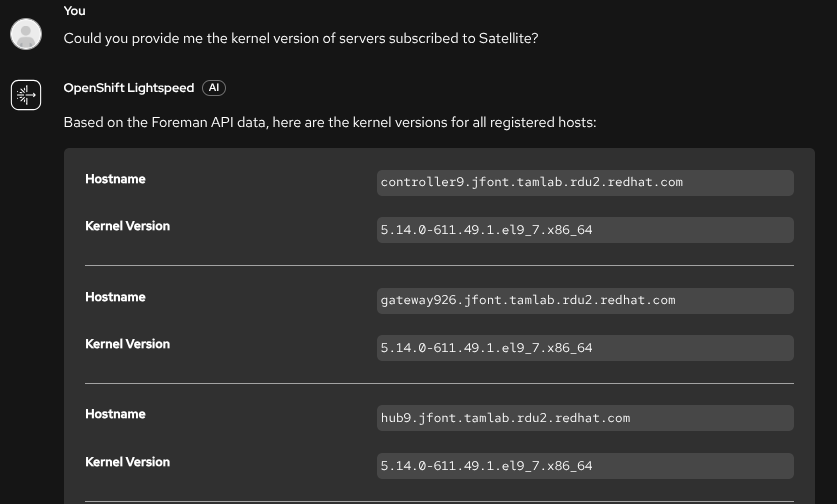
As a first example, we can perform a simple query to verify OpenShift Lightspeed can successfully retrieve information from our Satellite environment, as shown in Figure 3 and Figure 4.
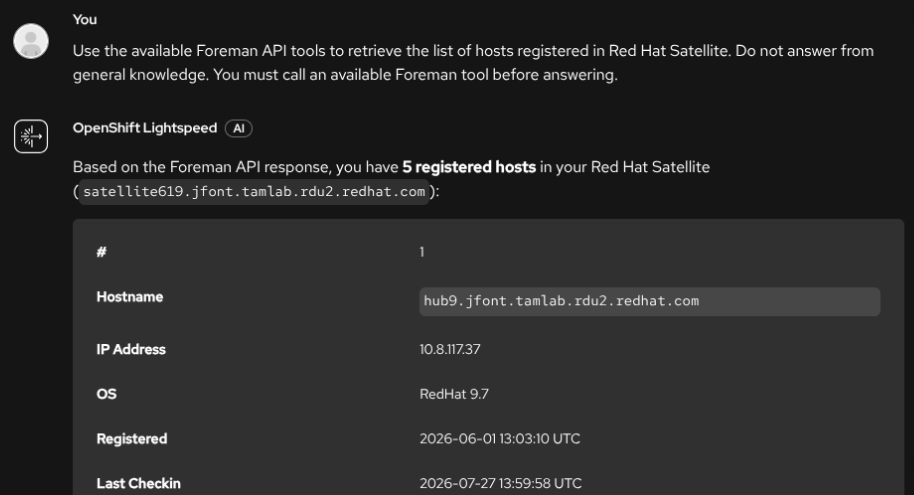
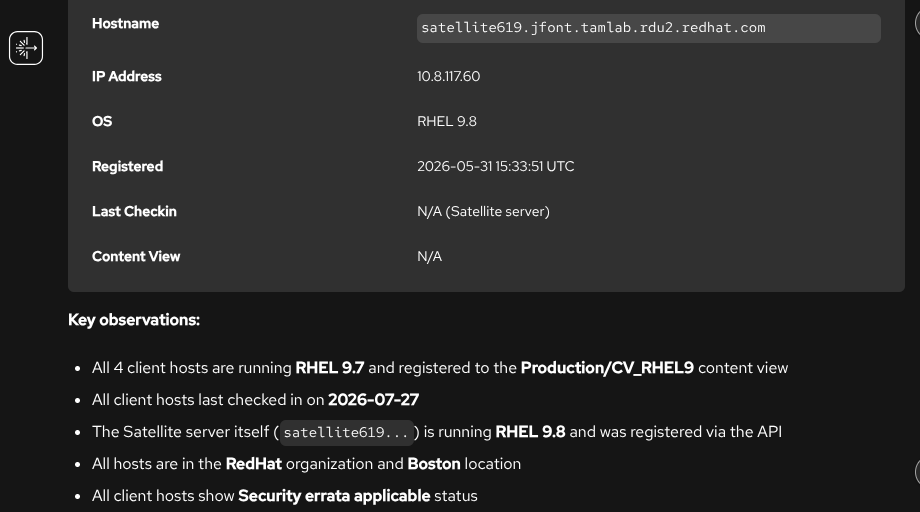
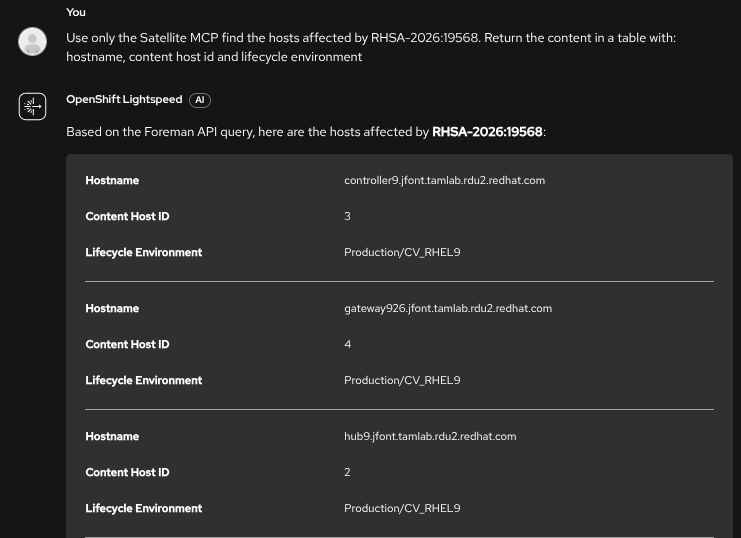
You can ask the same kind of questions you would normally send directly to the Satellite MCP server, such as retrieving the kernel versions of systems registered with Satellite. For subsequent questions, you don't need to be as explicit, since OpenShift Lightspeed maintains conversation context, as shown in Figure 5.
You can also query which hosts are affected by a specific vulnerability, as shown in Figure 6.
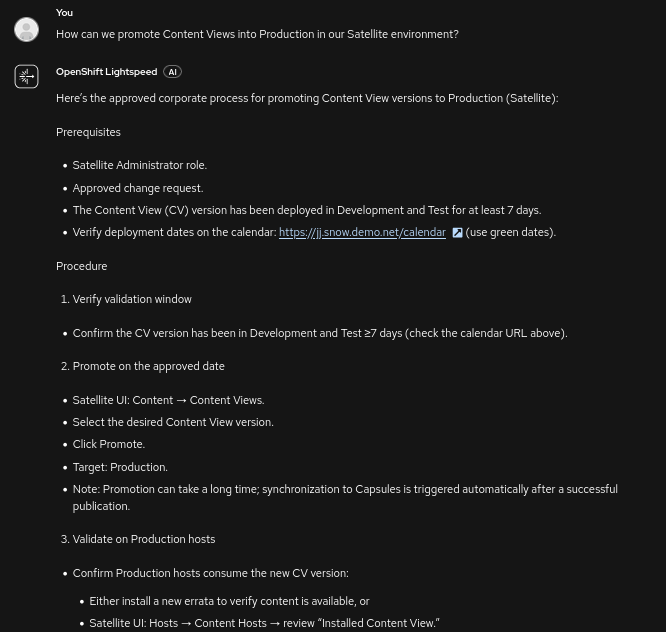
Finally, test the BYOK queries as shown in Figure 7.
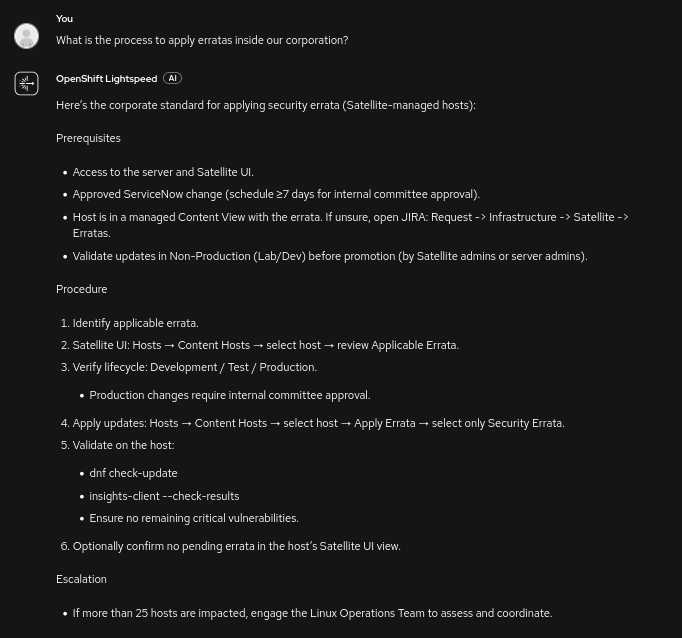
Next, we can ask about internal procedures to apply errata in our corporation. This information is specific and tied to your internal policies, as shown in Figure 8.
Conclusion: A unified intelligence layer
By bringing together live infrastructure telemetry via Satellite MCP and internal procedural policies through BYOK, OpenShift Lightspeed becomes a unified force multiplier for your operations team. To start building your own multi-source assistant, check out the OpenShift Lightspeed documentation and explore the Satellite MCP project on GitHub.