Red Hat Satellite is a solution designed to manage and operate Red Hat Enterprise Linux (RHEL) infrastructure and environments at scale. While Red Hat Satellite assists system administrators in ensuring system consistency, reducing errors and meeting compliance requirements by implementing standard operating environments, it also provides the capability to run automation across multiple datacenters.
In this article, we explore Red Hat Satellite automation and its scheduling capabilities to perform repetitive tasks. We use this functionality to query Red Hat Lightspeed APIs and generate CSV (comma-separated values) files that we attach to an email. With this configured, system administrators can automate the sending of the latest Red Hat Lightspeed data and reporting straight into their inbox. This setup allows for the automation of regular Red Hat Lightspeed data reporting, providing daily, weekly, or monthly updates on infrastructure footprints. These reports can include information on active or stale systems, critical vulnerabilities, and necessary patches.
The versatility of Red Hat Lightspeed's APIs enables the retrieval of relevant data for comprehensive reports. By following this approach, you can extend the example to perform various operations with Red Hat Lightspeed or integrate with other third-party tools. We also provide Ansible automation code to help you get started.
Red Hat Satellite automation and scheduling
With its Ansible automation integration, Red Hat Satellite allows executing a job template against one or more hosts. Execution can be done immediately or scheduled to run at a later time. In a previous article, we explored how to execute the automation following event triggers fired up from Red Hat Satellite. Execution can also be scheduled to run recurrently at a defined frequency using the scheduler offered by Red Hat Satellite.
We use this functionality to configure and run an Ansible playbook that integrates with Red Hat Lightspeed API to query data. The playbook authenticates with Red Hat Hybrid Cloud Console and queries the Red Hat Lightspeed API for data. We then consolidate the results as CSV files and send them as an attachment to an email. See Figure 1.
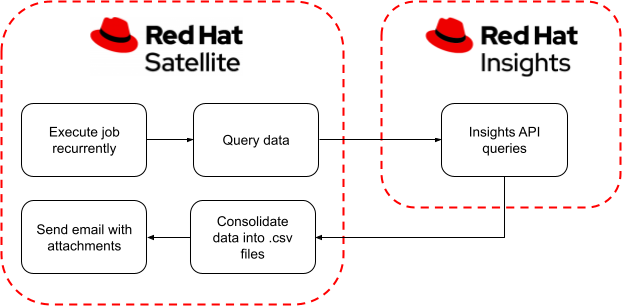
Having the automation running on a schedule in Red Hat Satellite allows us to receive an email in our inbox containing the latest data retrieved from Red Hat Lightspeed. This approach can be followed to perform any recurring automation and obtain data exports from Red Hat Lightspeed or other third party applications.
Note that we use the Red Hat Satellite server itself as the automation execution environment. Any required module or collection required for the automation must be installed on the execution environment. In our example, the only dependency is the community.general.mail module that we use to send emails. This can be installed on the Red Hat Satellite server by executing the following command:
ansible-galaxy collection install community.generalThe rest of this article describes the Red Hat Satellite configuration step-by-step. First we need to configure a service account in Hybrid Cloud Console as this is used for token-based authentication to run Red Hat Lightspeed queries as part of our automation playbook.
Creating a service account for Red Hat Lightspeed queries
Our integration to Hybrid Cloud Console requires that we configure a service account. Service accounts securely and automatically connect and authenticate services or applications without requiring an end user’s credentials or direct interaction. This can also be used in conjunction with Role-Based Access Control (RBAC) to limit the scope to resources by specifying required permissions.
The process of creating a service account consists of generating a client ID and secret that are then used to generate an access token for authentication and authorization. This task requires you to be logged in to the Hybrid Cloud Console as a user with either the Organization administrator or the User Access administrator permissions.
To create a service account, navigate to Settings in Hybrid Cloud Console and select Service Accounts. Click Create service account and go through the creation wizard. Make sure you take note of the client ID and client secret credentials generated as it is not possible to retrieve them later. We will feed those credentials to our automation playbook in Red Hat Satellite.
Next, we need to associate the relevant RBAC permissions to our service account. You can do this by creating a new user group and assigning the service account from Settings, User Access, and Groups. Note that for security reasons, service accounts cannot be added to the default access group. To grant access, you must create a custom user access group and add the service account.
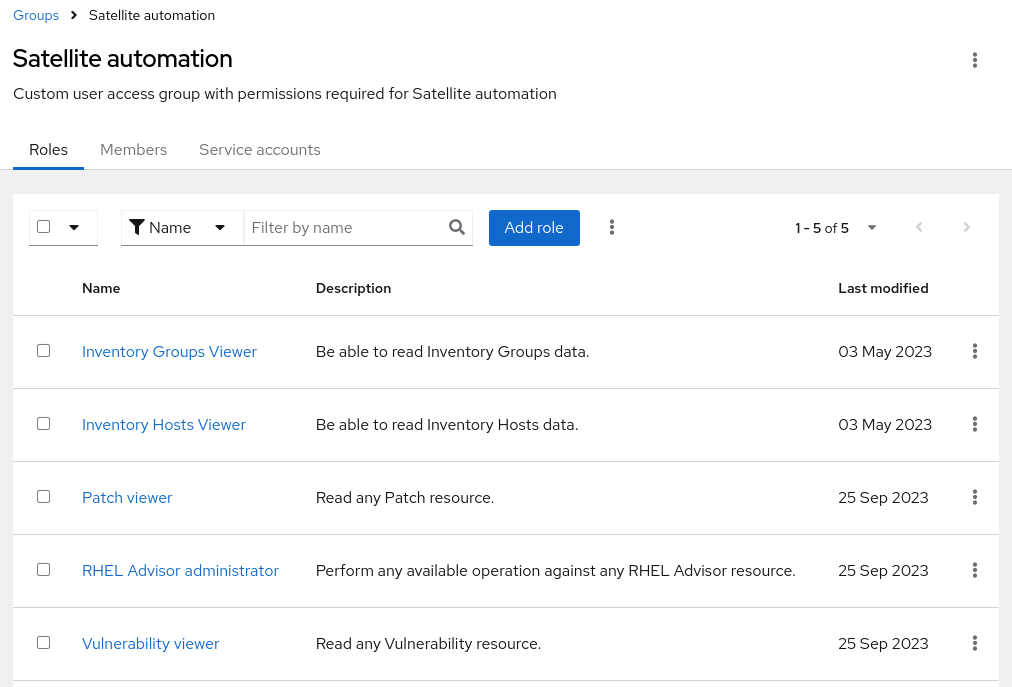
Our example requires read operations on Inventory, Advisor, Vulnerability, and Patch applications. All permissions we need are inventory:hosts:read, inventory:groups:read (can be inherited from Inventory Hosts Viewer and Inventory Groups Viewer roles), advisor:*:read (can be inherited from RHEL Advisor administrator role), vulnerability:*:read (can be inherited from Vulnerability viewer role) and patch:*:read (can be inherited from Patch viewer role) permissions.
We create a new user group with the Inventory Hosts Viewer, Inventory Groups Viewer, RHEL Advisor administrator, Vulnerability viewer, and Patch viewer roles and assign the service account from the Groups page under User Access. Figure 2 depicts this.
Please keep in mind that you need to ensure the correct permissions are given to your service account if you plan to modify the automation and query additional data from other services.
Documentation about managing service accounts in Hybrid Cloud Console is available here. Additional information on role-based access control (RBAC) can also be found in the product documentation.
Creating and configuring a job template for the automation
Next, we configure an Ansible job template in Red Hat Satellite that is responsible for querying the Red Hat Lightspeed API using our service account, before consolidating the data into CSV files attached to an email. As previously mentioned, we focus on Inventory, Advisor, Vulnerability, and Patch applications but the playbook can be extended for other services.
The Ansible automation playbook used in this article is available for download on GitHub under custom_automation_send_insights_report.erb to facilitate its import. It can be imported or created from scratch in Red Hat Satellite.
One interesting point from the automation is the queries performed against Managed Inventory API and its /hosts method. In our example, we use the fields parameter that lets us specify a list of system profile facts that we want to include as part of the results. This can be extremely useful to build custom reports including data you are interested in. Figure 3 provides an example of our query.
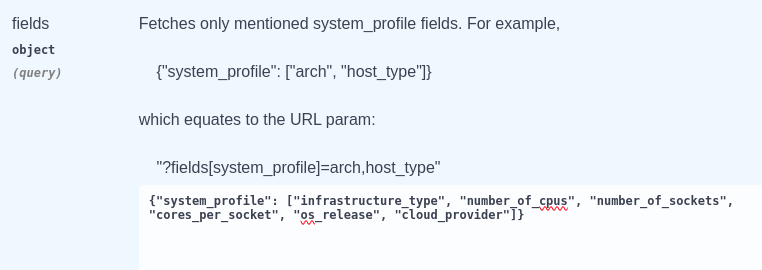
Some of the other applications provide their own CSV export method and the automation script makes use of. This can however be extended by following the Inventory query example in case you are interested in specific data that is not included as part of the default Red Hat Lightspeed data export for these services. In that case, you may also need to handle pagination as part of the queries. The Inventory example provided shows one way to deal with it from your automation playbook, and can be replicated.
To import the playbook in Red Hat Satellite, navigate to Hosts and Job Templates and click Import. Select the downloaded file and a new job template is created for the automation. See Figure 4.
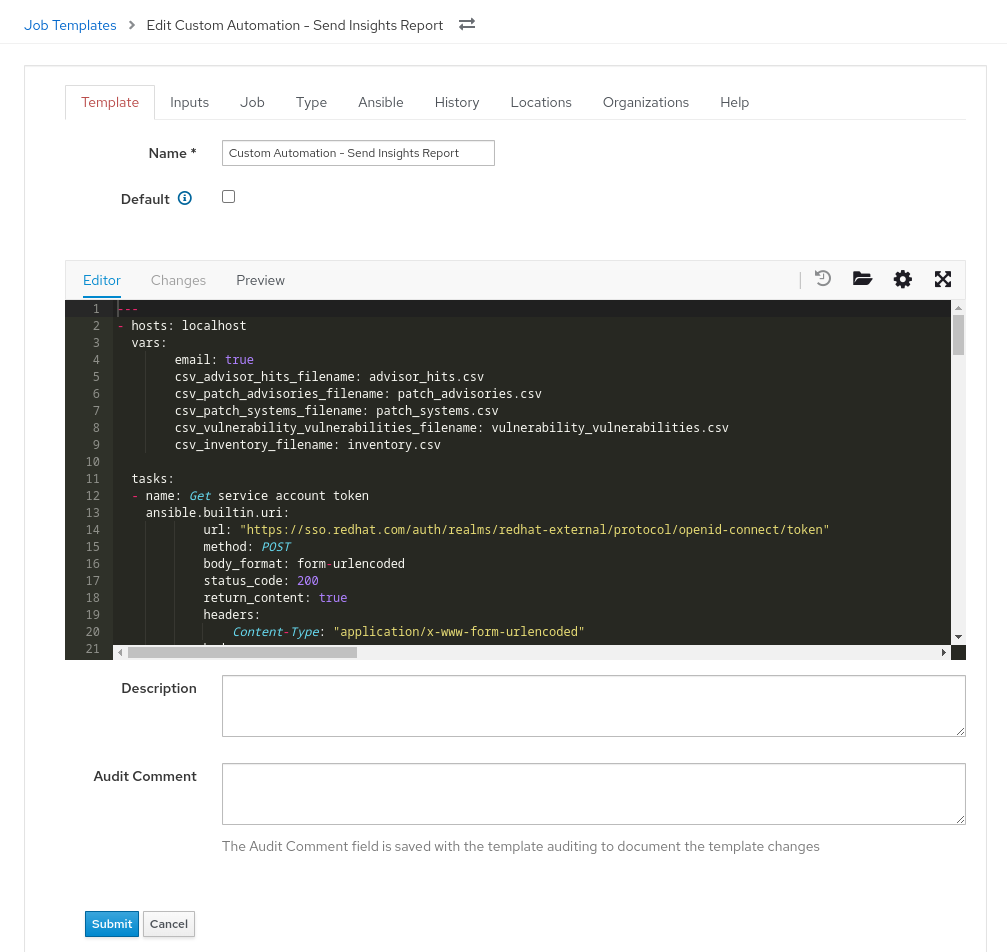
Note that the automation script requires few input parameters: hcc_client_id and hcc_client_secret that store the values of your service account credentials obtained earlier, and smtp_host, smtp_port, smtp_username, and smtp_password that provide the required SMTP details to send your email with attached reports. In our example, we use the same smtp_username email address provided to populate the "To:" and "From:" fields of the email. The automation playbook can be modified to fit your organization and its specific SMTP configuration. All of these input parameters are populated in the next step when scheduling your automation runs.
The rest of the job template configuration is standard (e.g., Ansible Playbook for Job Category and Ansible for Provider Type).
Scheduling the job template to run periodically
Now that our job template is configured, we can schedule its execution from Red Hat Satellite. From Hosts and Job Templates, look up for the new job and select Run from the actions list on the right hand side.
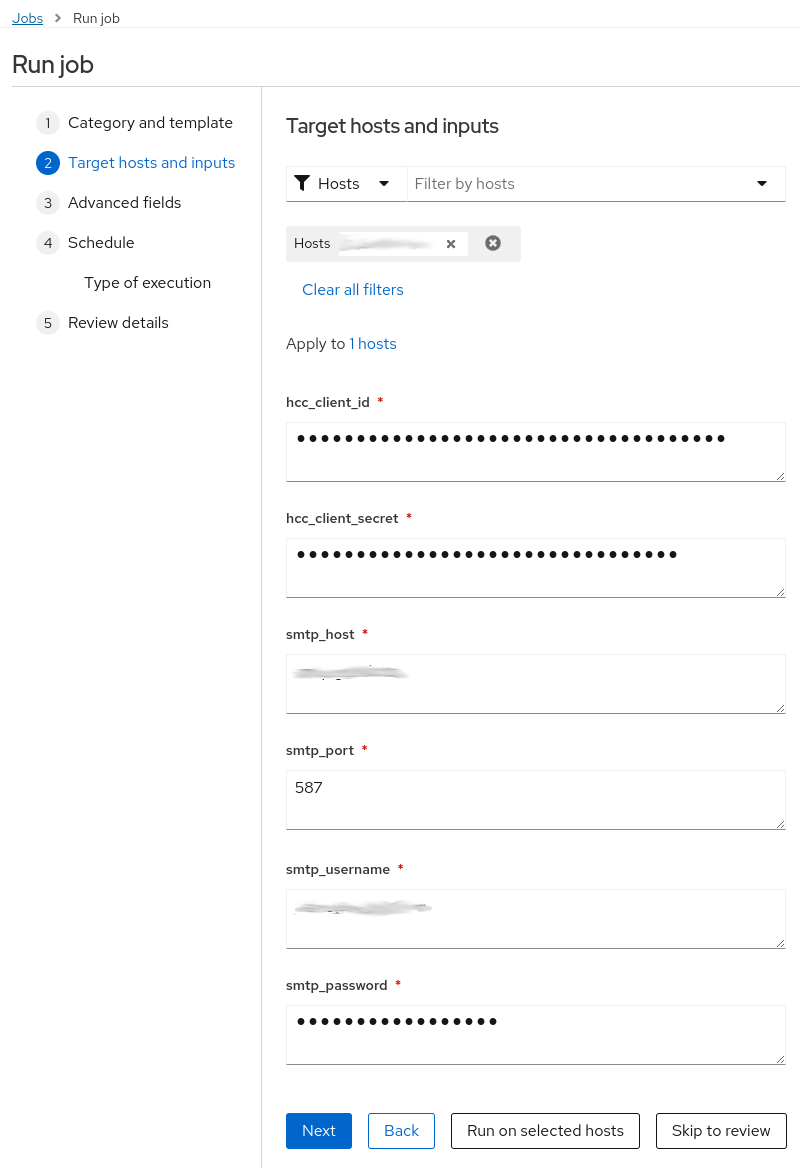
In our example, we use the Red Hat Satellite server itself as a target to execute the automation. To do so, we lookup the host in the Target hosts and inputs step and select it. The rest of the screen prompts us for the required input necessary to run our automation. Figure 5 provides an example with the target and input populated for our environment.
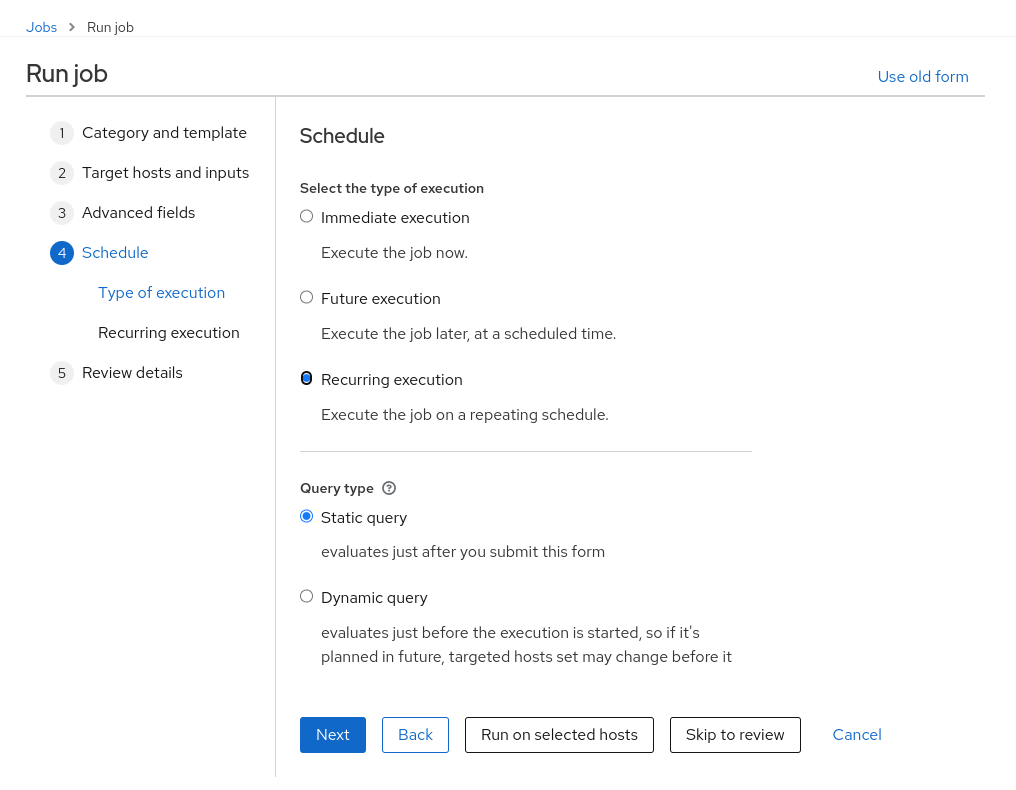
The next task is to configure the execution scheduling from step 4 in the wizard. We want to run the automation on a weekly basis. We select Recurring execution as shown on Figure 6.
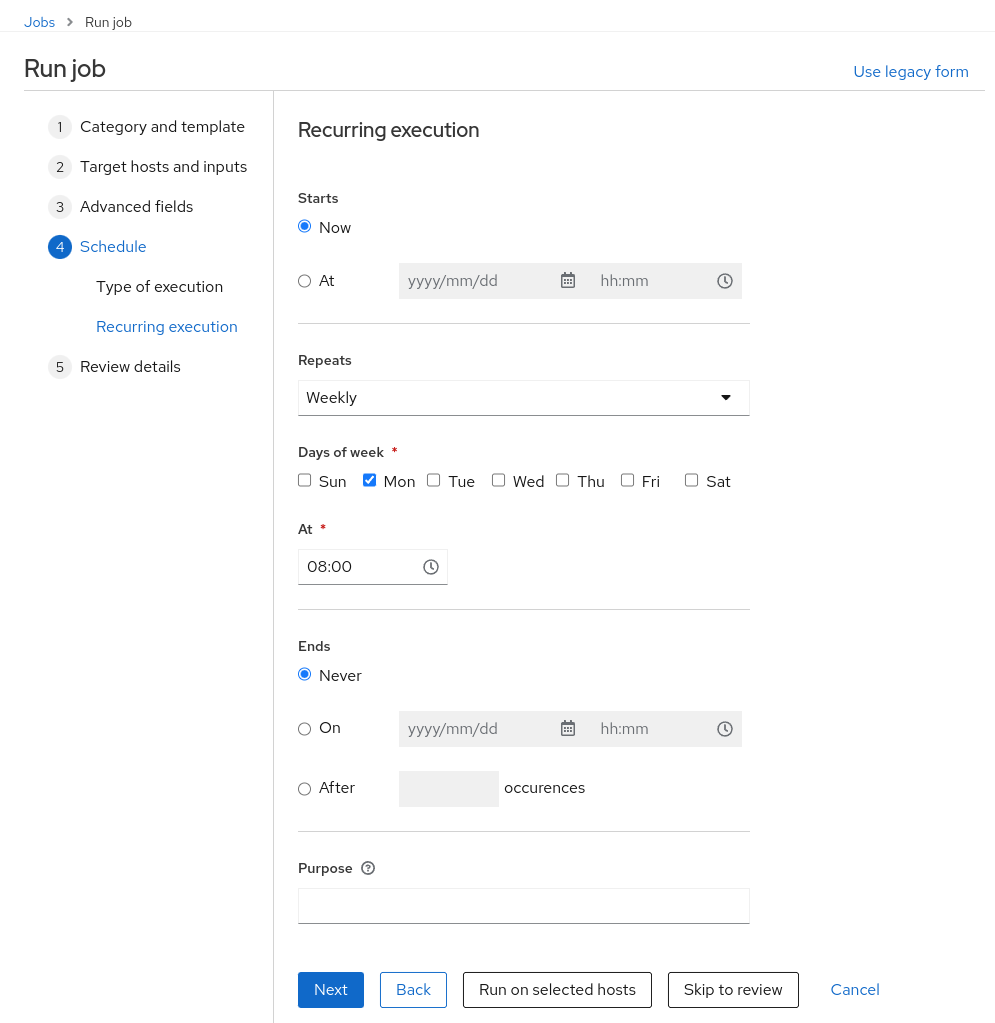
We can then select when we want the automation to run in the Recurring execution step. In our example, we configure it to happen every Monday at 8 a.m. Our configuration is displayed in Figure 7.
After validating the configuration in the last Review details step, we can submit our job. From now on, the automation will run according to our schedule until we stop the recurring job. If successful, we will receive an email every Monday morning. It will contain the CSV reports with queried Red Hat Lightspeed data as attachment.
Note that you can review your scheduled jobs from Monitor → Recurring logics. The screen also allows you to cancel it if not required anymore.
Validating the configuration
One may want to validate the automation before its next scheduled execution. To do so, simply repeat the previous steps and select Immediate execution in the Schedule step of the configuration.
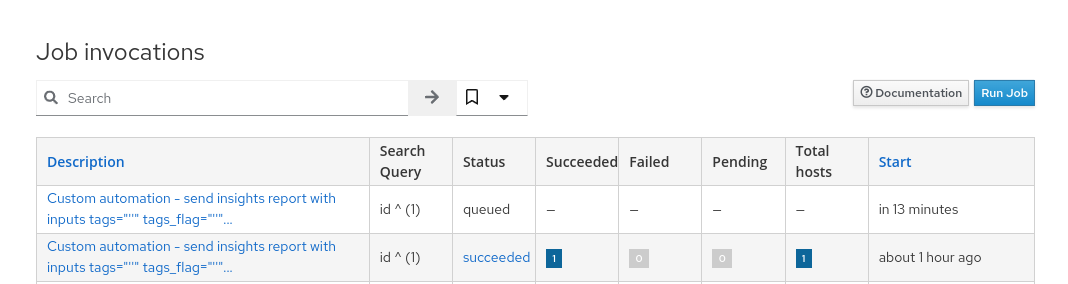
Executions can be monitored from Monitor and Jobs. From there, you can see the previous execution, their state (e.g., succeeded) and troubleshooting any issue that may have occurred during execution. You can also validate the next scheduled execution as an entry is already present for it in the Job invocations table, as shown in Figure 8.
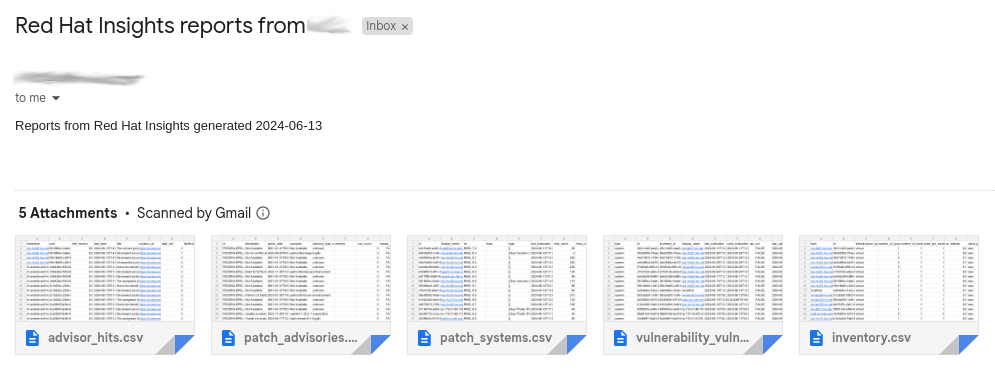
Assuming the automation is successful, your inbox should contain an email with the requested reports as attachment. This will run according to the frequency you configured. Figure 9 provides an example of a received email.
Conclusion
This article provides an example of running scheduled automation in Red Hat Satellite to query and generate reports from Red Hat Lightspeed via its API. We explore a couple of services and give query examples that can be adapted for your own needs. The job template used in our example is available for download in a GitHub repository. The code is not supported by Red Hat and is not meant to be used in your production environment without further testing and development to ensure it matches your requirements.
This approach can be replicated and adapted for other operations. One may consider correlating the data coming from the different services into a consolidated report. This operation may be done from the Ansible automation itself. Further, one may want to expand the automation to generate different types of reports (e.g., PDF file) using their own template. Once again, Ansible automation can assist. Finally, one may prefer to use the scheduling capabilities offered by Red Hat Ansible Automation Platform and/or use and extend the automation as part of Event-Driven Ansible.
We hope this article was useful and triggered your interest and creative thinking. We would welcome your thoughts and feedback. Do not hesitate to share your experience with us from the Feedback form location on the right side of the Hybrid Cloud Console.
Last updated: November 7, 2025
