Page
Build a sample Quarkus application in a bootable container
In this lesson, you will package your native Quarkus executable into a bootable Red Hat Enterprise Linux (RHEL) image. This involves creating a systemd unit file to manage the application process and a production Containerfile that uses the RHEL bootc base image.
Prerequisites:
- Understand how to traverse a Linux file system.
- Understand how to create and edit Linux text files.
- Install the Red Hat build of Podman Desktop.
In this lesson, you will:
- Create a
systemdunit file to start our application at boot time. - Create a production Containerfile to install the necessary components in a bootable image.
- Build the container image.
- Build the bootable image.
Create a systemd unit file for our application
Before we package everything up to deploy our application as a virtual machine (VM), we’ll need a systemd unit file, which we will use to automatically start our application. We’ll now implement the hello-quarkus.service file. Once system networking begins, this will start our application.
Create the hello-quarkus.service file (from your native desktop: quarkus-dev/bootc/app/hello-quarkus.service or directly in the container: /app/hello-quarkus.service) with the following content:
[Unit]
Description=Quarkus Native Greeting Service
After=network-online.target

[Service]
# Using a standard path and simplified name to avoid permission issues
ExecStart=/usr/bin/hello-quarkus
Environment="QUARKUS_HTTP_HOST=0.0.0.0"
WorkingDirectory=/app
Restart=on-failure
User=root

[Install]
# Ensures the app starts during the normal boot sequence
WantedBy=multi-user.target
We will now create the Containerfile that defines your bootable OS image.
Create the production Containerfile to install the components and configure a bootable container
In this step, we use rhel-bootc as the base image, which contains the RHEL kernel and bootloader logic. Note that we are also installing firewalld for network security and tuned for performance tuning. The image is tuned for throughput. From our native desktop environment, we create the file quarkus-dev/bootc/Containerfile. Note that this is not the same as the quarkus-dev/Containerfile we used to develop our application.
The contents of the new file are:
# Performance-Tuned RHEL Bootable Container

# Use the official RHEL bootc image as the foundation.
FROM registry.redhat.io/rhel10/rhel-bootc:latest

# Good practice to label your images.
LABEL maintainer="Your Name <youremail@example.com>" \
      description="Tuned RHEL bootc image for Quarkus Native applications."

# Install firewalld, tuned, and zlib (required for native binaries).
RUN dnf install -y \
        firewalld \
        tuned \
        zlib \
    && dnf clean all

# Configure tuned to use the throughput-performance profile.
RUN echo "throughput-performance" > /etc/tuned/active_profile

# Open port 8080 in the RHEL firewall.
RUN firewall-offline-cmd --add-port=8080/tcp

# Set the working directory for app data or logs.
WORKDIR /app

# Copy the native binary to /usr/bin and rename it.
# Using an existing trusted system path can prevent SELinux issues.
COPY app/code-with-quarkus/target/*-runner /usr/bin/hello-quarkus

# Ensure the binary has execution permissions.
RUN chmod +x /usr/bin/hello-quarkus

# Copy and enable the systemd service.
COPY app/hello-quarkus.service /etc/systemd/system/hello-quarkus.service
RUN systemctl enable hello-quarkus.service firewalld tuned

# Facilitate container-based testing and port mapping.
EXPOSE 8080

# Start systemd to manage the services.
CMD ["/sbin/init"]
Now that you have your configuration files, let’s create the bootable RHEL image mode container.
Build the container image
Earlier, we installed the Red Hat extension pack, which includes the bootable containers extension used for image mode deployments. To pull your first bootable container, follow these steps:
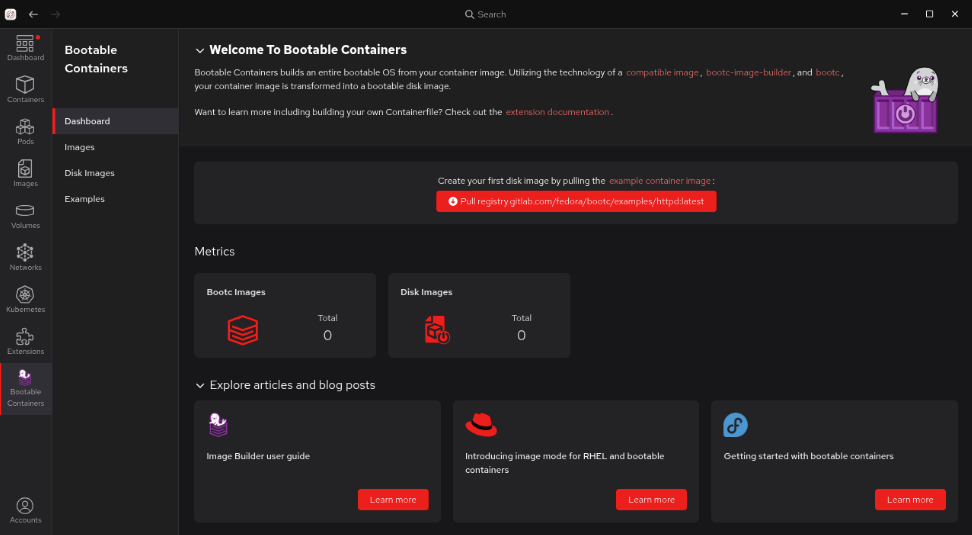
In the Red Hat build of Podman Desktop, select Bootable Containers from the side menu bar to access the Dashboard section, as shown in Figure 1.
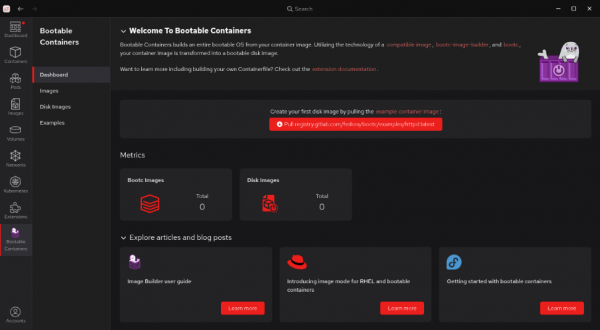
Figure 1: The Bootable Containers dashboard screen. - Within the Bootable Containers section, select Images from the left navigation.
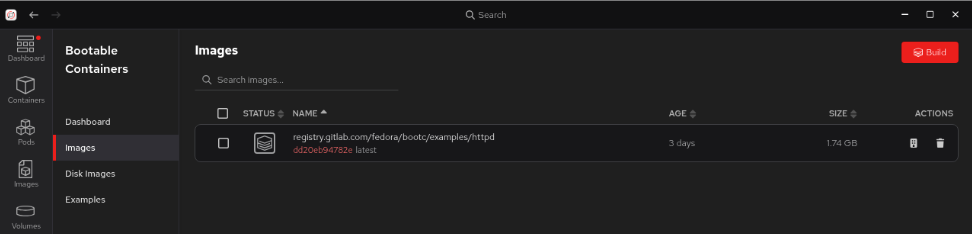
On the Images screen, select the option to pull the example container image from registry.gitlab.com (Figure 2). When you complete this, you will see the example image listed.
Note: The file size of the image is over 700MB (compressed) and may take a while to download.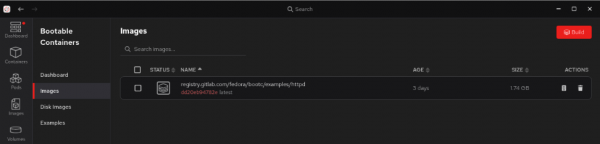
Figure 2: Bootable container images showing the container pulled from registry.gitlab.com.
Build an image from the Containerfile
Next, let’s use the Containerfile we created to build an image.
- Open the Red Hat build of Podman Desktop on your local machine and go to the Images section in the left navigation.
- Select Build to open the build image from the Containerfile screen.
- Provide the following:
- Containerfile path:
your_home_directory/quarkus-dev/bootc/Containerfile, - Build directory path:
your_home_directory/quarkus-dev/bootc - Image name:
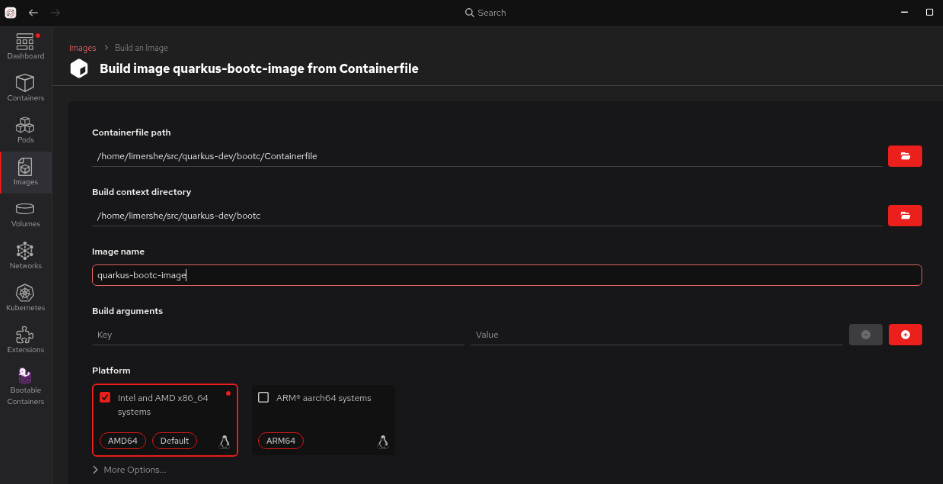
quarkus-bootc-image Platform hardware specifications: I chose the Intel and AMD x86_64 image option for my desktop environment (Figure 3).
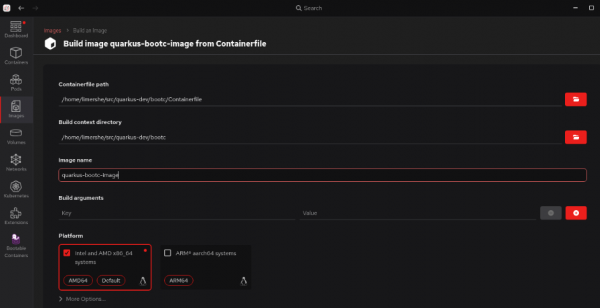
Figure 3: The build image from the Containerfile screen in the Red Hat build of Podman Desktop.
- Containerfile path:
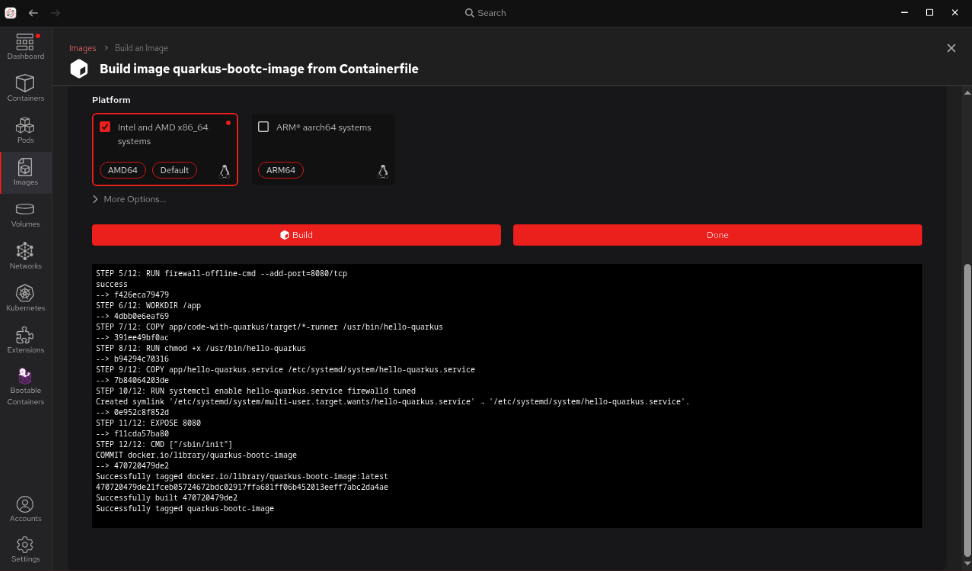
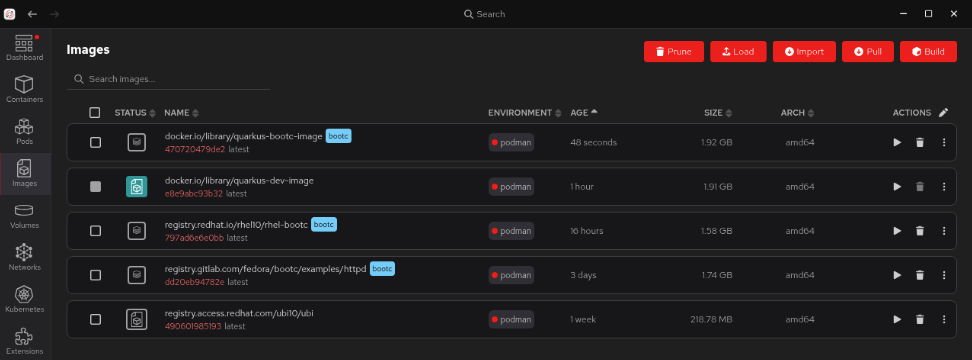
Select Build once you have all of the information entered. Observe if any issues or warnings are displayed while building the image. Once you’ve successfully created the image (Figure 4), it will be listed on the Images dashboard (Figure 5).
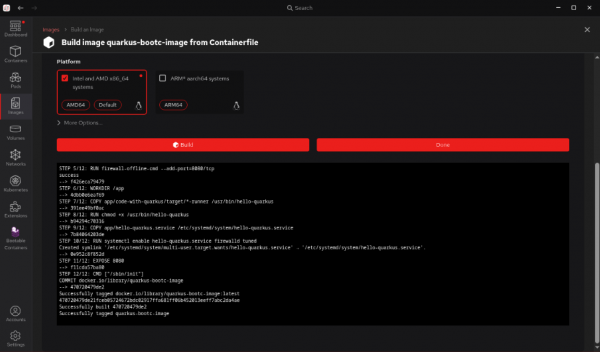
Figure 4: Successful Containerfile build output in the Red Hat build of Podman Desktop. 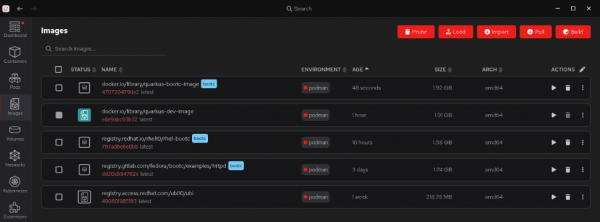
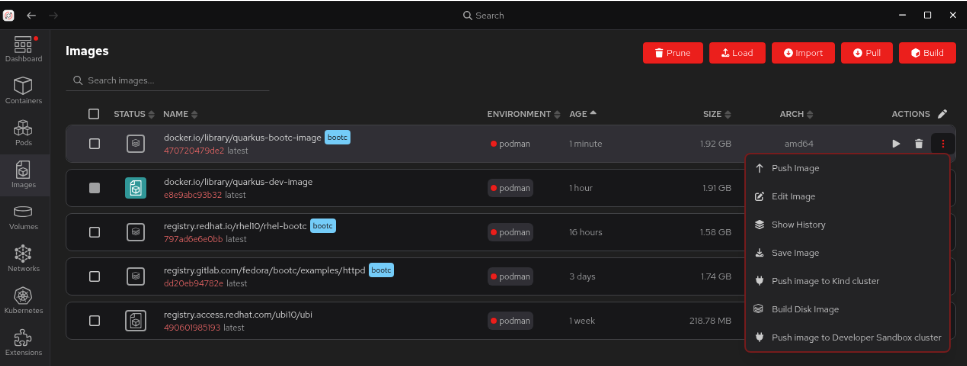
Figure 5: The container images listing screen with a new entry for the example image.
At this point, our image can run like any other container with Podman. This can be highly beneficial for basic testing and iterating on your application. In the next step, you will install or write your container image as a disk image and run it as a Linux system.
Build the bootable image
While a traditional application container image is like a self-contained software package that you install onto an existing OS, image mode uses bootc to deliver a complete, bootable OS installation disk that is managed and versioned like a container image. The magic of bootc is that it can install the contents of the container image to disk or file system and provide any format you need to run on virtually any platform. The Red Hat build of Podman Desktop makes this process simple, and you can target a wide variety of platforms and image types.
To build an image in the Red Hat build of Podman Desktop:
- Open the Red Hat build of Podman Desktop on your local machine and go to the Images section from the left navigation. (If you just completed the prior steps, you will already be on this screen.)
Select the option to Build Disk Image from the Actions menu (Figure 6).
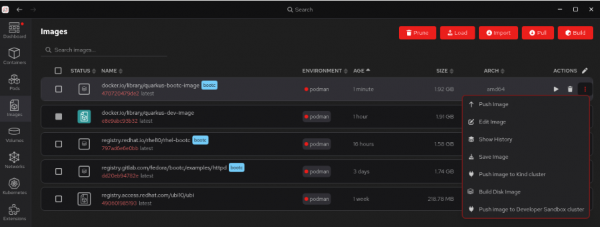
Figure 6: The Red Hat build of Podman Desktop container images screen with the expanded menu under the actions menu. - Select the Build on the Disk Images screen.
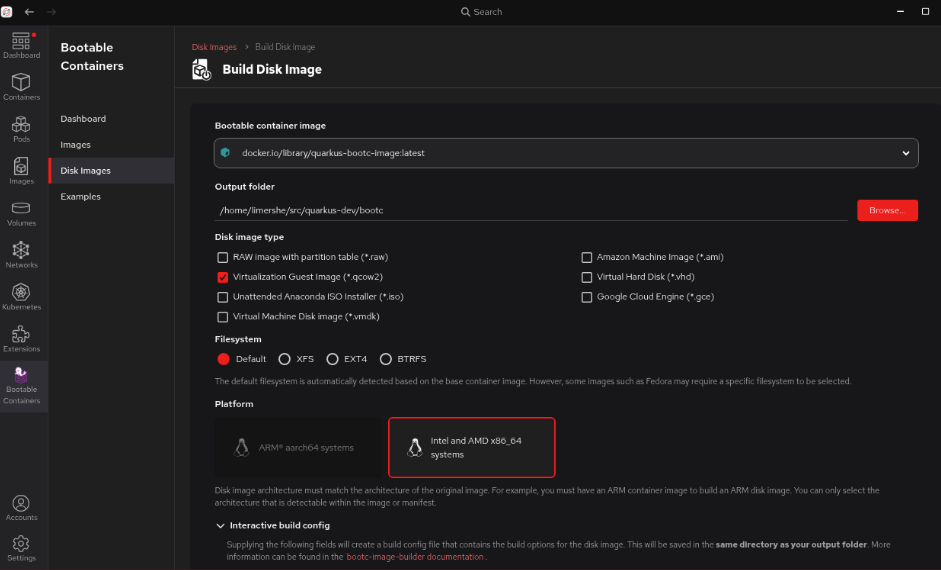
Provide the configuration details. For this exercise, we chose Virtualization Guest Image (qcow2) as the image type and a default filesystem (Figure 7).
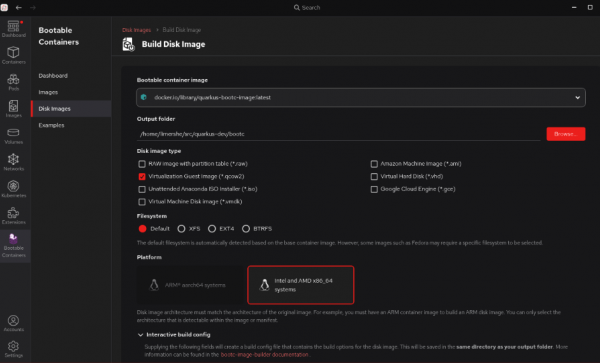
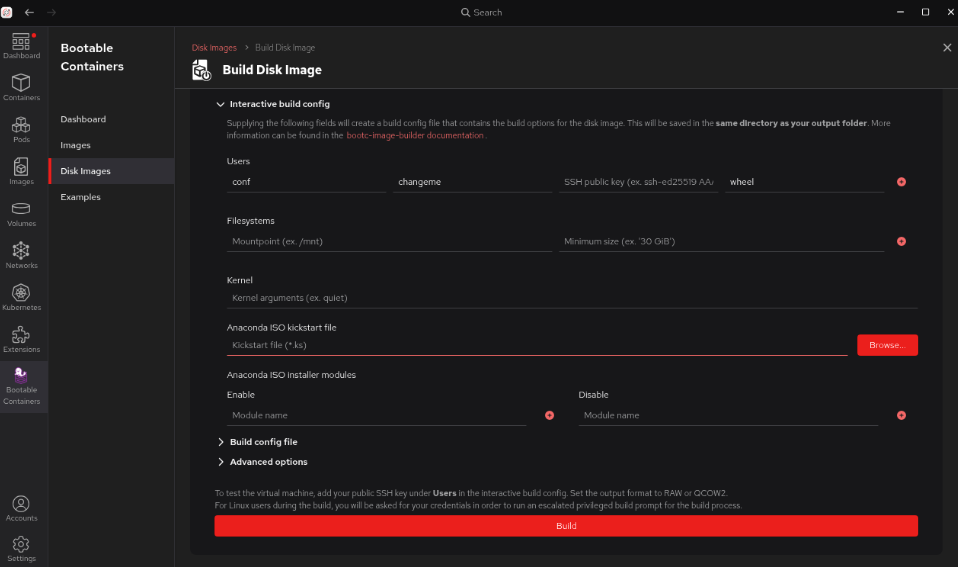
Figure 7: The completed Build Disk Image configuration. Expand the Interactive build config section towards the bottom of the screen. This is where you will enter the username and SSH credentials you will need for accessing your booted image (Figure 8). Remember to not specify the root user, as SSH access for root is disabled in some versions of RHEL for security purposes.
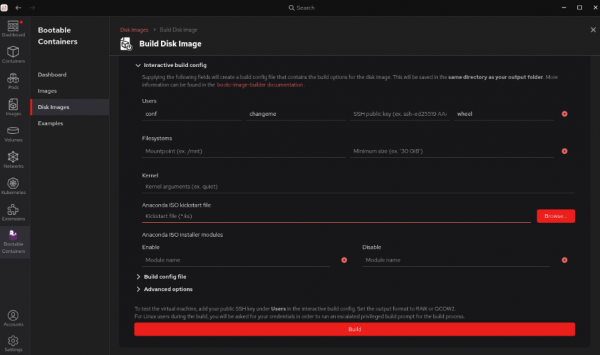
Figure 8: The expanded interactive build config section for building a disk image in the Red Hat build of Podman Desktop. - Select Build.
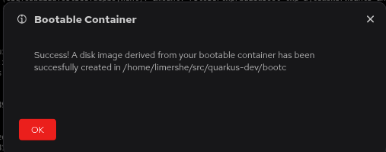
Observe if any issues or warnings are displayed while building the disk image. Once you’ve successfully created the image, you will see a success message listed in the Bootable Containers > Disk Images section of the Red Hat build of Podman Desktop (Figure 9).
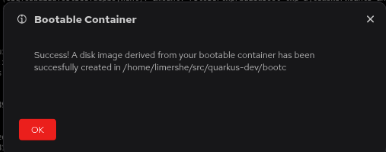
Figure 9: A successful disk image build.
Set up a virtual machine
Virtual environments provide a precise way to test your images. You can test modifications and configurations without impacting your primary operating system or incurring cloud expenditures. Once your image has been validated and you’re happy with it, we encourage you to create images for all the platforms you’d like to target.
After successfully building your disk image, you can either just launch the VM with your standard native desktop Hypervisor (e.g., KVM, Hyper-V, or, MacOS Virtualization), or use the built-in support in the Red Hat build of Podman Desktop bootc extension, which provides a front-end to manage bootc VMs using those native tools. See your specific OS virtualization software for guidance on memory and CPU requirements for running VMs on your desktop. The documentation for RHEL can be found here.
If you are setting up a VM directly in the Red Hat build of Podman Desktop, click the arrow to the right of your image to set it up. Be sure to specify the matching name of the user you specified when you created the bootable image (see Figure 8). Also specify the path to a file containing the private key that matches the public one you provided for SSH access (see Figure 10).
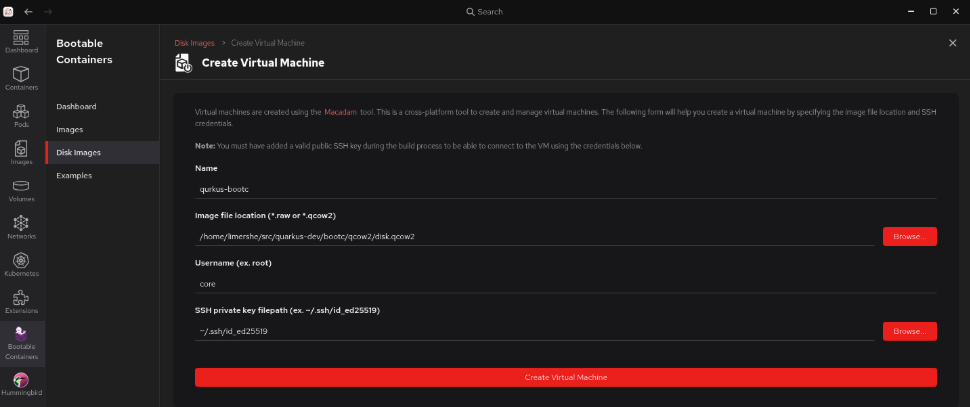
Note: For the Red Hat build of Podman Desktop built-in bootc VM management capabilities to work on MacOS or RHEL, the macadam tool must be installed following the instructions available here. On Windows, this tool is pre-installed by the Red Hat build of Podman Desktop. If you’re using the plugin, you’ll set up your VM.
Once this setup is complete, you can start and stop your VM from the Settings > Resources > bootc VM screen. When you run the VM, the tools will use ssh to make sure they can connect to the VM and that it has properly started (Figure 11).
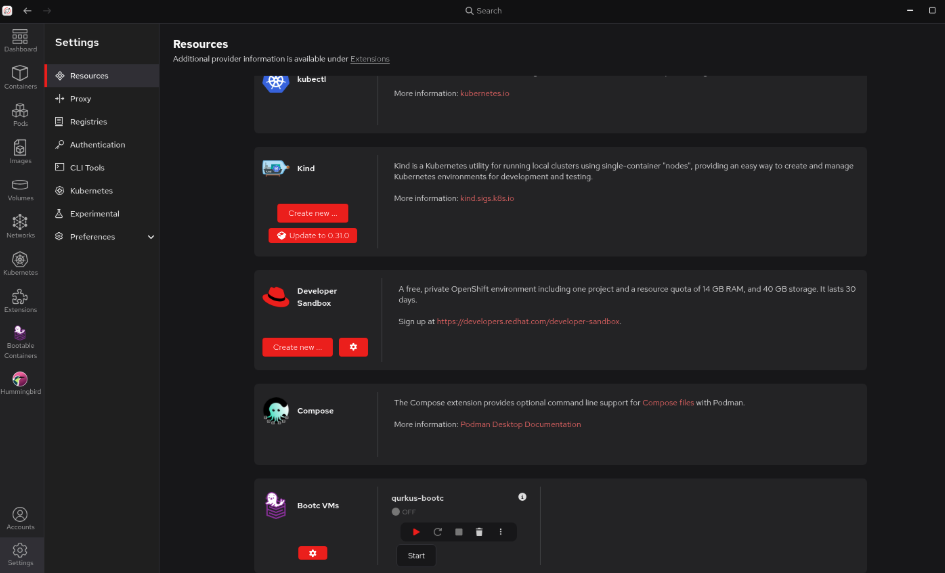
Once your VM is running, click on the vertical ellipses to the right of the controls to select Open Terminal, log in to your VM, and begin to work with your new application from the command line (Figure 12).

Fully deployed. What’s next?
This learning path demonstrates how easy it is to add the Red Hat SSO extension to the Red Hat build of Podman Desktop, access the Red Hat registry, and create a Java application container image using Quarkus that is ready to boot and run with image mode. You can easily extend the rudimentary bootable application container you created into a functional application.
There are several ways this experience can be applied further in your role as a developer:
- Full-stack reproducibility: Image mode allows you to define your app, user space, and the entire OS, ensuring consistency from development to production.
- Simplified OS management: You can now treat OS updates and configurations as image rebuilds, integrating them into your existing container workflows.
- Ideal for appliances and edge: Image mode is perfect for creating specialized software appliances or consistent OS environments for edge devices with tightly coupled OS and applications.
- Testing: With image mode, it is easy to spin up VMs on your desktop or in the cloud, running the exact OS and application build for testing.
Steps you could take next in completing your application might include the following:
- Try out simplified Hibernate ORM with Panache for relational databases.
- Get started with Reactive programming.
- Deploy Quarkus applications compiled to native executables.

