Page
Untaint GPU node
Now that you’ve successfully partitioned your hardware, you need to make the node schedulable again.
In this lesson, you will remove the node taint, adding the node back to the cluster scheduler. You will also restore the Prometheus exporter to resume GPU metrics collection of your partitioned resources.
Prerequisites:
In this lesson, you will:
- Remove taint from GPU node.
- Restore telemetry logging services.
Untaint GPU node
Remove the node taint so you can add it back to the cluster and resume workloads and metrics collection.
Run the following command to untaint the GPU node. Adding a minus sign (-) to the taint key tells Red Hat OpenShift to remove that taint from the node:
oc taint nodes $NODE_NAME amd-dcm=up:NoExecute-Restore Prometheus exporter so it can resume scraping metrics from the newly partitioned devices:
oc patch prometheus amd-gpu-prometheus -n devmetrics --type='merge' -p '{"spec":{"replicas":1}}'With the node untainted and the Prometheus exporter restored, the cluster is now fully operational under the new configuration. As seen in the updated dashboard (Figure 1), the MI300X system is successfully partitioned using the Core Partition X (CPX) compute profile paired with the Non-Uniform Memory Access (NUMA) Per Socket (NPS) 4 (NPS4) memory profile, thereby exposing the maximum number of logical GPUs.
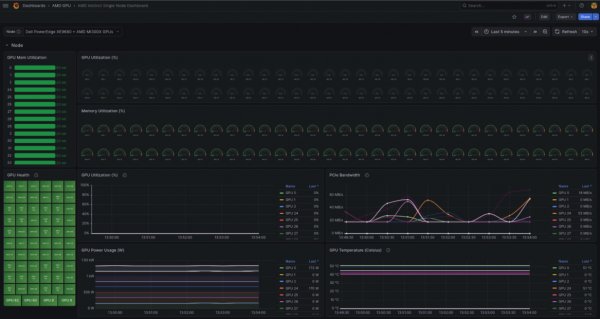
Figure 1: MI300X System partitioned with CPX and NPS4 combination (maximum multi-tenancy partitioning).
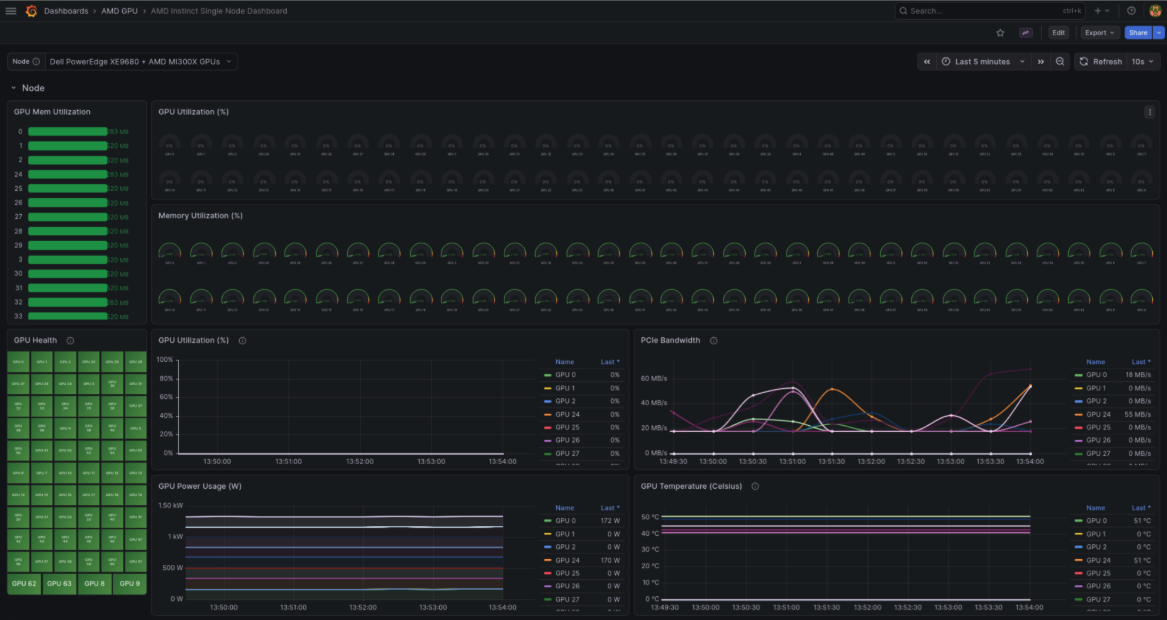
Success! You’ve removed the node taint, restored metric collection, and verified that your Red Hat OpenShift cluster recognizes the maximum-density configuration.
Now, let's validate your workload using vLLM.

