Page
Log in and examine the models

The first step is to log in to your Developer Sandbox account. If you do not have one, go to the Developer Sandbox and follow the instructions to create an account.
Prerequisites:
- Access to the Developer Sandbox (A free trial is available).
In this lesson, you will:
- Access the Red Hat OpenShift client in the Developer Sandbox to examine the hosted large language models.
- List the projects, pods, and exposed endpoints for the model.
View the models
Follow these steps to view the models.
Once you are logged in, click on the OpenShift tile (Figure 1):
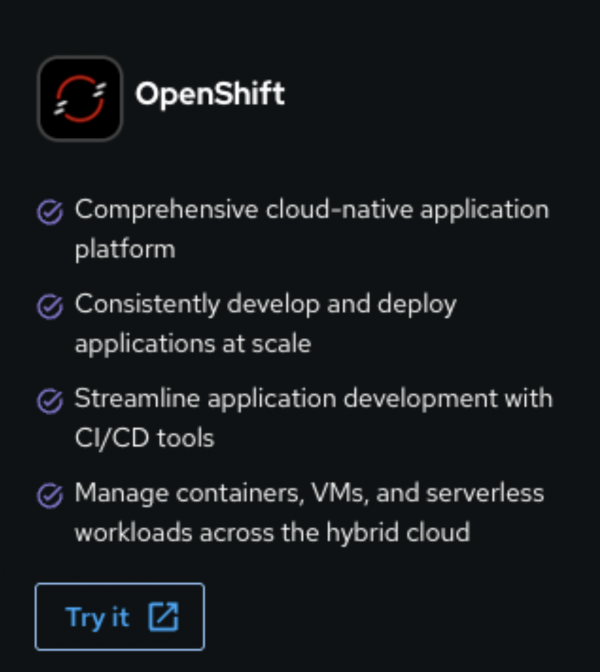
Figure 1: OpenShift tile in sandbox startup. Figure 1: Click on the OpenShift tile in the Developer Sandbox startup. Once the UI renders, click on the
>_icon at the top right of the interface.For this part of the exercise, we will use the built-in terminal and the OpenShift client (
oc) to examine the hosted models.To list all the projects you can see on the sandbox, type the following:
oc projectsNote that you have access to three projects:
Your development project, which limits you in terms of creating objects, ends with
-devand starts with your username. For example, i.e.,mrdeveloper-dev.You will also see the shared stored OS images for Red Hat OpenShift Virtualization.
Finally, we are interested in the
sandbox-shared-modelsbecause the models are hosted using Objects within this project.
Type the following:
oc project sandbox-shared-models
oc get pods
There are three pods running in this project. You can’t delete or change them.
Now try the following:
oc explain isvcThis is a new type of object provided by Red Hat AI components that wraps and handles the API serving and endpoint for a hosted LLM.
Now enter the following:
oc get isvcYou will see that there are three hosted models in this project.
Type the following:
oc get isvc -o jsonpath='{range .items[*]}{.metadata.name}{"\n"}{end}'This command uses
jsonpathto get the names, making it easier to read them.Type the following:
oc get isvc -o jsonpath='{range .items[*]}{.status.address.url}{"\n"}{end}'Note: This will list the exposed endpoints for the models we will use during the rest of the exercise. There will be three individual URLs, starting with
https://and ending with:8443. Copy the output from this command somewhere safe.