Editor's note
This post was originally published in October 2025 and has been updated to reflect the latest containerized FIO test harness and automated VM provisioning workflows.
Testing input/output (I/O) performance at scale presents challenges such as keeping track of test start and stop times, running tests against all hosts in parallel, and analyzing results across runs. This blog post shows how to run a generic Linux Flexible I/O Tester (FIO) workload against virtual machines (VMs) on Red Hat OpenShift Virtualization, using the current fio-container harness.
From scattered SSH to 1 repeatable FIO run
The harness turns multi-VM FIO into a single, repeatable container run instead of hand-driven Secure Shell (SSH) sessions and ad hoc scripts. It runs the same FIO matrix across many OpenShift Virtualization guests in parallel, with coordinated start, wait, and result collection.
You configure once via YAML or environment variables, which fits both interactive lab use and Jenkins-style continuous integration (CI). Default access to virtual machines is via virtctl ssh directly to VMs, so you don't need a separate guest network path for orchestration. Optional CREATE_VMS=true can provision Linux test VMs in the same job, so storage experiments no longer require you to create virtual machines in advance (though this is still supported and described as option A in this tutorial).
Storage preparation, FIO install, data set pre-write, and cleanup are built in, which reduces "forgot to format/mount/wipe" failures between runs. Operating system (OS) disk (--testdir) and dedicated-disk modes cover both guest system disk and data disk I/O without rewriting the workflow. Results land in a single mounted directory with combined summaries, which makes comparing StorageClass configurations, images, and cluster changes straightforward. The modular fio_tests/ package keeps Linux (and Windows, outside this article’s scope) paths consistent while remaining easy to extend.
Scope: Linux OpenShift Container Platform VMs, with full examples for Linux runs. Windows FIO examples are omitted (due to obstacles related to Windows guest image licensing). For the full container reference (including Windows) and an up-to-date document that follows future development, see README-container.md.
Supported path:
- Container image:
quay.io/ekuric/fio-benchmark:latest - Orchestration:
fio-tests.py(thin shim) and thefio_tests/package - Configuration: Mounted
fio-config.yamlor environment variables - Access to OpenShift VMs:
virtctl(default in the container) - Optional: Provision Linux VMs in the same run (
CREATE_VMS=true)—no separatemultivm.shstep
Prerequisites
- A working Red Hat OpenShift cluster and OpenShift Virtualization environment
- A
StorageClassusable by OpenShift Virtualization VMs (the examples in this tutorial use an OpenShift Data Foundation-backed class such asocs-storagecluster-ceph-rbd-virtualization), or any storage supported by OpenShift Container Platform that supports dynamic storage provisioning - A bastion or command host that can reach the cluster (
ocandkubeconfig) and run Podman - For pre-created VMs: Passwordless SSH into guests via
virtctl ssh(public key in the guest; private key mounted into the container) - For on-demand VMs (
CREATE_VMS=true): An existing namespace, a designatedStorageClass, and ephemeral SSH keys generated by the harness - Linux guests: Fedora, Red Hat Enterprise Linux (RHEL), or CentOS-style
dnfimages (the harness automatically installs FIO packages unless you use a golden image withFIO_INSTALLED=true)
Virtual machine requirements (Linux)
- Operating system: A
yum- ordnf-based distribution (Fedora or RHEL recommended) - File system or raw modes: A separate data disk attached to the VM
--testdirmode (OS disk only): A writable/root/testdirdirectory- JSON results under
/root/fio-resultson the OS disk - Passwordless SSH: Key baked into the image or injected by
create-vms - FIO packages: Auto-installed unless
fio_installed: trueorFIO_INSTALLED=true
Two ways to get Linux test VMs
You can obtain Linux test virtual machines for your FIO workloads by using either pre-created VMs or on-demand provisioning.
A) Pre-created VMs (classic)
This applies when you need full control of virtual machine parameters and setup. While usually unnecessary, here is how to configure specific virtual machine parameters that are not in general use.
Create VMs yourself (template, GitOps, or a helper such as multivm.sh), inject an SSH public key, wait until they're running, then point the container at those hostnames.
Example secret for a bastion key:
kubectl create secret generic vmkeyroot --from-file=/root/.ssh/id_rsa.pubThe following command inherits defaults from multivm.sh and creates 10 Linux VMs with the script (-s and -e set the name range; -p vm yields vm-1 … vm-10). Adapt CPU and memory to your test needs:
./multivm.sh -p vm --cores 8 --sockets 2 --threads 1 --memory 16Gi -s 1 -e 10Confirm that the VMs are running:
oc get vm -n defaultOnce the virtual machines are running, you can test them using examples from the Run the test section.
When the default virtual machines created from the harness templates suit your testing requirements (which is usually the case), passing CREATE_VMS=true executes the entire test with a single command.
B) On-demand provisioning (CREATE_VMS=true)
The container can create Linux VMs, wait until they are ready and accessible via SSH, then run FIO in a single step. Leave HOST_PATTERN and HOSTS empty—hosts come from the automated provisioning step in this case.
| Phase | What happens |
|---|---|
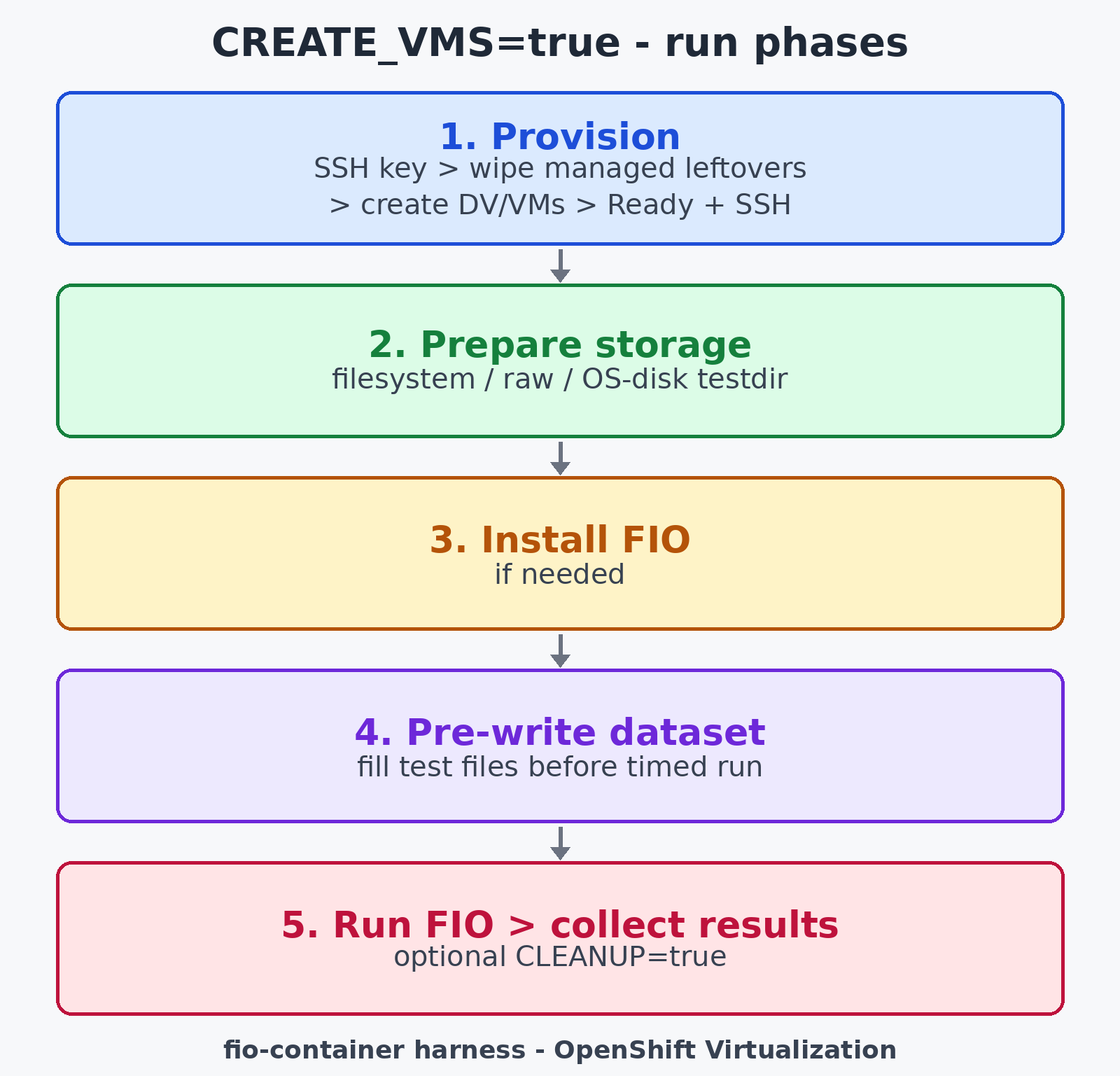
| 1 | Generate an ephemeral SSH key → wipe prior managed Linux resources → create DataVolumes and VMs → wait until VMs are ready and accessible via SSH |
| 2 | Prepare storage (file system, raw disk, or OS disk testdir) |
| 3 | Install FIO if needed |
| 4 | Pre-write the data set |
| 5 | Run FIO → collect results → optionally clean up with CLEANUP=true |
Figure 1 illustrates the sequential workflow of these 5 execution phases during an automated test run.
Defaults:
- Virtual machine names:
fio-linux-1..N - Data disk device:
vdb - Image:
quay.io/containerdisks/fedora:44
Labels fio-container.ioscale/managed=true and fio-container.ioscale/os=linux limit wipe and cleanup operations to Linux VMs only.
Mount a bastion mirror for the ephemeral key (SELinux: mount the subdirectory, not all of /tmp):
mkdir -p /tmp/fio-ssh /root/fio-results

COMMON_MOUNTS=(
  -v /root/fio-results:/work/results:Z
  -v /root/.kube:/root/.kube:ro,Z
  -v /tmp/fio-ssh:/host-tmp:Z
)
If you set CLEANUP=false, virtual machines remain after the test, and you can inspect them from the bastion:
virtctl ssh root@vmi/fio-linux-1 -n <ns> \
  -i /tmp/fio-ssh/fio-ssh-<runid>/id_ed25519
Configure the test
You can configure test parameters using either a YAML configuration file or environment variables.
Option 1: YAML configuration file (recommended for complex runs)
Example aligned with a 5-VM file system data-disk test:
description: "ocp-virt linux fio demo"

vm:
  host_pattern: "vm-{1..5}"
  namespace: "default"

storage:
  devices:
    "vm-{1..5}": "vdc"
  mount_point: "/root/tests/data"
  filesystem: "xfs"

fio:
  test_size: "2G"
  runtime: 300
  block_sizes: "4K 1024K"
  io_patterns: "randread randwrite read write randrw"
  numjobs: 4
  iodepth: 16
  direct_io: 1
  # fio_installed: true   # set when guests already have fio packaged

output:
  directory: "/root/fio-results"   # remote JSON is always forced to /root/fio-results
  format: "json+"

migrate:
  workloads: ""
  interval: 0
Host selection (select one method under vm:):
| Method | Example |
|---|---|
| Host list | hosts: "vm-1 vm-2 vm-3 vm-4 vm-5" |
| Pattern | host_pattern: "vm-{1..200}" |
| Host file | host_file: /path/to/hosts.txt |
| Labels | host_labels: "app=fio" (OpenShift VM labels; not supported in SSH-only mode) |
The container image includes example configuration files at /work/examples/example-simple.yaml and /work/examples/example-linux-only.yaml.
Option 2: Environment variables (CI / quick runs)
This option does not require a configuration file. The entrypoint generates the YAML configuration from environment variables.
| Variable | Typical value | Notes |
|---|---|---|
HOST_PATTERN or HOSTS | vm-{1..5} | Required unless CREATE_VMS=true |
DEVICES | vm-{1..5}=vdc | Required unless using USE_TESTDIR or creating VMs with automatic device selection |
NAMESPACE | default | Target OpenShift namespace |
MOUNT_POINT | /root/tests/data | Mount point used in file system mode |
FILESYSTEM | xfs | File system type used in file system mode |
TEST_SIZE | 2G | Corresponds to the FIO --size option |
RUNTIME | 300 | Test duration in seconds |
BLOCK_SIZES | 4K 1024K | Space-separated list of block sizes |
IO_PATTERNS | randread randwrite read write randrw | Space-separated list of I/O patterns |
NUMJOBS and IODEPTH | 4 and 16 | FIO parallelism settings |
FIO_INSTALLED | true or false | Skips dnf install on golden images |
USE_TESTDIR | true | Runs FIO on the OS disk in /root/testdir |
USE_RAW_DISK | true | Runs FIO directly on raw devices in /dev/ without running mkfs |
CREATE_VMS, VMS, and STORAGE_CLASS | See recipes | Configures on-demand Linux VM provisioning |
CLEANUP | true | Deletes managed VMs after the test run |
USE_TESTDIR and USE_RAW_DISK are mutually exclusive.
Storage modes (Linux)
| Mode | What FIO uses | Preparation |
|---|---|---|
| File system data disk (default) | File under MOUNT_POINT | Format with XFS and mount (DEVICES) |
--testdir or USE_TESTDIR=true | /root/testdir on the OS disk | No data disk formatting required |
--raw-disk or USE_RAW_DISK=true | /dev/ | Unmount only; do not format with mkfs |
The harness always writes remote FIO JSON to /root/fio-results on the guest OS disk, preventing result loss if a test disk fails. The container then copies the results to the host directory mounted at /work/results.
Run the test
All of the following recipes include --dry-run --verbose so you can safely validate the harness plan first. Remove --dry-run --verbose from the command when you're ready to run the test.
Common mounts for pre-created OpenShift VMs:
Remove --dry-run --verbose from the following command to run the test:
podman run --rm --init --pids-limit=-1 --privileged \
  -v ./fio-config.yaml:/work/fio-config.yaml \
  -v /root/fio-results:/work/results:Z \
  -v /root/.ssh/id_rsa:/root/.ssh/id_rsa:ro,Z \
  -v /root/.kube:/root/.kube:ro,Z \
  quay.io/ekuric/fio-benchmark:latest \
  --dry-run --verbose
The entrypoint passes --virtctl-only and --yes-i-mean-it (skips the interactive "format devices?" prompt fio-tests.sh used to show).
Pre-created VMs: File system data disk (env)
This test case writes to separate block devices formatted and mounted to /root/tests/data inside the test virtual machines. The test harness formats and mounts the disks during virtual machine setup.
Remove --dry-run --verbose from the following command to run the test:
podman run --rm --init --pids-limit=-1 --privileged \
  -e HOST_PATTERN="vm-{1..5}" \
  -e DEVICES="vm-{1..5}=vdb" \
  -e NAMESPACE="default" \
  -e DESCRIPTION="linux fio fsdisk" \
  -e TEST_SIZE="2G" \
  -e RUNTIME=300 \
  -e BLOCK_SIZES="4K 1024K" \
  -e IO_PATTERNS="randread randwrite read write randrw" \
  -e NUMJOBS=4 \
  -e IODEPTH=16 \
  -e MOUNT_POINT="/root/tests/data" \
  -e FILESYSTEM="xfs" \
  -v /root/fio-results:/work/results:Z \
  -v /root/.ssh/id_rsa:/root/.ssh/id_rsa:ro,Z \
  -v /root/.kube:/root/.kube:ro,Z \
  quay.io/ekuric/fio-benchmark:latest \
  --dry-run --verbose
Pre-created VMs: Raw data disk
The following example provides the configuration to test without formatting disk devices to the desired file system. FIO writes against specified DEVICES without formatting devices with a file system.
Remove --dry-run --verbose from the following command to run the test:
podman run --rm --init --pids-limit=-1 --privileged \
  -e HOST_PATTERN="vm-{1..5}" \
  -e DEVICES="vm-{1..5}=vdb" \
  -e USE_RAW_DISK=true \
  -e NAMESPACE="default" \
  -e TEST_SIZE="2G" \
  -e RUNTIME=300 \
  -e BLOCK_SIZES="4K 1024K" \
  -e IO_PATTERNS="randread randwrite read write randrw" \
  -v /root/fio-results:/work/results:Z \
  -v /root/.ssh/id_rsa:/root/.ssh/id_rsa:ro,Z \
  -v /root/.kube:/root/.kube:ro,Z \
  quay.io/ekuric/fio-benchmark:latest \
  --dry-run --verbose
Pre-created VMs: OS-disk testdir
The following example allows you to use a single disk (sometimes called the OS disk) for virtual machines and perform all I/O operations against it.
Remove --dry-run --verbose from the following command to run the test:
podman run --rm --init --pids-limit=-1 --privileged \
  -e HOST_PATTERN="vm-{1..5}" \
  -e USE_TESTDIR=true \
  -e NAMESPACE="default" \
  -e TEST_SIZE="2G" \
  -e RUNTIME=120 \
  -e BLOCK_SIZES="4K 1024K" \
  -e IO_PATTERNS="randread randwrite read write randrw" \
  -v /root/fio-results:/work/results:Z \
  -v /root/.ssh/id_rsa:/root/.ssh/id_rsa:ro,Z \
  -v /root/.kube:/root/.kube:ro,Z \
  quay.io/ekuric/fio-benchmark:latest \
  --dry-run --verbose
Create VMs with a file system data disk
The data set footprint is roughly TEST_SIZE × NUMJOBS (here 2G × 4 ≈ 8 GiB on a 20 GiB data disk—safe for demonstrations; scale both parameters up together for actual tests).
Remove --dry-run --verbose from the following command to run the test:
mkdir -p /tmp/fio-ssh /root/fio-results

podman run --rm --init --pids-limit=-1 --privileged \
  -e CREATE_VMS=true \
  -e VMS=5 \
  -e VM_PREFIX=fio-linux \
  -e VM_CPU=8 \
  -e VM_MEMORY=16Gi \
  -e VM_IMAGE=quay.io/containerdisks/fedora:41 \
  -e STORAGE_CLASS=ocs-storagecluster-ceph-rbd-virtualization \
  -e DATA_DISK_SIZE=20Gi \
  -e NAMESPACE=fio-test \
  -e DESCRIPTION=create-fsdisk \
  -e TEST_SIZE=2G \
  -e RUNTIME=300 \
  -e BLOCK_SIZES="4K 1024K" \
  -e IO_PATTERNS="randread randwrite read write randrw" \
  -e NUMJOBS=4 \
  -e IODEPTH=16 \
  -e CLEANUP=false \
  -v /root/fio-results:/work/results:Z \
  -v /root/.kube:/root/.kube:ro,Z \
  -v /tmp/fio-ssh:/host-tmp:Z \
  quay.io/ekuric/fio-benchmark:latest \
  --dry-run --verbose
Add -e CLEANUP=true to delete managed VMs and DVs after the run.
Create VMs with raw-disk FIO
Remove --dry-run --verbose from the following command to run the test:
podman run --rm --init --pids-limit=-1 --privileged \
  -e CREATE_VMS=true \
  -e VMS=5 \
  -e STORAGE_CLASS=ocs-storagecluster-ceph-rbd-virtualization \
  -e DATA_DISK_SIZE=20Gi \
  -e USE_RAW_DISK=true \
  -e NAMESPACE=fio-test \
  -e DESCRIPTION=create-raw \
  -e TEST_SIZE=2G \
  -e RUNTIME=300 \
  -e BLOCK_SIZES="4K 1024K" \
  -e IO_PATTERNS="randread randwrite read write randrw" \
  -v /root/fio-results:/work/results:Z \
  -v /root/.kube:/root/.kube:ro,Z \
  -v /tmp/fio-ssh:/host-tmp:Z \
  quay.io/ekuric/fio-benchmark:latest \
  --dry-run --verbose
Dry run
Pre-created VMs (validate hosts, devices, and FIO plan only):
podman run --rm --init --pids-limit=-1 --privileged \
  -e HOST_PATTERN="vm-{1..5}" \
  -e DEVICES="vm-{1..5}=vdc" \
  -v /root/.kube:/root/.kube:ro,Z \
  quay.io/ekuric/fio-benchmark:latest \
  --dry-run --verbose
On-demand VMs (CREATE_VMS=true—leave HOST_PATTERN and DEVICES unset; STORAGE_CLASS is still required so the harness validates provisioning parameters):
mkdir -p /tmp/fio-ssh

podman run --rm --init --pids-limit=-1 --privileged \
  -e CREATE_VMS=true \
  -e VMS=5 \
  -e STORAGE_CLASS=ocs-storagecluster-ceph-rbd-virtualization \
  -e DATA_DISK_SIZE=20Gi \
  -e NAMESPACE=fio-test \
  -e TEST_SIZE=2G \
  -e RUNTIME=300 \
  -e BLOCK_SIZES="4K 1024K" \
  -e IO_PATTERNS="randread randwrite read write randrw" \
  -v /root/.kube:/root/.kube:ro,Z \
  -v /tmp/fio-ssh:/host-tmp:Z \
  quay.io/ekuric/fio-benchmark:latest \
  --dry-run --verbose
What happens during a run
Typical sequence (logs on the bastion or container stdout):
- Load the configuration from a file or environment variables.
- Resolve hosts (
host_patternor provisioned names). - Connect via
virtctlto each Linux VM. - Prepare storage (format and mount, validate raw devices, or create the
testdirdirectory withmkdir). - Install
fio,xfsprogs, andutil-linuxif needed. - Pre-write the dataset on all hosts in parallel.
- Run each
block_size × io_patterncombination. - Collect JSON from
/root/fio-resultson each guest into the host results directory.
Results layout on the bastion (under the mounted results directory):
fio-results-…/   # or DESCRIPTION-based name from the run
  vm-1/
  vm-2/
  vm-3/
  …
  fio-test-….txt   # run log
Each VM directory holds FIO JSON files for data set write and performance jobs.
Running FIO tests against KVM, VMware, and bare-metal machines
The same fio-container harness works against Linux hosts that are not OpenShift Virtualization VMs—bare-metal servers, libvirt/Kernel-based Virtual Machine (KVM) guests, or VMware VMs—as long as the bastion can reach them with passwordless SSH (hostname or IP address).
Use plain SSH mode:
- Set
SSH_ONLY=trueor pass--ssh-only. - Mount an SSH private key (
-v /root/.ssh/id_rsa:/root/.ssh/id_rsa:ro,Z). - Neither
kubeconfig,virtctl, norocis required. - Don't use
CREATE_VMS(provisioning is OpenShift Virtualization only). HOST_PATTERNorHOSTSspecifies SSH targets (for example, db-1, 10.0.0.11).DEVICESstill names the block device on the guest (vdb, sdb, nvme0n1, …).
Storage modes are the same as for OpenShift Virtualization guests: file system data disk, --testdir (OS disk), or --raw-disk.
Remove --dry-run --verbose from the following commands to run the test.
File system data disk (SSH)
podman run --rm --init --pids-limit=-1 --privileged \
  -e SSH_ONLY=true \
  -e HOST_PATTERN="db-{1..5}" \
  -e DEVICES="db-{1..5}=sdb" \
  -e DESCRIPTION="bm-kvm-fsdisk" \
  -e TEST_SIZE="2G" \
  -e RUNTIME=300 \
  -e BLOCK_SIZES="4K 1024K" \
  -e IO_PATTERNS="randread randwrite read write randrw" \
  -e NUMJOBS=4 \
  -e IODEPTH=16 \
  -e MOUNT_POINT="/root/tests/data" \
  -e FILESYSTEM="xfs" \
  -v /root/fio-results:/work/results:Z \
  -v /root/.ssh/id_rsa:/root/.ssh/id_rsa:ro,Z \
  quay.io/ekuric/fio-benchmark:latest \
  --dry-run --verbose
Raw block device (SSH)
podman run --rm --init --pids-limit=-1 --privileged \
  -e SSH_ONLY=true \
  -e HOST_PATTERN="db-{1..5}" \
  -e DEVICES="db-{1..5}=nvme0n1" \
  -e USE_RAW_DISK=true \
  -e DESCRIPTION="bm-kvm-raw" \
  -e TEST_SIZE="2G" \
  -e RUNTIME=300 \
  -e BLOCK_SIZES="4K 1024K" \
  -e IO_PATTERNS="randread randwrite read write randrw" \
  -v /root/fio-results:/work/results:Z \
  -v /root/.ssh/id_rsa:/root/.ssh/id_rsa:ro,Z \
  quay.io/ekuric/fio-benchmark:latest \
  --dry-run --verbose
OS-disk testdir (SSH)
podman run --rm --init --pids-limit=-1 --privileged \
  -e SSH_ONLY=true \
  -e HOST_PATTERN="esx-guest-{1..3}" \
  -e USE_TESTDIR=true \
  -e DESCRIPTION="vmware-testdir" \
  -e TEST_SIZE="2G" \
  -e RUNTIME=120 \
  -e BLOCK_SIZES="4K 1024K" \
  -e IO_PATTERNS="randread randwrite read write randrw" \
  -v /root/fio-results:/work/results:Z \
  -v /root/.ssh/id_rsa:/root/.ssh/id_rsa:ro,Z \
  quay.io/ekuric/fio-benchmark:latest \
  --dry-run --verbose
Explicit host list (IPs or mixed names)
podman run --rm --init --pids-limit=-1 --privileged \
  -e SSH_ONLY=true \
  -e HOSTS="10.0.0.11 10.0.0.12 kvm-lab-1" \
  -e DEVICES="10.0.0.11=sdb 10.0.0.12=sdb kvm-lab-1=vdb" \
  -e TEST_SIZE="2G" \
  -e RUNTIME=300 \
  -e BLOCK_SIZES="4K 1024K" \
  -e IO_PATTERNS="randread randwrite" \
  -v /root/fio-results:/work/results:Z \
  -v /root/.ssh/id_rsa:/root/.ssh/id_rsa:ro,Z \
  quay.io/ekuric/fio-benchmark:latest \
  --dry-run --verbose
Before an actual test, confirm from the bastion: ssh root@<host> works with the same key you mount into the container, and the target device path exists on each guest (lsblk).
Host file: hosts.txt
For longer or mixed host lists, put 1 hostname or IP per line in a file (# comments and brace patterns like db-{1..5} are supported). Point YAML vm.host_file at that path inside the container (there's no HOST_FILE environment variable—use a mounted configuration file).
Example hosts.txt:
# bare-metal / KVM / VMware Linux targets
10.0.0.11
10.0.0.12
kvm-lab-1
esx-guest-1
# or: db-{1..5}
Minimal fio-ssh-hosts.yaml (device map must cover every host; wrong disks will be formatted in file system mode):
description: "ssh hosts from file"

vm:
  host_file: /work/hosts.txt
  # namespace ignored in SSH_ONLY mode

storage:
  devices:
    "10.0.0.11": "sdb"
    "10.0.0.12": "sdb"
    "kvm-lab-1": "vdb"
    "esx-guest-1": "sdb"
  mount_point: "/root/tests/data"
  filesystem: "xfs"

fio:
  test_size: "2G"
  runtime: 300
  block_sizes: "4K 1024K"
  io_patterns: "randread randwrite read write randrw"
  numjobs: 4
  iodepth: 16
Remove --dry-run --verbose from the following command to run the test:
podman run --rm --init --pids-limit=-1 --privileged \
  -e SSH_ONLY=true \
  -v ./fio-ssh-hosts.yaml:/work/fio-config.yaml:Z \
  -v ./hosts.txt:/work/hosts.txt:Z \
  -v /root/fio-results:/work/results:Z \
  -v /root/.ssh/id_rsa:/root/.ssh/id_rsa:ro,Z \
  quay.io/ekuric/fio-benchmark:latest \
  --dry-run --verbose
Analyze results
Analyzer scripts live in the ioscale repository (for example, analyze_bw_mean_with_graphs.py in the root directory). Install dependencies on the bastion if needed:
pip install pandas matplotlib numpy seabornSingle-run input/output operations per second (IOPS) and bandwidth graphs:
python3 analyze_bw_mean_with_graphs.py \
  --input-dir /root/fio-results/<run-dir> \
  --output-dir single-bw \
  --graph-type line \
  --operation-summary \
  --summary-only \
  --iops --bw
To compare 2 or more runs, specify multiple directories with the --input-dirs flag (refer to the analyzer script's --help output for available flags):
python3 analyze_bw_mean_with_graphs.py \
  --input-dirs /root/fio-results/run-a /root/fio-results/run-b \
  --output-dir compare-a-vs-b \
  --iops --bw
Use these graphs to compare StorageClass resources, VM sizes, or FIO parameters across OpenShift Virtualization backends.
Jenkins
Jenkins is the usual way to run this harness on a schedule or from a clickable parameter form instead of hand-typing podman run on the bastion. A Jenkins controller connects via SSH to a bastion that has podman, kubeconfig (for OpenShift Virtualization), and SSH keys to the test hosts; the pipeline then starts quay.io/ekuric/fio-benchmark with the same environment variables described previously (HOST_PATTERN, CREATE_VMS, SSH_ONLY, storage modes, FIO matrix, and so on).
You can find Jenkins pipeline guidelines in the Jenkins README in the ioscale repository. You can also use our examples of pipeline files, which you can import directly into a Jenkins instance after adapting them to the correct bastion hostname and keys.
Use cases include nightly or weekly StorageClass or image regression, tests "before versus after" cluster changes, and shared lab jobs where operators fill in host counts and disk sizes without editing scripts. Ready-made pipelines are available in this directory as Jenkinsfile-linux or Jenkinsfile-windows; setup details are in the Jenkins README.
With a Jenkins setup, you can point a test against different bastion hosts and execute workloads simultaneously across various test environments.
Wrap up
Scaling Linux FIO across OpenShift Virtualization VMs is easy and repeatable, whether you point the container at existing guests or let it provision Linux VMs for the run. Test results land as per-VM JSON on the bastion for graphing and cross-run comparison.
You can also test Windows machines with FIO by following the guidance in the repository's README-container.md file.
In addition, you can benchmark bare-metal, KVM, and VMware hosts, either individually or by listing all target machines in a hosts.txt file and creating corresponding configurations for those tests.
For the full container command-line interface (CLI), environment variable tables, Jenkins parameters, and Windows support, see README-container.md.
Acknowledgments
Special thanks to Red Hat Performance and Scale team members Jenifer Abrams, Shekhar Berry, Abhishek Bose, and Saipramod Goud Kola for their feedback and reviews.

