Redhat Developers  Logo
  • AI

    Get started with AI

    • Red Hat AI
      Accelerate the development and deployment of enterprise AI solutions.
    • AI learning hub
      Explore learning materials and tools, organized by task.
    • AI interactive demos
      Click through scenarios with Red Hat AI, including training LLMs and more.
    • AI/ML learning paths
      Expand your OpenShift AI knowledge using these learning resources.
    • AI quickstarts
      Focused AI use cases designed for fast deployment on Red Hat AI platforms.
    • No-cost AI training
      Foundational Red Hat AI training.

    Featured resources

    • OpenShift AI learning
    • Open source AI for developers
    • AI product application development
    • Open source-powered AI/ML for hybrid cloud
    • AI and Node.js cheat sheet

    Red Hat AI Factory with NVIDIA

    • Red Hat AI Factory with NVIDIA is a co-engineered, enterprise-grade AI solution for building, deploying, and managing AI at scale across hybrid cloud environments.
    • Explore the solution
  • Learn

    Self-guided

    • Documentation
      Find answers, get step-by-step guidance, and learn how to use Red Hat products.
    • Learning paths
      Explore curated walkthroughs for common development tasks.
    • Guided learning
      Receive custom learning paths powered by our AI assistant.
    • See all learning

    Hands-on

    • Developer Sandbox
      Spin up Red Hat's products and technologies without setup or configuration.
    • Interactive labs
      Learn by doing in these hands-on, browser-based experiences.
    • Interactive demos
      Click through product features in these guided tours.

    Browse by topic

    • AI/ML
    • Automation
    • Java
    • Kubernetes
    • Linux
    • See all topics

    Training & certifications

    • Courses and exams
    • Certifications
    • Skills assessments
    • Red Hat Academy
    • Learning subscription
    • Explore training
  • Build

    Get started

    • Red Hat build of Podman Desktop
      A downloadable, local development hub to experiment with our products and builds.
    • Developer Sandbox
      Spin up Red Hat's products and technologies without setup or configuration.

    Download products

    • Access product downloads to start building and testing right away.
    • Red Hat Enterprise Linux
    • Red Hat AI
    • Red Hat OpenShift
    • Red Hat Ansible Automation Platform
    • See all products

    Featured

    • Red Hat build of OpenJDK
    • Red Hat JBoss Enterprise Application Platform
    • Red Hat OpenShift Dev Spaces
    • Red Hat Developer Toolset

    References

    • E-books
    • Documentation
    • Cheat sheets
    • Architecture center
  • Community

    Get involved

    • Events
    • Live AI events
    • Red Hat Summit
    • Red Hat Accelerators
    • Community discussions

    Follow along

    • Articles & blogs
    • Developer newsletter
    • Videos
    • Github

    Get help

    • Customer service
    • Customer support
    • Regional contacts
    • Find a partner

    Join the Red Hat Developer program

    • Download Red Hat products and project builds, access support documentation, learning content, and more.
    • Explore the benefits

Monitor OpenShift Virtualization using user-defined projects and Grafana

August 19, 2024
Leonardo Araujo
Related topics:
Virtualization
Related products:
Red Hat OpenShiftRed Hat OpenShift Container PlatformRed Hat OpenShift Virtualization

    This article will teach you how to install and configure the Grafana Operator and integrate it with the openshift-monitoring stack using user-workload-monitoring. At the end of the article, we will import a dashboard with general metrics about Red Hat OpenShift Virtualization, which will give us an overview of the amount of resources in use, virtual machines (VMs) created, and their consumption.

    In this article we use the following versions:

    • Red Hat OpenShift v4.13.4
    • Red Hat OpenShift Virtualization Operator v4.13.7
    • Grafana Operator v5.6.0

    Prerequisites

    • User with the cluster-admin cluster role.
    • Grafana Operator.
    • User-Defined Projects enabled.

    Enable user-defined projects

    Execute this command to add enableUserWorkload: true under data/config.yaml:

    oc -n openshift-monitoring patch configmap cluster-monitoring-config -p '{"data":{"config.yaml":"enableUserWorkload: true"}}'

    Validate that the prometheus and thanos-ruler pods were created in the openshift-user-workload-monitoring project:

    $ oc get pods -n openshift-user-workload-monitoring
    NAME                                   READY   STATUS    RESTARTS   AGE
    prometheus-operator-675f9d4b96-f9zxd   2/2     Running   0          8d
    prometheus-user-workload-0             6/6     Running   0          8d
    prometheus-user-workload-1             6/6     Running   0          8d
    thanos-ruler-user-workload-0           4/4     Running   0          8d
    thanos-ruler-user-workload-1           4/4     Running   0          8d

    Install Grafana Operator

    • Using the WebConsole, in the left side menu, select OperatorHub and then in the search field, search for Grafana Operator.
    • Make sure to change the project context to openshift-user-workload-monitoring at the top.
    • Click the operator, then click Install.
    • In Update Channel, select v5.
    • In Installation Mode, select A specific namespace on the cluster and choose openshift-user-workload-monitoring below.
    • In Update approval, select Automatic
    • Click Install.

    Now let's create a service account and assign permission to read metrics:

    oc project openshift-user-workload-monitoring
    oc create sa grafana-sa
    oc adm policy add-cluster-role-to-user cluster-monitoring-view -z grafana-sa
     
    Let's collect the grafana-sa service account token and create a secret for our Grafana instance:
    SECRET=`oc -n openshift-user-workload-monitoring describe sa grafana-sa | awk '/Tokens/{ print $2 }'`
    
    TOKEN=`oc -n openshift-user-workload-monitoring get secret $SECRET --template='{{ .data.token | base64decode }}'`
    
    cat <<EOF > grafana-secret-creds.yaml
    kind: Secret
    apiVersion: v1
    metadata:
      name: credentials
      namespace: openshift-user-workload-monitoring
    stringData:
      GF_SECURITY_ADMIN_PASSWORD: grafana   <------ Set the password you want to authenticate with Grafana
      GF_SECURITY_ADMIN_USER: root          <------ Set the desired user to authenticate in Grafana
      PROMETHEUS_TOKEN: '${TOKEN}'          <------ This variable will receive the token collected above
    type: Opaque
    EOF
    
    oc create -f grafana-secret-creds.yaml

    Now let's create our Grafana instance and it will read the credentials defined in the previously created secret:

    cat <<EOF > grafana-instance.yaml
    apiVersion: grafana.integreatly.org/v1beta1
    kind: Grafana
    metadata:
      name: grafana
      labels:
        dashboards: "grafana"
        folders: "grafana"
    spec:
      deployment:
        spec:
          template:
            spec:
              containers:
                - name: grafana
                  env:
                    - name: GF_SECURITY_ADMIN_USER
                      valueFrom:
                        secretKeyRef:
                          key: GF_SECURITY_ADMIN_USER
                          name: credentials
                    - name: GF_SECURITY_ADMIN_PASSWORD
                      valueFrom:
                        secretKeyRef:
                          key: GF_SECURITY_ADMIN_PASSWORD
                          name: credentials
      config:
        auth:
          disable_login_form: "false"
          disable_signout_menu: "true"
        auth.anonymous:
          enabled: "false"
        log:
          level: warn
          mode: console
    EOF
    Let's apply and validate our created instance:
    oc -n openshift-user-workload-monitoring create -f grafana-instance.yaml
    
    oc -n openshift-user-workload-monitoring get pods -l app=grafana
    NAME                                READY   STATUS    RESTARTS   AGE
    grafana-deployment-dd8d8d5d-vpnjh   1/1     Running   0          8d
    Now let's expose our Grafana service using an edge type route, we will use the service called grafana-service:
    oc get svc | awk '/grafana/'
    grafana-service                           ClusterIP   172.30.77.139    <none>        3000/TCP                      8d
    
    
    oc -n openshift-user-workload-monitoring create route edge grafana --service=grafana-service --insecure-policy=Redirect
    Displaying the route exposed to Grafana:
    oc -n openshift-user-workload-monitoring get route grafana -o jsonpath='{.spec.host}'
    Let's create our Grafana Datasource, which will connect to thanos-querier in the openshift-monitoring project and will use the grafana-sa service account token that is stored in secret credentials:
    cat <<EOF > grafana-datasource.yaml
    apiVersion: grafana.integreatly.org/v1beta1
    kind: GrafanaDatasource
    metadata:
      name: grafana-ds
      namespace: openshift-user-workload-monitoring  
    spec:
      valuesFrom:
        - targetPath: "secureJsonData.httpHeaderValue1"
          valueFrom:
            secretKeyRef:
              name: "credentials"
              key: "PROMETHEUS_TOKEN"
      instanceSelector:
        matchLabels:
          dashboards: "grafana"
      datasource:
        name: Prometheus
        type: prometheus
        access: proxy
        url: https://thanos-querier.openshift-monitoring.svc:9091
        isDefault: true
        jsonData:
          "tlsSkipVerify": true
          "timeInterval": "5s"
          httpHeaderName1: 'Authorization'
        secureJsonData:
          "httpHeaderValue1": "Bearer \${PROMETHEUS_TOKEN}"
        editable: true
    EOF
    Let's apply and validate our created Datasource:
    oc -n openshift-user-workload-monitoring create -f grafana-datasource.yaml
    
    oc -n openshift-user-workload-monitoring get GrafanaDatasource  
    NAME         NO MATCHING INSTANCES   LAST RESYNC   AGE
    grafana-ds                           56s           8d

    Creating Grafana dashboard

    Now let's create a Grafana dashboard, which will fetch the JSON externally from Github:

    cat <<EOF > grafana-dashboard-ocp-v.yaml
    apiVersion: grafana.integreatly.org/v1beta1
    kind: GrafanaDashboard
    metadata:
      name: grafana-dashboard-ocp-v
      labels:
        app: grafana
    spec:
      instanceSelector:
        matchLabels:
          dashboards: grafana  
      folder: "Openshift Virtualization"      
      url: https://raw.githubusercontent.com/leoaaraujo/articles/master/openshift-virtualization-monitoring/files/ocp-v-dashboard.json
    EOF
    Let's apply and validate our created Grafana dashboard:
    oc -n openshift-user-workload-monitoring create -f grafana-dashboard-ocp-v.yaml
    
    
    oc -n openshift-user-workload-monitoring get grafanadashboard
    NAME                      NO MATCHING INSTANCES   LAST RESYNC   AGE
    grafana-dashboard-ocp-v                                         3m54s

    Viewing the dashboard

    • Access Grafana, and in the left side menu, click Dashboards and then Browse.
    • A folder with the name OpenShift Virtualization and the dashboard OCP Virt—Metrics will be displayed, click dashboard.
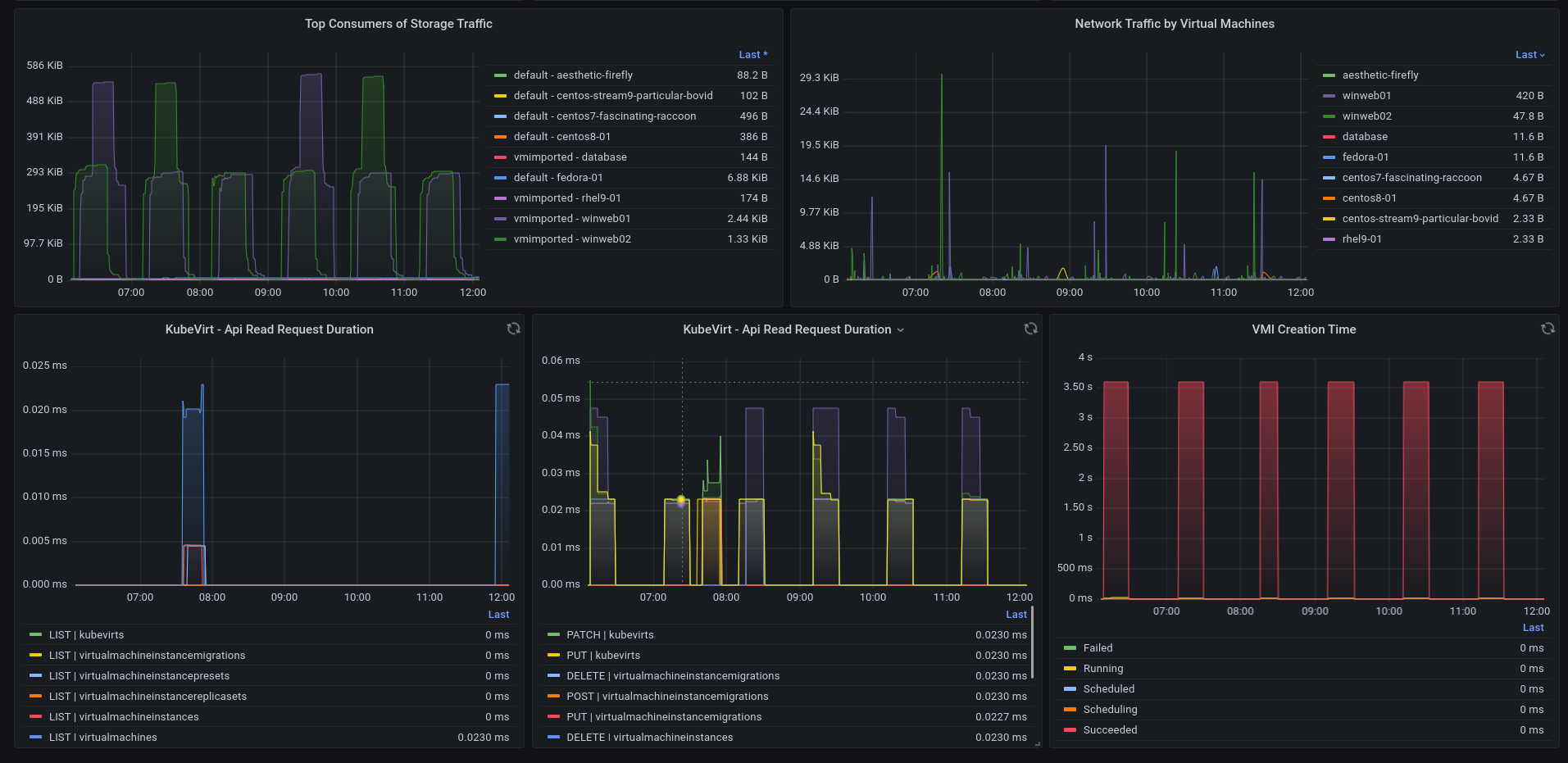
    • Dashboard (see Figure 1 and Figure 2).
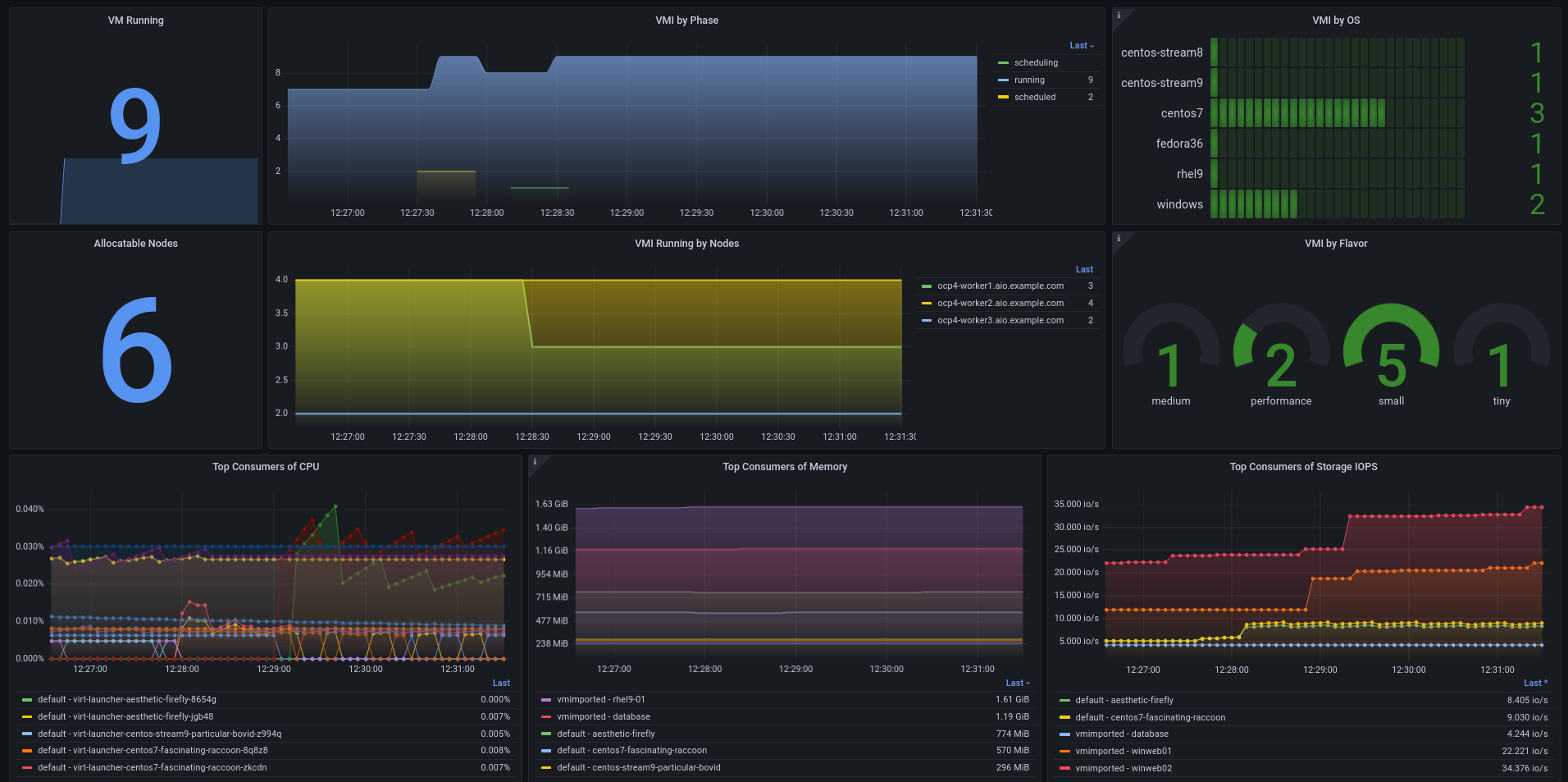
    OpenShift Virtualization Dashboard displaying General Information
    Figure 1: The OpenShift Virtualization dashboard displaying various metrics.


    OpenShift Virtualization Dashboard showing Resources Information
    Figure 2: The OpenShift Virtualization dashboard displaying resources information.

    In this dashboard, you can view the following metrics:

    • Number of VMs running
    • Number of Allocable Nodes
    • Number of VMs by status
    • Number of VMs per OS
    • Number of VMs per Resource Flavor
    • List of Top CPU Consumers
    • List of Top Memory Consumers
    • List of Top IOps Consumers
    • List of Top Storage Traffic Consumers
    • List of Top Network Consumers
    • Read request times in the Kubevirt API
    • Write request time in the Kubevirt API
    • VM creation time

    Conclusion

    In this article, we demonstrate how it is possible to monitor your OpenShift Virtualization in a simple way, using the openshift-monitoring and user-workload-monitoring stacks, creating and customizing your own dashboard and having a more managerial view of your environment.

    References

    • Enabling monitoring for user-defined projects
    • Managing metrics
    Last updated: September 13, 2024

    Related Posts

    • Visualizing Smog Sensor Data with the help of Vert.x, Prometheus, and Grafana

    • How to monitor 3scale API Management using Prometheus and Grafana

    • First steps with the data virtualization Operator for Red Hat OpenShift

    • Generate automated Grafana metrics dashboards for MicroProfile apps

    Recent Posts

    • Every layer counts: Defense in depth for AI agents with Red Hat AI

    • Fun in the RUN instruction: Why container builds with distroless images can surprise you

    • Trusted software factory: Building trust in the agentic AI era

    • Build a zero trust AI pipeline with OpenShift and RHEL CVMs

    • Red Hat Hardened Images: Top 5 benefits for software developers

    What’s up next?

    Learn the foundations of OpenShift through hands-on experience deploying and working with applications, using a no-cost OpenShift cluster through the Developer Sandbox for Red Hat OpenShift.

    Start the activity
    Red Hat Developers logo LinkedIn YouTube Twitter Facebook

    Platforms

    • Red Hat AI
    • Red Hat Enterprise Linux
    • Red Hat OpenShift
    • Red Hat Ansible Automation Platform
    • See all products

    Build

    • Developer Sandbox
    • Developer tools
    • Interactive tutorials
    • API catalog

    Quicklinks

    • Learning resources
    • E-books
    • Cheat sheets
    • Blog
    • Events
    • Newsletter

    Communicate

    • About us
    • Contact sales
    • Find a partner
    • Report a website issue
    • Site status dashboard
    • Report a security problem

    RED HAT DEVELOPER

    Build here. Go anywhere.

    We serve the builders. The problem solvers who create careers with code.

    Join us if you’re a developer, software engineer, web designer, front-end designer, UX designer, computer scientist, architect, tester, product manager, project manager or team lead.

    Sign me up

    Red Hat legal and privacy links

    • About Red Hat
    • Jobs
    • Events
    • Locations
    • Contact Red Hat
    • Red Hat Blog
    • Inclusion at Red Hat
    • Cool Stuff Store
    • Red Hat Summit
    © 2026 Red Hat

    Red Hat legal and privacy links

    • Privacy statement
    • Terms of use
    • All policies and guidelines
    • Digital accessibility

    Chat Support

    Please log in with your Red Hat account to access chat support.