Page
Develop automation for Red Hat Ansible Automation Platform using a feature-branch
Now that your team is creating Ansible playbooks intended for use in Red Hat Ansible Automation Platform, you can use a Git repository and merge to ‘main’ when ready. How do you test in Ansible Automation Platform without breaking your Project for your teammates? Use your own Project!
Alternatively, you enable “branch override” in the project settings. Then, make a copy of a job template and set your feature-branch on your new job template. Using the feature-project method below is preferred, however, because it keeps your project separate from the team’s project.
In this lesson, you will:
- Learn how to branch Projects for testing in Ansible Automation Platform
Prerequisites
- Install the Ansible extension for Microsoft Visual Studio Code (VS Code)
- Install Ansible Content Navigator (
ansible-navigator)
Creating Projects
Since we’re already deep within Ansible Automation Platform using VS code extensions and Playbooks, we should navigate within it to branch our projects.
- Copy the team shared project.
Select Duplicate project from the Projects list, as shown in Figure 1.
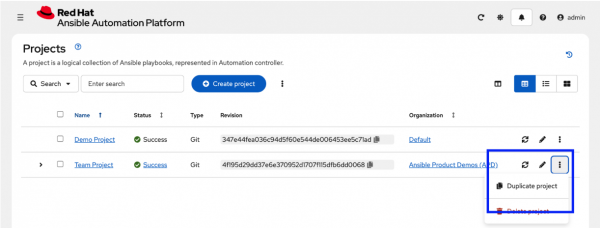
Figure 1: Screenshot of the Ansible Automation Platform project list page, highlighting the “duplicate project” button. - Edit your new feature-project:
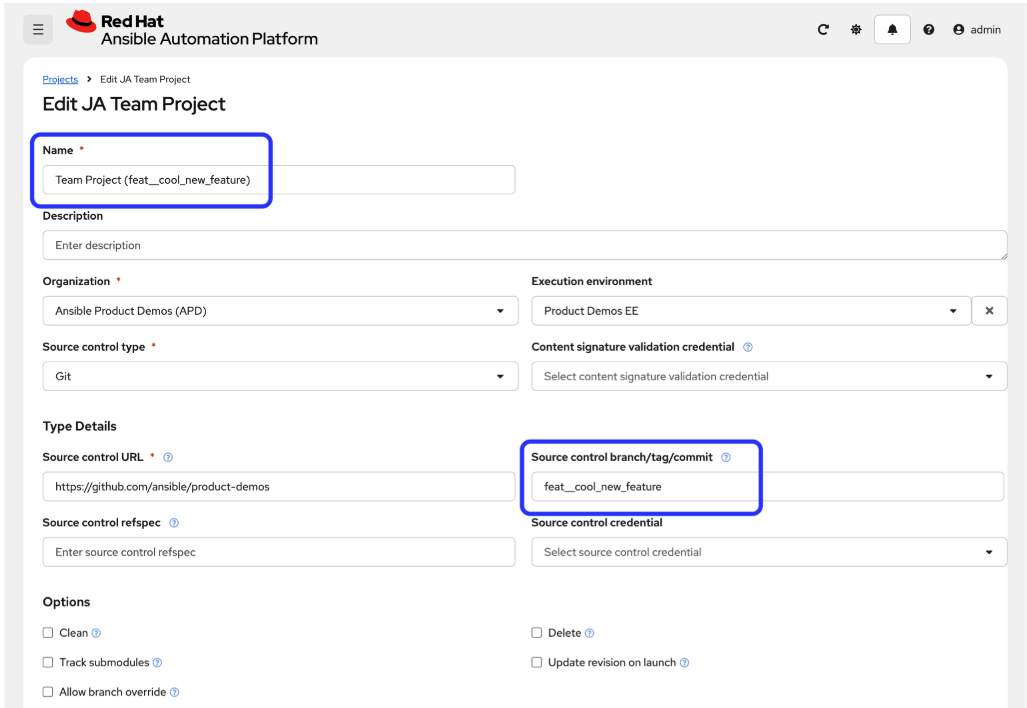
- Change the name to something unique. For example, append the feature branch name to the project name, or prepend your initials.
Set the project’s SCM branch to your feature branch, as shown in Figure 2.
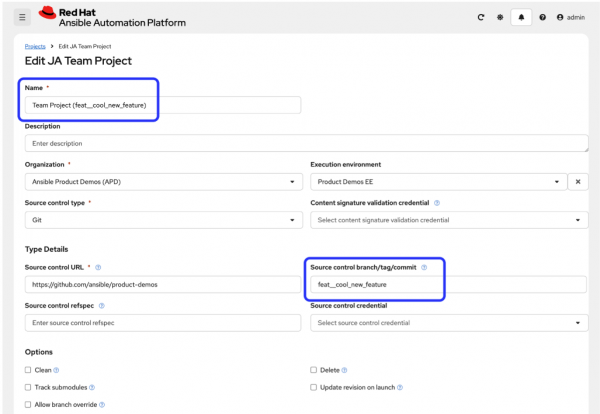
Figure 2: Screenshot of the Ansible Automation Platform project details page, highlighting the new project name and the source control branch field.
- If your feature includes changes to an inventory, then copy the inventory used by your job templates, and rename your copy.
- If your inventory uses an inventory source pointed to your team project, edit the inventory source in your new inventory and point it to your feature-project.
- Create job templates in your feature-project. These job templates will pull the feature-branch.
Day-to-day developing
Now that you have your templates set to pull feature-branches as needed, there are several things you can do to use it effectively during your regular work processes.
- Test your changes locally with
ansible-navigator. - Install Ansible Content Navigator (
ansible-navigator). - See Running Ansible Playbooks with Ansible Content Navigator for more information on using Ansible Content Navigator.
- Commit and push to your feature-branch.
- Sync the feature-project in Ansible Automation Platform.
- Test your job templates.
- After your feature branch is merged to main, delete your feature-project.
Next steps
- Start a free trial to Ansible Automation Platform
- Advance your Ansible skills with Developing Advanced Automation with Red Hat Ansible Automation Platform

