Redhat Developers  Logo
  • AI

    Get started with AI

    • Red Hat AI
      Accelerate the development and deployment of enterprise AI solutions.
    • AI learning hub
      Explore learning materials and tools, organized by task.
    • AI interactive demos
      Click through scenarios with Red Hat AI, including training LLMs and more.
    • AI/ML learning paths
      Expand your OpenShift AI knowledge using these learning resources.
    • AI quickstarts
      Focused AI use cases designed for fast deployment on Red Hat AI platforms.
    • No-cost AI training
      Foundational Red Hat AI training.

    Featured resources

    • OpenShift AI learning
    • Open source AI for developers
    • AI product application development
    • Open source-powered AI/ML for hybrid cloud
    • AI and Node.js cheat sheet

    Red Hat AI Factory with NVIDIA

    • Red Hat AI Factory with NVIDIA is a co-engineered, enterprise-grade AI solution for building, deploying, and managing AI at scale across hybrid cloud environments.
    • Explore the solution
  • Learn

    Self-guided

    • Documentation
      Find answers, get step-by-step guidance, and learn how to use Red Hat products.
    • Learning paths
      Explore curated walkthroughs for common development tasks.
    • Guided learning
      Receive custom learning paths powered by our AI assistant.
    • See all learning

    Hands-on

    • Developer Sandbox
      Spin up Red Hat's products and technologies without setup or configuration.
    • Interactive labs
      Learn by doing in these hands-on, browser-based experiences.
    • Interactive demos
      Click through product features in these guided tours.

    Browse by topic

    • AI/ML
    • Automation
    • Java
    • Kubernetes
    • Linux
    • See all topics

    Training & certifications

    • Courses and exams
    • Certifications
    • Skills assessments
    • Red Hat Academy
    • Learning subscription
    • Explore training
  • Build

    Get started

    • Red Hat build of Podman Desktop
      A downloadable, local development hub to experiment with our products and builds.
    • Developer Sandbox
      Spin up Red Hat's products and technologies without setup or configuration.

    Download products

    • Access product downloads to start building and testing right away.
    • Red Hat Enterprise Linux
    • Red Hat AI
    • Red Hat OpenShift
    • Red Hat Ansible Automation Platform
    • See all products

    Featured

    • Red Hat build of OpenJDK
    • Red Hat JBoss Enterprise Application Platform
    • Red Hat OpenShift Dev Spaces
    • Red Hat Developer Toolset

    References

    • E-books
    • Documentation
    • Cheat sheets
    • Architecture center
  • Community

    Get involved

    • Events
    • Live AI events
    • Red Hat Summit
    • Red Hat Accelerators
    • Community discussions

    Follow along

    • Articles & blogs
    • Developer newsletter
    • Videos
    • Github

    Get help

    • Customer service
    • Customer support
    • Regional contacts
    • Find a partner

    Join the Red Hat Developer program

    • Download Red Hat products and project builds, access support documentation, learning content, and more.
    • Explore the benefits

How to install the CouchbaseDB Operator for Red Hat OpenShift on your laptop using Red Hat CodeReady Containers and Red Hat Marketplace

September 9, 2020
Don Schenck
Related topics:
ContainersDeveloper toolsKubernetesOperators

    Red Hat Marketplace is an online store of sorts, where you can choose the software that you want to install and run on your Red Hat OpenShift cluster. The analogy is a phone app store, where you select an app, and it's automagically installed on your phone. With Marketplace, you simply register your cluster(s), select the software that you want, and it is installed for you. It could not be easier.

    In this article, I show you how to install Couchbase Server Enterprise Edition on an OpenShift cluster. In my case, the cluster is running on Fedora 32 using Red Hat CodeReady Containers (CRC). Couchbase Server Enterprise Edition is currently available as a free trial, and CRC is also available at zero cost. This setup offers a no-risk way to try containers, Kubernetes, OpenShift, and, in this case, Couchbase. This is definitely "developers playing around with the software"-level stuff.

    Prerequisites

    We'll start by assuming that you have CodeReady Containers installed on your machine. There's no charge for CRC, and it brings the latest version of OpenShift to a PC near you, so go ahead and grab it. You can find installation instructions for Windows 10 Enterprise here and macOS here.

    Note: You can get your free copy of CodeReady Containers at try.openshift.com, where you can also tap into other free OpenShift learning materials.

    Once your cluster is up and running, journey over to the Red Hat Marketplace website, where you will be asked to log in or create an account. If you don't have an account, you'll need to create one.

    For full disclosure, you will need to register a credit card to install any software from Red Hat Marketplace, including the Couchbase free trial. However, the free trial will not—repeat, will not—automatically roll over into a paid subscription. You are never at risk of your credit card being automatically charged. Don't let the registration hold you back; there's too much goodness here in your favor.

    Step 1: Register with Red Hat Marketplace

    Assuming that you have an account, the first step is to go to the Red Hat Marketplace homepage, shown in Figure 1, and sign in.
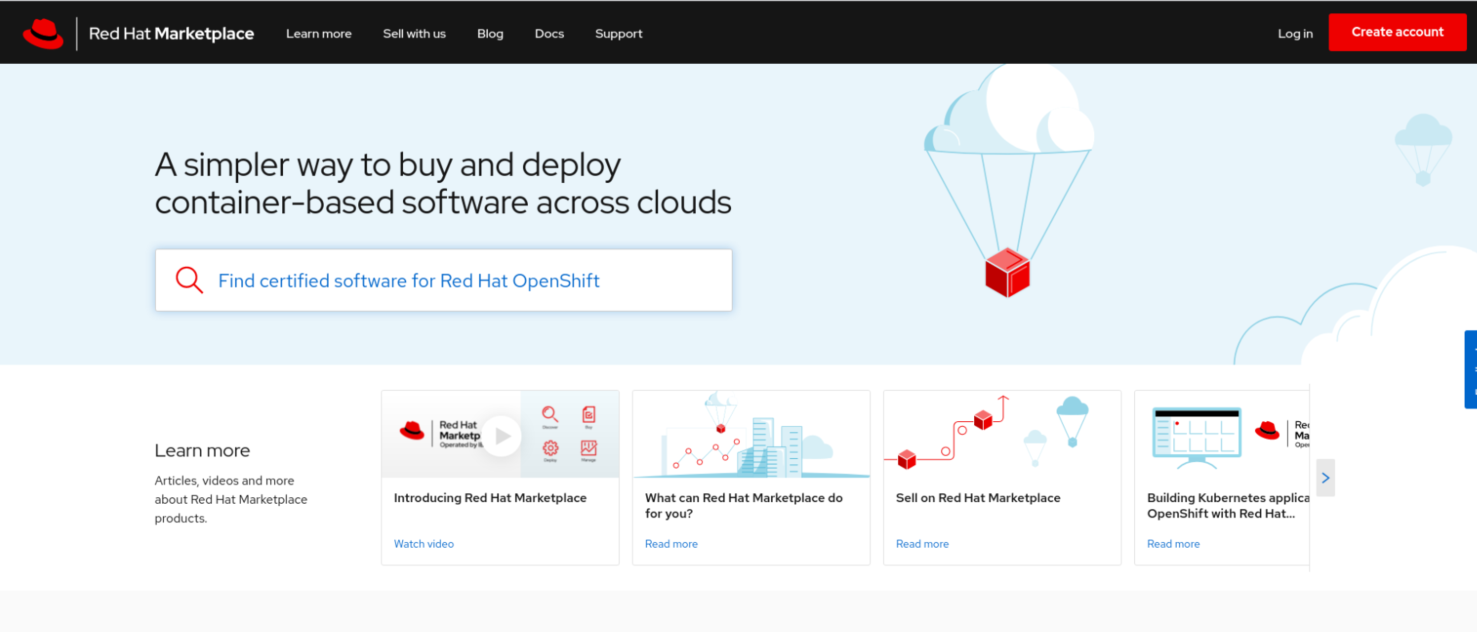
    red hat marketplace main web site with option to log in or create an account
    Figure 1: Sign in to Red Hat Marketplace.

    After you've logged in, click your username in the upper-right corner and select the My account option from the drop-down list shown in Figure 2.

    my account option on red hat marketplace web page
    Figure 2: Select 'My account'.">

    Step 2: Register your cluster

    Once you've logged in to your account, you can access your workspace and register your OpenShift cluster. You only need to register a cluster once, and it's very easy. Figure 3 shows my profile page and account information; yours should look similar.
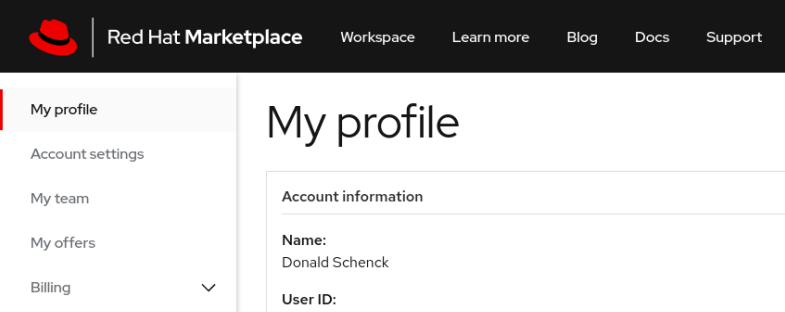
    A screenshot of the Red Hat Marketplace 'My profile' page.
    Figure 3: An example profile page for Red Hat Marketplace.">

    When you click Workspace at the top of your profile page, you'll see a list of the software that you have already installed. Before you can install any software in a new cluster, you need to register it. Registering a cluster installs the Red Hat Marketplace Operator, which talks to the Red Hat Marketplace website and installs the software that you need.

    To start, click Add cluster, as shown in Figure 4.
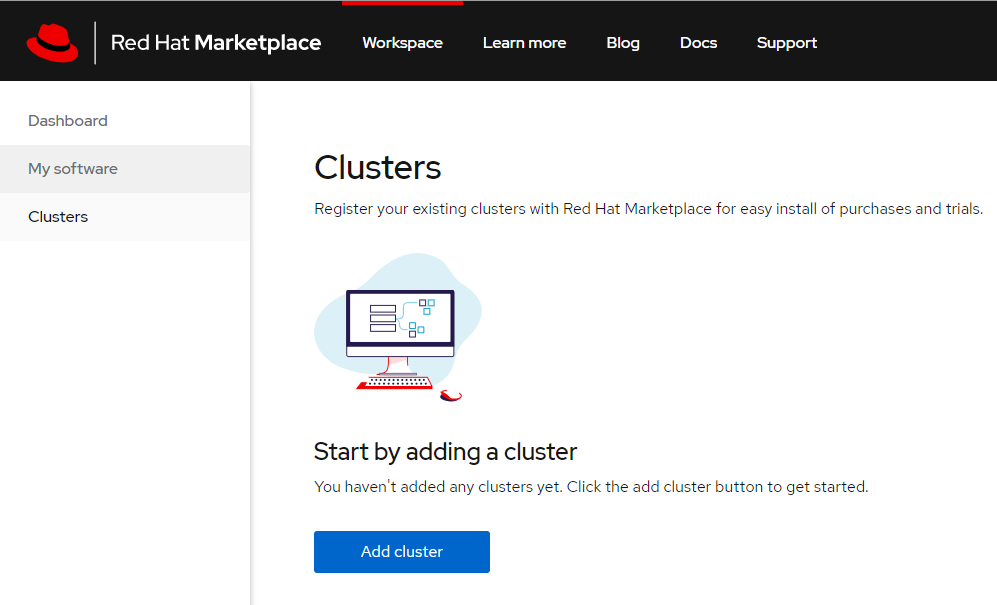
    add cluster page
    Figure 4: Click 'Add cluster'.">

    The Add cluster page guides you through the next steps.

    Generate your secret

    First, you will generate a pull secret, as shown in Figure 5.

    A screenshot of the 'Add cluster' setup page.
    Figure 5: Generate your pull secret.">

    Install the Red Hat Marketplace Operator

    When you click Generate Secret, the command to Install the Red Hat Marketplace Operator (Step 2 in Figure 5) is updated to include your secret. Click the Copy icon shown in Figure 6 to copy the command to your system's clipboard.

    A screenshot of the 'Add cluster' page with the command-line command to install the Operator.
    Figure 6: Get the command and secret to install the Red Hat Marketplace Operator.">

    Register your cluster

    Now, paste the command into your command line and run it. After a few minutes, you will be able to return to the web interface to see your newly-registered cluster, as shown in Figure 7.

    The web site display of the new cluster.
    Figure 7: Check the cluster registration.">

    You'll also receive an email when your cluster is registered—because no one ever gets enough email.

    Additional registration for CodeReady Containers

    If you are using CRC (and only if you're using CRC), you'll need to complete a few additional steps to ensure that your cluster has the credentials required to install software from Red Hat Marketplace. You will need to do this just once for your CRC cluster, and it takes about two minutes.

    Head over to the marketplace documentation page and follow the instructions in Register OpenShift cluster on Red Hat CodeReady Containers. It's nine easy steps and completely necessary for success with CRC. If you're not using CRC, you can skip this part.

    Step 3: Select your software

    Your cluster is up and running on your PC, and it's registered with Red Hat Marketplace. Now the fun part begins: Finding and installing a free software trial with a simple mouse click. As previously mentioned, I've chosen Couchbase Server Enterprise Edition for this example.

    Search the Marketplace

    You can search or filter to see what software is available from Red Hat Marketplace. Figure 8 shows the search page with various product categories to select from.

    A web page with options for filtering by type of software.
    Figure 8: The Red Hat Marketplace search page.">

    Filter by category

    We select the Database category, which returns the options shown in Figure 9 (currently, there are 13 database options in total).
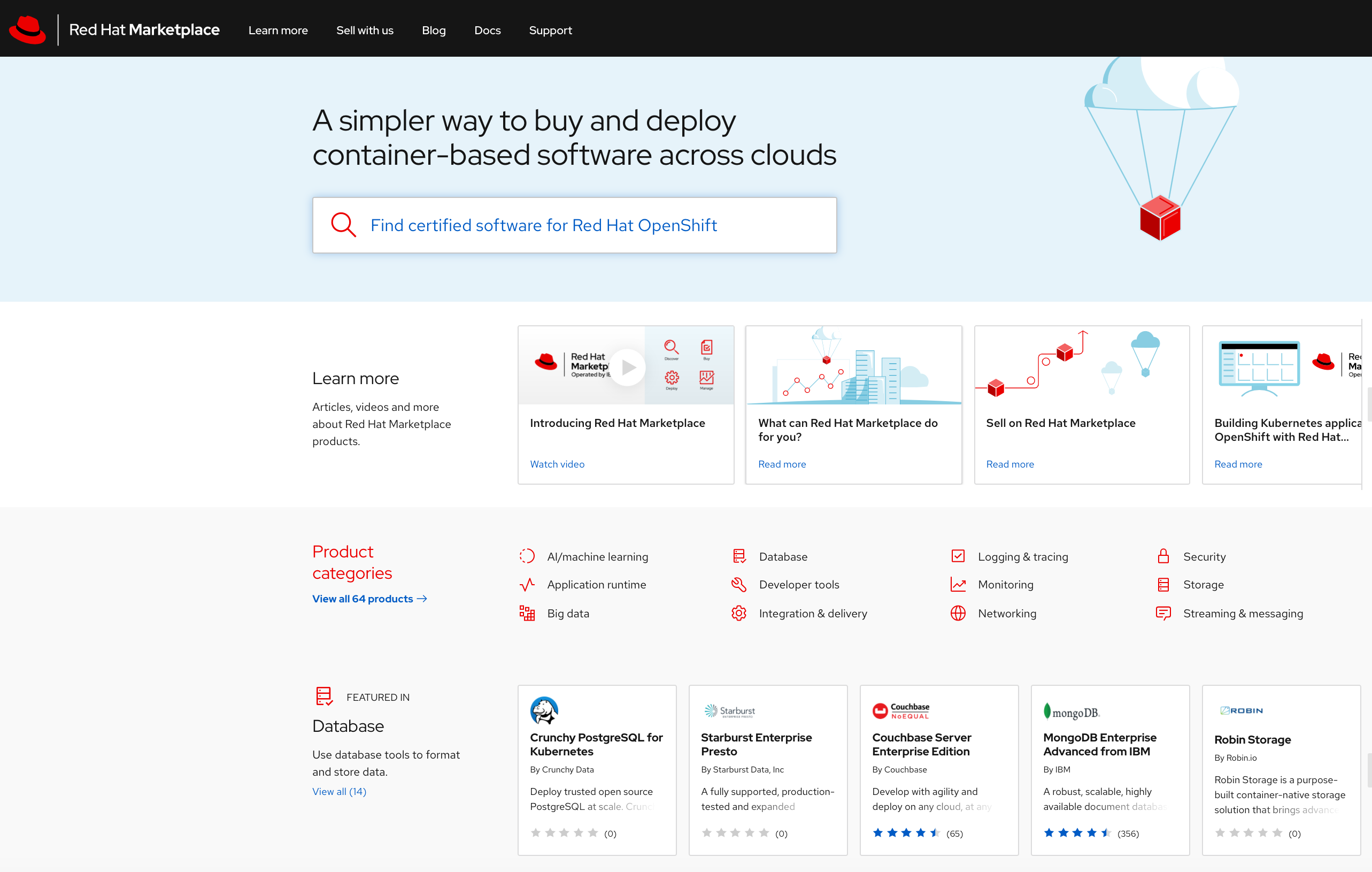
    All of the Database offerings on Red Hat Marketplace.
    Figure 9: Database products available from Red Hat Marketplace.">

    Select your free trial

    Clicking on the Couchbase Server Enterprise Edition panel takes you to the Couchbase installation page shown in Figure 10.
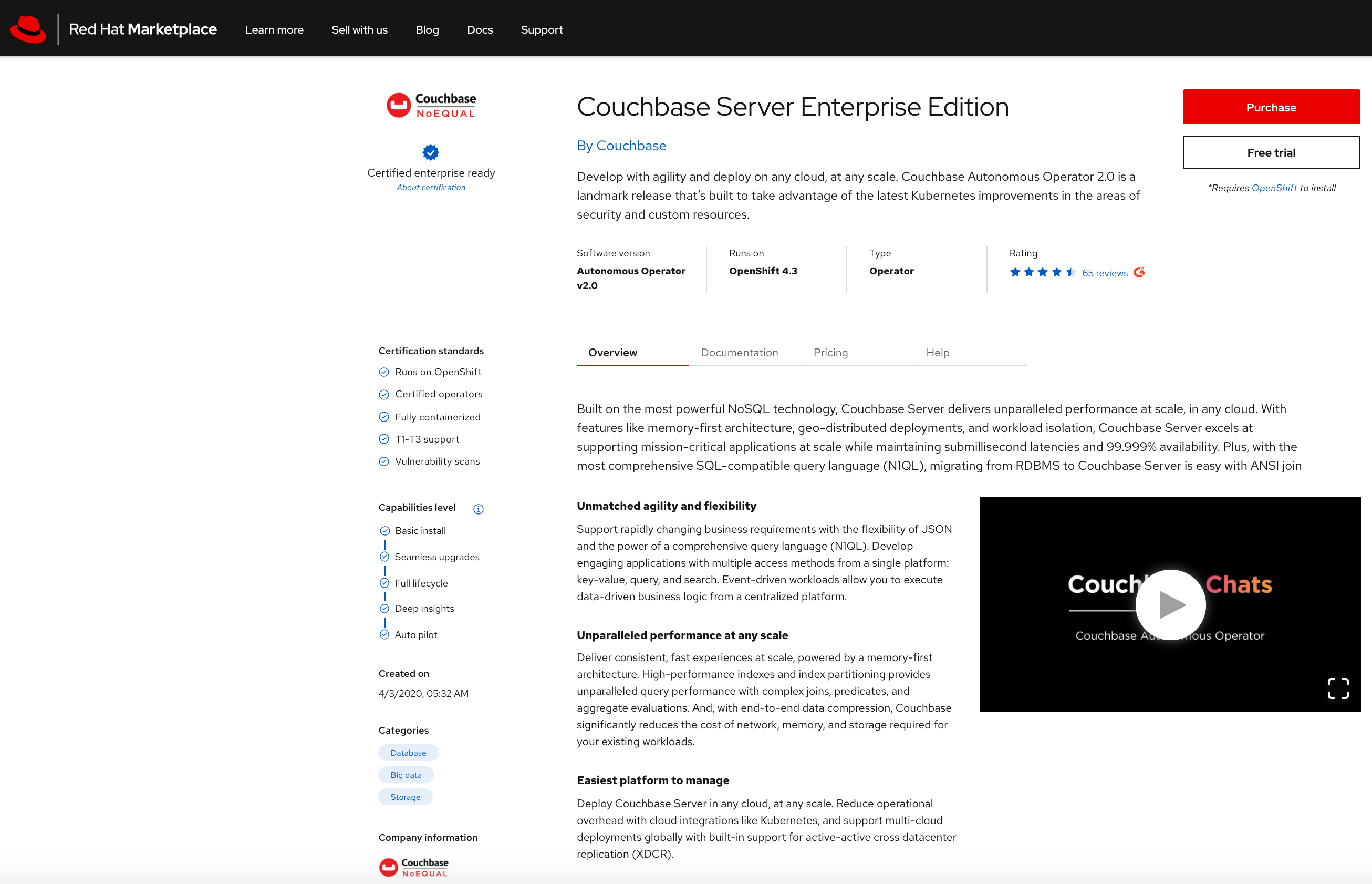
    The Couchbase Server Enterprise Edition page with purchase and free trial options
    Figure 10: The Couchbase Server Enterprise Edition page with the free-trial option.">

    Click on the Free trial button to continue, and you will see the screen in Figure 11.

    The purchase summary shows no cost for the free trial.
    Figure 11: Start the free trial.">

    Step 4: Set up and run the installation

    Now, you will select your cluster, choose the namespace (OpenShift project) where you wish to install Couchbase, and launch the installation. After you've filled in this information, as shown in Figure 12, you may install the free trial in your cluster with one click.

    The web page with Couchbase installation options.
    Figure 12: Set up the installation.">

    Figure 13 shows the installation in progress.

    A web page showing Couchbase being installed from Red Hat Marketplace.
    Figure 13: The installation in progress on Red Hat Marketplace.">

    Confirm success!

    And now, here's the really cool thing: You can switch over to your OpenShift dashboard, select Installed Operators, and watch the installation as it happens.

    OpenShift dashboard showing Couchbase being installed.
    Figure 14: The installation in progress.">

    On my PC, it took about two minutes for the status to switch from Installing (Figure 14) to Succeeded (Figure 15).
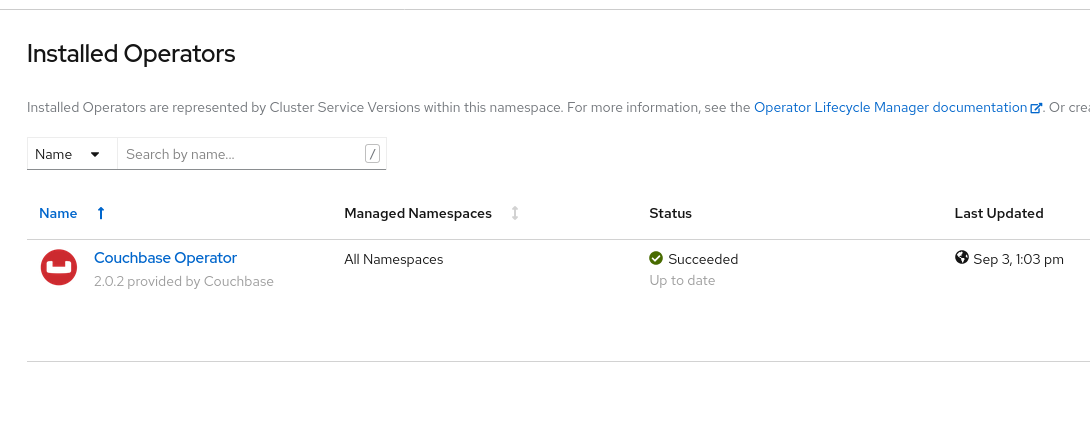
    OpenShift dashboard showing Couchbase Operator installed.
    Figure 15: The installation succeeded.">

    Conclusion

    That's it: With a simple registration and just a few clicks, you have installed the CouchbaseDB Operator in your cluster.  If you want to play around and experiment with Couchbase, visit the excellent Getting Started web page for this technology. Also, in case you are wondering, you can use the Red Hat Marketplace to uninstall the CouchbaseDB Operator at any time.

    Want another example? You can find a more general one in Install Red Hat OpenShift Operators on your laptop using Red Hat CodeReady Containers and Red Hat Marketplace.

    Recent Posts

    • MCP servers vs. skills: Choosing the right context for your AI

    • How to route external and local LLMs with Models-as-a-Service

    • Protect data offloaded to GPU-accelerated environments with OpenShift sandboxed containers

    • Case study: Measuring energy efficiency on the x64 platform

    • How to prevent AI inference stack silent failures

    Red Hat Developers logo LinkedIn YouTube Twitter Facebook

    Platforms

    • Red Hat AI
    • Red Hat Enterprise Linux
    • Red Hat OpenShift
    • Red Hat Ansible Automation Platform
    • See all products

    Build

    • Developer Sandbox
    • Developer tools
    • Interactive tutorials
    • API catalog

    Quicklinks

    • Learning resources
    • E-books
    • Cheat sheets
    • Blog
    • Events
    • Newsletter

    Communicate

    • About us
    • Contact sales
    • Find a partner
    • Report a website issue
    • Site status dashboard
    • Report a security problem

    RED HAT DEVELOPER

    Build here. Go anywhere.

    We serve the builders. The problem solvers who create careers with code.

    Join us if you’re a developer, software engineer, web designer, front-end designer, UX designer, computer scientist, architect, tester, product manager, project manager or team lead.

    Sign me up

    Red Hat legal and privacy links

    • About Red Hat
    • Jobs
    • Events
    • Locations
    • Contact Red Hat
    • Red Hat Blog
    • Inclusion at Red Hat
    • Cool Stuff Store
    • Red Hat Summit
    © 2026 Red Hat

    Red Hat legal and privacy links

    • Privacy statement
    • Terms of use
    • All policies and guidelines
    • Digital accessibility

    Chat Support

    Please log in with your Red Hat account to access chat support.