Redhat Developers  Logo
  • AI

    Get started with AI

    • Red Hat AI
      Accelerate the development and deployment of enterprise AI solutions.
    • AI learning hub
      Explore learning materials and tools, organized by task.
    • AI interactive demos
      Click through scenarios with Red Hat AI, including training LLMs and more.
    • AI/ML learning paths
      Expand your OpenShift AI knowledge using these learning resources.
    • AI quickstarts
      Focused AI use cases designed for fast deployment on Red Hat AI platforms.
    • No-cost AI training
      Foundational Red Hat AI training.

    Featured resources

    • OpenShift AI learning
    • Open source AI for developers
    • AI product application development
    • Open source-powered AI/ML for hybrid cloud
    • AI and Node.js cheat sheet

    Red Hat AI Factory with NVIDIA

    • Red Hat AI Factory with NVIDIA is a co-engineered, enterprise-grade AI solution for building, deploying, and managing AI at scale across hybrid cloud environments.
    • Explore the solution
  • Learn

    Self-guided

    • Documentation
      Find answers, get step-by-step guidance, and learn how to use Red Hat products.
    • Learning paths
      Explore curated walkthroughs for common development tasks.
    • See all learning

    Hands-on

    • Developer Sandbox
      Spin up Red Hat's products and technologies without setup or configuration.
    • Interactive labs
      Learn by doing in these hands-on, browser-based experiences.
    • Interactive demos
      Click through product features in these guided tours.

    Browse by topic

    • AI/ML
    • Automation
    • Java
    • Kubernetes
    • Linux
    • See all topics

    Training & certifications

    • Courses and exams
    • Certifications
    • Skills assessments
    • Red Hat Academy
    • Learning subscription
    • Explore training
  • Build

    Get started

    • Red Hat build of Podman Desktop
      A downloadable, local development hub to experiment with our products and builds.
    • Developer Sandbox
      Spin up Red Hat's products and technologies without setup or configuration.

    Download products

    • Access product downloads to start building and testing right away.
    • Red Hat Enterprise Linux
    • Red Hat AI
    • Red Hat OpenShift
    • Red Hat Ansible Automation Platform
    • See all products

    Featured

    • Red Hat build of OpenJDK
    • Red Hat JBoss Enterprise Application Platform
    • Red Hat OpenShift Dev Spaces
    • Red Hat Developer Toolset

    References

    • E-books
    • Documentation
    • Cheat sheets
    • Architecture center
  • Community

    Get involved

    • Events
    • Live AI events
    • Red Hat Summit
    • Red Hat Accelerators
    • Community discussions

    Follow along

    • Articles & blogs
    • Developer newsletter
    • Videos
    • Github

    Get help

    • Customer service
    • Customer support
    • Regional contacts
    • Find a partner

    Join the Red Hat Developer program

    • Download Red Hat products and project builds, access support documentation, learning content, and more.
    • Explore the benefits

Install Node.js on Red Hat Enterprise Linux

October 26, 2018
Lucas Holmquist
Related topics:
Developer toolsLinux
Related products:
Red Hat Enterprise Linux

    Installing Node.js on Red Hat Enterprise Linux 8/9

    This post is going to show how to install the latest Long Term Support(LTS) version of Node.js on Red Hat Enterprise Linux(RHEL). The Node.js team at Red Hat recommends using the most recent LTS version of Node.js when possible. At the time of this writing Node.js 20 is the latest LTS, but these instructions will apply to any supported version on both RHEL 8 and RHEL 9. 

    It should also be noted that you must be a privileged user on the machine you are installing on.  

    Enable the Node.js module

    The first thing that we need to do is enable the module stream for the latest Node.js LTS version, in our case Node.js 20.  This is done with the following command

    dnf module enable nodejs:20

    It is also possible to get a list of the available module streams for Node.js using the following command

    dnf module list nodejs

    You will see something similar to the below output:

    nodejs               18         common [d], development, minimal, s2i Javascript runtime
    
    nodejs               20         common [d], development, minimal, s2i Javascript runtime

    Install Node.js

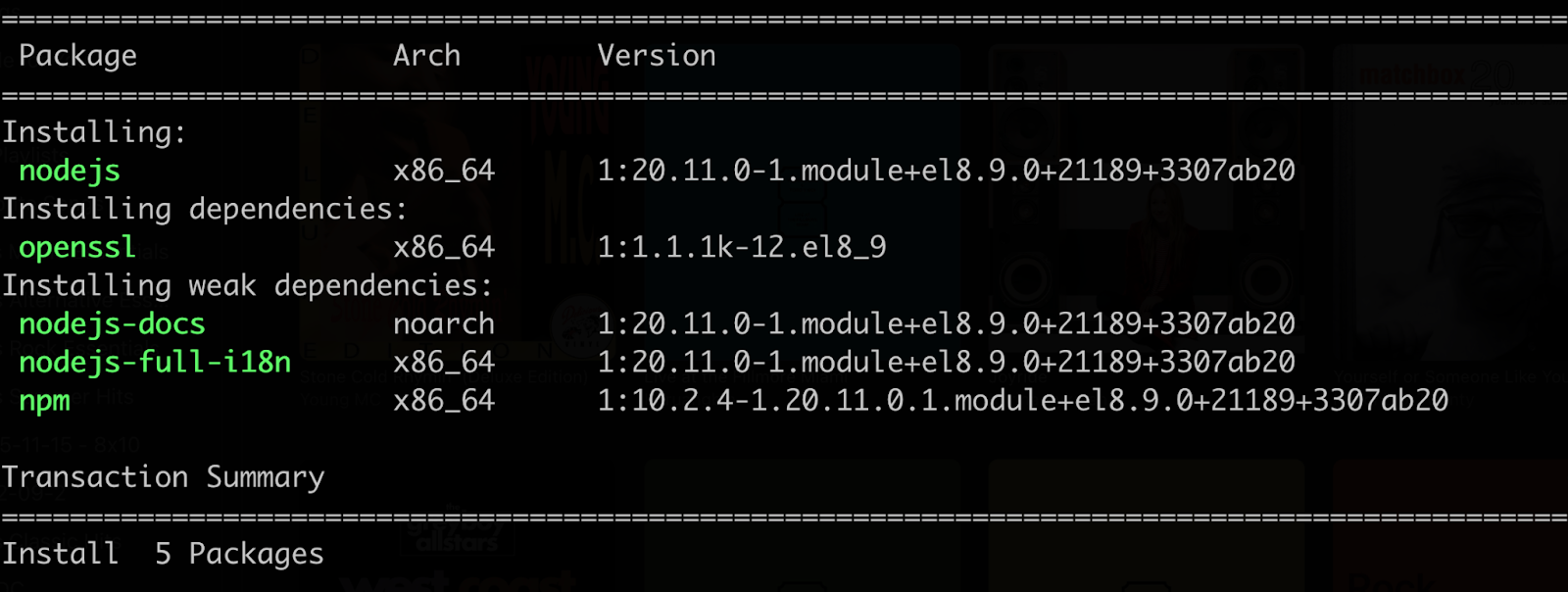
    Now that we’ve enabled the module stream we want,  it is time to actually install Node.js.  This is simply done with the following command:

    dnf install nodejs

    The screenshot below shows what packages will be installed.  You should see something similar
    After the installation completes, you can check that Node.js is installed by using the node version command.  It should return something similar:

    node --version


    v20.11.0

    It should also be noted that the Node.js installation comes with some weak dependencies, such as docs. To skip installing these optional packages, you can use this command:

    dnf install nodejs --setopt=install_weak_deps=False

    Install a Different Node.js Module Profile

    If we take a look at the output from the module list command from above, we notice that there is some extra output alongside the Node.js version:

    nodejs               20         common [d], development, minimal, s2i Javascript runtime

    These values are different module profiles that can be installed.  By default the common profile is installed, but if you needed to also install all the development tools for building and compiling native add-ons, you might choose the development profile.  This other profile can be installed with the following command:

    dnf module install nodejs/development 

    For completeness, the default install command that we used earlier in the post, could also be written this way:

    dnf module install nodejs/common

    Examples

    Now that the Node.js runtime is installed, let's create a couple of examples to test that things are working.

    This first is a very simple application that outputs the Node.js version using console.log .  

    Using a text editor such as vi, nano, or gedit create a file named hello.js with the following content:

    console.log('Hello, From Node ' + process.version);

    Save the file and then run it with the node command:

    node ./hello.js
    
    Hello, From Node v20.11.0

    The next step is to try a slightly larger Node.js example that implements a tiny web server. Using your preferred text editor, create a file named hello-http.js with the following content:

    const http = require('node:http');
    const hostname = '127.0.0.1';
    const port = 3000;
    
    const server = http.createServer((req, res) => {
      res.statusCode = 200;
      res.setHeader('Content-Type', 'text/plain');
      res.end('Hello World\n');
    });
    
    server.listen(port, hostname, () => {
      console.log(`Server running at http://${hostname}:${port}/`);
    });

    Again, save the file, exit the editor and run the file with the node command.


    node ./hello-http.js


    Server running at http://127.0.0.1:3000/

    You can either use curl or a browser to access the server at http://127.0.0.1:3000

    Learn More

    If you want to learn more about what Red Hat is up to on the Node.js front, check out our Node.js page here.  


    Last updated: April 13, 2026

    Recent Posts

    • Tekton joins the CNCF as an incubating project

    • Federated identity across the hybrid cloud using zero trust workload identity manager

    • Confidential virtual machine storage attack scenarios

    • Introducing virtualization platform autopilot

    • Integrate zero trust workload identity manager with Red Hat OpenShift GitOps

    Red Hat Developers logo LinkedIn YouTube Twitter Facebook

    Platforms

    • Red Hat AI
    • Red Hat Enterprise Linux
    • Red Hat OpenShift
    • Red Hat Ansible Automation Platform
    • See all products

    Build

    • Developer Sandbox
    • Developer tools
    • Interactive tutorials
    • API catalog

    Quicklinks

    • Learning resources
    • E-books
    • Cheat sheets
    • Blog
    • Events
    • Newsletter

    Communicate

    • About us
    • Contact sales
    • Find a partner
    • Report a website issue
    • Site status dashboard
    • Report a security problem

    RED HAT DEVELOPER

    Build here. Go anywhere.

    We serve the builders. The problem solvers who create careers with code.

    Join us if you’re a developer, software engineer, web designer, front-end designer, UX designer, computer scientist, architect, tester, product manager, project manager or team lead.

    Sign me up

    Red Hat legal and privacy links

    • About Red Hat
    • Jobs
    • Events
    • Locations
    • Contact Red Hat
    • Red Hat Blog
    • Inclusion at Red Hat
    • Cool Stuff Store
    • Red Hat Summit
    © 2026 Red Hat

    Red Hat legal and privacy links

    • Privacy statement
    • Terms of use
    • All policies and guidelines
    • Digital accessibility

    Chat Support

    Please log in with your Red Hat account to access chat support.