Redhat Developers  Logo
  • AI

    Get started with AI

    • Red Hat AI
      Accelerate the development and deployment of enterprise AI solutions.
    • AI learning hub
      Explore learning materials and tools, organized by task.
    • AI interactive demos
      Click through scenarios with Red Hat AI, including training LLMs and more.
    • AI/ML learning paths
      Expand your OpenShift AI knowledge using these learning resources.
    • AI quickstarts
      Focused AI use cases designed for fast deployment on Red Hat AI platforms.
    • No-cost AI training
      Foundational Red Hat AI training.

    Featured resources

    • OpenShift AI learning
    • Open source AI for developers
    • AI product application development
    • Open source-powered AI/ML for hybrid cloud
    • AI and Node.js cheat sheet

    Red Hat AI Factory with NVIDIA

    • Red Hat AI Factory with NVIDIA is a co-engineered, enterprise-grade AI solution for building, deploying, and managing AI at scale across hybrid cloud environments.
    • Explore the solution
  • Learn

    Self-guided

    • Documentation
      Find answers, get step-by-step guidance, and learn how to use Red Hat products.
    • Learning paths
      Explore curated walkthroughs for common development tasks.
    • Guided learning
      Receive custom learning paths powered by our AI assistant.
    • See all learning

    Hands-on

    • Developer Sandbox
      Spin up Red Hat's products and technologies without setup or configuration.
    • Interactive labs
      Learn by doing in these hands-on, browser-based experiences.
    • Interactive demos
      Click through product features in these guided tours.

    Browse by topic

    • AI/ML
    • Automation
    • Java
    • Kubernetes
    • Linux
    • See all topics

    Training & certifications

    • Courses and exams
    • Certifications
    • Skills assessments
    • Red Hat Academy
    • Learning subscription
    • Explore training
  • Build

    Get started

    • Red Hat build of Podman Desktop
      A downloadable, local development hub to experiment with our products and builds.
    • Developer Sandbox
      Spin up Red Hat's products and technologies without setup or configuration.

    Download products

    • Access product downloads to start building and testing right away.
    • Red Hat Enterprise Linux
    • Red Hat AI
    • Red Hat OpenShift
    • Red Hat Ansible Automation Platform
    • See all products

    Featured

    • Red Hat build of OpenJDK
    • Red Hat JBoss Enterprise Application Platform
    • Red Hat OpenShift Dev Spaces
    • Red Hat Developer Toolset

    References

    • E-books
    • Documentation
    • Cheat sheets
    • Architecture center
  • Community

    Get involved

    • Events
    • Live AI events
    • Red Hat Summit
    • Red Hat Accelerators
    • Community discussions

    Follow along

    • Articles & blogs
    • Developer newsletter
    • Videos
    • Github

    Get help

    • Customer service
    • Customer support
    • Regional contacts
    • Find a partner

    Join the Red Hat Developer program

    • Download Red Hat products and project builds, access support documentation, learning content, and more.
    • Explore the benefits

CodeReady Workspaces devfile, demystified

<p>&nbsp;</p> <quillbot-extension-portal></quillbot-extension-portal>

December 9, 2019
Don Schenck
Related topics:
ContainersDeveloper tools
Related products:
Developer Toolset

    With the exciting advent of CodeReady Workspaces (CRW) 2.0 comes some important changes. Based on the upstream project Eclipse Che 7, CRW brings even more of the "Infrastructure as Code" idea to fruition. Workspaces mimic the environment of a PC, an operating system, programming language support, the tools needed, and an editor. The real power comes by defining a workspace using a YAML file—a text file that can be stored and versioned in a source control system such as Git. This file, called devfile.yaml, is powerful and complex. This article will attempt to demystify the devfile.

    A Java Maven example

    The following devfile defines a workspace that has Java language support, includes the Maven build tool, and has two custom commands.
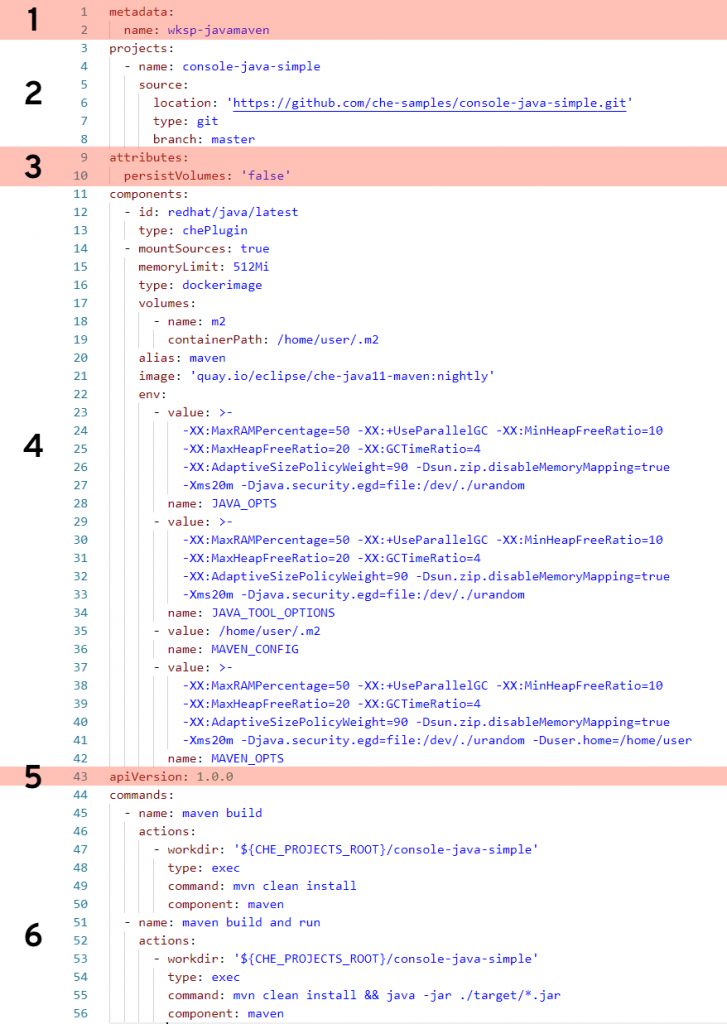
    Let's break this down.

    Section 1: metadata

    This section is required, and in this case name is specified as the name of this workspace (wksp-javamaven). You also have the option of a name prefix, in which case the system will generate the rest of the name (e.g., generateName: javamaven-). Using generateName means a user can have multiple instances of this workspace at the same time. This is an important distinction and one which must be addressed by management.

    Section 2: projects

    This section is optional (but probably a very good idea) and tells the workspace where to find the project that will be included. In this case, we're pointing to the master branch of a Git repository located on GitHub. You can specify multiple projects for a workspace, and the type can be a zip file as well. While the name of the project does not need to match the name of the repo it's, again, probably a very good idea. If you make them different, well ... then that's a create opportunity to add confusion and really mess things up.

    Section 3: attributes

    This part is optional and can pretty much define anything you wish. In this example, it's specifying that any values stored in any specified volumes are not stored. This will likely be the value you'll always want. The idea is that, unless you commit your changes to the Git repo, any work done will be lost. Think of it this way: Whereas on your local PC you perform a File --> Save command to keep your work, you'll instead do git commit. In "devfile-speak," persistVolumes: false makes the data ephemeral. This setting, false, also makes the workspace perform better.

    Section 4: components

    This is the heaviest part of this example, where we specify what bits and pieces make up our workspace.

    The first component is a Che Plugin, identified at redhat/java/latest. You can see the description of this plug on this GitHub page.

    The next component is a type dockerimage that is the maven support for this workspace. Of special note is the setting mountSources: true, which makes the source code available to the container that is running this image. In this particular case, we want our Maven build to have access to the source code—which makes sense.

    The volumes: setting defines a directory within the container that is available to this workspace. This is used, for example, to give the workspace access to a needed directory that would otherwise be outside the container and blocked by lack of permissions. In other words, if you run a command in a workspace and get an error message because you are denied access to a directory, you can get around that by defining that directory here, in your devfile, that will be created inside your container.

    The remaining settings associated with this component are related to memory limits, security, etc.

    Section 5: apiVersion

    This section is required and is how you specify which API version you are using. This is pretty much boilerplate text.

    Section 6: commands

    This is the fun part. In this section, you can define custom commands that are available to the user. Typically, this is where you'll specify command-line commands that can be run from within the IDE rather than dropping to the command line and typing what may be a lengthy command. The properties here will look pretty much self-explanatory. Note that a macro can be used instead of hard-coded value for the project root directory (e.g., ${CHE_PROJECTS_ROOT}).

    Start exploring

    There are many settings and variations of devfiles. If you have the ability, I suggest going into your CRW 2.0 instance and exploring any existing workspaces' devfiles. Take an existing devfile, clone it, then change it and implement it to see what happens. Like any good developer, make changes until you break things, then gain understanding.

    Last updated: November 8, 2023

    Recent Posts

    • Debugging image mode with Red Hat OpenShift 4.20: A practical guide

    • EvalHub: Because "looks good to me" isn't a benchmark

    • SQL Server HA on RHEL: Meet Pacemaker HA Agent v2 (tech preview)

    • Deploy with confidence: Continuous integration and continuous delivery for agentic AI

    • Every layer counts: Defense in depth for AI agents with Red Hat AI

    Red Hat Developers logo LinkedIn YouTube Twitter Facebook

    Platforms

    • Red Hat AI
    • Red Hat Enterprise Linux
    • Red Hat OpenShift
    • Red Hat Ansible Automation Platform
    • See all products

    Build

    • Developer Sandbox
    • Developer tools
    • Interactive tutorials
    • API catalog

    Quicklinks

    • Learning resources
    • E-books
    • Cheat sheets
    • Blog
    • Events
    • Newsletter

    Communicate

    • About us
    • Contact sales
    • Find a partner
    • Report a website issue
    • Site status dashboard
    • Report a security problem

    RED HAT DEVELOPER

    Build here. Go anywhere.

    We serve the builders. The problem solvers who create careers with code.

    Join us if you’re a developer, software engineer, web designer, front-end designer, UX designer, computer scientist, architect, tester, product manager, project manager or team lead.

    Sign me up

    Red Hat legal and privacy links

    • About Red Hat
    • Jobs
    • Events
    • Locations
    • Contact Red Hat
    • Red Hat Blog
    • Inclusion at Red Hat
    • Cool Stuff Store
    • Red Hat Summit
    © 2026 Red Hat

    Red Hat legal and privacy links

    • Privacy statement
    • Terms of use
    • All policies and guidelines
    • Digital accessibility

    Chat Support

    Please log in with your Red Hat account to access chat support.