Air pollution is a major problem in many cities around the globe. Some people in Stuttgart, Germany have developed cheap smog sensors that people can install on their balconies and other convenient places and then report data to a central site. I have written about that on OpenSource.com. The data is sent to a central server, from where it is visualized on a map. At the time of writing the above article, there was no way of seeing how the value has changed over time. Meanwhile, there is a visualization of the last 24 hours available on the map.
The sensor is also able to send data to an additional target, for example, a local database. Thus, I decided to feed the data to a local server for long-term storage to visualize trends.
As I was playing with Prometheus at this time, I thought that feeding the data into it may be a good use case for further exploration. Now that Prometheus wants to scrape the data and the sensor is only pushing the data, it became clear that I need an intermediate gateway that solves this mismatch and which also translates the data format the sensor sends into the format Prometheus expects.
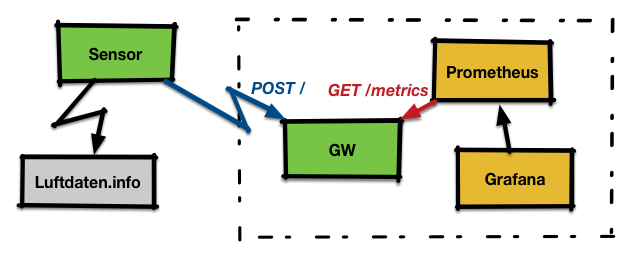
To implement the gateway, I choose Vert.x a modern day reactive framework that runs on the Java Virtual Machine (JVM). I was first considering other options, but it turned out that Vert.x' implicit handling of connections and threading made my life easy.
The gateway receives Http POST requests from the sensor with measurement data in InfluxDB format. It exposes the data to GET requests on /metrics in the Prometheus text format.
Finally, the data stored in Prometheus is visualized via Grafana.
I will now show some pieces of the code; the full code is available on GitHub.
Gateway code
The code consists of two main parts for the two endpoints described above.
I have implemented both in the same Verticle.
public class MainVerticle extends AbstractVerticle {

  // Label on dust data
  private static final String TYP_FS = "{typ=\"fs\"}";

  @Override
  public void start(Future fut) {

    // [... see below ...]

    vertx
        .createHttpServer()
        .requestHandler(router::accept)
        .listen(
            // Set the port we listen on to 10080
            config().getInteger("http.port", 10080),
            result -> {
              if (result.succeeded()) {
                fut.complete();
   [...]
This first part creates a new verticle and then inside of start() sets the http port it listens on to 10080 and then tells Vert.x that the configuration is ready. Vert.x then starts is accept loop and dispatches incoming requests.
The next step is now to define handlers for the endpoints to do the actual work. In the handlers we need to be careful not to block or implement slow operations; Vert.x may decide to abort the handler in this case.
Let's look at the handler for scraping of data first:
router.get("/metrics")
          .handler(routingContext -> {

      HttpServerResponse response = routingContext.response();

      // If we have no data yet, return a 204 'no content'
      if (values.isEmpty()) {
        response.setStatusCode(204).end();
        return;
      }

      // Construct the response
      StringBuilder builder = [...]
      // send it back
      response.setStatusCode(200)
          .putHeader("content-type","text/plain; version=0.0.4")
          .end(builder.toString());
    });
Now let's look at the POST handler. This is a tiny bit more complicated as we need to explicitly tell Vert.x to that we want to obtain the body of the request. On top, we also want to get the sensor ID, which is encoded in a Http-Header.
// We need the body, so we need to enable it.
// We need the body, so we need to enable getting it.
    router.route("/").handler(BodyHandler.create());

    // Bind "/" to our fs-input
    router.post("/")
          .handler(routingContext -> {
      // Get the sensor id from the header
      String tmp = routingContext.request().getHeader("X-Sensor");
[...]
      // Get the measurement data
      JsonObject body_json = routingContext.getBodyAsJson();
      JsonArray value_array = body_json.getJsonArray("sensordatavalues");
[...]
      HttpServerResponse response = routingContext.response();
      response.setStatusCode(200).end();
Building and running the code
You can check out the full code from GitHub and then build it via,
$ mvn install
This creates a self-contained Java archive in the target directory, which contains our Verticle along with all the Vert.x code that is needed to run it. Thus, running is as simple as:
$ java -jar target/fsgw.jar
Configuring the other pieces
For the setup, I run the Gateway, Prometheus, and Grafana on the same host, with an IP of 172.31.7.2.
For the sensor
Go to the sensor configuration page, select "Send to own API" and enter the IP and port of the Gateway like this:
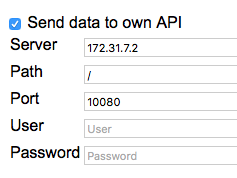
After this is done, save the configuration and reboot the sensor.
Prometheus
Prometheus needs an external configuration file prometheus.yml that gets an additional scrape config for our sensor:
scrape_configs:
  - job_name: 'feinstaub'
    scrape_interval: 30s

    static_configs:
      - targets: ['172.31.7.2:10080']
As the target, you enter the IP address and port from the Vert.x gateway. After this is done, you can start Prometheus and pass the path to the configuration to it:
$ prometheus -config.file /usr/local/etc/prometheus.ymlGrafana
Start Grafana and point your browser at port 3000; default login is admin/admin.
To set up Grafana, one needs to define a datasource of type Prometheus that points to the Prometheus server at http://localhost:9090/. Once this is done, we can set up a new dashboard and add graphs to it.
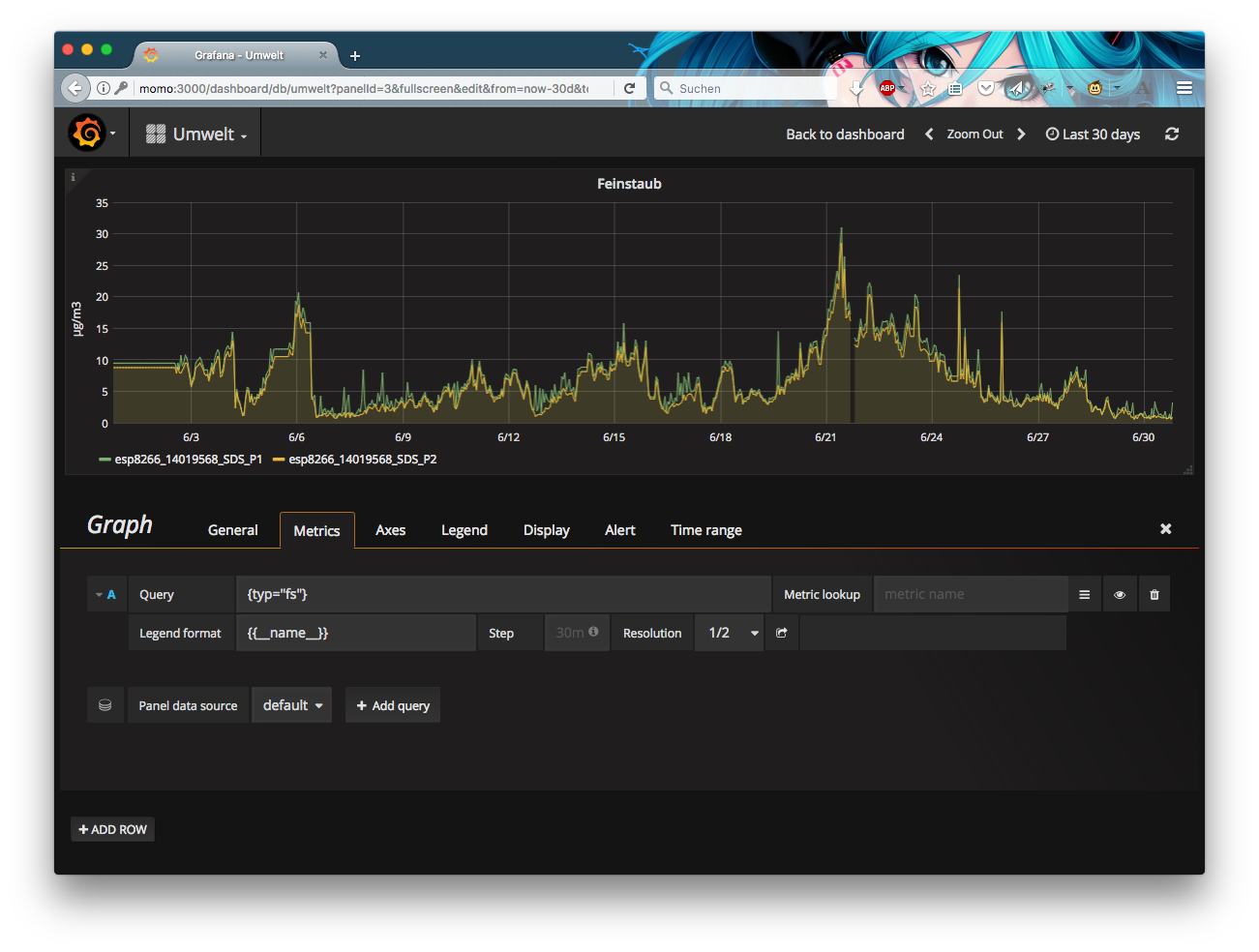
In above screenshot, you see the query editor. As the code in the gateway is set up to put labels on the exported items according to the type (the sensor can also report temperature and humidity), it is possible to query for the values with a label query of {{typ="fs"}}.
Summary
The article shows an end-to-end example of an IoT device sending data in a certain format. A gateway is implemented with the help of the Vert.x framework, which does all the magic of connection handling etc.
Finally, the data is stored in a Prometheus time series database and graphed via Grafana.
Download the Eclipse Vert.x cheat sheet, this cheat sheet provides step by step details to let you create your apps the way you want to.
Last updated: June 30, 2017
