When managing a patching cycle for your systems, it is important to have a stable, reliable base of content. New errata and packages arrive frequently, and an update done on a Monday may be different than an update done on a Wednesday. Content templates utilize snapshots of Red Hat repositories and third-party repositories to enable administrators to control what software is available to install at the dnf/yum level.
What is a repository snapshot?
A repository snapshot is a copy of a given Yum repository at a specific point in time. The core Red Hat repositories are snapshotted automatically every 24 hours. Custom repositories that you define in your account are also snapshotted every 24 hours once they have been defined. For example, all users already have the "Red Hat Enterprise Linux 9 x86_64 BaseOS" and "Red Hat Enterprise Linux 9 x86_64 Appstream" repositories available with daily snapshots.
What is a content template?
A content template is made up of snapshots of multiple repositories, including Red Hat software and optionally third-party software. Once a template is assigned to a system, that system will be configured to use those snapshots for updates instead of pulling the latest updates from the content delivery network (CDN). This provides similar, but simplified, functionality as the Red Hat Satellite content views.
Create your first content template
For this example, you need a system registered to Red Hat Lightspeed. If you do not have any systems registered to Red Hat Lightspeed, run the following command on a Red Hat Enterprise Linux 9 or Red Hat Enterprise Linux 8 host:
rhc connectFor our first template, we will use Red Hat content and then later add custom content to it.
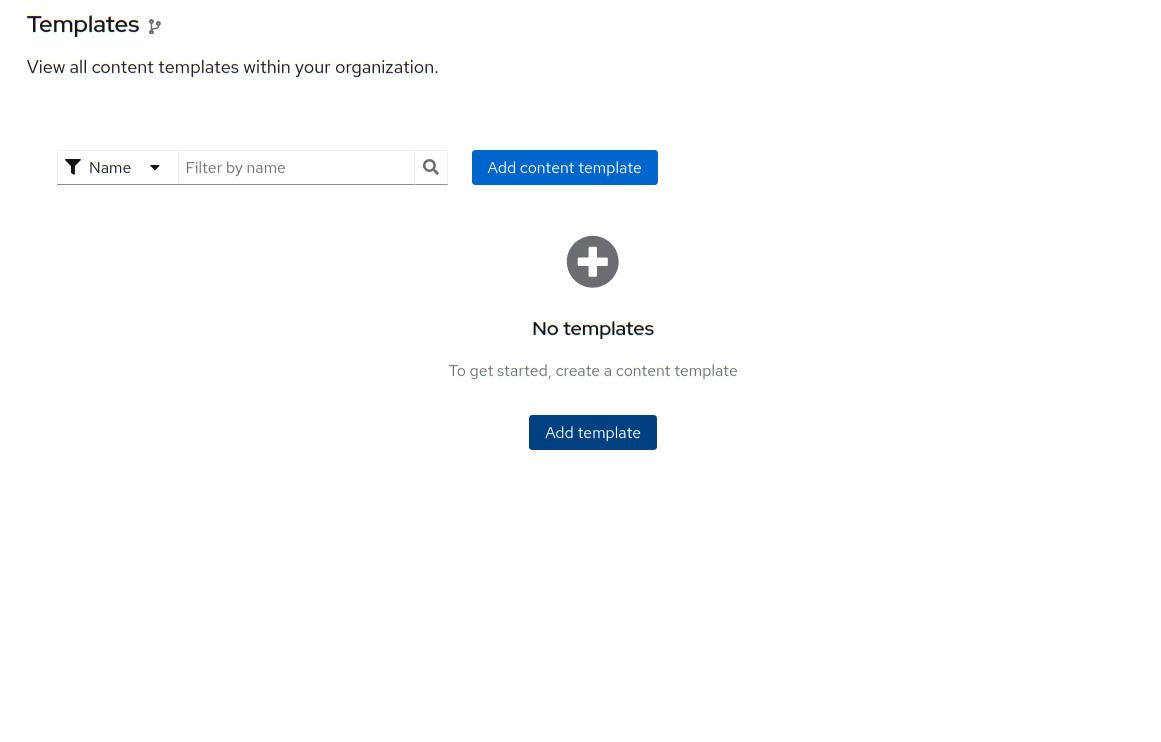
To begin, navigate to Content Templates and select Add content template, as shown in Figure 1.
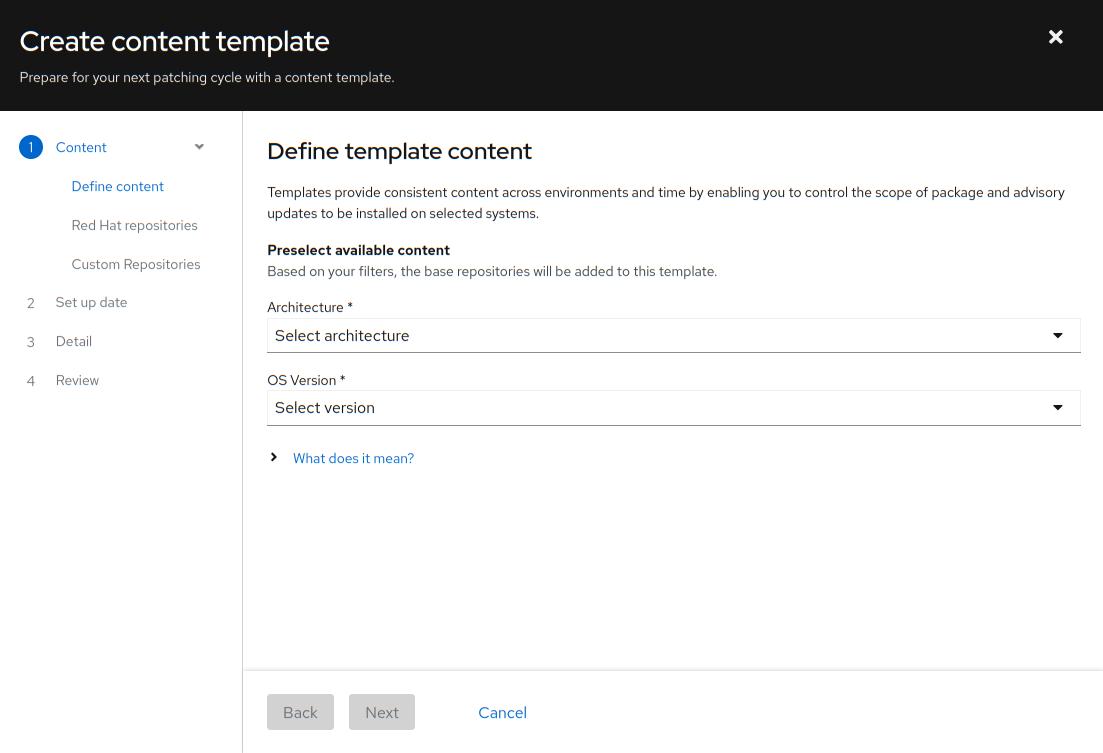
Select the desired architecture and OS version from the lists (Figure 2).
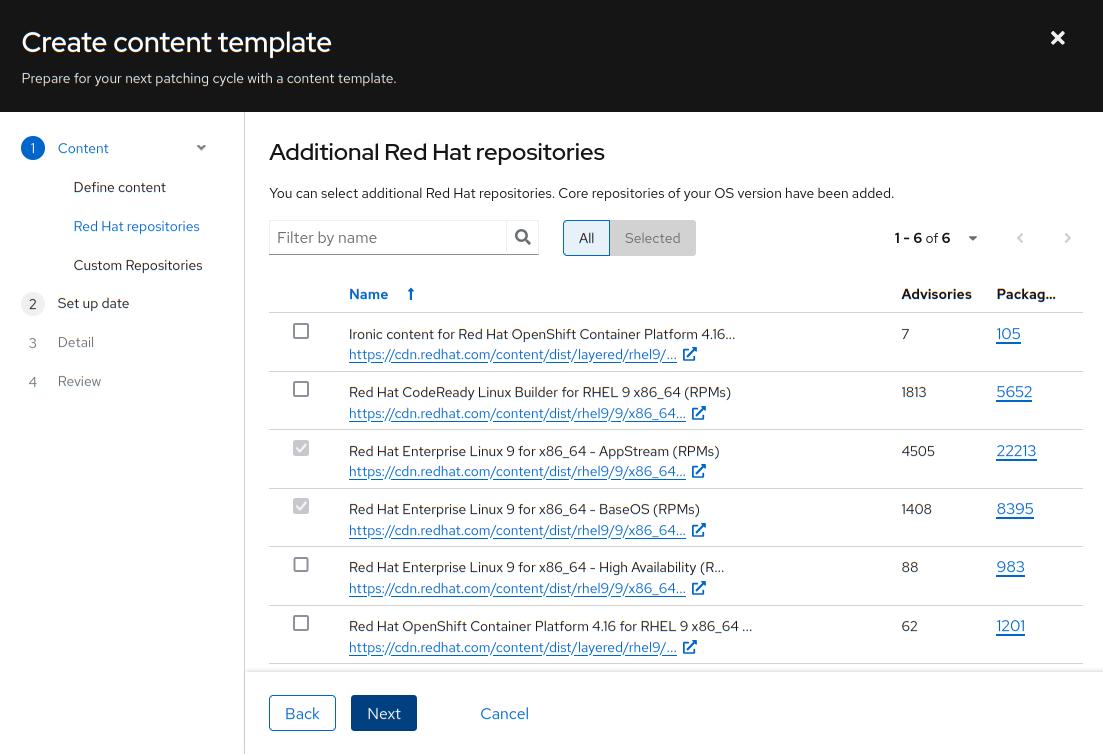
Select any additional Red Hat repositories you need (Figure 3). The base set of Red Hat repositories required will be pre-selected. Additional Red Hat repositories will be added in the future. (We will cover how you can select custom repositories later.) Select Next.
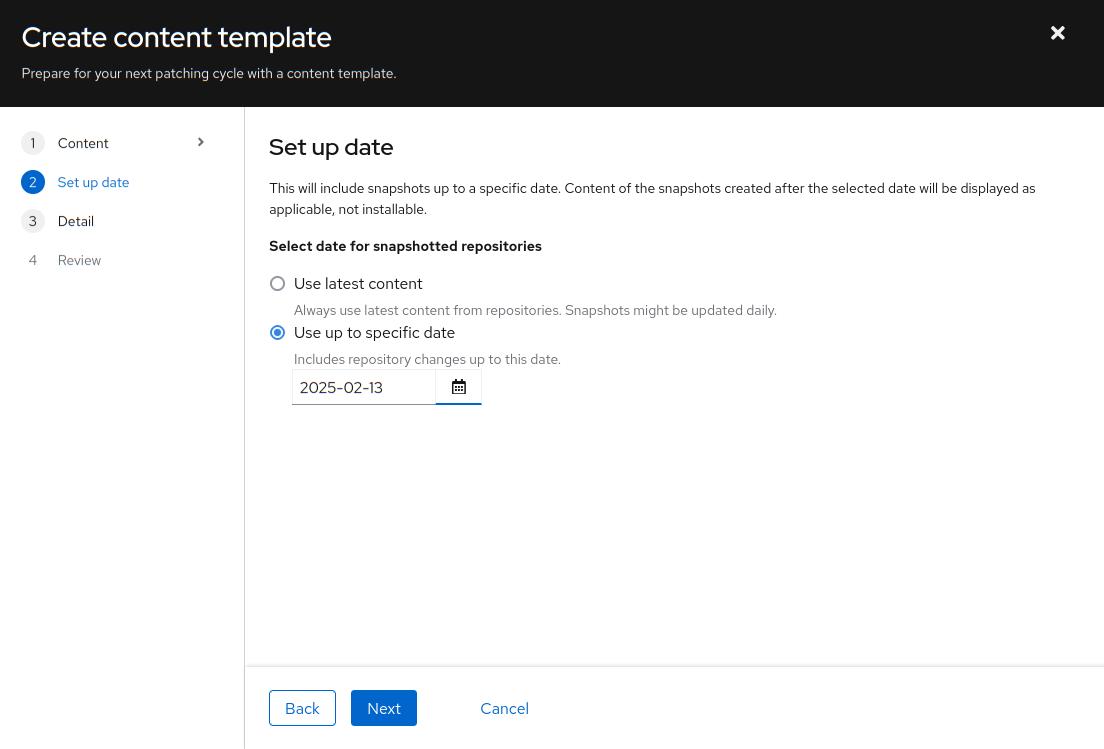
In Figure 4, you can choose to always use the latest snapshot of all selected repositories or pick a certain date. If you choose Use latest content, the snapshots used by this template will update whenever a new snapshot is taken. This could result in a template updated multiple times per day. By choosing a very specific date, the template’s snapshots will not change until the template is updated. Select a recent date, then click Next.
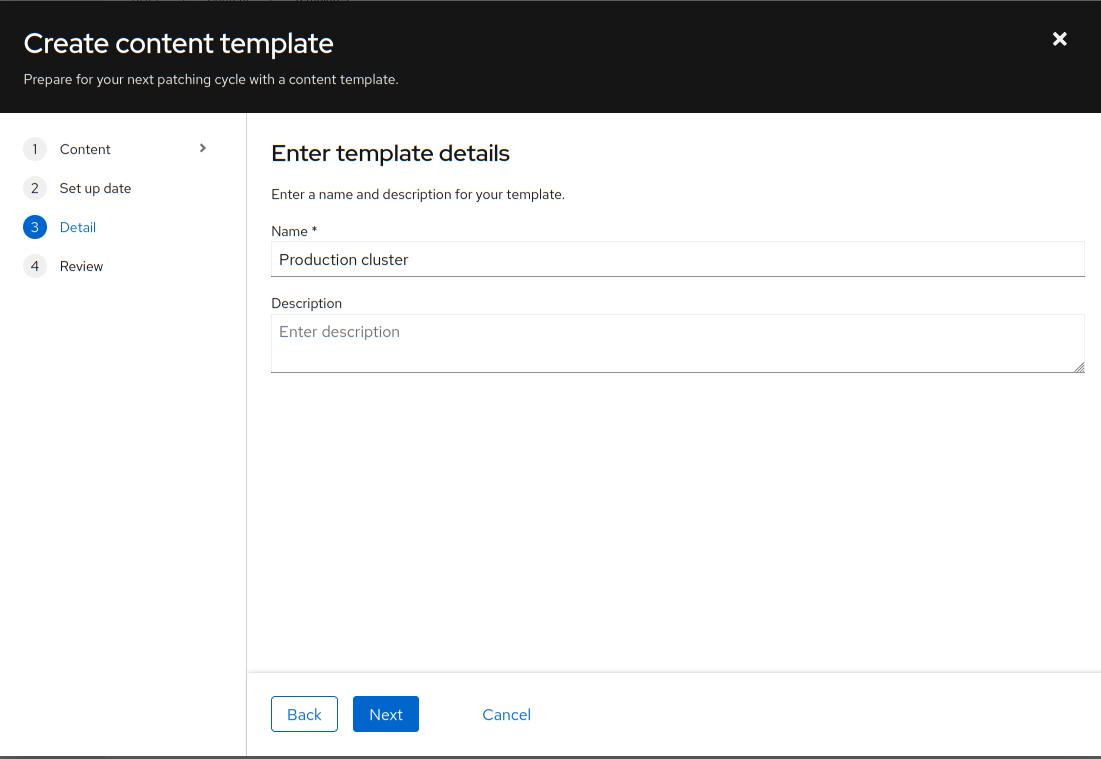
Provide a name and description of the template. You might pick a name such as “Production web servers” or “Staging cluster”(Figure 5). Then click Next.
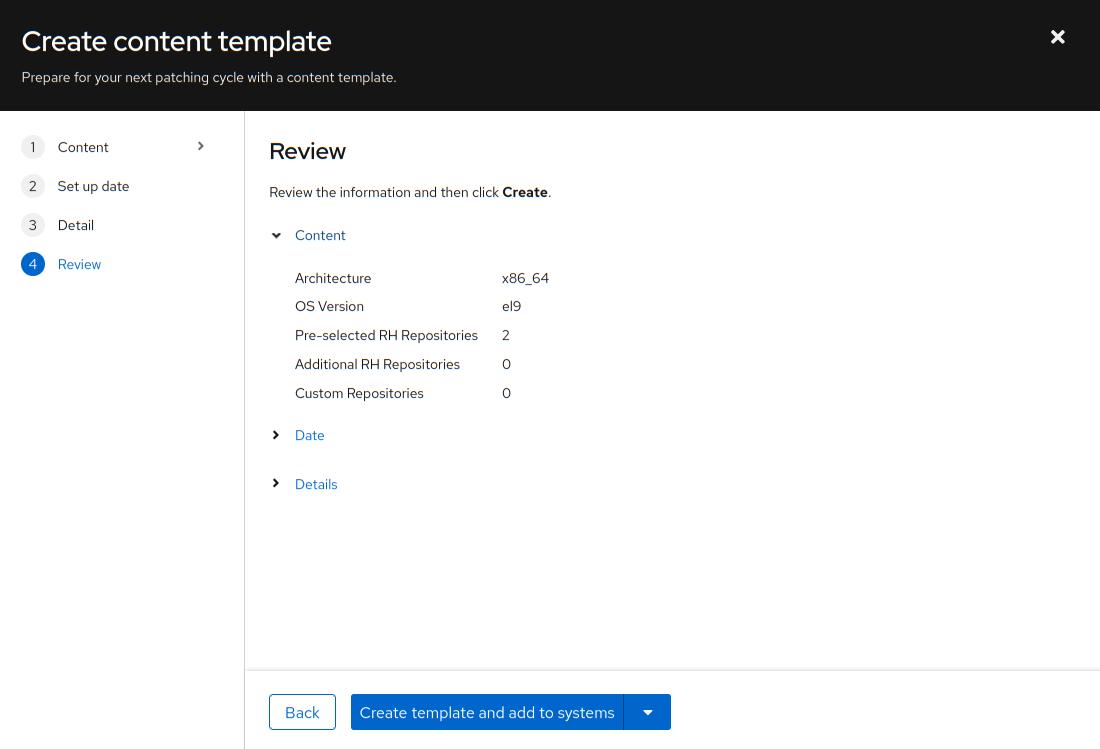
In this step, you can review all of your choices. If everything looks correct, select Create template and add to systems (Figure 6).
Assign a template to the system
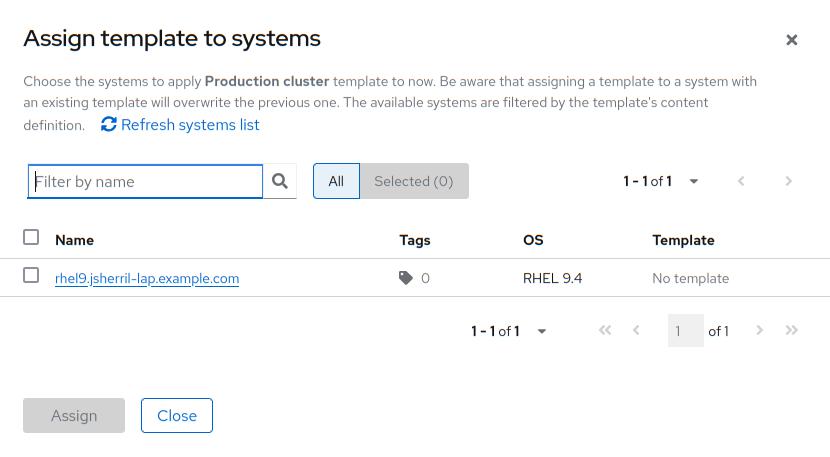
You should see your system in the list. Select it and click Assign, as shown in Figure 7.
Your system will pick up this template at the next Red Hat Subscription Management check-in, but we can force it by running the following command:
# subscription-manager refreshIf we examine the /etc/yum.repos.d/redhat.repo file, we will see it is using snapshots from https://cert.console.redhat.com for updates instead of pulling the latest from https://cdn.redhat.com/:
# cat /etc/yum.repos.d/redhat.repo
[rhel-9-for-x86_64-appstream-rpms]
name = Red Hat Enterprise Linux 9 for x86_64 - AppStream (RPMs)
baseurl = https://cert.console.redhat.com/api/pulp-content/ccac33ac/templates/d899b942-d1a8-4efe-b77e-ae11d7392e50/content/dist/rhel9/$releasever/x86_64/appstream/os
enabled = 1
gpgcheck = 1
gpgkey = file:///etc/pki/rpm-gpg/RPM-GPG-KEY-redhat-release
sslverify = 1
sslclientkey = /etc/pki/entitlement/5528414123604440820-key.pem
sslclientcert = /etc/pki/entitlement/5528414123604440820.pem
metadata_expire = 86400
enabled_metadata = 1
sslverifystatus = 0
[rhel-9-for-x86_64-baseos-rpms]
name = Red Hat Enterprise Linux 9 for x86_64 - BaseOS (RPMs)
baseurl = https://cert.console.redhat.com/api/pulp-content/ccac33ac/templates/d899b942-d1a8-4efe-b77e-ae11d7392e50/content/dist/rhel9/$releasever/x86_64/baseos/os
enabled = 1
gpgcheck = 1
gpgkey = file:///etc/pki/rpm-gpg/RPM-GPG-KEY-redhat-release
sslverify = 1
sslclientkey = /etc/pki/entitlement/5528414123604440820-key.pem
sslclientcert = /etc/pki/entitlement/5528414123604440820.pem
metadata_expire = 86400
enabled_metadata = 1
sslverifystatus = 0
To summarize, we have defined a content template with Red Hat content frozen to a specific date, assigned it to a system, and observed the system using this template for updates.
Add custom content
Next let's add custom RPM content to our template. Once we have defined a third-party repository or uploaded RPMs to a repository, we can use that repository in a template in the same manner as a Red Hat one.
Third-party repository snapshot
To snapshot third-party repositories, head to the Repositories application. Click Add Repositories and select the Snapshotting repository type. Note that you can easily add Extra Packages for Enterprise Linux (EPEL) repositories from the Popular Repositories tab (Figure 8).
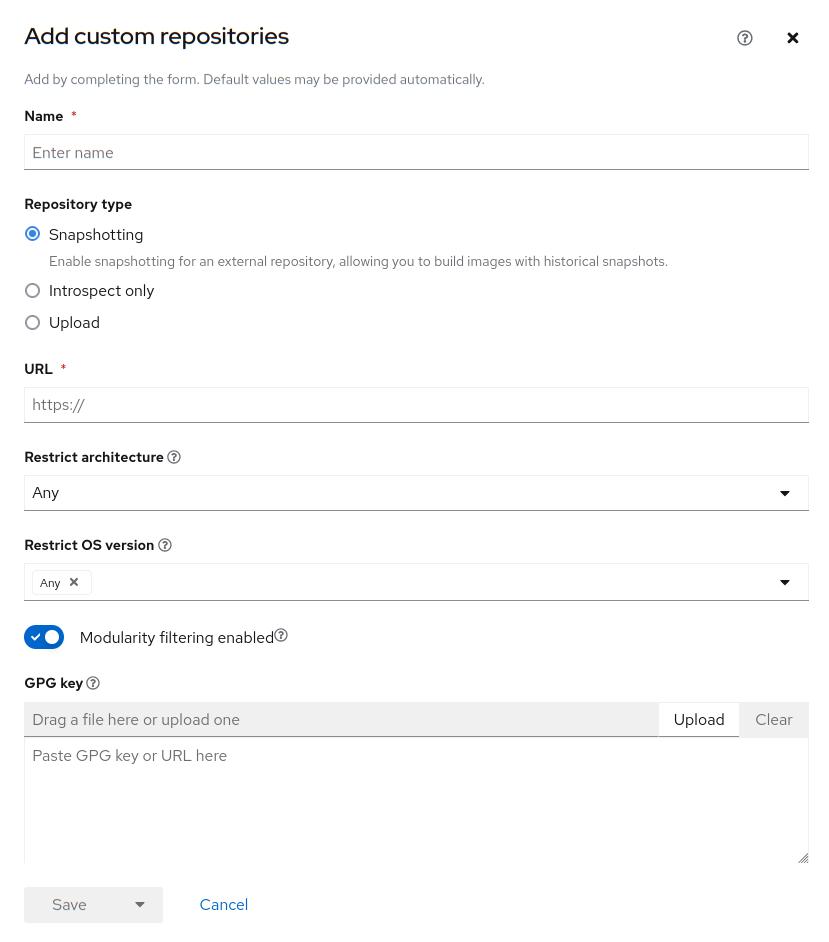
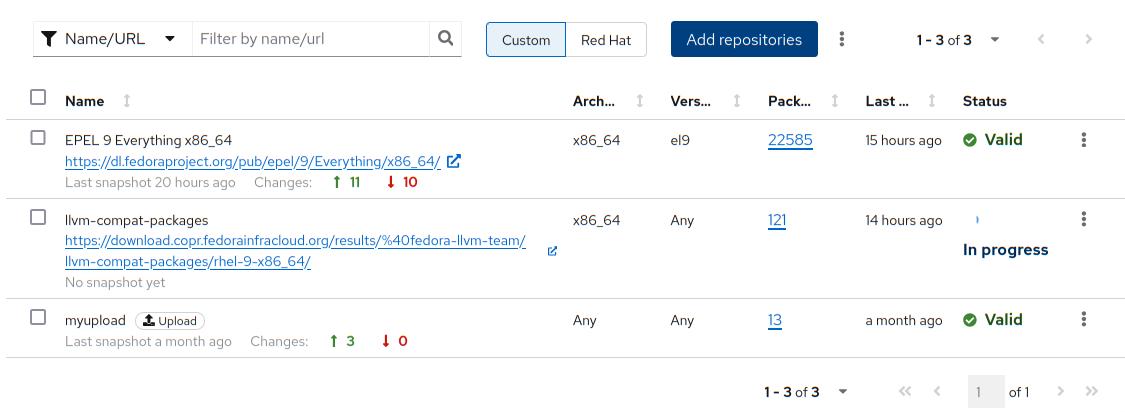
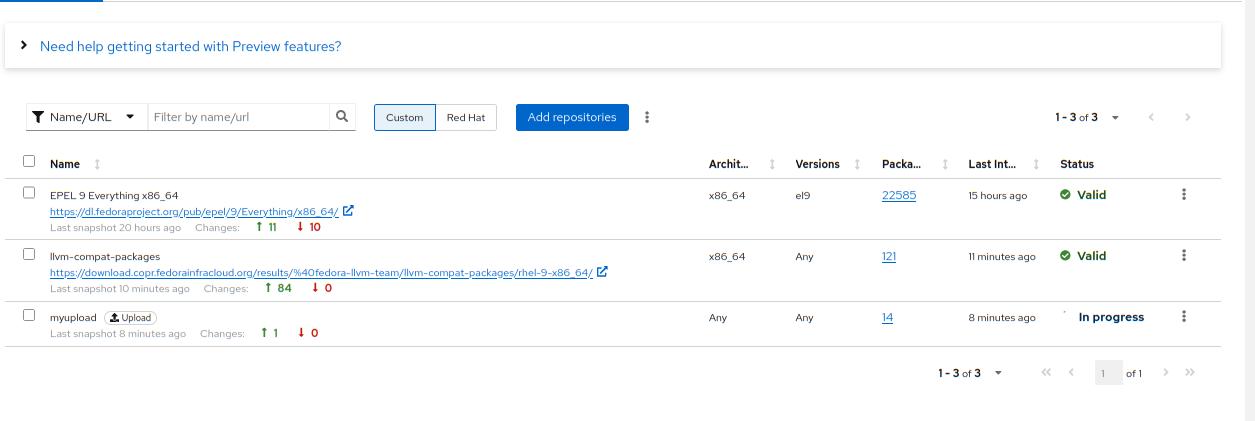
Give the repository a name and fill in the URL with the http(s) URL to the remote repository. If you include a GPG key, systems will use that GPG key to validate the RPMs when installing them. Saving it will start the snapshotting process. If this is a large repository such as EPEL, this can take some time. You can monitor the progress on the repository list page in the Status column, as depicted in Figure 9.
Upload custom RPMs
Content templates also support repositories with uploaded RPMs. These can be RPMs your organization creates or third-party RPMs that aren’t publicly available to snapshot.
To upload RPMs, go to the Repositories application by click the Add Repositories button, as previously shown in Figure 9.
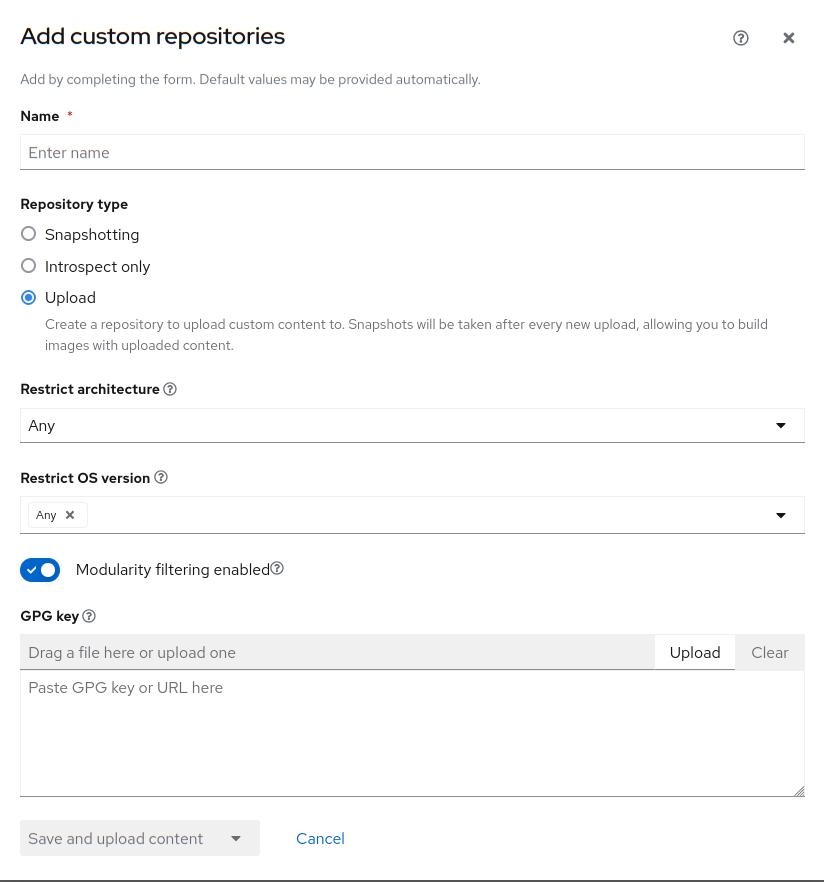
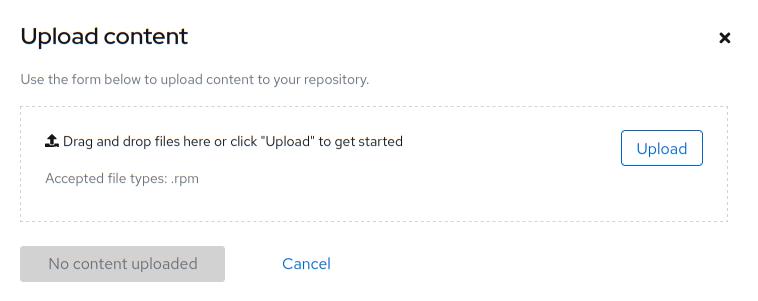
In figure 10, you will provide a name, select the upload type, and click Save and upload content. The repository will be created and allow you to either drag and drop RPM files or use the browser’s file picker to select RPMs to upload (Figure 10).
After adding one or more files, the browser will start processing and uploading the files. This can take a while for large files or slow connections (Figure 11).
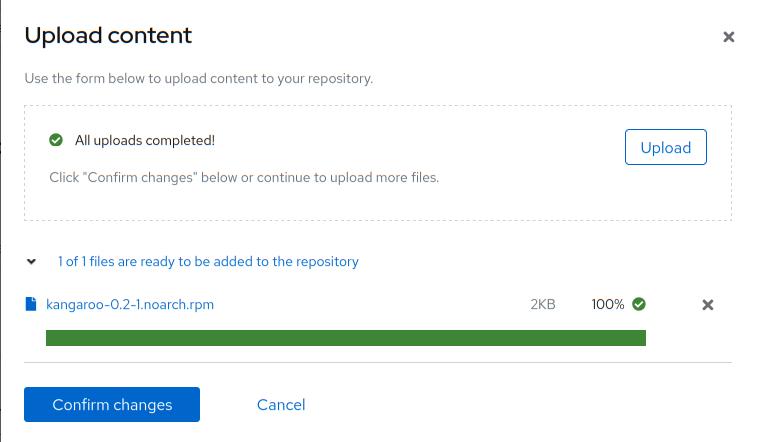
Once the upload is complete, select Confirm changes (Figure 12).
Once complete, the process of creating the repository snapshot will start. You can monitor the progress in the repository list, as shown in Figure 13.
Add custom content to the template
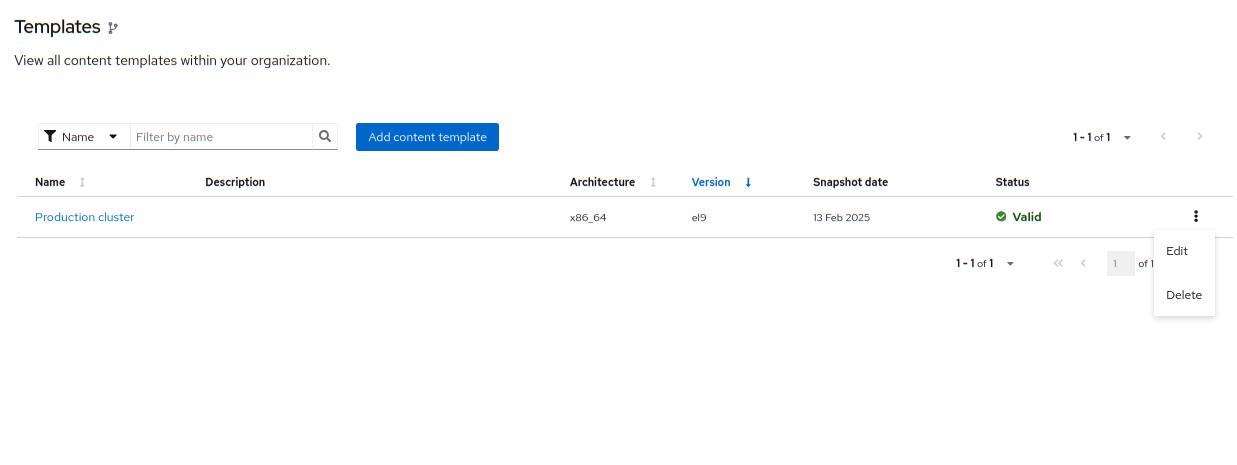
Now head back over to the Templates list shown in Figure 14. Locate your template. Click the kebab menu to the right of the template name and select Edit.
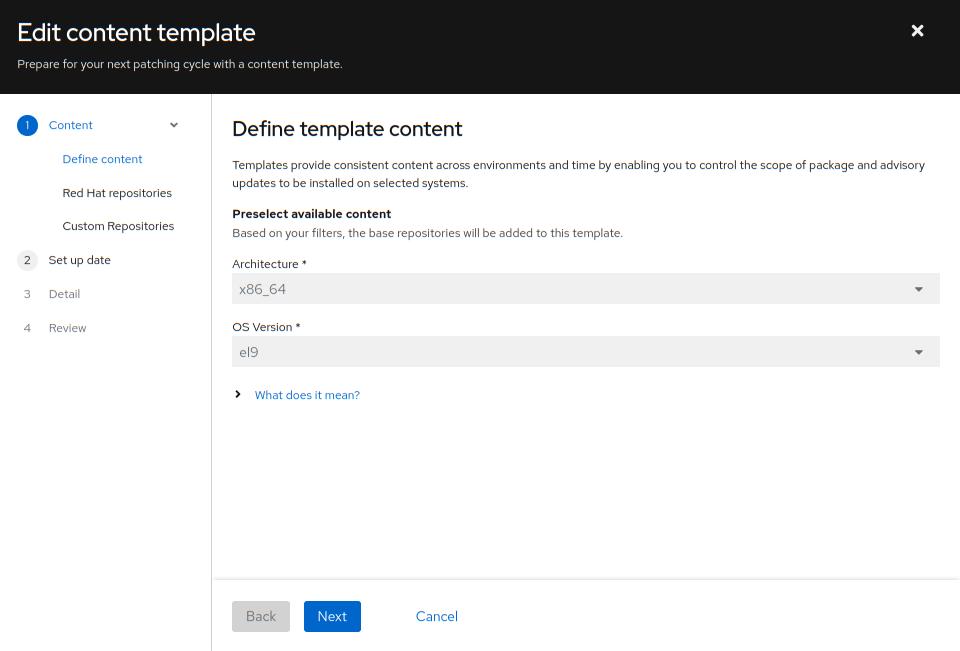
Select Custom Repositories in Figure 15.
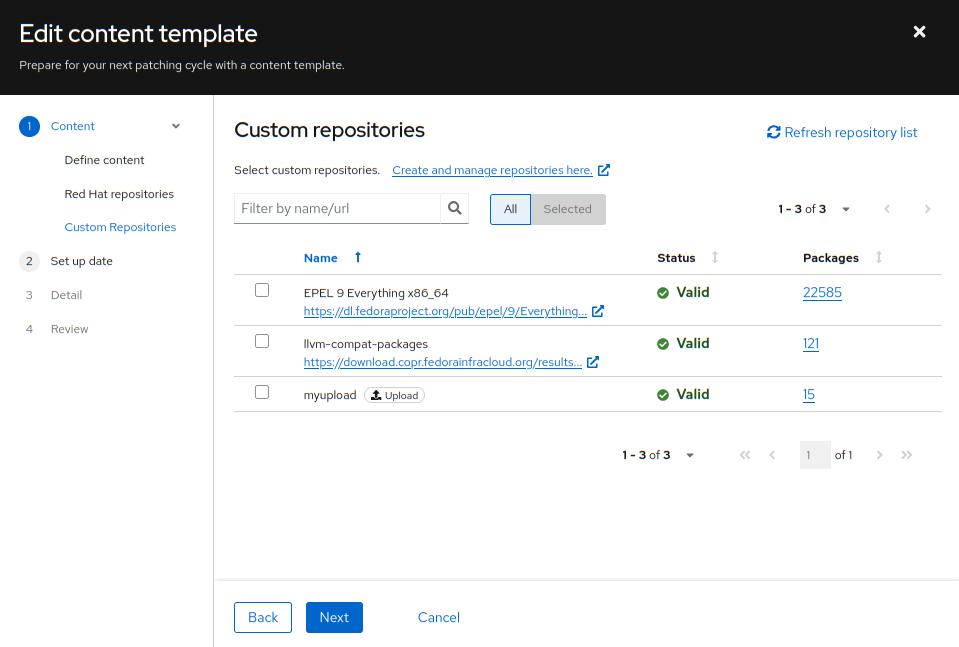
Select one or more custom repositories you would like to add to the template, as shown in Figure 16.
Click Next three times until you are at the final review step, then select Confirm Changes.
Note that it can take up to a minute for these changes to take effect. You can monitor with the Status column of the template list.
Now at the next check-in, the system will pick up the changes to the template. You can force this by running subscription-manager refresh.
To see the custom repositories, run dnf repolist as follows:
# dnf repolist
Updating Subscription Management repositories.
repo id                                              repo name
myupload                                            myupload
llvm-compat-packages                         llvm-compat-packages
rhel-9-for-x86_64-appstream-rpms                     Red Hat Enterprise Linux 9 for x86_64 - AppStream (RPMs)
rhel-9-for-x86_64-baseos-rpms                        Red Hat Enterprise Linux 9 for x86_64 - BaseOS (RPMs)
Try to install one of your custom packages with the following command:
# dnf install walrusIt will be installed from your template.
Next steps
By defining a content template, we can create a stable baseline for controlling patching for large groups of systems and provide custom content to those end systems.
FAQs
I do not see my systems when trying to assign a template.
This could be due to a couple of reasons:
- The template’s architecture or operating system version does not match the system: Double check if you used the correct options when creating the template.
- The system was not registered to Red Hat Lightspeed: Ensure you registered the system with
rhc connectand not justsubscription-manager register.
I’ve assigned my template to a system but do not see custom repositories showing within dnf or yum.
The system should automatically pick up the template at its next RHSM check-in. By default this happens every 4 hours, but you can adjust via the
certCheckIntervalconfiguration in/etc/rhsm/rhsm.conf.You can manually cause a system to check in by running
subscription-manager refresh. You might need to rundnf repolistor perform a DNF action before updates to the/etc/yum.repos.d/redhat.repofile.Is uploaded or snapshotted content available publicly?
No, all repositories hosting third party content are only available to registered systems in your organization. This is protected by the certificates a system receives at registration time.
How long is snapshotted and uploaded content kept?
Currently snapshots are stored for 12 months and then deleted, but the newest snapshot will always be kept.
How can I upload content without using the UI?
API information is available in the documentation. With the "Create an upload", "Upload Chunk", and "Add uploads to a repository" APIs, you can use curl, Python, or other languages to upload arbitrary RPMs.
How can I provide feedback?
We welcome your feedback. Select the Feedback flag from the bottom right of the page. For general feedback, select Share feedback. Please include an email address if you would like to be contacted regarding your feedback. For issues, bugs, or feature requests that you would like to track long-term, select Open a support case.

