Introduction
As you may already know, the Red Hat Mobile Application Platform (RHMAP) is available as a self-administered, on-premise, installation as well as a hosted platform. This offers more opportunities for customers to benefit from increased security, flexibility and control over their platform.
Note: This installation is strictly for sandbox demonstration purposes. In the interests of simplicity, it will be running on infrastructure that will not be secure so no confidential data should be stored in this instance.
Preparation
Before we begin, please ensure that you have the following.
- An Amazon Web Services (AWS) account.
- A valid Red Hat subscription that entitles you to Openshift and Red Hat Mobile.
First, we need to launch an AWS EC2 instance and connect to it. You can find details on launching it here. Make sure that you select a "Red Hat Enterprise Linux", m4.4xlarge type instance and that it has at least 120 GB of space. Also, make sure that you assign a security group to it that allows all traffic in and out.
Once launched, SSH into your instance from the terminal. Details on how this is done can be found here
Once you are in, run everything as root:
sudo su -
Configure Red Hat Subscriptions
Register your subscription. Access to the Red Hat container registry is required to get the Docker components we will be using during the installation.
subscription-manager register --username=<username> --password=<password>
where <username> and <password> are the login credentials for your Red Hat subscription.
List the available Openshift subscriptions
subscription-manager list --available --matches '*OpenShift*'
In the output, find the pool ID for an OpenShift Container Platform subscription, attach it.
subscription-manager attach --pool=<pool id>
We can then enable the specific repositories that we need.
subscription-manager repos --enable="rhel-7-server-rpms" --enable="rhel-7-server-extras-rpms" --enable="rhel-7-server-ose-3.4-rpms" --enable="rhel-7-fast-datapath-rpms" --enable="rhel-7-server-rhmap-4.4-rpms"
Install and Configure Tools
Time to start installing the various extra tools that are necessary for the installation.
yum install -y wget git net-tools bind-utils iptables-services bridge-utils bash-completion docker atomic-openshift-utils atomic-openshift-excluder atomic-openshift-docker-excluder rhmap-fh-openshift-templates
Update what you have just installed
yum -y update
We need to configure the Docker daemon with a new insecure registry parameter by adding --insecure-registry 172.30.0.0/16 to the OPTIONS parameter in the /etc/sysconfig/docker file. Run the following to use SED (stream editor) to perform this in one command.
sed -i '/OPTIONS=.*/c\OPTIONS="--selinux-enabled --insecure-registry 172.30.0.0/16"' /etc/sysconfig/docker
The --insecure-registry option instructs the Docker daemon to trust any Docker registry on the 172.30.0.0/16 subnet, rather than requiring a certificate.
Now, enable and restart Docker.
systemctl enable docker
systemctl restart docker
Install Openshift
Make sure that you are in your home directory.
cd
If you are running as root (which you should be), this will take you to /root.
Download the Linux oc binary...
wget https://github.com/openshift/origin/releases/download/v3.7.0-alpha.1/openshift-origin-client-tools-v3.7.0-alpha.1-fdbd3dc-linux-64bit.tar.gz
...unzip it...
tar -xvzf openshift-origin-client-tools-v3.7.0-alpha.1-fdbd3dc-linux-64bit.tar.gz
... and place it in your path by running the following.
echo 'PATH=$HOME/openshift-origin-client-tools-v3.7.0-alpha.1-fdbd3dc-linux-64bit:$PATH' >> $HOME/.bash_profile ; echo 'export PATH' >> $HOME/.bash_profile ; source .bash_profile
It is time to use cluster up to install Openshift. As we are running cluster up on a virtual machine in Amazon AWS EC2, we must pass the public hostname and IP address to ensure that the cluster is reachable from the local host. This information can be retrieved from the internal meta-data endpoints (see here for more details).
Set up the hostname and IP address details using the following commands...
metadata_endpoint="http://169.254.169.254/latest/meta-data"
public_hostname="$( curl "${metadata_endpoint}/public-hostname" )"
public_ip="$( curl "${metadata_endpoint}/public-ipv4" )"
... and spin up the cluster.
oc cluster up --public-hostname="${public_hostname}" --routing-suffix="${public_ip}.nip.io"
Install RHMAP Core
Download EPEL...
wget https://dl.fedoraproject.org/pub/epel/epel-release-latest-7.noarch.rpm
... and install it.
rpm -i epel-release-latest-7.noarch.rpm
Create an inventory file using the vi editor. This file will contain the parameters for the RHMAP installation
vi /root/my_inventory
... and paste the following into it.
[Nodes:children]
 master
 core
 mbaas

[Nodes:vars]
 ansible_ssh_user=
 ansible_sudo=true
 target="enterprise"
 cluster_hostname=<cluster hostname>
 domain_name=<domain_name>
 master_url=https://localhost:8443
 oc_user=developer
 oc_password=developer
 kubeconfig="/etc/origin/master/admin.kubeconfig"

[master]
 127.0.0.1

[mbaas]
 127.0.0.1

[core]
 127.0.0.1
<cluster_hostname> must be the public DNS of your AWS instance.
<domain_name> should the root of the hostname that you want for your RHMAP domain.
Save this /root/my_inventory file and exit.
Go to the installer directory if you are not already there.
cd /opt/rhmap/4.4/rhmap-installer/
Then get the core seed images, so that it does not have to be done during the installation, for a core.
ansible-playbook -i /root/my_inventory playbooks/seed-images.yml -e "project_type=core" -e "rhmap_version=4.4" --connection=local
Next, log into openshift on the command line, as the developer user.
oc login https://localhost:8443 --username=developer --password=developer
Use the credentials that you log into your Openshift console when prompted.
Now run the following to perform the core installation.
ansible-playbook -i /root/my_inventory playbooks/core.yml --connection=local
You can view the progress of the installation by viewing the Openshift console in a web browser. The url will be the public DNS of the AWS instance on port 8443. Note that if you have not configured the security groups, in your AWS instance, to allow all traffic in then it will not be possible to view this.
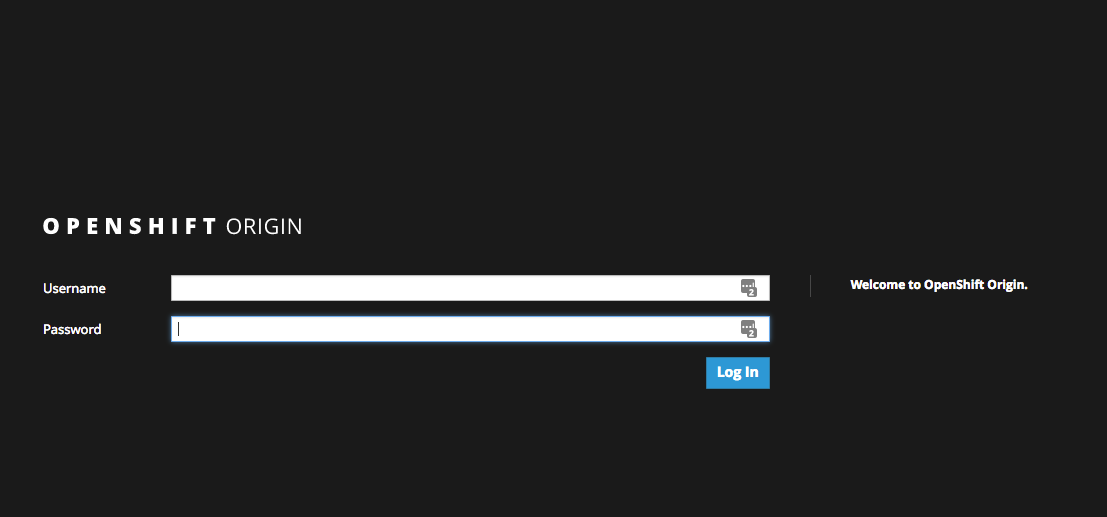
When you log in to the Openshift console (username = developer, password = developer), you will see an "rhmap-core" project in Openshift console. The installation will have been successfully completed when the pods in that project turn blue.
Log into your new RHMAP instance
Lastly, run this so that the docker0 interface runs in promiscuous mode...
$ ip link set docker0 promisc on
You should now be able to log into your new studio. You can get the studio url by running the following on the command line.
$ oc get route rhmap --template "https://{{.spec.host}}"
Admin login details can be found by running this.
$ oc env dc/millicore --list| grep FH_ADMIN

Login and have a look around.
Install RHMAP mBaaS
Since you cannot do TOO much in RHMAP studio without an mBaaS, we had better install one. This is a piece of cake after all the installing we have done so far.
First, get the seed images for the mbaas
ansible-playbook -i /root/my_inventory playbooks/seed-images.yml -e "project_type=mbaas" -e "rhmap_version=4.4" --connection=local
... and then simply run...
ansible-playbook -i /root/my_inventory playbooks/1-node-mbaas.yml --connection=local
... from the command line. Once the ansible playbook job completes, you should have your mbaas. You should be able to see it as "rhmap-1-node-mbaas" in the Openshift console.
Finished
And you are done. Have a look at the RHMAP documentation to find out what you can do with your new RHMAP installation.
Red Hat Mobile Application Platform is available for download, and you can read more at Red Hat Mobile Application Platform.
Last updated: March 14, 2024
