The AgentOps strategy in Red Hat AI 3.6 is bring your own agent (BYOA), providing a sandbox environment for running agent harnesses through the addition of the OpenShell open source project.
In this article, I demonstrate the Omnigent project, a "meta-harness" for AI agents that gives a common UI layer over Claude Code, Codex, Pi, Goose, and others. You can swap or combine harnesses without rewrites, keep them in check with policies and sandboxing, and collaborate in real time on the same live session, from any device.
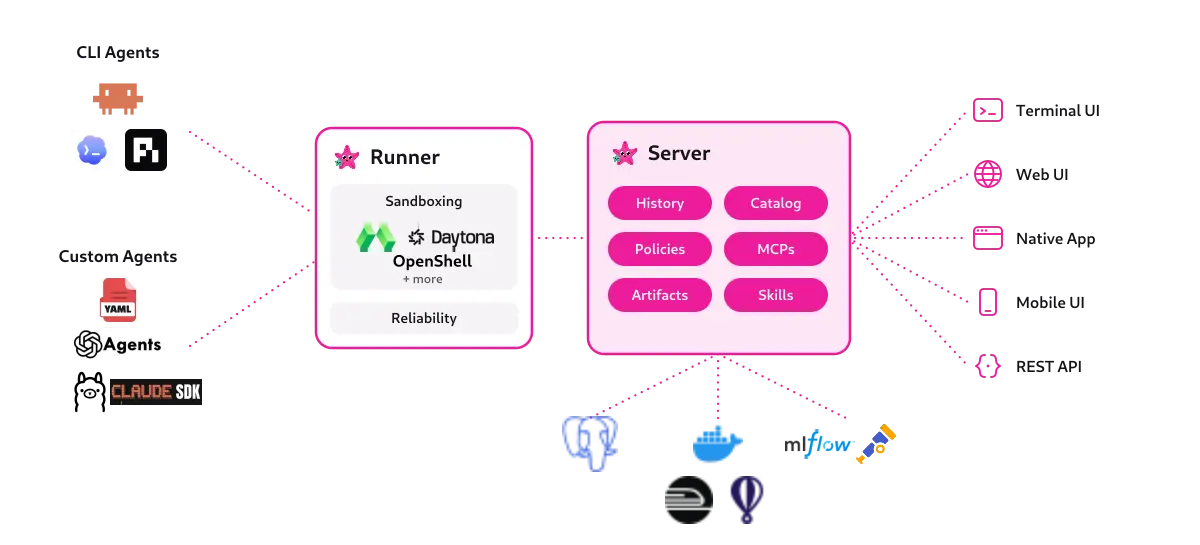
Omnigent can work in server mode so session data can be saved, shared between team members and forked, while preserving access to the underlying agent. Figure 1 provides an overview of the architecture.
Implementation
While Omnigent can work with many sandbox providers, this article focuses on running it through OpenShell on Red Hat OpenShift to take advantage of BYOA. The documented path for Omnigent on OpenShell gives a basic integration, but for Red Hat OpenShift extra steps are needed. You can follow along with this exercise by implementing everything in my example GitHub repository, referenced throughout this article.
1. Create a custom sandbox image
First, create a custom sandbox image using the components in the images directory in my GitHub repository, to ensure we're not exposing anything beyond what's needed. The requirements take compatibility and security into account.
For compatibility:
- Meets the OpenShell requirements for sandbox users
- Contains the Omnigent runtime client
- Contains the only the agent harnesses required
For security:
- Contains the base OpenShell Policy locked down as much as possible
- Contains specific harness configuration when required
- Based on a Universal Base Image (UBI)
2. Configure OpenShell
Next, configure these OpenShell profiles and providers to load credentials (through OpenShell terminal or API). While Omnigent works with several different harnesses, like Pi and Goose, this exercise focuses on 4, to demonstrate how OpenShell standardizes credential injection and governance across diverse tools.
You can think of a profile as a snippet of an OpenShell policy, with a placeholder for a credential. The provider then adds that credential.
Profiles and providers
- Antigravity, scondon-antigravity
- OpenAI, scondon-openai
- Claude Code, scondon-claude-code
- LiteMaaS, scondon-litemaas
- GitHub, scondon-github
Use the script scripts/load-openshell-profiles.sh to automate the loading of these from your local environment variables.
3. Configure Omnigent
Using Git, clone my Omnigent fork and modify the Kustomization overlay (openshift-openshell) in the branch scShiftShell.
$ git clone -b scShiftShell git@github.com:aicatalyst-team/omnigent.git
$ cd deploy/kubernetes/overlays/openshift-openshell
First inspect server-config.yaml, which allows us to specify how we want sandboxes to be created, setting the image to use, an optional OpenShell workspace, node selector labels, and optionally changing the runtime class. This config must include the names of OpenShell providers created in the previous step.
apiVersion: v1
kind: ConfigMap
metadata:
  name: omnigent-server-config
  labels:
    app: omnigent
data:
  config.yaml: |
    sandbox:
      provider: openshell
      server_url: http://omnigent.omnigent.svc.cluster.local
      openshell:
        providers:
        - scondon-openai
        - scondon-github
        - scondon-litemaas
        - scondon-antigravity
        # node_selector:
        #  kata-install: "true"
        workspace: omnigent
        image: quay.io/aicatalyst/omnigent-host-openshell-ubi:latest
        env:
          - OMNIGENT_RUNNER_ENV_PASSTHROUGH
Copy secrets.env.example to a secrets.env and adjust it to connect to a local OIDC server (for example, Keycloak). Alternatively, omit the OIDC values to allow the built in account manager to operate.
To enable access to Omnigent at an external URL, change the host name in route.yaml.
Adjust IP addresses in the network policy as necessary. Deploy the Kustomization with:
oc apply -k deploy/kubernetes/overlays/openshift-openshellOmnigent features
Accessing the UI at the URL configured in the route.yaml, and logging in as a pre-configured user (for example, Alice), allows you to start a session and share it with other logins (for example, Bob).
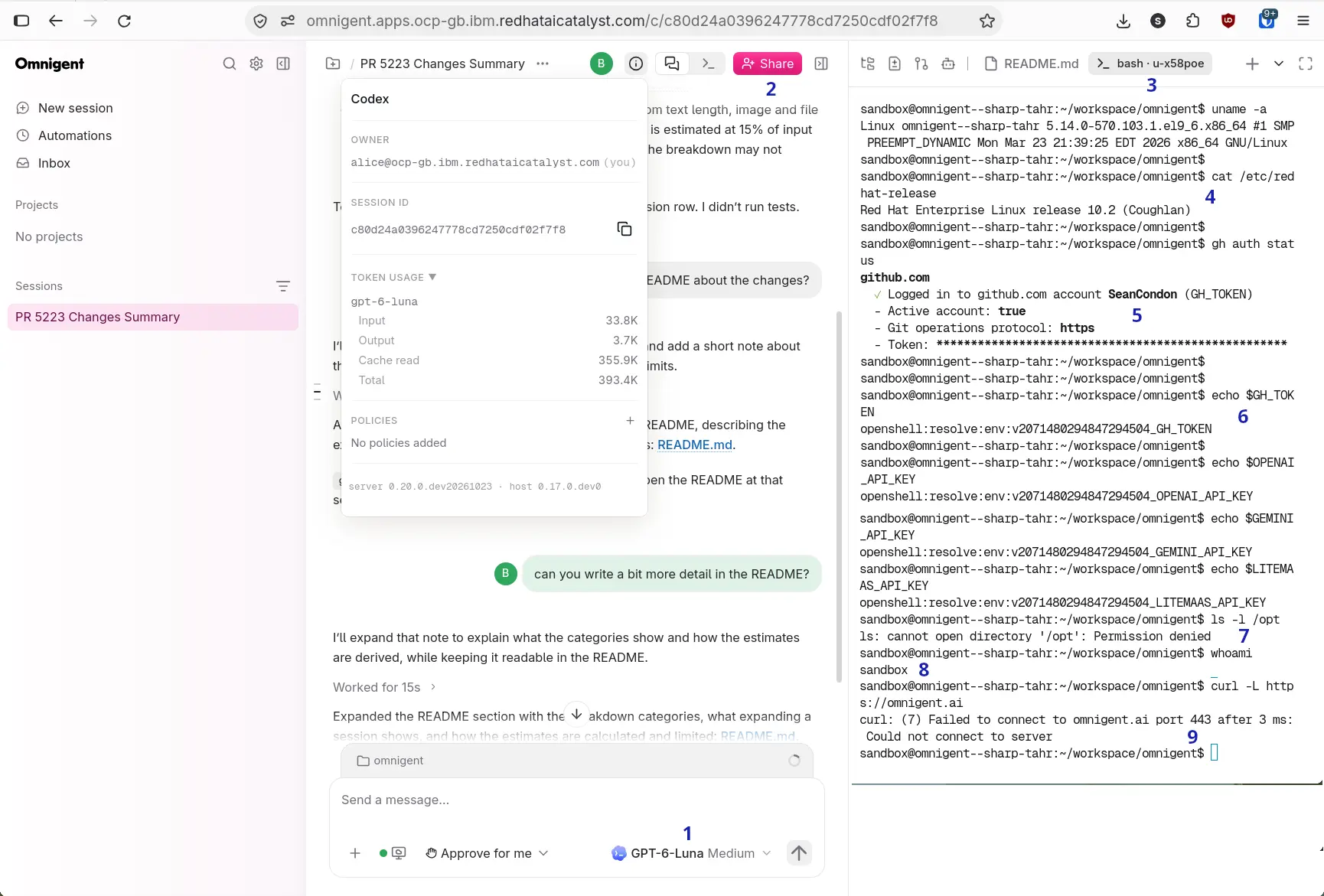
Alice's new session (Figure 2) creates a new OpenShell sandbox instance with Codex as the main process. The important features of the integration are highlighted:
- Before starting the session, this drop down allows choosing the harness and typing in a prompt to start the session. Once started, this presents a list of models to use with that harness.
- The share button allows sharing this session with other users. Here Alice has given Bob write access to this session, and we can see his inputs in the chat. Being able to share conversations like this is one of the main advantages of Omnigent in Server mode, and is the feature that most benefits from a sandbox.
- A bash shell session into the sandbox allows interaction with it directly in this tab. The prompt reflects the OpenShell sandbox name.
- The custom sandbox image for this demo is based on UBI.
- The
ghtool is already logged in because of thescondon-githubOpenShell provider, which includesGH_TOKEN. - The
GH_TOKENand the API keys passed in through the OpenShell providers are masked, and will be replaced by the OpenShell network proxy when a call is made. - File system access is locked down by default with exceptions being allowed in the OpenShell Policy as necessary.
- The processes run as a user
sandboxas required by OpenShell. - Network access to external endpoints, such as
omnigent.ai, is blocked by default, unless an exception is given in an OpenShell policy or provider.
OpenShell view
From the OpenShell side, the configuration can be viewed in the OpenShell terminal, as shown in Figure 3.
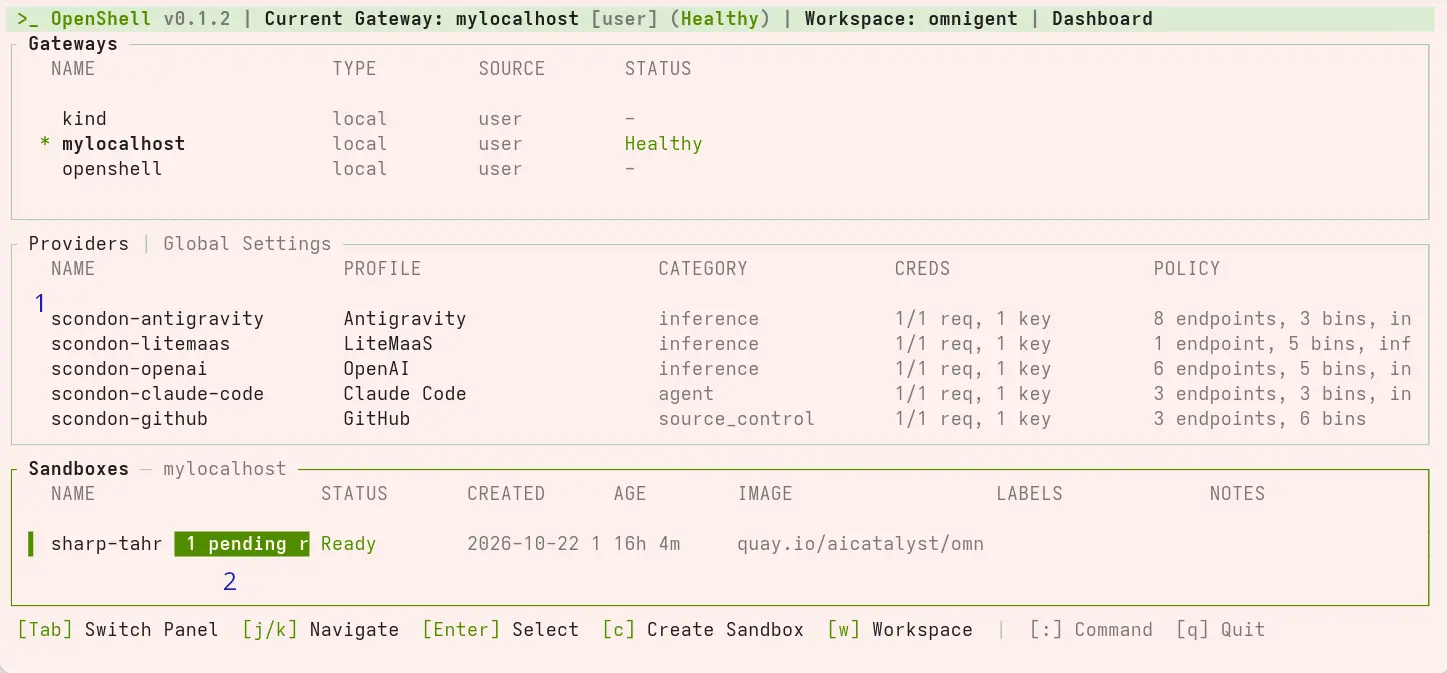
The OpenShell terminal shows the dashboard for this omnigent workspace:
- The OpenShell providers pre-configured and the profile they're based on. Each brings in a credential and some policy rules to extend the policy that's baked into the sandbox image.
- Policy violations detected. In this case it's because we tried to access omnigent.ai in the session and it was refused. The violation can be reviewed and approved through this terminal on a live sandbox without any interruption to the Omnigent session.
Analysis
The integration of Omnigent with OpenShell is a comprehensive reference for the BYOA strategy of Red Hat AI. By integrating the OpenShell SDK directly, Omnigent can access the full breadth of OpenShell's features, without modifying agent source code.
The upcoming integration of OpenShell into Red Hat AI in 3.6 will add sandbox fast-provisioning, UX integration, the ability to choose the runtime class (like Kata containers), native multitenancy.
For Omnigent itself, there is a lot more to explore, like configuring MCP servers, how sharing of agentic sessions enables building Team Agents, and the many other ways in which you can connect to your sessions using mobile, terminal, and APIs.
Configuration files and the sandbox image
The interface between Omnigent and OpenShell by design does not allow passing of files, only environment variables. This requires that the configuration files are present in the sandbox image when it is built, but can be tweaked with environment variables when required, as shown in the example for configuring LiteMaaS. This restriction creates a good separation of concerns, avoiding the inadvertent loading of files at runtime, even if it requires some more maintenance of sandbox images.
Defense in depth
Inside an Omnigent host, agents are run with BubbleWrap, giving them further defense in depth on top of what OpenShell provides. This isolates the agent from the Omnigent host processes and the WebSocket it uses to call back to the Omnigent server.
Future improvements
While Omnigent's integration is secure, I've suggested some feature requests to their roadmap, to improve the security posture:
- Allow a different sandbox image per harness type. With this, the image could be built to only support that harness, reducing the configuration to only what's needed.
- Allow external CLI connections directly from the
omni attachcommand. Currently, CLI connection is only possible from inside the OpenShell sandbox CLI. - When Stop Session is selected in the Omnigent UI, the corresponding OpenShell sandbox should be suspended.
- Omnigent sandbox configuration should allow the ability to choose
user_namespacesin OpenShell.
Conclusion
While Omnigent remains a community project rather than part of the Red Hat AI roadmap, it exemplifies the power of BYOA. Explore our proof-of-concept repo on Github to test these sandbox policies in your own development clusters, and the OpenShell docs on security best practices.

