AI
  • Get started with AI

    • Red Hat AI

      Accelerate the development and deployment of enterprise AI solutions.

    • AI learning hub

      Explore learning materials and tools, organized by task.

    • AI interactive demos

      Click through scenarios with Red Hat AI, including training LLMs and more.

    • AI/ML learning paths

      Expand your Red Hat OpenShift AI knowledge using these learning resources.

    • AI quickstarts

      Focused AI use cases designed for fast deployment on Red Hat AI platforms.

    • No-cost AI training

      Foundational Red Hat AI training.

  • Featured resources

    • Red Hat OpenShift AI
    • Open source AI for developers
    • AI product application development
    • Open source-powered AI/ML for hybrid cloud
    • AI and Node.js cheat sheet

Red Hat AI Factory with NVIDIA

Red Hat AI Factory with NVIDIA is a co-engineered, enterprise-grade AI solution for building, deploying, and managing AI at scale across hybrid cloud environments.

Learn
  • Self-guided

    • Documentation

      Find answers, get step-by-step guidance, and learn how to use Red Hat products.

    • Learning paths

      Explore curated walkthroughs for common development tasks.

    • Guided learning

      Receive custom learning paths powered by our AI assistant.

    • See all learning
  • Hands-on

    • Developer Sandbox

      Spin up Red Hat's products and technologies without setup or configuration.

    • Interactive labs

      Learn by doing in these hands-on, browser-based experiences.

    • Interactive demos

      Click through product features in these guided tours.

  • Browse by topic

    • AI/ML
    • Automation
    • Java
    • Kubernetes
    • Linux
    • See all topics
  • Training & certifications

    • Courses and exams
    • Certifications
    • Skills assessments
    • Red Hat Academy
    • Learning subscription
    • Explore training
Build
  • Get started

    • Red Hat build of Podman Desktop

      A downloadable, local development hub to experiment with our products and builds.

    • Developer Sandbox

      Spin up Red Hat's products and technologies without setup or configuration.

  • Download products

    • Red Hat Enterprise Linux
    • Red Hat AI
    • Red Hat OpenShift
    • Red Hat Ansible Automation Platform
    • See all products
  • Featured

    • Red Hat build of OpenJDK
    • Red Hat JBoss Enterprise Application Platform
    • Red Hat OpenShift Dev Spaces
    • Red Hat Developer Toolset
  • References

    • E-books
    • Documentation
    • Cheat sheets
    • Architecture center
Community
  • Get involved

    • Events
    • Live AI events
    • Red Hat Summit
    • Red Hat Accelerators
    • Community discussions
  • Follow along

    • Articles & blogs
    • Developer newsletter
    • Videos
    • Github
  • Get help

    • Customer service
    • Customer support
    • Regional contacts
    • Find a partner

Join the Red Hat Developer program

Download Red Hat products and project builds, access support documentation, learning content, and more.

ConsoleDocsSupport Search
New For you

Recommended

We'll recommend resources you may like as you browse. Try these suggestions for now.

  • Product downloads
  • Cheat sheets
  • Red Hat Developer learning portal
  • Developer blog
  • E-books
  • Developer Sandbox
Log in

Get more with a Red Hat Developer account

  • Product downloads
  • Console access
  • Event registration
  • Training & trials
Explore more account benefitsLog in or register

A subscription may be required for some services.

Contact us

Integrate a custom AI service with Red Hat Ansible Lightspeed

December 10, 2025
Riya Sharma Elijah DeLee
Related topics:
Artificial intelligenceAutomationOperators
Related products:
Red Hat Ansible Automation PlatformRed Hat Ansible Lightspeed with IBM watsonx Code Assistant

    Red Hat Ansible Lightspeed is the generative AI service for Red Hat Ansible Automation Platform that helps your automation team build content more efficiently.

    The Ansible Lightspeed intelligent assistant lets you bring your own AI service to power the inference engine that helps generate answers. These answers use enhanced context from retrieval-augmented generation (RAG) requests. This blog post shows you how to integrate a custom AI service to drive the inference process and get the most out of Ansible Lightspeed.

    Prerequisites

    Before you begin, you must install Red Hat OpenShift AI and deploy the inference service.

    Also ensure you have a valid Ansible Automation Platform license or subscription.

    Create a secret chatbot configuration

    1. From the OpenShift homepage, go to Workloads→ Secrets.
    2. Select Create→ Key/Value secret and add 3 key/value pairs:
      1. chatbot_model: The LLM model name that is configured on your LLM setup.
      2. chatbot_token: The API token or the API key (see Figure 1). This token is sent along with the authorization header when an inference API is called.
      3. chatbot_url: The inference API base URL on your LLM setup (for example, https://your_inference_api:8080/v1).

    Note

    Be sure to include the correct port number and /v1 at the end of your URL. To find the port number, go to Networking → Services and find the service with the same name as your chatbot_model. Look for the Service port mapping tab and add the TCP port to the end of your URL.

    Install and set up the Ansible Automation Platform Operator

    Follow these steps to install and configure the Ansible Automation Platform Operator:

    1. From the OpenShift homepage, go to Operators → OperatorHub and search for Ansible Automation Platform (Figure 2).
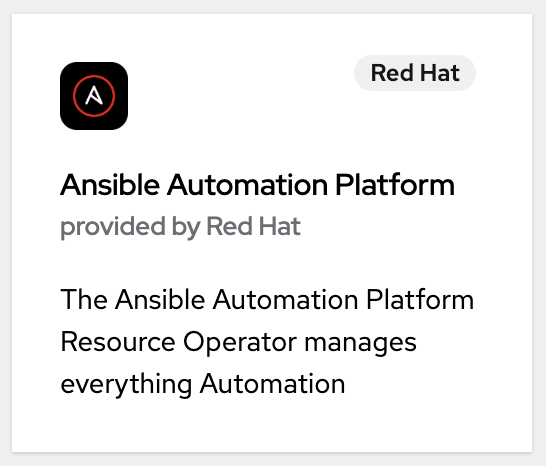
      OperatorHub tile for Ansible Automation Platform provided by Red Hat.
      Figure 2: The Ansible Automation Platform Operator.
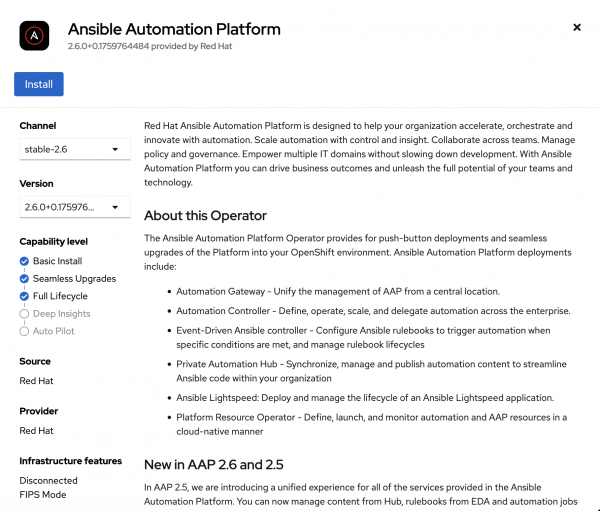
    2. Click Install (Figure 3).

      Ansible Automation Platform operator details page showing the Install button.
      Figure 3: Install the Ansible Automation Platform Operator.
    3. Confirm that the Operator is installed. The status should be Succeeded (Figure 4).

      Ansible Automation Platform listed in the Installed Operators table with a Status of Succeeded.
      Figure 4: Installed Operator.
    4. Go to the installed Ansible Automation Platform Operator.
    5. Select the Ansible Automation Platform tab.
    6. Click Create AnsibleAutomationPlatform.
    7. Select the YAML view option. Add the following YAML content with your application name, namespace, and secret chatbot configuration file name, then click Create.

      apiVersion: aap.ansible.com/v1alpha1
      kind: AnsibleAutomationPlatform
      metadata:
        name: <Insert your name here>
        namespace: <Insert your namespace here>
      spec:
        controller:
          disabled: false
        eda:
          disabled: true
        hub:
          disabled: true
        lightspeed:
          chatbot_config_secret_name: <Insert your secret chatbot configuration file name>
          disabled: false
        no_log: false
        redis_mode: standalone
        route_tls_termination_mechanism: Edge
    8. Scroll to the Ansible Automation Platform tab and then select the Ansible Automation Platform Operator you just created. Wait for the status to show Running, Successful (Figure 5).
    AnsibleAutomationPlatforms list showing the myaap instance with status Conditions: Running, Successful.
    Figure 5: The Ansible Automation Platform Operator set up successfully.

    Access the Ansible chatbot

    Now that you have configured the chatbot for the Ansible Automation Platform instance, you can access the Ansible Automation Platform dashboard and start using it.

    1. From the OpenShift homepage, go to Workloads→ Secrets and click myaap-admin-password under your namespace.
    2. In the Data section, select Reveal values to get the admin password. Save this password.
    3. From the OpenShift homepage, go to Networking→ Routes.
    4. Click the location for myaap (https://myaap-chatbot-test.apps-crc.testing/), as shown in Figure 6.

      Routes table showing the myaap route with status Accepted and the Location URL.
      Figure 6: Getting the chatbot URL.
    5. Log in using the admin as the username and use the saved text as the password (Figure 7).
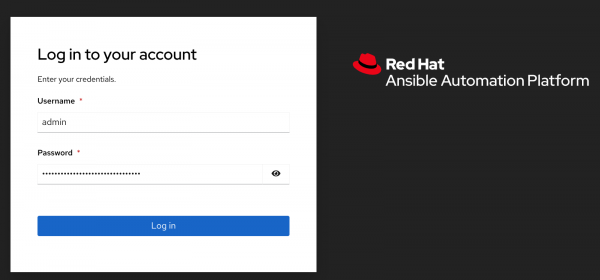
      Ansible Automation Platform login screen with admin entered in the Username field.
      Figure 7: Ansible Automation Platform login page.
    6. Welcome to the Ansible Automation Platform dashboard. Click the chat icon in the top right corner. The chatbot will appear on the right side (Figure 8).
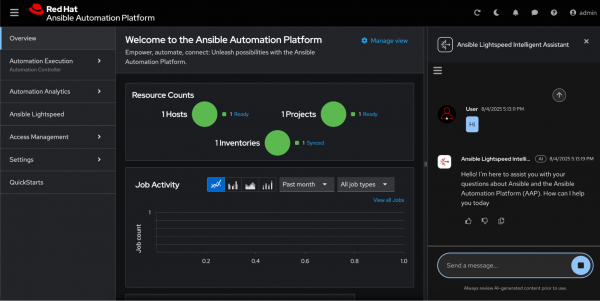
      Ansible Lightspeed Intelligent Assistant panel displaying a conversation history and a text input field.
      Figure 8: Initiating the Ansible Lightspeed chatbot.
    7. Enter queries about Ansible to resolve your issues.

    Summary

    In this final article of the series, we deployed the Ansible Lightspeed chatbot with a custom inference service.

    Review the previous blogs in this series:

    • How to enable Ansible Lightspeed intelligent assistant
    • Deploy an LLM inference service on OpenShift AI

    Further resources:

    • Blog: How to run vLLM on CPUs with OpenShift for GPU-free inference
    • Course: Developing and Deploying AI/ML Applications on Red Hat OpenShift AI
    • Arcade demo: Configuring Ansible Lightspeed intelligent assistant with Red Hat AI Inference Server on RHEL
    • Product page: Ansible Lightspeed

    Related Posts

    • What's new in Ansible Automation Platform 2.6

    • Migrating Red Hat Ansible Automation Platform: From RPM to container on Red Hat Enterprise Linux

    • How to enable Ansible Lightspeed intelligent assistant

    • Migrating Ansible Automation Platform 2.4 to 2.5

    • How I used Red Hat Lightspeed image builder to create CIS (and more) compliant images

    • 3 ways Ansible Lightspeed simplifies automation

    Recent Posts

    • A day in the life of an NVIDIA H100 on Red Hat OpenShift 5

    • Migrate BuildConfigs to builds for Red Hat OpenShift with one plug-in install

    • Run Red Hat Enterprise Linux CoreOS on NVIDIA BlueField DPUs

    • Agent harness engineering: Separating model capabilities from enforcement

    • What's new for developers in Red Hat Enterprise Linux 10.3 and 9.9

    What’s up next?

    Download the Red Hat Certified Engineer (RHCE) Ansible Automation Study Guide and learn to build and operate scalable IT automation across cloud, hybrid, and edge environments.

    Get the e-book
    Red Hat Developers logo

    Platforms

    • Red Hat AI
    • Red Hat Enterprise Linux
    • Red Hat OpenShift
    • Red Hat Ansible Automation Platform
    • See all products

    Build

    • Developer Sandbox
    • Developer tools
    • Interactive tutorials
    • API catalog

    Quicklinks

    • Learning resources
    • E-books
    • Cheat sheets
    • Blog
    • Events
    • Newsletter

    Communicate

    • About us
    • Contact sales
    • Find a partner
    • Report a website issue
    • Site status dashboard
    • Report a security problem

    Red Hat Developer

    Build here. Go anywhere.

    We serve the builders. The problem solvers who create careers with code.

    Join us if you’re a developer, software engineer, web designer, front-end designer, UX designer, computer scientist, architect, tester, product manager, project manager or team lead.

    Sign me up

    Red Hat legal and privacy links

    • About Red Hat
    • Jobs
    • Events
    • Locations
    • Contact Red Hat
    • Red Hat Blog
    • Inclusion at Red Hat
    • Cool Stuff Store
    • Red Hat Summit
    © 2026 Red Hat

    Red Hat legal and privacy links

    • Privacy statement
    • Terms of use
    • All policies and guidelines
    • Digital accessibility
    Ask AI