AI
  • Get started with AI

    • Red Hat AI

      Accelerate the development and deployment of enterprise AI solutions.

    • AI learning hub

      Explore learning materials and tools, organized by task.

    • AI interactive demos

      Click through scenarios with Red Hat AI, including training LLMs and more.

    • AI/ML learning paths

      Expand your Red Hat OpenShift AI knowledge using these learning resources.

    • AI quickstarts

      Focused AI use cases designed for fast deployment on Red Hat AI platforms.

    • No-cost AI training

      Foundational Red Hat AI training.

  • Featured resources

    • Red Hat OpenShift AI
    • Open source AI for developers
    • AI product application development
    • Open source-powered AI/ML for hybrid cloud
    • AI and Node.js cheat sheet

Red Hat AI Factory with NVIDIA

Red Hat AI Factory with NVIDIA is a co-engineered, enterprise-grade AI solution for building, deploying, and managing AI at scale across hybrid cloud environments.

Learn
  • Self-guided

    • Documentation

      Find answers, get step-by-step guidance, and learn how to use Red Hat products.

    • Learning paths

      Explore curated walkthroughs for common development tasks.

    • Guided learning

      Receive custom learning paths powered by our AI assistant.

    • See all learning
  • Hands-on

    • Developer Sandbox

      Spin up Red Hat's products and technologies without setup or configuration.

    • Interactive labs

      Learn by doing in these hands-on, browser-based experiences.

    • Interactive demos

      Click through product features in these guided tours.

  • Browse by topic

    • AI/ML
    • Automation
    • Java
    • Kubernetes
    • Linux
    • See all topics
  • Training & certifications

    • Courses and exams
    • Certifications
    • Skills assessments
    • Red Hat Academy
    • Learning subscription
    • Explore training
Build
  • Get started

    • Red Hat build of Podman Desktop

      A downloadable, local development hub to experiment with our products and builds.

    • Developer Sandbox

      Spin up Red Hat's products and technologies without setup or configuration.

  • Download products

    • Red Hat Enterprise Linux
    • Red Hat AI
    • Red Hat OpenShift
    • Red Hat Ansible Automation Platform
    • See all products
  • Featured

    • Red Hat build of OpenJDK
    • Red Hat JBoss Enterprise Application Platform
    • Red Hat OpenShift Dev Spaces
    • Red Hat Developer Toolset
  • References

    • E-books
    • Documentation
    • Cheat sheets
    • Architecture center
Community
  • Get involved

    • Events
    • Live AI events
    • Red Hat Summit
    • Red Hat Accelerators
    • Community discussions
  • Follow along

    • Articles & blogs
    • Developer newsletter
    • Videos
    • Github
  • Get help

    • Customer service
    • Customer support
    • Regional contacts
    • Find a partner

Join the Red Hat Developer program

Download Red Hat products and project builds, access support documentation, learning content, and more.

ConsoleDocsSupport Search
New For you

Recommended

We'll recommend resources you may like as you browse. Try these suggestions for now.

  • Product downloads
  • Cheat sheets
  • Red Hat Developer learning portal
  • Developer blog
  • E-books
  • Developer Sandbox
Log in

Get more with a Red Hat Developer account

  • Product downloads
  • Console access
  • Event registration
  • Training & trials
Explore more account benefitsLog in or register

A subscription may be required for some services.

Contact us

Remote debug your ASP.NET Core container on OpenShift with Visual Studio Code

October 23, 2017
Takayoshi Tanaka
Related topics:
Kubernetes.NET
Related products:
Red Hat OpenShift Container PlatformRed Hat OpenShift

    Visual Studio provides a graphical remote debugging ASP.NET Core app with Docker Tools for Windows. Since Visual Studio supports SSH protocol, you can remote debug ASP.NET Core process running on the Linux host. It used to be if you install and setup SSH server on docker container, you can remote debug with Visual Studio. However, it's strongly not recommended due to security reasons. Now I'll explain to you how to remote debug your ASP.NET Core on OpenShift with Visual Studio Code by using oc exec command instead of installing SSH server on docker container. You can use Microsoft proprietary debugger engine vsdbg with Visual Studio Code (or other Visual Studio products). Visual Studio Code can integrate other commands than SSH for debugger transport protocol.

    Install and set up vsdbg on docker container

    To follow the steps below, you may have to deploy ASP.NET Core app on OpenShift. If you haven't done so, you can use the example project. I will use this project as an example. Once the application pod runs, you'll install vsdbg on this pod. The dotnet image version 2.0-7 or later has an unzip command, you can install vsdbg with the steps below.

    $ export POD_NAME=<pod_name>
    $ oc rsh $POD_NAME
    sh-4.2$  curl -sSL https://aka.ms/getvsdbgsh | bash /dev/stdin -v latest -l /opt/app-root/vsdbg -r linux-x64
    Info: Creating install directory
    Using arguments
        Version                    : 'latest'
        Location                   : '/opt/app-root/vsdbg'
        SkipDownloads              : 'false'
        LaunchVsDbgAfter           : 'false'
        RemoveExistingOnUpgrade    : 'false'
    Info: Using vsdbg version '15.1.10630.1'
    Info: Previous installation at /opt/app-root/vsdbg not found
    Info: Using Runtime ID 'linux-x64'
    Downloading https://vsdebugger.azureedge.net/vsdbg-15-1-10630-1/vsdbg-linux-x64.zip
    Info: Successfully installed vsdbg at '/opt/app-root/vsdbg'

    If you use an older version of a dotnet image, an alternative way is installing vsdbg on your local machine and transferring them.

    $ export POD_NAME=<pod_name>
    $ curl -sSL https://aka.ms/getvsdbgsh | bash /dev/stdin -v latest -l ./vsdbg -r linux-x64
    $ oc rsync ./vsdbg $POD_NAME:/opt/app-root/app/

    The PID of a dotnet process is also required. It's usually 1, but confirm with the command below, just in case.

    $ oc exec $POD_NAME -- ps aux
    USER        PID %CPU %MEM    VSZ   RSS TTY      STAT START   TIME COMMAND
    default       1  0.0  0.5 21251236 75376 ?      SLsl Sep29   0:24 dotnet app.dll
    default      48  0.0  0.0  17748  2016 ?        Ss+  Sep29   0:00 /bin/sh
    default   25663  0.0  0.0  53424  1936 ?        Rs   05:47   0:00 ps aux

    Now the pod is ready to debug.

    Set up your local machine

    You should have the same code as the one deployed. If you use the dotnet example app, clone the code and checkout dotnetcore-2.0 branch.

    $ git clone https://github.com/redhat-developer/s2i-dotnetcore-ex.git
    $ cd s2i-dotnetcore-ex
    $ git checkout dotnetcore-2.0

    Now open the project with Visual Studio code.

    $ code app

    Then open a .vscode/launch.json file or create it if it hasn't been created. Then add the below json as an element of the configuration array.

    {
                "name": ".NET Core OpenShift Pod Remote Attach",
                "type": "coreclr",
                "request": "attach", 
                "processId": "",
                "pipeTransport": {
                    "pipeProgram": "oc", 
                    "pipeArgs": [ "exec", "-it", "<pod_name>", "--"], 
                    "quoteArgs":false, 
                    "debuggerPath": "/opt/app-root/vsdbg/vsdbg", 
                    "pipeCwd": "${workspaceRoot}"
                },
                "justMyCode":false,
                "sourceFileMap": { "/opt/app-root/src": "${workspaceRoot}"}
            }

    Visual Studio Code will launch the process specified by pipeProgram and pipeArgs as transferring remote debug commands. debuggerPath is a full path of vsdbg. If you install at another location, it should be changed. If your application builds with the Release configuration, which is a default for s2i-dotnetcore, justMyCode should be false. Since the s2i-dotnetcore builds your source located at /opt/app-root/src, you should specify this path at sourceFileMap. Please note this is a path where your project is located when it's built. If you build and deploy by .NET Core Runtime image, the application code has no source code. However, remote debug will work if you specify the sourceFileMap as above.

    Now ready for remote debugging.

    Start remote debugging

    You can start remote debug by selecting .NET Core OpenShift Pod Remote Attach in the debug menu and click the debug start menu or F5 key. You'll find log messages and remote debug icons once it's connected.
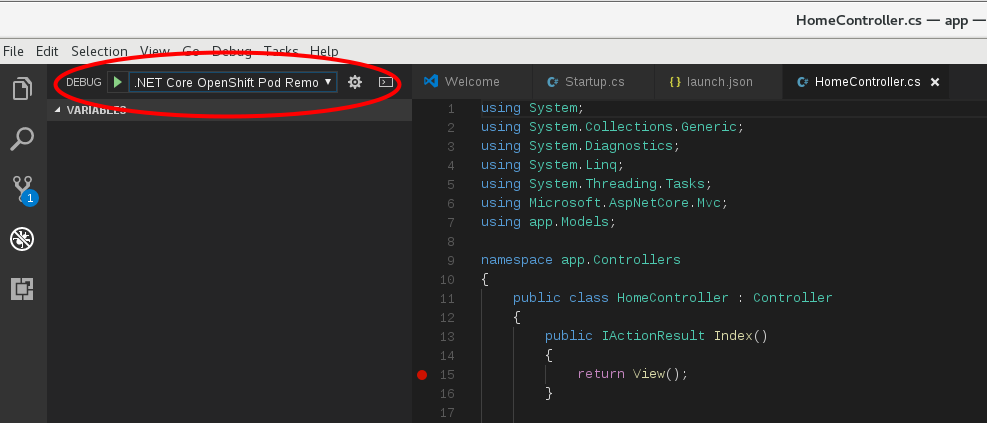
    remote debug

    Let's put in a breakpoint. Contoller/HomeContoller.cs is easy to test.
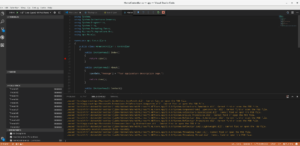
    breakpoint

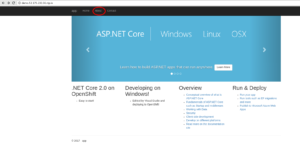
    When you're accessing the about page,
    the debugger stops at the beak point.
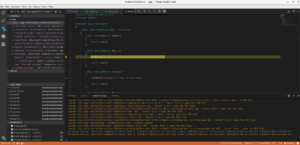
    You can see the local variables and stack trace, set endpoint and so on. Let's enjoy remote debugging!

    Last updated: September 3, 2019

    Recent Posts

    • A day in the life of an NVIDIA H100 on Red Hat OpenShift 5

    • Migrate BuildConfigs to builds for Red Hat OpenShift with one plug-in install

    • Run Red Hat Enterprise Linux CoreOS on NVIDIA BlueField DPUs

    • Agent harness engineering: Separating model capabilities from enforcement

    • What's new for developers in Red Hat Enterprise Linux 10.3 and 9.9

    Red Hat Developers logo

    Platforms

    • Red Hat AI
    • Red Hat Enterprise Linux
    • Red Hat OpenShift
    • Red Hat Ansible Automation Platform
    • See all products

    Build

    • Developer Sandbox
    • Developer tools
    • Interactive tutorials
    • API catalog

    Quicklinks

    • Learning resources
    • E-books
    • Cheat sheets
    • Blog
    • Events
    • Newsletter

    Communicate

    • About us
    • Contact sales
    • Find a partner
    • Report a website issue
    • Site status dashboard
    • Report a security problem

    Red Hat Developer

    Build here. Go anywhere.

    We serve the builders. The problem solvers who create careers with code.

    Join us if you’re a developer, software engineer, web designer, front-end designer, UX designer, computer scientist, architect, tester, product manager, project manager or team lead.

    Sign me up

    Red Hat legal and privacy links

    • About Red Hat
    • Jobs
    • Events
    • Locations
    • Contact Red Hat
    • Red Hat Blog
    • Inclusion at Red Hat
    • Cool Stuff Store
    • Red Hat Summit
    © 2026 Red Hat

    Red Hat legal and privacy links

    • Privacy statement
    • Terms of use
    • All policies and guidelines
    • Digital accessibility
    Ask AI