AI
  • Get started with AI

    • Red Hat AI

      Accelerate the development and deployment of enterprise AI solutions.

    • AI learning hub

      Explore learning materials and tools, organized by task.

    • AI interactive demos

      Click through scenarios with Red Hat AI, including training LLMs and more.

    • AI/ML learning paths

      Expand your Red Hat OpenShift AI knowledge using these learning resources.

    • AI quickstarts

      Focused AI use cases designed for fast deployment on Red Hat AI platforms.

    • No-cost AI training

      Foundational Red Hat AI training.

  • Featured resources

    • Red Hat OpenShift AI
    • Open source AI for developers
    • AI product application development
    • Open source-powered AI/ML for hybrid cloud
    • AI and Node.js cheat sheet

Red Hat AI Factory with NVIDIA

Red Hat AI Factory with NVIDIA is a co-engineered, enterprise-grade AI solution for building, deploying, and managing AI at scale across hybrid cloud environments.

Learn
  • Self-guided

    • Documentation

      Find answers, get step-by-step guidance, and learn how to use Red Hat products.

    • Learning paths

      Explore curated walkthroughs for common development tasks.

    • Guided learning

      Receive custom learning paths powered by our AI assistant.

    • See all learning
  • Hands-on

    • Developer Sandbox

      Spin up Red Hat's products and technologies without setup or configuration.

    • Interactive labs

      Learn by doing in these hands-on, browser-based experiences.

    • Interactive demos

      Click through product features in these guided tours.

  • Browse by topic

    • AI/ML
    • Automation
    • Java
    • Kubernetes
    • Linux
    • See all topics
  • Training & certifications

    • Courses and exams
    • Certifications
    • Skills assessments
    • Red Hat Academy
    • Learning subscription
    • Explore training
Build
  • Get started

    • Red Hat build of Podman Desktop

      A downloadable, local development hub to experiment with our products and builds.

    • Developer Sandbox

      Spin up Red Hat's products and technologies without setup or configuration.

  • Download products

    • Red Hat Enterprise Linux
    • Red Hat AI
    • Red Hat OpenShift
    • Red Hat Ansible Automation Platform
    • See all products
  • Featured

    • Red Hat build of OpenJDK
    • Red Hat JBoss Enterprise Application Platform
    • Red Hat OpenShift Dev Spaces
    • Red Hat Developer Toolset
  • References

    • E-books
    • Documentation
    • Cheat sheets
    • Architecture center
Community
  • Get involved

    • Events
    • Live AI events
    • Red Hat Summit
    • Red Hat Accelerators
    • Community discussions
  • Follow along

    • Articles & blogs
    • Developer newsletter
    • Videos
    • Github
  • Get help

    • Customer service
    • Customer support
    • Regional contacts
    • Find a partner

Join the Red Hat Developer program

Download Red Hat products and project builds, access support documentation, learning content, and more.

ConsoleDocsSupport Search
New For you

Recommended

We'll recommend resources you may like as you browse. Try these suggestions for now.

  • Product downloads
  • Cheat sheets
  • Red Hat Developer learning portal
  • Developer blog
  • E-books
  • Developer Sandbox
Log in

Get more with a Red Hat Developer account

  • Product downloads
  • Console access
  • Event registration
  • Training & trials
Explore more account benefitsLog in or register

A subscription may be required for some services.

Contact us

Getting started with the updated VS Code Yeoman extension for Camel projects

March 21, 2019
Brian Fitzpatrick
Related topics:
IDEs
Related products:
Red Hat Fuse

    The Visual Studio (VS) Code IDE is one of the most-used platforms for JavaScript, C#, and Python developers and is quickly becoming one of the top three tooling environments at Red Hat. VS Code is highly customizable and offers a healthy and growing marketplace for extensions of all types and technologies, including an extension for Yeoman. In this article, I'll explain how to get started using the updated extension that works with latest versions of VS Code.

    Yeoman, as you might remember from my previous article (Jump start Camel projects with the new Yeoman-based project generator), describes itself as “…a generic scaffolding system allowing the creation of any kind of app. It allows for rapidly getting started on new projects and streamlines the maintenance of existing projects.” In an agnostic way, Yeoman lets users piece together entire projects or just parts.

    We have used Yeoman not only for creating our own Camel project generator but also for scaffolding new VS Code extensions. Red Hat and Apache Camel developers have created quite a few extensions recently, including the Language Support for Java(™) by Red Hat, the Project Initializer by Red Hat, and Language Support for Apache Camel.

    Unfortunately, the existing VS Code extension for Yeoman has not been updated since mid-2017 and stopped working properly with the latest IDE sometime in 2018. To remedy that situation, we decided to create a fork and update it. The new VS Code Yeoman project is just in the beginning stages, but it already includes the fix so that it now works in the latest versions of VS Code.

    Requirements

    Using the VS Code Yeoman extension requires a few items to already be present and installed on the system, including Node.js, NPM, and Yeoman. The VS Code documentation offers great pointers for ensuring that these are set up in your VS Code instance (see “Additional Components” in the SETUP guide).

    Yeoman has its own marketplace of generators from which to choose, including our own Camel project generator. For details about installing and running the Camel-project generator, again see the “Jump start Camel projects with the new yeoman-based project generator” article.

    Installing the VS Code Yeoman extension

    We have published a preview version of the updated VS Code Yeoman extension in the VS Code Marketplace and you can find it listed here.

    To install the extension in your VS Code instance, bring up the Extensions view by clicking on the Extensions icon in the Activity Bar on the side of VS Code or the View: Extensions command (Ctrl+Shift+X). In the marketplace text box, type yo, then look for the yo extension published by Camel Tooling (version 0.9.5 at this time) and click its Install button. When the installation is complete, reload your workbench, and the tool will be ready to use!

    Using the Yeoman extension

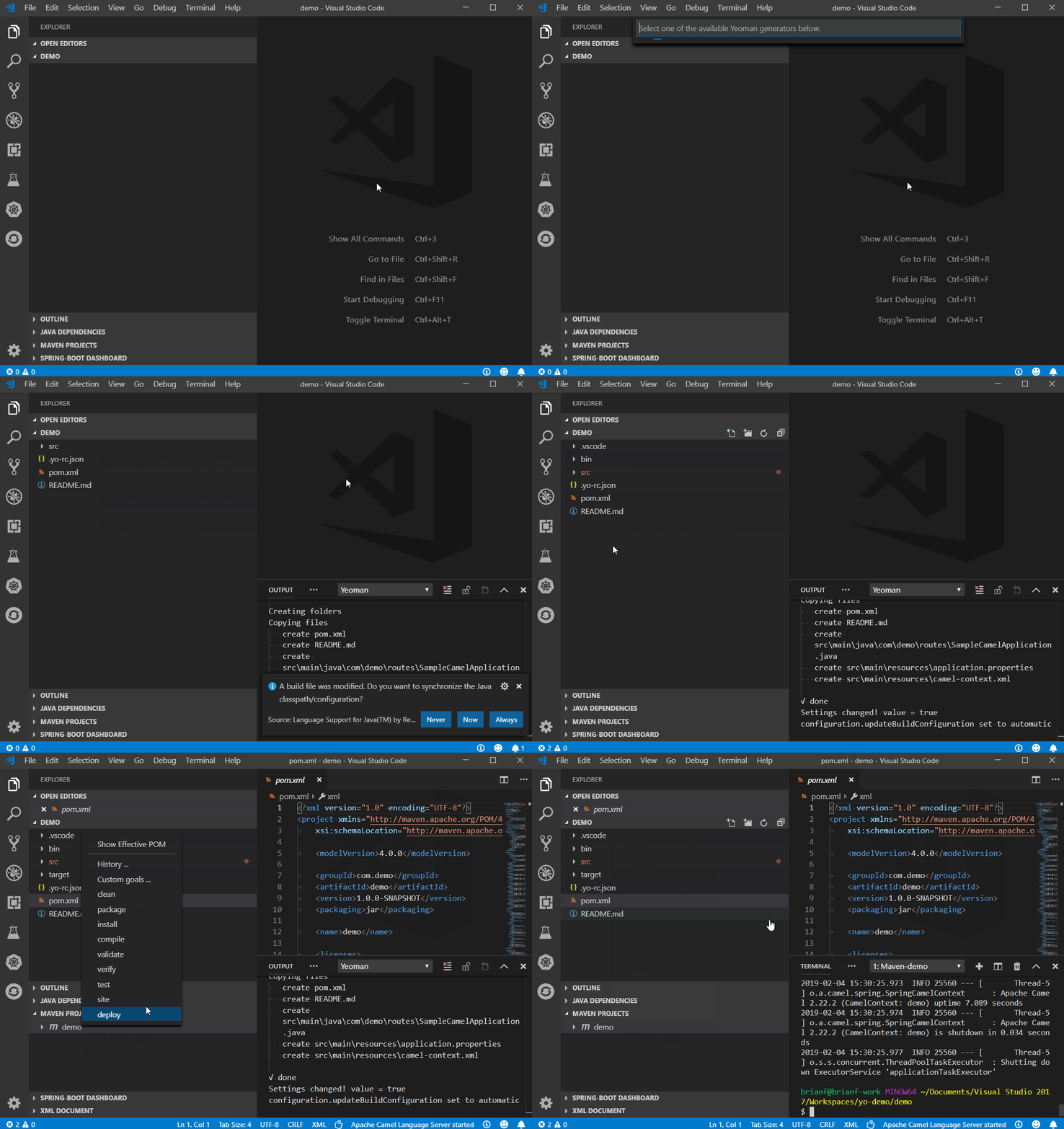
    Inside VS Code, press Ctrl+Shift+P to bring up the Command Palette and type yeoman. When you hit Enter, you will be presented with a list of Yeoman generators that are installed and available for use. Once you select a generator, answer each question as it prompts to complete the process.

    For example, to use the camel-project generator:

    1. Create a directory for your new Camel project.
    2. Open VS Code and open the directory (File->Open Folder).
    3. Press Ctrl+Shift+P to open the Command Palette and type yeoman.
    4. Select the camel-project generator (mouse click may be required).
    5. Follow the prompts. Enter text to override the default values and press Enter.
      • Project Name (defaults to the name of the directory)
      • Camel version (defaults to 2.22.2)
      • Camel DSL (type spring-boot)
      • Package name (defaults to “com.” + name of directory, but you may need to change it to be a valid Java-style package name)

    When you are done, your directory will be populated with all necessary project files for a Mavenized Camel Spring Boot project that launches a simple timer.

    You can open a terminal window and type mvn install spring-boot:run to run the project locally. Or you can install the “Maven for Java” extension to execute a maven command through the Maven Projects sidebar:

    • With the Maven for Java extension installed and populated (it should build the project once the Camel generator completes creating the artifacts), right-click on the root project POM and select Custom Goals.
    • Type spring-boot:run and press Enter.

    Your new Camel project should run in a new terminal window and eventually show log messages with a timer running at regular intervals.

    Below is an example of the whole process:
    Future

    This was an interesting project to dive into, and I hope to work on it further. Going forward, we would like to improve the Yeoman extension in several places, including offering better prompts for the Camel project generator (and others) as a drop-down list, improving validation in the Command Palette input box, and potentially installing new Yeoman generators directly. However, getting a working extension is the first step!

    For more information about the VS Code Yeoman extension itself, check out the GitHub project page.

    For more information about the Camel project generator, check out the NPMJS page.

    Also see the Red Hat Fuse page.

    Last updated: March 22, 2019

    Recent Posts

    • A day in the life of an NVIDIA H100 on Red Hat OpenShift 5

    • Migrate BuildConfigs to builds for Red Hat OpenShift with one plug-in install

    • Run Red Hat Enterprise Linux CoreOS on NVIDIA BlueField DPUs

    • Agent harness engineering: Separating model capabilities from enforcement

    • What's new for developers in Red Hat Enterprise Linux 10.3 and 9.9

    Red Hat Developers logo

    Platforms

    • Red Hat AI
    • Red Hat Enterprise Linux
    • Red Hat OpenShift
    • Red Hat Ansible Automation Platform
    • See all products

    Build

    • Developer Sandbox
    • Developer tools
    • Interactive tutorials
    • API catalog

    Quicklinks

    • Learning resources
    • E-books
    • Cheat sheets
    • Blog
    • Events
    • Newsletter

    Communicate

    • About us
    • Contact sales
    • Find a partner
    • Report a website issue
    • Site status dashboard
    • Report a security problem

    Red Hat Developer

    Build here. Go anywhere.

    We serve the builders. The problem solvers who create careers with code.

    Join us if you’re a developer, software engineer, web designer, front-end designer, UX designer, computer scientist, architect, tester, product manager, project manager or team lead.

    Sign me up

    Red Hat legal and privacy links

    • About Red Hat
    • Jobs
    • Events
    • Locations
    • Contact Red Hat
    • Red Hat Blog
    • Inclusion at Red Hat
    • Cool Stuff Store
    • Red Hat Summit
    © 2026 Red Hat

    Red Hat legal and privacy links

    • Privacy statement
    • Terms of use
    • All policies and guidelines
    • Digital accessibility
    Ask AI